Skip to content

TechDirectArchive

Hands-on IT, Cloud, Security & DevOps Insights

  • Home
  • About
  • Advertise With US
  • Contact
  • Reviews
  • Toggle search form
Home » Windows » Configure GPS location “Google Map” on your Android Studio Emulator
  • image 77
    How to use the DigiCert certificate utility for Windows to create a CSR Windows
  • What Happens if You Turn Off Your Computer During windows update
    What Happens if You Turn Off Your Computer During an Update Windows
  • Manually resize your partition
    KB5034439 Windows Update Error: Resize WinRE Partition Windows Server
  • Computer policy could not be updated
    How to fix Computer Policy could not be updated successfully Windows
  • windows admin center banner 825x400 1
    How to install or update and uninstall extensions in Windows Admin Center Windows Server
  • How to configure Cisco switches A step by step guide
    How to configure a console port password on Cisco Router Network | Monitoring
  • Screenshot 2020 06 25 at 23.38.40
    What is Registry Editor and how to access the registry hives Windows
  • Ewfvt
    How to prevent a remote shutdown and restart in Windows Windows

Configure GPS location “Google Map” on your Android Studio Emulator

Posted on 22/02/202212/10/2023 Temitope Odemo By Temitope Odemo 1 Comment on Configure GPS location “Google Map” on your Android Studio Emulator
image-43

What is a GPS? Stands for “Global Positioning System.” GPS is a satellite navigation system used to determine the ground position of an object.  In this article, we shall discuss how to configure GPS location “Google Map” on your Android Studio Emulator. Please see how to Map a Network Drive: How to mount a Network Drive, and How to create a Mapped Drive via GPO Preferences. Android Studio Emulator is used to simulate Android devices on your computer for testing purposes without the need for a physical phone device with the emulator coming with predefined configurations for various Android phones and tablets.

Have you ever experienced the awkward moment when your Android Studio Emulator is capturing the wrong GPS location?

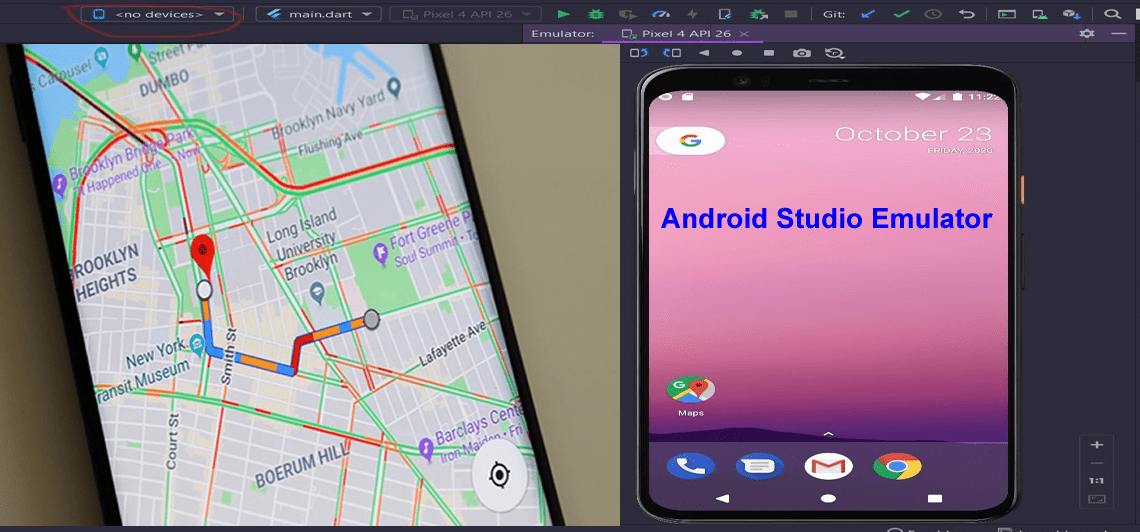
The image I am sharing below shows an Android Studio Emulator. Which is supposed to have a Lagos Nigeria address displaying a location outside of Nigeria.

Configure GPS location “Google Map”

First, run your Android Emulator and click on the three dots on the menus beside. If you want to read more guides on Android please read these: How to link your Android or iPhone to your Windows 10 PC, How to unlink your Android or iPhone from Windows 10

image-44
Android Studio Emulator

On the left pane, select Location and change the coordinates according to your location. Press the Send button, changes will immediately take effect.

You can use Google Maps to get your current coordinates both longitude and latitude and input them inside here.

image-45
Location coordinates

If the coordinates are not displaying like the image above. Then the image below applies. Make sure the Enable GPS signal button is ON and you can just input your current address into the box and hit Enter.

Also see Microsoft Phone Link: Connect Android to Windows 11, and Apache JMeter Load Testing: Test Mobile Apps on Windows.

Set the Location

When the Address is shown on the map. You can click on the SAVE POINT button. You can click the SET LOCATION button to set the location to your current position.
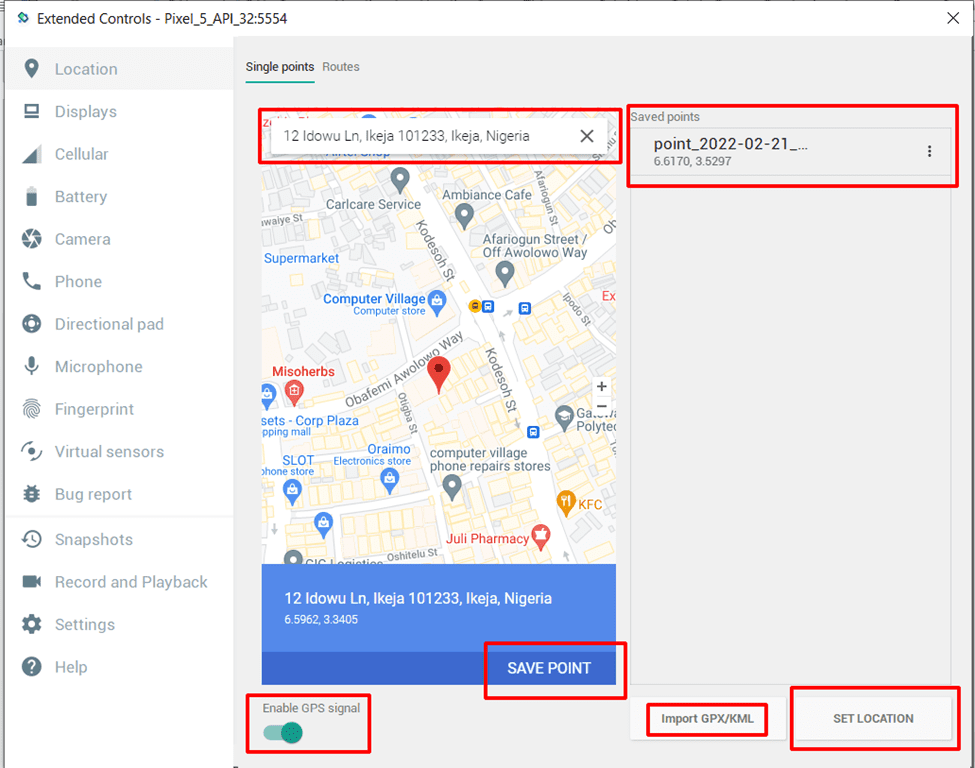
image-46
Location

If you do not want to use the above steps. You can use the GPX file to make different locations come to your application in real-time. This file is very easy to create by following the below steps:

  1. Go to Google Maps and enter your location and your destination.
  2. After the route is created. You can copy the link from the browser and go to https://mapstogpx.com and paste it there.
  3. Go ahead and click LET’S GO and the GPX file will be downloaded.
  4. Now use the Import GPX/KML button to import the file into your emulator and choose the speed. The locations will be sent to your emulator in real time.

I hope you found this blog post on how to configure GPS location ”Google Map” on your Android Studio Emulator very interesting and helpful. In case you have any questions do not hesitate to ask in the comment section.

Rate this post

Thank you for reading this post. Kindly share it with others.

  • Share on X (Opens in new window) X
  • Share on Reddit (Opens in new window) Reddit
  • Share on LinkedIn (Opens in new window) LinkedIn
  • Share on Facebook (Opens in new window) Facebook
  • Share on Pinterest (Opens in new window) Pinterest
  • Share on Tumblr (Opens in new window) Tumblr
  • Share on Telegram (Opens in new window) Telegram
  • Share on WhatsApp (Opens in new window) WhatsApp
  • Share on Pocket (Opens in new window) Pocket
  • Share on Mastodon (Opens in new window) Mastodon
  • Share on Bluesky (Opens in new window) Bluesky
  • Share on Threads (Opens in new window) Threads
  • Share on Nextdoor (Opens in new window) Nextdoor
Windows Tags:Google

Post navigation

Previous Post: INACCESSIBLE BOOT DEVICE: Fix Your PC ran into a problem and needs to restart
Next Post: Veeam Certified Architect: VMCA Training & Certification Review

Related Posts

  • scroll
    How to Take a Scrolling Screenshot on Windows 11 Windows
  • Windows11
    How to change Regional Settings for all users on Windows 11 Windows
  • Featured image 9
    Create and Delete Registry Keys via PowerShell in Windows Scripts
  • Microsoft Defender
    Attack Surface Reduction Configuration with Microsoft Defender Scripts
  • powershell commands lede 1024x276 1
    PowerShell Remoting: Guide to Windows Management Instrumentation Scripts
  • Laptop battery performance report
    Windows Battery Report: Track down a malfunctioning laptop battery Windows

More Related Articles

scroll How to Take a Scrolling Screenshot on Windows 11 Windows
Windows11 How to change Regional Settings for all users on Windows 11 Windows
Featured image 9 Create and Delete Registry Keys via PowerShell in Windows Scripts
Microsoft Defender Attack Surface Reduction Configuration with Microsoft Defender Scripts
powershell commands lede 1024x276 1 PowerShell Remoting: Guide to Windows Management Instrumentation Scripts
Laptop battery performance report Windows Battery Report: Track down a malfunctioning laptop battery Windows

Comment (1) on “Configure GPS location “Google Map” on your Android Studio Emulator”

  1. Avatar photo Stellar says:
    14/03/2022 at 8:05 AM

    You can download Google maps with any versions from Apkfun.com for your android phones easily.

    Log in to Reply

Leave a Reply Cancel reply

You must be logged in to post a comment.

Microsoft MVP

VEEAMLEGEND

vexpert-badge-stars-5

Virtual Background

GoogleNews

Categories

veeaam100

sysadmin top30a

  • image 77
    How to use the DigiCert certificate utility for Windows to create a CSR Windows
  • What Happens if You Turn Off Your Computer During windows update
    What Happens if You Turn Off Your Computer During an Update Windows
  • Manually resize your partition
    KB5034439 Windows Update Error: Resize WinRE Partition Windows Server
  • Computer policy could not be updated
    How to fix Computer Policy could not be updated successfully Windows
  • windows admin center banner 825x400 1
    How to install or update and uninstall extensions in Windows Admin Center Windows Server
  • How to configure Cisco switches A step by step guide
    How to configure a console port password on Cisco Router Network | Monitoring
  • Screenshot 2020 06 25 at 23.38.40
    What is Registry Editor and how to access the registry hives Windows
  • Ewfvt
    How to prevent a remote shutdown and restart in Windows Windows

Subscribe to Blog via Email

Enter your email address to subscribe to this blog and receive notifications of new posts by email.

Join 1,836 other subscribers
  • RSS - Posts
  • RSS - Comments
  • About
  • Authors
  • Write for us
  • Advertise with us
  • General Terms and Conditions
  • Privacy policy
  • Feedly
  • Telegram
  • Youtube
  • Facebook
  • Instagram
  • LinkedIn
  • Tumblr
  • Pinterest
  • Twitter
  • mastodon

Tags

AWS Azure Bitlocker Microsoft Windows PowerShell WDS Windows 10 Windows 11 Windows Deployment Services Windows Server 2016

Copyright © 2025 TechDirectArchive


Loading Comments...
 

You must be logged in to post a comment.