Skip to content

TechDirectArchive

Hands-on IT, Cloud, Security & DevOps Insights

  • Home
  • About
  • Advertise With US
  • Reviews
  • Contact
  • Toggle search form
Home » Linux » How to install Gradle on Ubuntu
  • Screenshot 2020 05 14 at 17.47.09
    SSH access on Ubuntu server: Easy Guide Linux
  • azure file share feature image
    Deploy Legacy App to Azure Fileshare AWS/Azure/OpenShift
  • wacxx
    Test Network Connection to Windows Admin Center Gateway Scripts
  • Manage OU
    Delete or Rename and Create a Protected Organisation Unit in AD Windows Server
  • ccsC
    NTuser.dat file: How to correctly load Windows Registry Hive Windows
  • Fix OneDrive Error
    How to Fix OneDrive Error 0x80071129: The tag present in the reparse point buffer is invalid Windows
  • How to Fix Microsoft Edge Not Responding on Windows 11
    How to Fix Microsoft Edge Not Responding on Windows 11 Network | Monitoring
  • Fix invalid backup repostory and delete not needed repo via Veeam Backup Repository
    Fix missing path and delete a Veeam Backup Repository Backup

How to install Gradle on Ubuntu

Posted on 28/03/202201/07/2023 Raphael Gab-Momoh By Raphael Gab-Momoh No Comments on How to install Gradle on Ubuntu
How to install GRADLE-FEATURE

Let’s first explain Gradle before we discuss how to install it on Ubuntu. Gradle is a build tool that is well-known for its versatility in software development, especially with regard to automation. The process of making applications is automated using a build automation tool. Compiling, linking, and packaging the code are all part of the application production process. With the help of build automation technologies, the process becomes more uniform. Furthermore, Gradle is well-known for its ability to create automation in Java, Scala, Android, C/C++, and Groovy. Over XML, the program offers groovy-based Domain Specific Language.

You can find other related articles here: How to Install & Configure Microsoft Teams on Ubuntu/, How to Install Apache OpenOffice on Ubuntu /, How to install PostgreSQL on Ubuntu/, How to install and configure Tripwire on Ubuntu/, How to install Node.js on Ubuntu.

Gradle allows you to build, test, and distribute applications across several platforms. You can use Gradle builds to specify a project’s tasks and dependencies. The project’s root folder contains at least one Gradle build file. Additionally, a task represents the work that a Gradle build must complete, such as assembling the program’s source code. Users can run multiple tasks at the same time in a single build file. At runtime, you can dynamically create and extend these tasks.

This article will show you what Gradle is all about and how to install it on Ubuntu /Debian-based machines.

Benefits of Installing Gradle on Ubuntu

  • Gradle eliminates all of the problems that other build tools, such as Maven and ANT, have.
  • Maintainability, usability, extendibility, performance, and flexibility are all priorities for the tool.
  • When it comes to different projects involving multiple technologies, it is well-known for being very customizable. Gradle can be used in a variety of ways, including Java, Android, and Groovy projects.
  • Gradle is well-known for its high-speed performance, which is double that of Maven.
  • The tools cover a wide variety of IDEs, which improves the user experience because different people prefer different IDEs to work with. It gives a command-line interface to users that prefer to work on the terminal, with capabilities such as Gradle tasks, command-line completion, and so on.

Requirements for Installing Gradle on Ubuntu

A computer with sudo privileges

Step1: Update your system

apt update 

Step2: Installing OpenJDK

Java SE 8 or later must be installed on the computer for Gradle to work.

sudo apt install openjdk-11-jdk

verify the installation with the command

java --version

Output is shown below:

openjdk 11.0.14 2022-01-18
OpenJDK Runtime Environment (build 11.0.14+9-Ubuntu-0ubuntu2.20.04)
OpenJDK 64-Bit Server VM (build 11.0.14+9-Ubuntu-0ubuntu2.20.04, mixed mode, sharing)

Step3:  Download Gradle distribution

Please download the latest Gradle distribution using the wget command, download the Gradle binary-only zip file to the /tmp directory:

wget https://downloads.gradle-dn.com/distributions/gradle-7.0.2-bin.zip

Then, after downloading the archive, extract it and save it to the appropriate area. In general, I kept my applications in the /usr/local directory. You can use a different directory, such as /opt.

unzip gradle-7.0.2-bin.zip
mv gradle-7.0.2 /usr/local/gradle
how to install gradle on ubuntu -unzipgradle
how to install gradle on ubuntu-mvgradle

Your system has been set up with Gradle.

Step4: Setup Environment Variable

The next step is to configure Gradle with the PATH environment variable. Make sure you set the variable after you reboot the machine.

To set the PATH variable on reboot, place a shell script in the profile.d directory. Make a file that looks like this:

vim /etc/profile.d/gradle.sh

save the file with the following line added to it

export PATH=/usr/local/gradle/bin:$PATH

Save and close the file. Now you may use the script to apply the current shell’s environment.

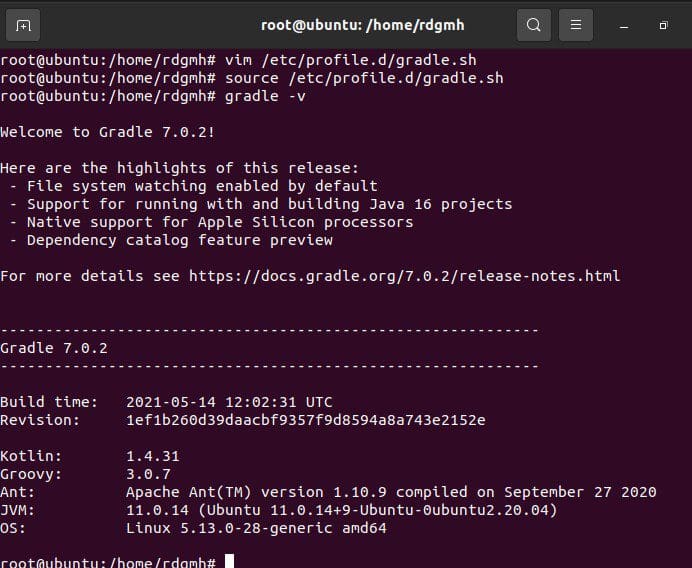
source /etc/profile.d/gradle.sh

And you’ve successfully installed Gradle on your Ubuntu machine.

Step 5: Test Gradle Setup

Congratulations, you’ve successfully configured Gradle on your system. Moreover, to create your apps, you can utilize the Gradle tool. Let’s have a look at your system’s installed version.

Output
ubuntu

Step6: Uninstall Gradle on Ubuntu (If need be)

Gradle was installed through binary package, therefore all we have to do now is delete the packages using the rm -rf /usr/local/gradle/gradle-7.0.2/ command, that is in the code block below:

 rm -rf /usr/local/gradle/gradle-7.0.2/

Then, as shown below, remove the gradle.sh script with the rm -rf /etc/profile.d/gradle.sh command. This will delete the Gradle package from computer completely.

rm -rf /etc/profile.d/gradle.sh

Summary

We have successfully installed Gradle in Ubuntu 20.04 and these steps can work for any other version of Ubuntu as well. We have also shown you how to remove Gradle from your computer.

Rate this post

Thank you for reading this post. Kindly share it with others.

  • Click to share on X (Opens in new window) X
  • Click to share on Reddit (Opens in new window) Reddit
  • Click to share on LinkedIn (Opens in new window) LinkedIn
  • Click to share on Facebook (Opens in new window) Facebook
  • Click to share on Pinterest (Opens in new window) Pinterest
  • Click to share on Tumblr (Opens in new window) Tumblr
  • Click to share on Telegram (Opens in new window) Telegram
  • Click to share on WhatsApp (Opens in new window) WhatsApp
  • Click to share on Pocket (Opens in new window) Pocket
  • Click to share on Mastodon (Opens in new window) Mastodon
  • Click to share on Bluesky (Opens in new window) Bluesky
  • Click to share on Threads (Opens in new window) Threads
  • Click to share on Nextdoor (Opens in new window) Nextdoor
Linux Tags:Ubuntu, Ubuntu 20.04 LTS

Post navigation

Previous Post: How to install and configure Microsoft Teams on Ubuntu
Next Post: CVE-2022-22948: Patch available to address vCenter Server information disclosure vulnerability 

Related Posts

  • cockpit
    Installation and configuration of Cockpit on CentOS Linux Linux
  • image 129
    Using Awx to deploy, schedule and run playbooks Linux
  • HAProxy
    Deploying a load balancer from scratch and adding backend servers Linux
  • zabbix
    Monitoring services using Zabbix Linux
  • MV command in Linux
    Rename or Move Files or Directories in Linux with Bash Terminal Linux
  • Package1
    Install Synaptic Package Manager: Handle packages in Ubuntu Linux

More Related Articles

cockpit Installation and configuration of Cockpit on CentOS Linux Linux
image 129 Using Awx to deploy, schedule and run playbooks Linux
HAProxy Deploying a load balancer from scratch and adding backend servers Linux
zabbix Monitoring services using Zabbix Linux
MV command in Linux Rename or Move Files or Directories in Linux with Bash Terminal Linux
Package1 Install Synaptic Package Manager: Handle packages in Ubuntu Linux

Leave a Reply Cancel reply

You must be logged in to post a comment.

Microsoft MVP

VEEAMLEGEND

vexpert-badge-stars-5

Virtual Background

GoogleNews

Categories

veeaam100

sysadmin top30a

  • Screenshot 2020 05 14 at 17.47.09
    SSH access on Ubuntu server: Easy Guide Linux
  • azure file share feature image
    Deploy Legacy App to Azure Fileshare AWS/Azure/OpenShift
  • wacxx
    Test Network Connection to Windows Admin Center Gateway Scripts
  • Manage OU
    Delete or Rename and Create a Protected Organisation Unit in AD Windows Server
  • ccsC
    NTuser.dat file: How to correctly load Windows Registry Hive Windows
  • Fix OneDrive Error
    How to Fix OneDrive Error 0x80071129: The tag present in the reparse point buffer is invalid Windows
  • How to Fix Microsoft Edge Not Responding on Windows 11
    How to Fix Microsoft Edge Not Responding on Windows 11 Network | Monitoring
  • Fix invalid backup repostory and delete not needed repo via Veeam Backup Repository
    Fix missing path and delete a Veeam Backup Repository Backup

Subscribe to Blog via Email

Enter your email address to subscribe to this blog and receive notifications of new posts by email.

Join 1,839 other subscribers
  • RSS - Posts
  • RSS - Comments
  • About
  • Authors
  • Write for us
  • Advertise with us
  • General Terms and Conditions
  • Privacy policy
  • Feedly
  • Telegram
  • Youtube
  • Facebook
  • Instagram
  • LinkedIn
  • Tumblr
  • Pinterest
  • Twitter
  • mastodon

Tags

AWS Azure Bitlocker Microsoft Windows PowerShell WDS Windows 10 Windows 11 Windows Deployment Services Windows Server 2016

Copyright © 2025 TechDirectArchive


Loading Comments...
 

You must be logged in to post a comment.