

Skip to content

TechDirectArchive

Hands-on IT, Cloud, Security & DevOps Insights

  • Home
  • About
  • Advertise With US
  • Reviews
  • Contact
  • Toggle search form
Home » AWS/Azure/OpenShift » How to trigger SQS from a Lambda Function in the same account
  • Screenshot 2020 07 28 at 15.34.51
    Nslookup unknown: Fix cannot find non-existent domain Windows Server
  • PIN9 1
    How to increase Windows PIN complexity Windows
  • PSD
    PowerShell Deployment Extension for MDT: How to deploy Windows using PSD, Microsoft Deployment Toolkit, and Windows Deployment Services Windows Server
  • fast user switching in windows 10 1
    Fast user switching: How to create a desktop shortcut in Windows 10 to switch User Accounts Windows
  • cisco ASA
    Common Cisco ASA Commands Network | Monitoring
  • How to Decrypt Files and Folders Encrypted with EFS in Windows 10
    How to decrypt Files and Folders Encrypted with an Encryption File System (EFS) in Windows Windows
  • Windows Admin Center v2   2401 install   2306 to 2311 upgrade
    Upgrade Windows Admin Center 2306 – 2311: Install WACmg 2410 Network | Monitoring
  • Perform Site Maintenance or reset this site greyed out
    Fix “Perform Site Maintenance or reset this site” greyed out Windows Server

How to trigger SQS from a Lambda Function in the same account

Posted on 06/04/202204/06/2023 Christian By Christian No Comments on How to trigger SQS from a Lambda Function in the same account
front

AWS Lambda is a serverless, event-driven computing platform provided by Amazon Web Services (AWS). The Lambda service allows its users to create functions, and write self-contained applications in any of the supported languages and runtimes. These functions are then uploaded to the AWS Lambda console which then executes these functions in the most efficient and flexible manner. AWS Lambda reduces the developer’s time in setting up the infrastructure and servers needed for the application. Kindly refer to these related guides: How to sync S3 Bucket with an EC2 instance, How to grant public access to S3 Bucket using Policy, and How to redirect requests for your bucket’s website endpoint to another bucket or domain. in this article, you will learn how to trigger SQS from a Lambda Function in the same account.

On the other hand, Amazon Simple Queue Service (SQS) is a fully managed message queuing service provided by AWS to scale microservices, distributed systems, and serverless applications. It allows professionals and developers to send, store, receive and retrieve multiple messages asynchronously and securely without any other services.

Both AWS Lambda and SQS seamlessly integrate with several other services to form different kinds of architectures. In this article, we will look at how we can trigger AWS Lambda from the SQS queue.

Creating a Lambda Function

– Sign in to the AWS Management Console.
– Navigate to the AWS Lambda Dashboard. Click on Create Function button at the top right corner of the screen.

Capture

Choose the Author from scratch option and enter the same values as the screenshot below.

2
Lambda Creation 1

In the Permissions section. Choose the “Create a new role from AWS policy templates” option and choose the SQS poller permissions as shown below.

3

Finally, click on create function button at the bottom of the screen. Replace the default function code with the following code.

import json

def lambda_handler(event, context):

  print(event)
  # do some processing here 
  response = {
      "statusCode": 200,
      "body": json.dumps(event)
  }

  return response

Remember to click on the deploy button to save this code change. You have now successfully created a Lambda Function.

Creating the SQS queue

Navigate to the AWS SQS Dashboard and click on the Create queue button. Choose the Standard Queue option and add the name of your SQS queue.

4

Leave the rest of the queue settings as default and click on create queue button. You have now successfully created your SQS queue.

Adding SQS as a lambda trigger

Back in the AWS Lambda Dashboard. Go to your newly created Lambda function. At the top of the page, click on the Add trigger button.

image

In the trigger configuration, choose SQS as your trigger and then find your SQS queue in the next option. Leave the other values as default and click on the “Add” button.

image-1

You have now successfully configured SQS as a trigger for AWS Lambda. Let’s test this out.

Test the SQS Trigger

In the SQS console find your SQS queue and open it. Click on the Send and receive messages button at the top right of the page.

image-2

Enter the body of the SQS message and click on the “Send Message” button. You should get a prompt similar to the image below. You can change the body of the SQS queue or send the same message multiple times.
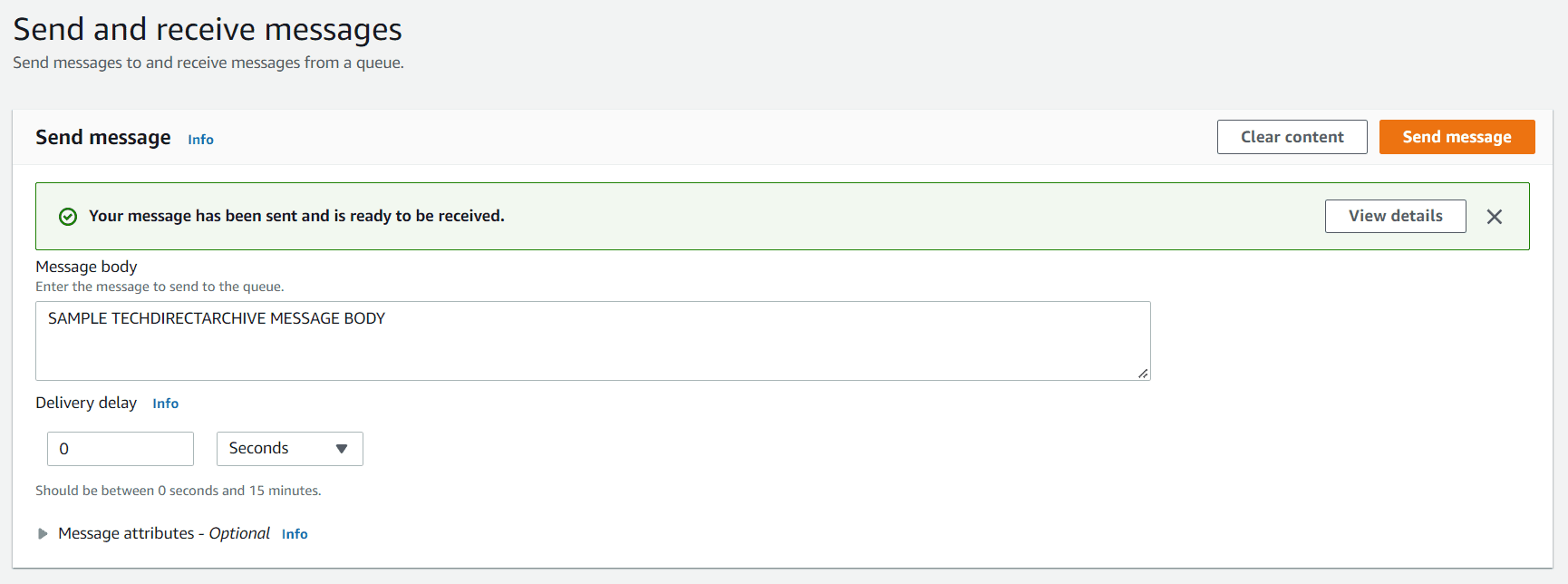
image-3

In the monitor tab of your Lambda function soon you can see new Lambda invocations. In the image below you can see 12 Lambda invocations that were started by my SQS messages. Note that once AWS Lambda successfully executes, the SQS message is automatically deleted from the queue. So, you will probably not be able to see your messages in SQS console because the lambda function will process them immediately.

image-4

With this, we have come to the end of this article. I hope you found the guide helpful on how to trigger SQS from a Lambda Function in the same account. If you have any questions, do let me know in the comment section.

Rate this post

Thank you for reading this post. Kindly share it with others.

  • Click to share on X (Opens in new window) X
  • Click to share on Reddit (Opens in new window) Reddit
  • Click to share on LinkedIn (Opens in new window) LinkedIn
  • Click to share on Facebook (Opens in new window) Facebook
  • Click to share on Pinterest (Opens in new window) Pinterest
  • Click to share on Tumblr (Opens in new window) Tumblr
  • Click to share on Telegram (Opens in new window) Telegram
  • Click to share on WhatsApp (Opens in new window) WhatsApp
  • Click to share on Pocket (Opens in new window) Pocket
  • Click to share on Mastodon (Opens in new window) Mastodon
  • Click to share on Bluesky (Opens in new window) Bluesky
  • Click to share on Threads (Opens in new window) Threads
  • Click to share on Nextdoor (Opens in new window) Nextdoor
AWS/Azure/OpenShift

Post navigation

Previous Post: How to sync S3 Bucket with an EC2 instance
Next Post: New Windows 11 encryption features and security enhancements for Hybrid Work

Related Posts

  • Delete AWS EBS Volume
    How to delete an Elastic Block Store Volume on AWS AWS/Azure/OpenShift
  • Azure Backup 1
    How to Install Azure Backup Agent AWS/Azure/OpenShift
  • image 54
    How to enable Amazon S3 default bucket encryption using S3 Console AWS/Azure/OpenShift
  • FEATUREDC
    How to create Confidential VMs in Azure AWS/Azure/OpenShift
  • image 26
    Add an EBS volume to AWS EC2 via the AWS Console and CLI AWS/Azure/OpenShift
  • Azure Storage 1
    Azure CLI: How To Upload Batch Files to Azure Storage Account AWS/Azure/OpenShift

More Related Articles

Delete AWS EBS Volume How to delete an Elastic Block Store Volume on AWS AWS/Azure/OpenShift
Azure Backup 1 How to Install Azure Backup Agent AWS/Azure/OpenShift
image 54 How to enable Amazon S3 default bucket encryption using S3 Console AWS/Azure/OpenShift
FEATUREDC How to create Confidential VMs in Azure AWS/Azure/OpenShift
image 26 Add an EBS volume to AWS EC2 via the AWS Console and CLI AWS/Azure/OpenShift
Azure Storage 1 Azure CLI: How To Upload Batch Files to Azure Storage Account AWS/Azure/OpenShift

Leave a Reply Cancel reply

You must be logged in to post a comment.

Microsoft MVP

VEEAMLEGEND

vexpert-badge-stars-5

Virtual Background

GoogleNews

Categories

veeaam100

sysadmin top30a

  • Screenshot 2020 07 28 at 15.34.51
    Nslookup unknown: Fix cannot find non-existent domain Windows Server
  • PIN9 1
    How to increase Windows PIN complexity Windows
  • PSD
    PowerShell Deployment Extension for MDT: How to deploy Windows using PSD, Microsoft Deployment Toolkit, and Windows Deployment Services Windows Server
  • fast user switching in windows 10 1
    Fast user switching: How to create a desktop shortcut in Windows 10 to switch User Accounts Windows
  • cisco ASA
    Common Cisco ASA Commands Network | Monitoring
  • How to Decrypt Files and Folders Encrypted with EFS in Windows 10
    How to decrypt Files and Folders Encrypted with an Encryption File System (EFS) in Windows Windows
  • Windows Admin Center v2   2401 install   2306 to 2311 upgrade
    Upgrade Windows Admin Center 2306 – 2311: Install WACmg 2410 Network | Monitoring
  • Perform Site Maintenance or reset this site greyed out
    Fix “Perform Site Maintenance or reset this site” greyed out Windows Server

Subscribe to Blog via Email

Enter your email address to subscribe to this blog and receive notifications of new posts by email.

Join 1,841 other subscribers
  • RSS - Posts
  • RSS - Comments
  • About
  • Authors
  • Write for us
  • Advertise with us
  • General Terms and Conditions
  • Privacy policy
  • Feedly
  • Telegram
  • Youtube
  • Facebook
  • Instagram
  • LinkedIn
  • Tumblr
  • Pinterest
  • Twitter
  • mastodon

Tags

AWS Azure Bitlocker Microsoft Windows PowerShell WDS Windows 10 Windows 11 Windows Deployment Services Windows Server 2016

Copyright © 2025 TechDirectArchive


Loading Comments...
 

You must be logged in to post a comment.