Skip to content

TechDirectArchive

Hands-on IT, Cloud, Security & DevOps Insights

  • Home
  • About
  • Advertise With US
  • Reviews
  • Contact
  • Toggle search form
Home » Mac » How to Offload Individual Apps on iPhone

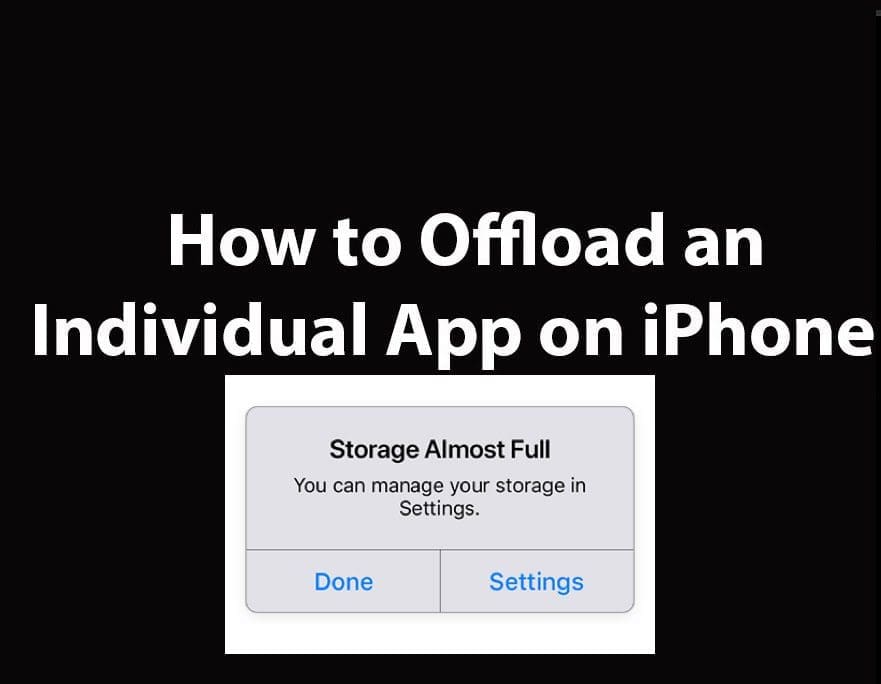
How to Offload Individual Apps on iPhone

Posted on 04/07/202229/09/2023 Christian By Christian No Comments on How to Offload Individual Apps on iPhone
offloadanapp

In my previous article, I discussed how to uninstall Apps automatically: How to automatically Offload Unused Apps on iPhone. In this piece, I will be discussing how to manually offload individual apps on iPhone. Offloading an app is different from deleting an app on an iPhone. The Offload Unused Apps feature frees up the storage used by the apps but keep the documents and data intact. It helps you avoid reconfiguring an app from scratch. The app’s icon and user data will remain on the iPhone. The icon will display a cloud with a downward arrow. When you want to use it again, tap the icon and download it again. Kindly refer to this interesting guide: How to install Windows Subsystem for Android (WSA) in Windows 11.

When you offload unused apps on your iPhone, the app is deleted, but the saved data from the app remains on your iPhone. But, If you don’t want to manually reduce the local storage to free some space, then Offload Unused Apps can work in the background to automatically recover space while keeping the app data backed up. Kindly refer to these related guides: How to remove a Bluetooth device and connect a new Bluetooth device to Macbook, and how to disable or enable FaceTime on Mac.

Why Should you offload Apps?

The Offload Unused Apps setting gives your iPhone control over which unused apps. I had a situation where an important App got offloaded and I missed a friend’s birthday. Because of this, I do not recommend enabling the automatic offload feature because you don’t want to lumber things up where you need to use a specific app, but your iPhone automatically offloaded it.

By manually offloading individual apps, you have complete control of your iPhone and your apps. This is why I have decided to describe these steps as well and this is the method I have employed.

Note: Manually offloading is optional as iOS automatically offloads unused apps when it’s low on storage (When enabled). Thus, to manually offload apps, go to Settings as shown below.

offload individual apps on iphone-IMG_7115

Under Settings, click on “General”.

offload individual apps on iphone-IMG_7120

Click on iPhone Storage

offload individual apps on iphone-IMG_7121

Select any apps you will love to manually offload. So, In my case, I will be manually offloading the Telegram App. Click on the App (in my case Telegram).

offload individual apps on iphone-IMG_7127

Click on Offload App. Hence, this will ensure the Telegram App is offloaded. If you wish to Uninstall or delete the App, just hit the Delete App button as shown above.

offload individual apps on iphone-IMG_7126

Even after offloading an app on your iPhone, the app’s icon will appear on your iPhone’s Home screen. You will be able to tell that the app is offloaded because there will be a small cloud icon below the app icon.

To reinstall an app you have offloaded, simply tap on the app on your Home screen. A circle will appear on the icon after you have tapped on the app and it will begin to reinstall.

reinstallaniPhineapp

You can also reinstall an offloaded app by going to Settings -> General -> iPhone Storage and tapping on the offloaded app. Then, tap Reinstall App.

reinstallApp

This sums up how to offload individual apps on iPhone. I hope you found this blog post helpful. Please let me know in the comment session if you have any questions.

Rate this post

Thank you for reading this post. Kindly share it with others.

  • Share on X (Opens in new window) X
  • Share on Reddit (Opens in new window) Reddit
  • Share on LinkedIn (Opens in new window) LinkedIn
  • Share on Facebook (Opens in new window) Facebook
  • Share on Pinterest (Opens in new window) Pinterest
  • Share on Tumblr (Opens in new window) Tumblr
  • Share on Telegram (Opens in new window) Telegram
  • Share on WhatsApp (Opens in new window) WhatsApp
  • Share on Mastodon (Opens in new window) Mastodon
  • Share on Bluesky (Opens in new window) Bluesky
  • Share on Threads (Opens in new window) Threads
  • Share on Nextdoor (Opens in new window) Nextdoor
Mac

Post navigation

Previous Post: How to Add or Remove Sites from Favorites list in Microsoft Edge
Next Post: How to Create a Password Policy with Group Policy Object

Related Posts

  • maxresdefault 2 7
    How to record your screen with PowerPoint and make slide shows Mac
  • Synergy software kvm
    Why Software KVMs such as Synergy is replacing Hardware KVMs Linux
  • image 10
    Change Visual Studio Code UI language JIRA|Confluence|Apps
  • zoom
    How to update Zoom Desktop Client on macOS Mac
  • ztre23fsas
    Grant or Deny Microphone Access on Mac Mac
  • Password Migration to ICloud Keychain
    How to import your Chrome or Firefox passwords into your iCloud Keychain Mac

More Related Articles

maxresdefault 2 7 How to record your screen with PowerPoint and make slide shows Mac
Synergy software kvm Why Software KVMs such as Synergy is replacing Hardware KVMs Linux
image 10 Change Visual Studio Code UI language JIRA|Confluence|Apps
zoom How to update Zoom Desktop Client on macOS Mac
ztre23fsas Grant or Deny Microphone Access on Mac Mac
Password Migration to ICloud Keychain How to import your Chrome or Firefox passwords into your iCloud Keychain Mac

Leave a Reply Cancel reply

You must be logged in to post a comment.

Microsoft MVP

VEEAMLEGEND

vexpert-badge-stars-5

Virtual Background

GoogleNews

Categories

veeaam100

sysadmin top30a

  • Stop teams from auto start
    Prevent Microsoft Teams from starting automatically on Windows Windows
  • Opswork blog 1440x800 1
    AWS Opsworks For Chef Automate Configuration Management Tool
  • Featured image
    Domain Naming System: Enabling DNS over TLS in Windows 11 Network | Monitoring
  • screenshot 2020 03 01 at 21.19.07
    Various ways to hide Windows Taskbar Windows
  • what is saml e1690630549650
    What is SAML – Security Assertion Markup Language Windows Server
  • Auto Update Upgrade issues
    Fix Microsoft Office Showing “Upgrade Required” in AutoUpdate JIRA|Confluence|Apps
  • uninstall gtla runner
    How to uninstall GitLab Runner from your Windows device Version Control System
  • Object First OOTBI   Best Storage Repo for Veeam
    Understanding User Roles & Access Control in Object First OOTBI Backup

Subscribe to Blog via Email

Enter your email address to subscribe to this blog and receive notifications of new posts by email.

Join 1,823 other subscribers
  • RSS - Posts
  • RSS - Comments
  • About
  • Authors
  • Write for us
  • Advertise with us
  • General Terms and Conditions
  • Privacy policy
  • Feedly
  • Telegram
  • Youtube
  • Facebook
  • Instagram
  • LinkedIn
  • Tumblr
  • Pinterest
  • Twitter
  • mastodon

Tags

AWS Azure Bitlocker Microsoft Windows PowerShell WDS Windows 10 Windows 11 Windows Deployment Services Windows Server 2016

Copyright © 2025 TechDirectArchive


Loading Comments...
 

You must be logged in to post a comment.