Skip to content

TechDirectArchive

Hands-on IT, Cloud, Security, Veeam & DevOps

  • Home
  • About
  • Advertise With US
  • Reviews
  • Contact
  • Toggle search form

Find and remove Malware with Microsoft Defender Offline

Posted on 06/07/202216/06/2025 Matthew By Matthew No Comments on Find and remove Malware with Microsoft Defender Offline
  1. Home
  2. Anti-Virus Solution
  3. Find and remove Malware with Microsoft Defender Offline
Featured-image-2

Microsoft Defender Antivirus protection feature helps to protect your machine and data from almost all types of malware and hackers. Although this is among the best antivirus software, it is not perfect, and carefully written dangerous programs can occasionally make their way into the system and quickly take control, causing permanent harm. In this guide, we shall discuss how to find and remove Malware with Microsoft Defender Offline. Please, see How to set up the OOTBI Virtual Appliance on Proxmox VE, and What you need to know about Microsoft Defender Antivirus.

For a more secure system, please see how to turn on the Windows defender tamper protection feature. This isn’t exclusive to Microsoft Defender. This may happen with any third-party antivirus software that you install on your computer.

However, if your computer becomes infected with a terrible hard-to-remove infection while running Windows, you may utilize the Microsoft Defender Offline scan option. In this article, you will learn how to find and Remove Malware with Microsoft Defender Offline.

The offline option is an automated feature that helps the anti-malware engine to detect and remove most infections more quickly while the machine is not running. In this post, we’ll show you how to run an offline malware scan with Windows Defender Antivirus.

Run Microsoft Defender Offline Find and remove Malware on Windows

To scan and remove viruses with the Microsoft Defender Antivirus Offline scan feature, press the Windows key + I to open Settings. Click Privacy and Security, then select Windows Security on the right side.

image1-2

In Windows Security, click on Open Windows Security. This will open the windows defender app.

image2-1

In the windows defender app, click on “Virus & Threat Protection.”

image3-1

Under the “Current threats” section, click the Scan options setting.

image4

In the Virus and Threat Protection section, scroll down and select “Microsoft Defender Offline Scan,” and then click “Scan Now.”
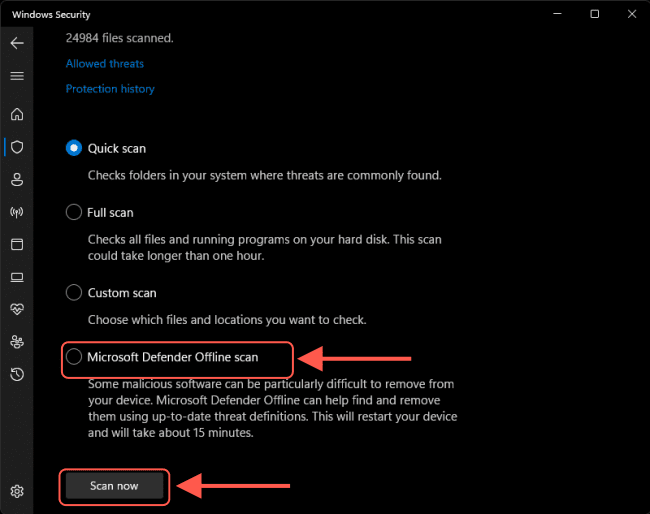
image5

When you click “Scan” on the prompt, your Windows 11 PC will restart and begin the scan.

Here is an exciting guide on Smart App Control and how to enable Phishing Protection: Windows 11 New Security Features, New Windows 11 encryption features and security enhancements will help protect hybrid work.

Use Windows Security to manage Antivirus

Press the Windows key to open Start menu, then type Windows Security and select the result that best match your search.

img1

Select Virus & threat protection to open the Virus & threat protection settings. Under the “Current threats” section, click the Scan options setting.
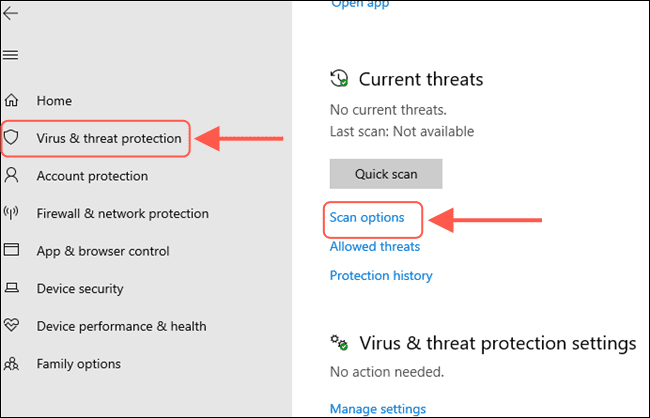
image6

Select the Microsoft Defender Offline scan option. Then click the Scan now button.
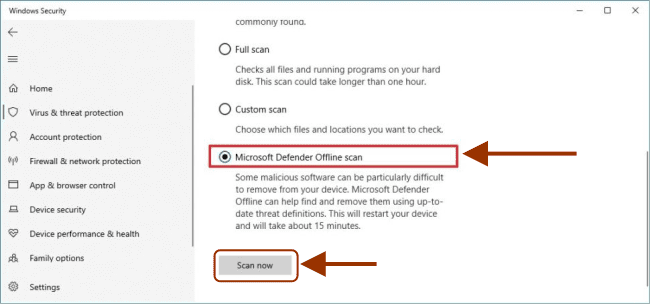
image7

When you click “Scan” on the prompt, your Windows 10 PC will restart and begin the scan. When you complete the steps, your computer will reboot into Windows Recovery Environment (WinRE), where the command-line version of Microsoft Defender Antivirus will run without loading the system.

Without user intervention, the scan will discover and destroy any difficult-to-remove infections it finds. The offline scan will take around 10-15 minutes, after which the machine will automatically restart.

Here are other related guides: How to turn on Windows 10 Tamper Protection for Microsoft Defender, and how to manage Microsoft Defender Antivirus with Group Policy and Microsoft Malware Protection via the Command Line Utility.

View the results of your Malware Scan with Microsoft Defender Offline

To review the scan information, open Windows Security, and click on Virus & threat protection. Under the “Current threats” section, click the Protection history setting.
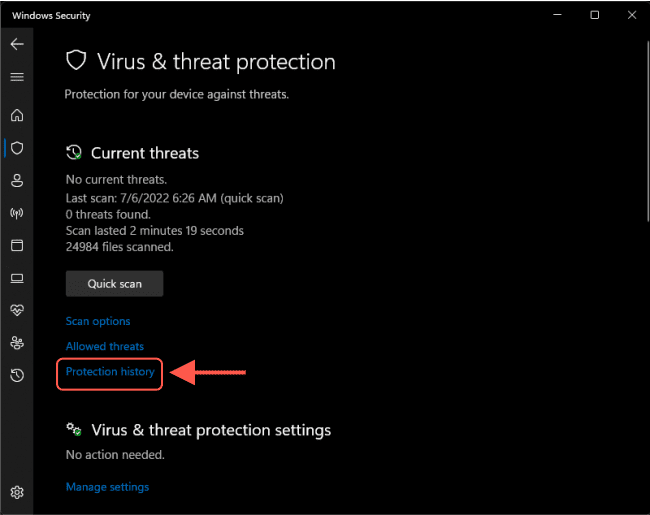
image8

If there is no information in the history, the antivirus was unable to trace anything on the system.

Run Offline Scan from PowerShell

To Run a Microsoft Defender Offline Scan from PowerShell, please see the more usage options for the Start-MpWDOScan command, see: Start-MpWDOScan

1 Open an elevated PowerShell.
2 Copy and paste the Start-MpWDOScan command into the elevated PowerShell, and press Enter.
image-2

Note: You can specify a switch as shown above. The -ScanType parameter allows the user to specify the type of scan to be performed: the acceptable values for this parameter are:
– FullScan
– QuickScan
– CustomScan

Run Offline Scan from Command Prompt

To Run a Microsoft Defender Offline Scan from Command Prompt, please see the usage options for the Start-MpWDOScan command.

1: Open an elevated command prompt.
2 Copy and paste the PowerShell Start-MpWDOScan command into the elevated command prompt, and hit Enter.

It’s also a good idea to pay attention to the dates of the items because the list shows all the most recent activities, and you may notice items from earlier scans or real-time detections.

I hope you found this blog post helpful on how to find and remove Malware with Microsoft Defender Offline. Please let me know in the comment session if you have any questions.


5/5 - (1 vote)

Thank you for reading this post. Kindly share it with others.

  • Share on X (Opens in new window) X
  • Share on Reddit (Opens in new window) Reddit
  • Share on LinkedIn (Opens in new window) LinkedIn
  • Share on Facebook (Opens in new window) Facebook
  • Share on Pinterest (Opens in new window) Pinterest
  • Share on Tumblr (Opens in new window) Tumblr
  • Share on Telegram (Opens in new window) Telegram
  • Share on WhatsApp (Opens in new window) WhatsApp
  • Share on Mastodon (Opens in new window) Mastodon
  • Share on Bluesky (Opens in new window) Bluesky
  • Share on Threads (Opens in new window) Threads
  • Share on Nextdoor (Opens in new window) Nextdoor
Anti-Virus Solution, Security | Vulnerability Scans and Assessment Tags:AntiMalware, AntiVirus, malware, Microsoft Defender Antivirus, Microsoft Windows, scan, Windows 10, Windows 11, Windows Defender, Windows Defender Antivirus

Post navigation

Previous Post: Hide or Remove Search Button from Windows 10 Taskbar
Next Post: How to download a shared ZOOM recording

Related Posts

  • MBAM Replacement
    MBAM extended support ends April 2026: Find alternative solution Security | Vulnerability Scans and Assessment
  • rrd
    How to uninstall the DriveLock Agent from your device Security | Vulnerability Scans and Assessment
  • How to enable or disable Microsoft Defender Antivirus Active or Mode Mode
    Set Microsoft Defender Antivirus to Passive or Active Mode Anti-Virus Solution
  • Featured image new
    How to update the BIOS on your Dell system Security | Vulnerability Scans and Assessment
  • PetitPotam
    PetitPotam attack on Active Directory Certificate Services: How to mitigate NTLM Relay PetitPotam attack on AD CS Security | Vulnerability Scans and Assessment
  • Trellix Native Encryption
    Manage BitLocker and FileVault with Trellix Native Encryption Mac

More Related Articles

MBAM Replacement MBAM extended support ends April 2026: Find alternative solution Security | Vulnerability Scans and Assessment
rrd How to uninstall the DriveLock Agent from your device Security | Vulnerability Scans and Assessment
How to enable or disable Microsoft Defender Antivirus Active or Mode Mode Set Microsoft Defender Antivirus to Passive or Active Mode Anti-Virus Solution
Featured image new How to update the BIOS on your Dell system Security | Vulnerability Scans and Assessment
PetitPotam PetitPotam attack on Active Directory Certificate Services: How to mitigate NTLM Relay PetitPotam attack on AD CS Security | Vulnerability Scans and Assessment
Trellix Native Encryption Manage BitLocker and FileVault with Trellix Native Encryption Mac

Leave a Reply Cancel reply

You must be logged in to post a comment.

Microsoft MVP

VEEAMLEGEND

vexpert-badge-stars-5

Virtual Background

GoogleNews

Categories

veeaam100

Veeam Vanguard

  • hero activedirectory 1
    Active Directory Contact and a User Account Object Differences Security | Vulnerability Scans and Assessment
  • MBAM noncompliance
    How to determine why an MBAM-protected device is non-compliant Security | Vulnerability Scans and Assessment
  • Copy files between host and workstation
    Various ways to copy files from host to VMware Workstation VM Virtualization
  • stuck
    Fix Hyper-V VM Stuck in Stopping State Virtualization
  • 2022 1
    Install Windows Server 2022 on VirtualBox Network | Monitoring
  • Prevent the saving of RDP Credentials
    Prevent users from saving RDP Credentials on Windows 11 Windows
  • Time machine
    How to Backup MacOS to Synology NAS via Time Machine Backup
  • removeguesttrello
    Remove a member from Trello Workspace: How to add or remove a Board Guest to a Trello Board JIRA|Confluence|Apps

Subscribe to Blog via Email

Enter your email address to subscribe to this blog and receive notifications of new posts by email.

Join 1,800 other subscribers
  • RSS - Posts
  • RSS - Comments
  • About
  • Authors
  • Write for us
  • Advertise with us
  • General Terms and Conditions
  • Privacy policy
  • Feedly
  • Telegram
  • Youtube
  • Facebook
  • Instagram
  • LinkedIn
  • Tumblr
  • Pinterest
  • Twitter
  • mastodon

Tags

Active Directory Azure Bitlocker Microsoft Windows PowerShell WDS Windows 10 Windows 11 Windows Deployment Services Windows Server 2016

Copyright © 2025 TechDirectArchive

Loading Comments...

You must be logged in to post a comment.