Skip to content

TechDirectArchive

Hands-on IT, Cloud, Security & DevOps Insights

  • Home
  • About
  • Advertise With US
  • Reviews
  • Contact
  • Toggle search form
Home » JIRA|Confluence|Apps » How to download a shared ZOOM recording

How to download a shared ZOOM recording

Posted on 06/07/202216/11/2023 Christian By Christian 7 Comments on How to download a shared ZOOM recording
downloadzoom-recording

In this guide, you will learn how to download a shared ZOOM recording. Zoom Meetings for desktop and mobile provide virtual meeting tools to make every meeting a great one. It is a very secure, reliable video platform that powers all of your communication needs. This includes meetings, chats, phones, webinars, and online events. Here are some guides I have written on Zoom: How to update Zoom Desktop Client on macOS, and how to stop Zoom App from launching automatically at startup on Mac.

Note: Zoom meetings can easily be recorded by the host or the guests. As long as the host has allowed guests to record them. The file is recorded and saved in an mp4 format. But since it is a video file and oftentimes too large to send by email. The host of the meeting will place it on their shared drive and allow you access.

Recently, a link was shared with me and there was a need to download it. In this article, I will be showing you how to download a recorded Zoom session. Assuming someone has already recorded the Zoom meeting.

And they have provided you with the link and you want to download it. Here are some other related guides: How to remove a user from a Slack Channel, how to unlink FaceTime from Mac, How to deactivate a Slack workspace, and how to stop Cisco Webex Meetings from starting up automatically on macOS,

Download Shared Zoom Recording

At the time of writing this piece, you can only download the recorded Zoom sessions from Mozilla Firefox. To do this, kindly follow the steps listed below.

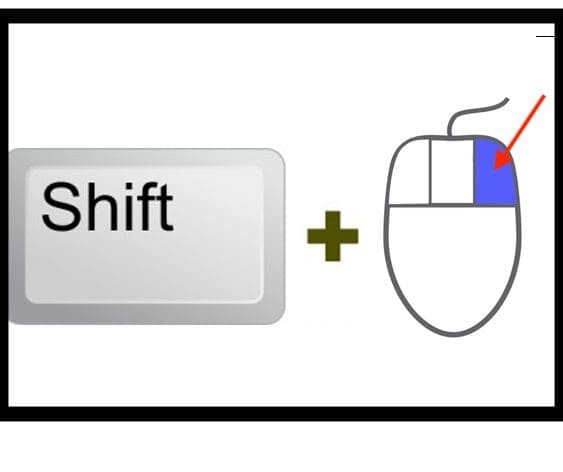
Launch the browser “Mozilla Firefox“. If you do not have it, kindly download it from the hyperlink. Next, place the cursor on the video, and press the “Shift + Right-click” as shown in the image below. I a using a Mac device!
shiftRightclick

This shortcut key combination will display the context menu as shown below.

Screenshot-2022-06-23-at-00.39.41

From the drop-down list that appears, select save video as an option, and that is all.

Also, see how to install Zoom on macOS Big Sur, Mojave, Catalina, High Sierra, and Capitan, and how to install and configure Jitsi video conferencing server on Ubuntu.

I hope you found this blog post helpful. If you have any questions, please let me know in the comment session.
Rate this post

Thank you for reading this post. Kindly share it with others.

  • Share on X (Opens in new window) X
  • Share on Reddit (Opens in new window) Reddit
  • Share on LinkedIn (Opens in new window) LinkedIn
  • Share on Facebook (Opens in new window) Facebook
  • Share on Pinterest (Opens in new window) Pinterest
  • Share on Tumblr (Opens in new window) Tumblr
  • Share on Telegram (Opens in new window) Telegram
  • Share on WhatsApp (Opens in new window) WhatsApp
  • Share on Mastodon (Opens in new window) Mastodon
  • Share on Bluesky (Opens in new window) Bluesky
  • Share on Threads (Opens in new window) Threads
  • Share on Nextdoor (Opens in new window) Nextdoor
JIRA|Confluence|Apps

Post navigation

Previous Post: Find and remove Malware with Microsoft Defender Offline
Next Post: Cannot Uninstall the OneDrive App: The item “OneDrive” canot be moved to the Bin because it is open

Related Posts

  • office365family
    How to Cancel Office 365 Family Subscription JIRA|Confluence|Apps
  • Auto Update Upgrade issues
    Fix Microsoft Office Showing “Upgrade Required” in AutoUpdate JIRA|Confluence|Apps
  • banner
    How to Integrate Jira Software with GitHub Cloud JIRA|Confluence|Apps
  • zoominstallanduninstall
    How to uninstall, reinstall, and update Zoom on Mac JIRA|Confluence|Apps
  • officelicensedeactivation
    Remove Office license file: How do you change the account that Office says it belongs to on a Mac JIRA|Confluence|Apps
  • Delete Slack Account
    How to delete your Slack account JIRA|Confluence|Apps

More Related Articles

office365family How to Cancel Office 365 Family Subscription JIRA|Confluence|Apps
Auto Update Upgrade issues Fix Microsoft Office Showing “Upgrade Required” in AutoUpdate JIRA|Confluence|Apps
banner How to Integrate Jira Software with GitHub Cloud JIRA|Confluence|Apps
zoominstallanduninstall How to uninstall, reinstall, and update Zoom on Mac JIRA|Confluence|Apps
officelicensedeactivation Remove Office license file: How do you change the account that Office says it belongs to on a Mac JIRA|Confluence|Apps
Delete Slack Account How to delete your Slack account JIRA|Confluence|Apps

Comments (7) on “How to download a shared ZOOM recording”

  1. Avatar photo Tom says:
    09/07/2022 at 9:35 PM

    It really work :). Thank you

    Log in to Reply
    1. Avatar photo Christian says:
      09/07/2022 at 10:24 PM

      I am glad you found it useful. Cheers…

      Log in to Reply
      1. Avatar photo Ardillita says:
        03/04/2023 at 10:02 PM

        But will the host know you have downloaded? Will zoom notify them? Thank you

      2. chris Christian says:
        03/04/2023 at 10:08 PM

        Obviously not! I will advise you to let the host know about this before downloading…

      3. Avatar photo Ardillita says:
        03/04/2023 at 10:41 PM

        Thank you.

  2. Avatar photo Fred says:
    17/05/2023 at 10:49 PM

    Doesn’t work with audio only Zoom link. Would you have another option for this case? Regards. F.M

    Log in to Reply
    1. chris Christian says:
      19/05/2023 at 1:18 PM

      I did not test this with Audio only Zoom link. If you find a solution, please share it with the community, Thank you

      Log in to Reply

Leave a Reply Cancel reply

You must be logged in to post a comment.

Microsoft MVP

VEEAMLEGEND

vexpert-badge-stars-5

Virtual Background

GoogleNews

Categories

veeaam100

Veeam Vanguard

  • Featured image 1
    How to enable or disable color filters in Windows Windows
  • Featured image GettingWinReady
    Fix “Getting Windows Ready” Don’t turn off your computer stuck on Windows Windows
  • IIS
    How to Change the Log File Directory location in IIS Web Server
  • image 63
    What to do when your Remote Desktop Licensing Manager Server Crashes Windows
  • Dellupdate 1
    Fix for security vulnerabilities in the BIOS firmware for some Intel Processors Windows
  • PersonalHow to Create Symbolic Links in Linux
    All You Need to Know About Symbolic Links in Linux Linux
  • Veeam upgrade11 11a
    How to upgrade Veeam Backup and Replication from version 11 to 11a Backup
  • screenshot 2020 03 21 at 22.44.04
    How to use Hyper-V checkpoint to restore a VM to its previous state Virtualization

Subscribe to Blog via Email

Enter your email address to subscribe to this blog and receive notifications of new posts by email.

Join 1,808 other subscribers
  • RSS - Posts
  • RSS - Comments
  • About
  • Authors
  • Write for us
  • Advertise with us
  • General Terms and Conditions
  • Privacy policy
  • Feedly
  • Telegram
  • Youtube
  • Facebook
  • Instagram
  • LinkedIn
  • Tumblr
  • Pinterest
  • Twitter
  • mastodon

Tags

AWS Azure Bitlocker Microsoft Windows PowerShell WDS Windows 10 Windows 11 Windows Deployment Services Windows Server 2016

Copyright © 2025 TechDirectArchive

Loading Comments...

You must be logged in to post a comment.