Skip to content

TechDirectArchive

Hands-on IT, Cloud, Security & DevOps Insights

  • Home
  • About
  • Advertise With US
  • Reviews
  • Contact
  • Toggle search form
Home » Mac » How to install Microsoft Teams on a macOS
  • Configure Synology DS923+ NAS for File Sharing
    How to Configure Synology DS923+ NAS for File Sharing [Part 2] Reviews
  • image 130
    How to fix the Security Database on the Server does not have a Computer Account for this Workstation Trust Relationship on Windows Server [Part 2] Scripts
  • Failed to connect to Deployer Service   VIHR
    How to fix Failed to connect to Deployer Service Error Backup
  • banner 1
    How to fix Windows Microsoft Store not opening Windows
  • image 63
    Protect Remote Desktop credentials with Windows Defender Remote Credential Guard or Restricted Admin Mode Windows
  • redisf
    How to install Redis on Linux System Linux
  • slide10
    Add Dynamic Wallpaper controlled by time on Windows 10 and 11 Windows
  • Gfeature
    How to install Googler on a Linux System Linux

How to install Microsoft Teams on a macOS

Posted on 11/07/202221/08/2023 Christian By Christian No Comments on How to install Microsoft Teams on a macOS
How to install Microsoft Teams on a macOS

Microsoft Teams is the hub for teamwork in Microsoft 365. The Teams service enables instant messaging, audio and video calling, rich online meetings, mobile experiences, and extensive web conferencing capabilities. In addition, Teams provides file and data collaboration and extensibility features and integrates with Microsoft 365 and other Microsoft and partner apps. You can sign up for it standalone, or use it as part of the larger Office 365 suite of applications. Kindly refer to these related guides: How to install and activate Office 2019 on your Mac PC, How to Cancel Office 365 Family Subscription, how to complete Microsoft Office 365 Family Subscription, how to Hide or Remove the Search Button from Windows 11 Taskbar, how do you change the account that Office says it belongs to on a Mac, and how to remove Microsoft Outlook, Teams, Words PowerPoint, and Excel apps from Mac.

Before proceeding with the installation of install Microsoft Teams on a macOS, kindly use Spotlight search to make sure Teams isn’t already installed on your Mac. If Teams is already installed, you’re all set! Otherwise, follow the steps below. Here are some other guides you may want to take a look at How to Enable or Prevent Reopen Windows when logging back in after Restart or Shutdown on Mac, how to hide or stop Apps such as OneDrive from opening automatically upon login on Macbook Pro, and how to download a shared ZOOM recording.

What is Microsoft Teams?

Teams is built using Microsoft 365 groups, Microsoft Graph, and incorporates the same enterprise-level security, compliance, and manageability found throughout Microsoft 365 and Office 365. It leverage identities stored in Azure Active Directory (Azure AD). Teams keep working even when you’re offline or experiencing spotty network conditions.

Installing Microsoft Teams on MacOS

Step 1: Download Teams

Microsoft provides an installer for Teams in the .PKG format, which walks you through the installation via a wizard. Download Microsoft Teams using the following Microsoft official link. Clicking on the ‘Download for Desktop’ link below will redirect you to the download page.
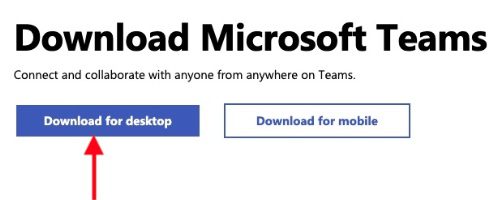
Clicking on the ‘Download for Desktop’

Once in the download by region page, click on download Teams as shown below.

click on download Teams

This will download the Teams_osx.pkg file as shown below.

Step 2: Install Downloaded package

Navigate to your Downloads folder and double-click on Teams_osx.pkg
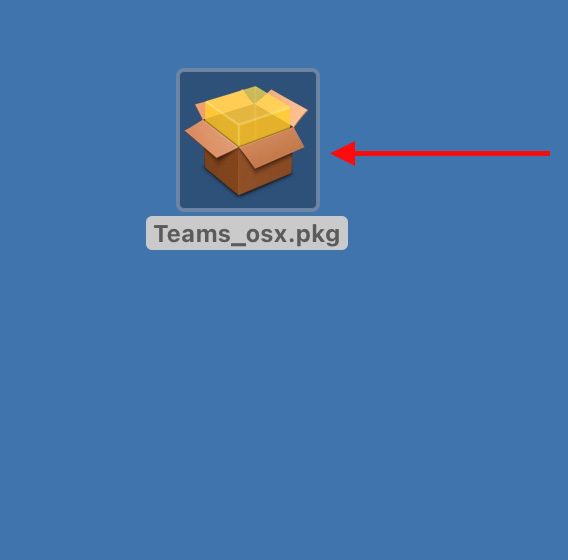
double-click on Teams_osx.pkg

On the welcome to the Microsoft teams Installer, click on continue to proceed.
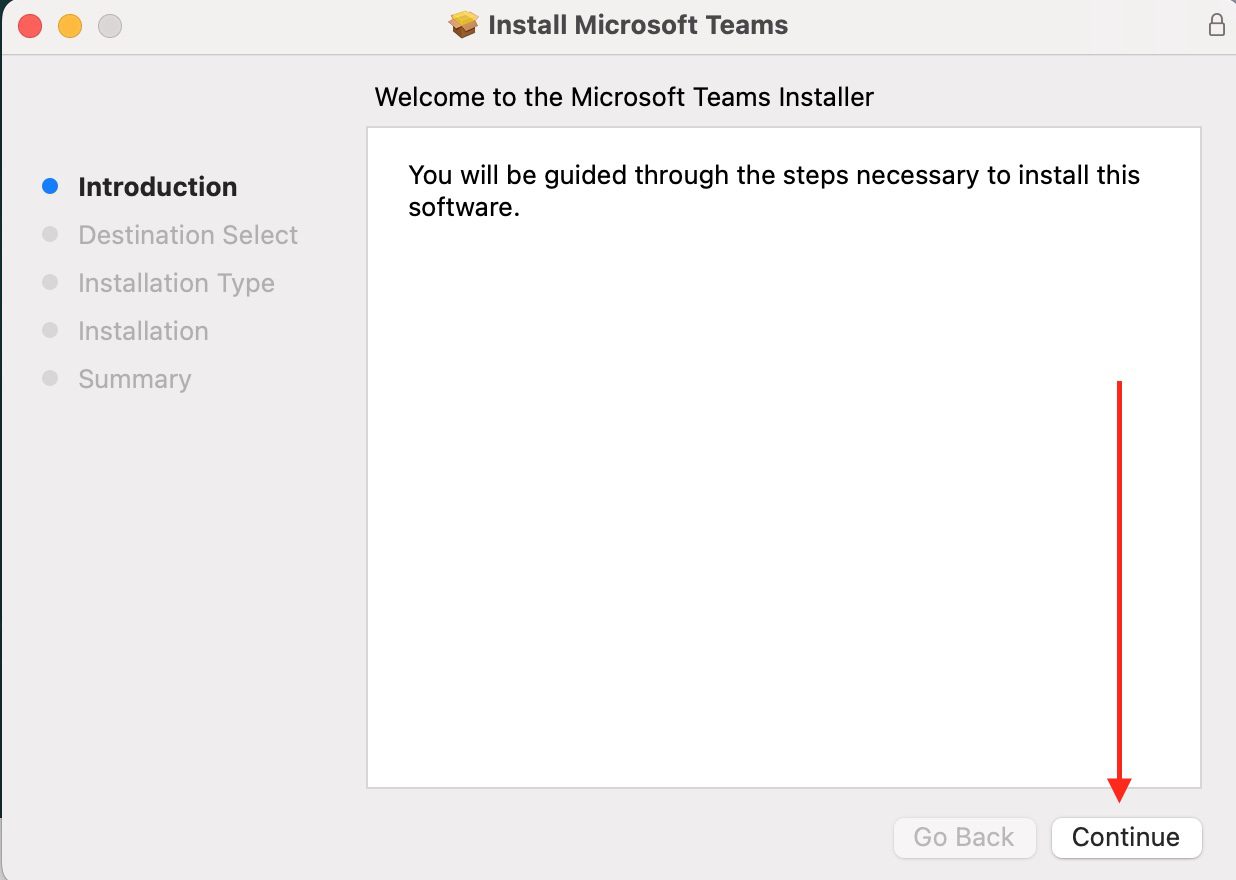
click on continue to proceed.

Choose how you want to install Teams and click Continue. For me, I will be selecting the first option “Install for all users of this computer”.
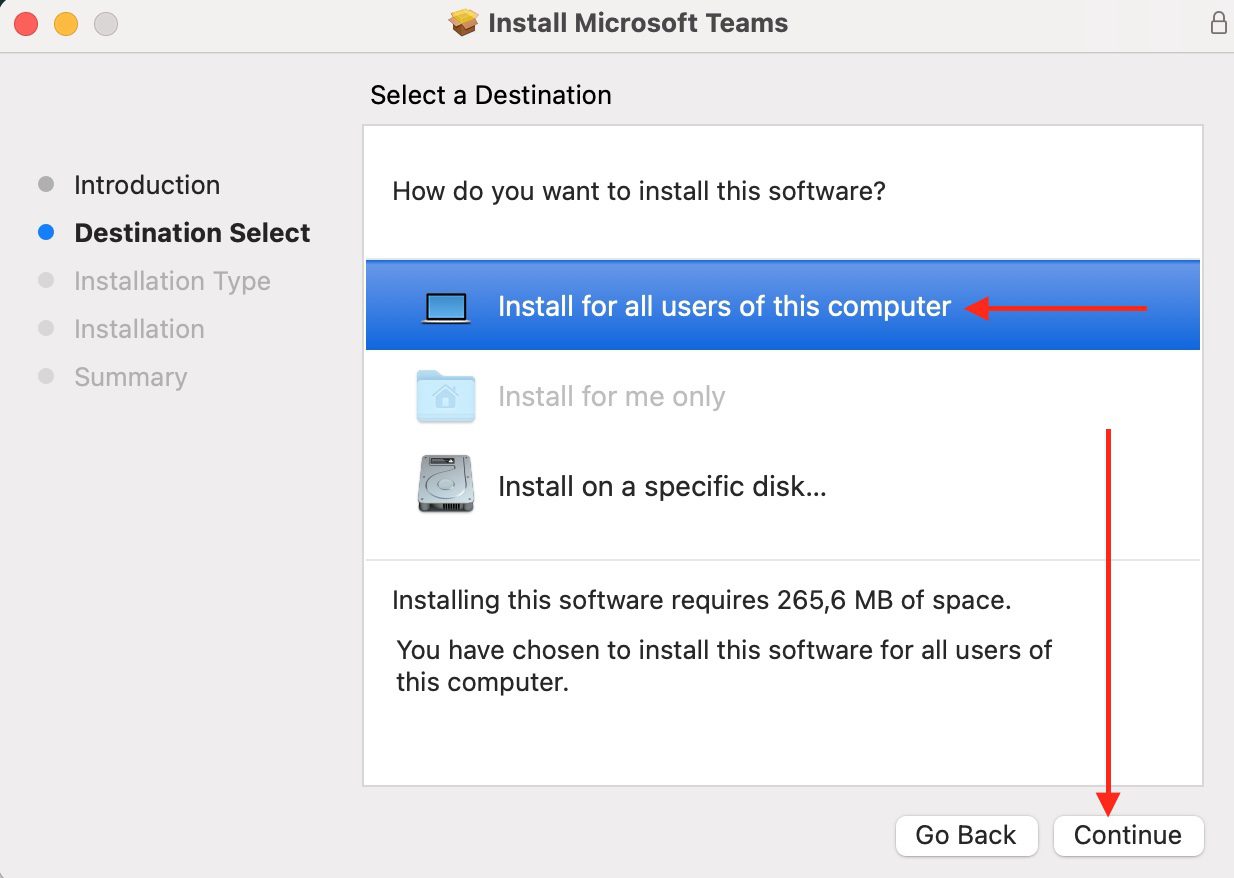
Team installation to install for all PC

Kindly follow the prompts. The next screen lets you know how much disk space it will use, and asks for confirmation on where to install it.  On the installation type, please select Install as shown below.
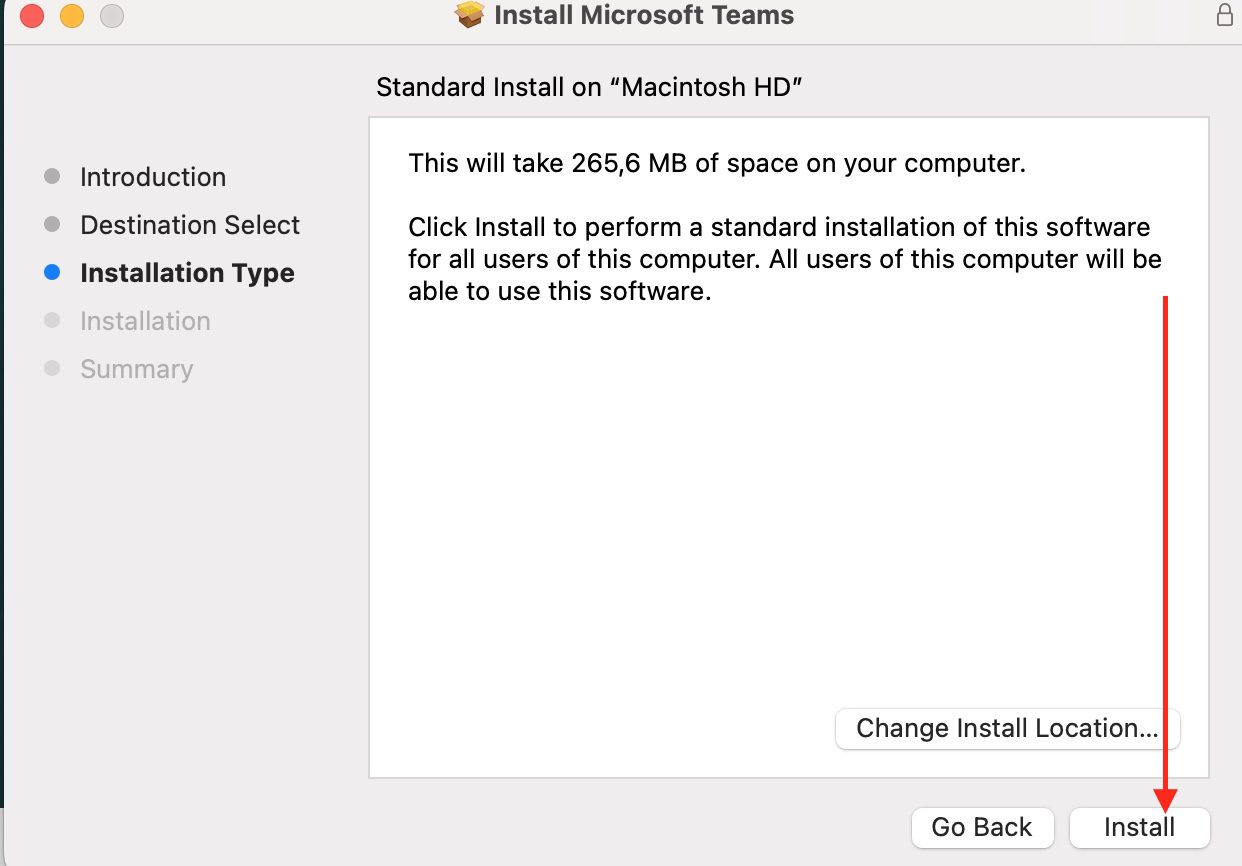
Install Teams

You will need administrative rights to complete the installation. Enter your password and hit the Install Software.

The installer will start copying files at this point, and show you its progress.
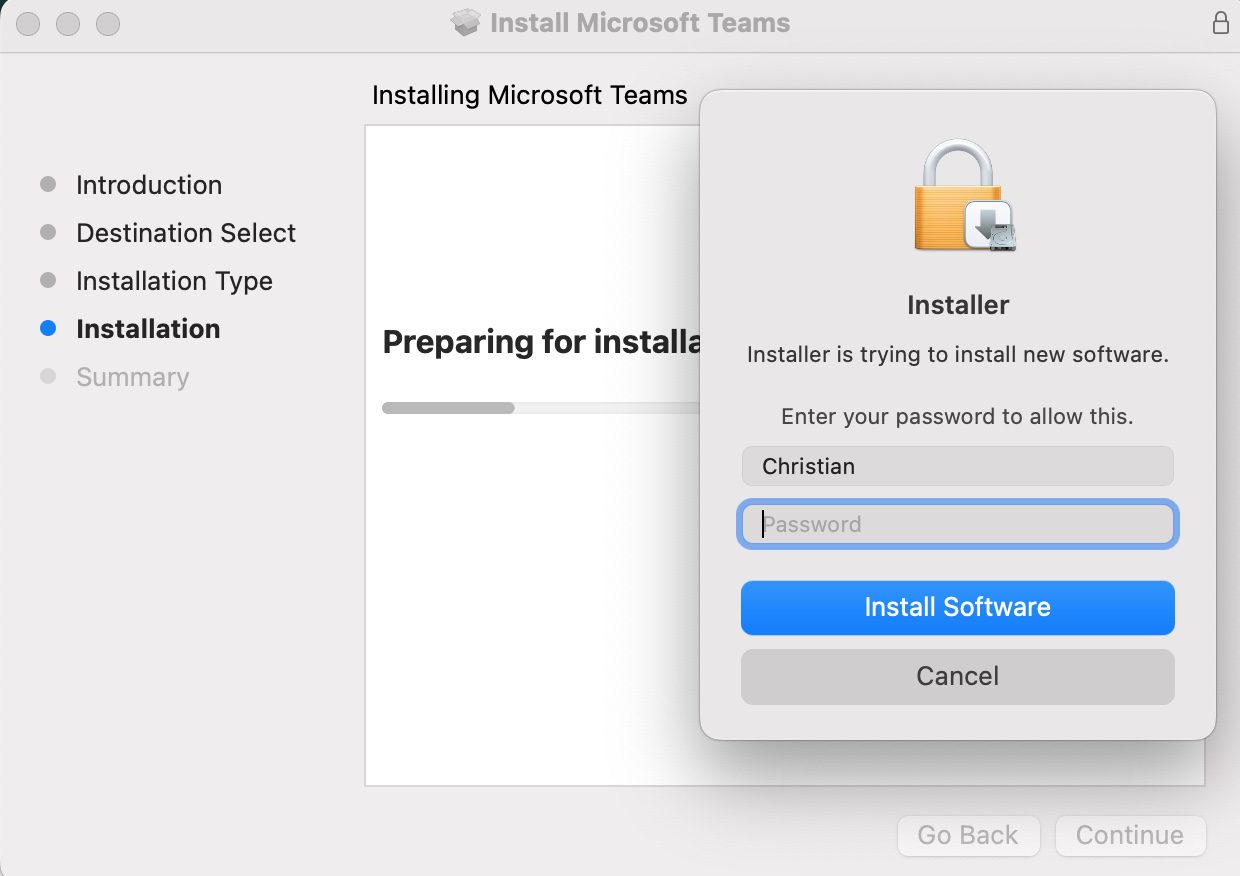
Enter your password to install office

As you can see, we have successfully installed teams. You can click Close to quit the Teams installer.
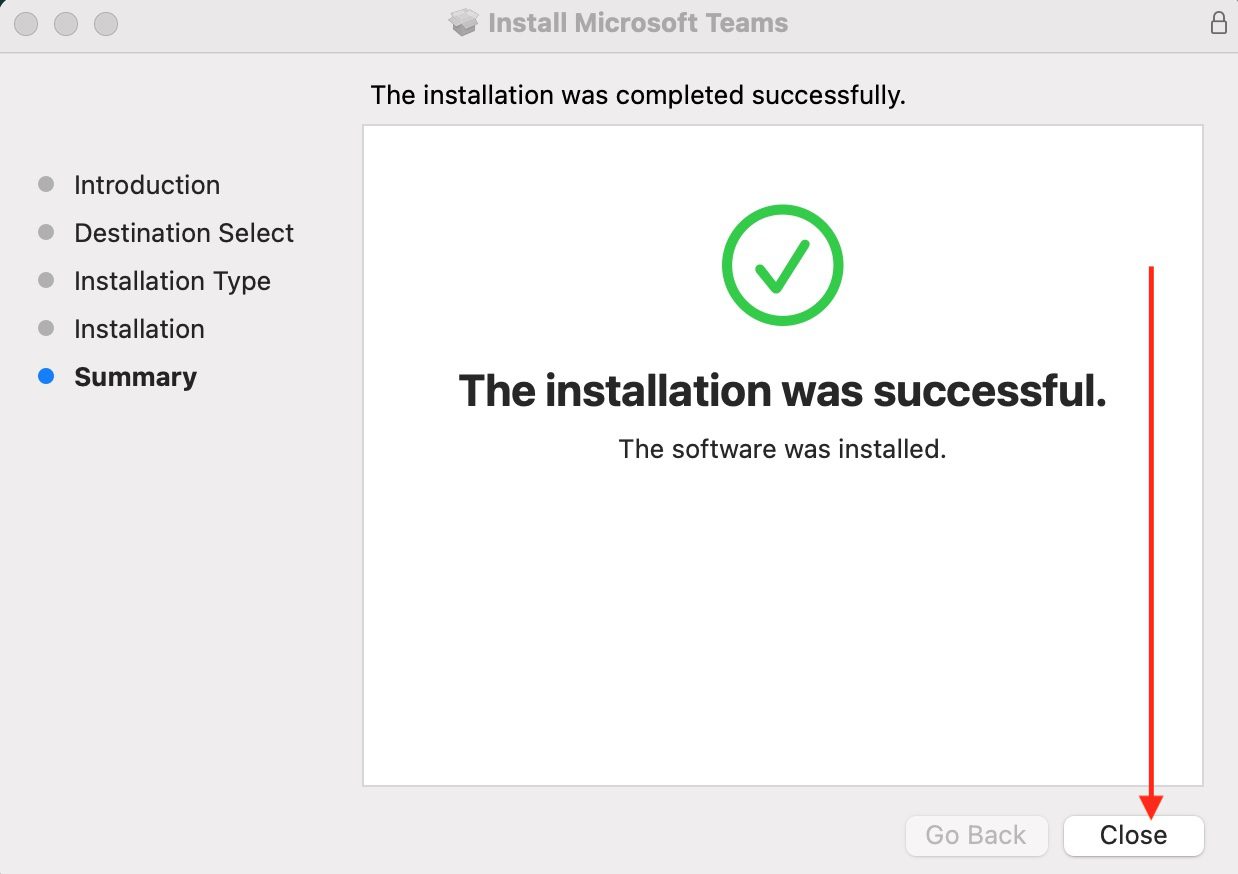
Office installation is complete

Step 3: Complete Setup

Once the installation process is completed, proceed to open Teams. Teams will eventually recognise your account immediately. If this is not the case, enter your Microsoft 365 email.
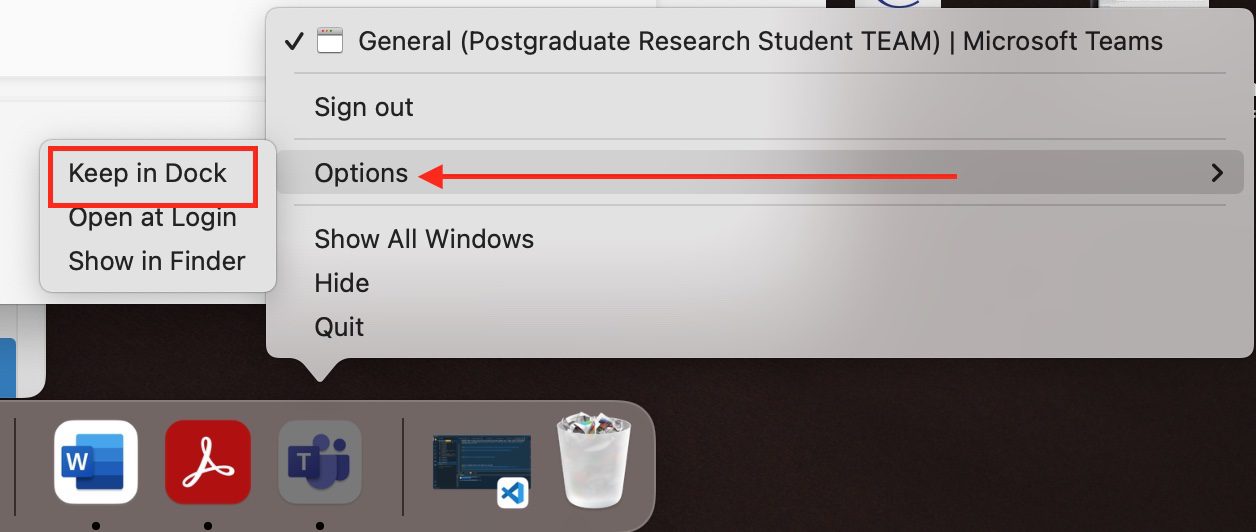
Keep office in dock

You can locate the Teams installer from the download folder (in my case Desktop) and trash it (move it to the Bin). It is create to clean up in order to save storage space.
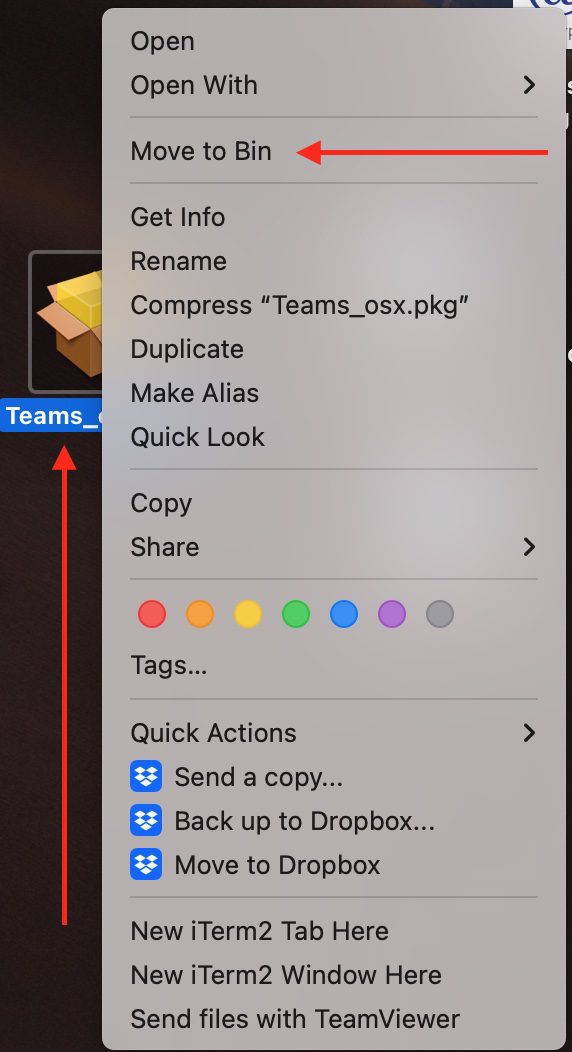
Delete the office installation pkg file

Note: In some versions of MacOs X, you will have to allow Teams to access your microphone and camera. If the program does not request it, you will have to turn on access in your device settings. You may want to see how to control access to Camera on Mac or control access to your microphone on Mac.

I hope you found this blog post on How to install Microsoft Teams on a macOS helpful. If you have any questions, please let me know in the comment session.

Rate this post

Thank you for reading this post. Kindly share it with others.

  • Share on X (Opens in new window) X
  • Share on Reddit (Opens in new window) Reddit
  • Share on LinkedIn (Opens in new window) LinkedIn
  • Share on Facebook (Opens in new window) Facebook
  • Share on Pinterest (Opens in new window) Pinterest
  • Share on Tumblr (Opens in new window) Tumblr
  • Share on Telegram (Opens in new window) Telegram
  • Share on WhatsApp (Opens in new window) WhatsApp
  • Share on Pocket (Opens in new window) Pocket
  • Share on Mastodon (Opens in new window) Mastodon
  • Share on Bluesky (Opens in new window) Bluesky
  • Share on Threads (Opens in new window) Threads
  • Share on Nextdoor (Opens in new window) Nextdoor
Mac Tags:Download and Install Teams, macOS Monterey, Microsoft Office, Microsoft Office 365, Microsoft Teams, MS Teams, MS Teams for Mac, Teams

Post navigation

Previous Post: How to install and activate Office 2019 on your Mac PC
Next Post: Fix Git is not recognised as an internal or external command

Related Posts

  • Install FileZilla Client
    FileZilla Client on Mac: How to Transfer Files to WordPress via SFTP Mac
  • unzip mac 994x400 1
    How to set a default app to archive files on macOS Mac
  • remove Windows PC from you iCloud Account completely
    How to remove Windows PC from your iCloud Account completely Mac
  • stopsappsfromstart
    How to Hide or Stop Apps Like OneDrive from Auto-Opening Mac
  • Screenshot 2022 04 02 at 23.08.25
    How to stop Docker from automatically starting on Mac Mac
  • Norton Antivirus Free Download For Mac 1st
    How to fix repeated app-blocking connection alerts from Norton on Mac Mac

More Related Articles

Install FileZilla Client FileZilla Client on Mac: How to Transfer Files to WordPress via SFTP Mac
unzip mac 994x400 1 How to set a default app to archive files on macOS Mac
remove Windows PC from you iCloud Account completely How to remove Windows PC from your iCloud Account completely Mac
stopsappsfromstart How to Hide or Stop Apps Like OneDrive from Auto-Opening Mac
Screenshot 2022 04 02 at 23.08.25 How to stop Docker from automatically starting on Mac Mac
Norton Antivirus Free Download For Mac 1st How to fix repeated app-blocking connection alerts from Norton on Mac Mac

Leave a Reply Cancel reply

You must be logged in to post a comment.

Microsoft MVP

VEEAMLEGEND

vexpert-badge-stars-5

Virtual Background

GoogleNews

Categories

veeaam100

sysadmin top30a

  • Configure Synology DS923+ NAS for File Sharing
    How to Configure Synology DS923+ NAS for File Sharing [Part 2] Reviews
  • image 130
    How to fix the Security Database on the Server does not have a Computer Account for this Workstation Trust Relationship on Windows Server [Part 2] Scripts
  • Failed to connect to Deployer Service   VIHR
    How to fix Failed to connect to Deployer Service Error Backup
  • banner 1
    How to fix Windows Microsoft Store not opening Windows
  • image 63
    Protect Remote Desktop credentials with Windows Defender Remote Credential Guard or Restricted Admin Mode Windows
  • redisf
    How to install Redis on Linux System Linux
  • slide10
    Add Dynamic Wallpaper controlled by time on Windows 10 and 11 Windows
  • Gfeature
    How to install Googler on a Linux System Linux

Subscribe to Blog via Email

Enter your email address to subscribe to this blog and receive notifications of new posts by email.

Join 1,832 other subscribers
  • RSS - Posts
  • RSS - Comments
  • About
  • Authors
  • Write for us
  • Advertise with us
  • General Terms and Conditions
  • Privacy policy
  • Feedly
  • Telegram
  • Youtube
  • Facebook
  • Instagram
  • LinkedIn
  • Tumblr
  • Pinterest
  • Twitter
  • mastodon

Tags

AWS Azure Bitlocker Microsoft Windows PowerShell WDS Windows 10 Windows 11 Windows Deployment Services Windows Server 2016

Copyright © 2025 TechDirectArchive


Loading Comments...
 

You must be logged in to post a comment.