Skip to content

TechDirectArchive

Hands-on IT, Cloud, Security & DevOps Insights

  • Home
  • About
  • Advertise With US
  • Reviews
  • Contact
  • Toggle search form
Home » AWS/Azure/OpenShift » Create Azure Container instance to deploy your image to Azure using Azure CLI
  • images 8
    Microsoft Direct Access: Now Always On VPN Windows Server
  • drivelock
    How to perform DriveLock quick setup Security | Vulnerability Scans and Assessment
  • HYBRID BENEFITS FEATURE
    Azure Hybrid Use Cases and Benefits AWS/Azure/OpenShift
  • featuredpkg
    How to solve /var/lib/dpkg/lock Error in Ubuntu Linux Linux
  • prettier boot image
    How to stop Cisco Webex Meetings from starting up automatically on macOS Mac
  • Panic failed
    Panic: Failed to register the GitLab-runner, you may be having network issues Version Control System
  • original 1
    Install Wim: How to Add Packages to Windows image Using the DISM Tool Windows Server
  • 1 kajkbmlyehn0inifwrh 8w
    How to install Kerberos packages with Cygwin on Windows Windows Server

Create Azure Container instance to deploy your image to Azure using Azure CLI

Posted on 27/09/202216/12/2023 Imoh Etuk By Imoh Etuk No Comments on Create Azure Container instance to deploy your image to Azure using Azure CLI
Deploy-to-ACI
Deploy Docker Image to ACI

Azure Container Instance is one of the popular container solutions in the industry. When it comes to containers, Docker remains the most widely adopted open-source container in the container industry. In addition to Artifactory Docker Registry, LXC (Linux), Hyper-V, and Windows Containers, other container solutions are also available. In this article, we shall discuss how to create Azure Container instance to deploy your image to Azure using Azure CLI. Please see how to build your first CI/CD Pipeline in Azure DevOps using ASP.Net Core Application and how to use container insights to get the full benefits of Azure Monitor for Azure Kubernetes workload

Each of these container solutions has its own set of approaches and use cases. This article discusses how to set up an Azure Container Instance and deploy a Docker image.

ACI, or Azure Container Instance, allows you to run your Docker image on Azure. To deploy a Docker image to Azure, first publish it to a container registry, then connect the container instance to the registry and deploy the image.

Docker images are published to a publicly accessible repository known as Docker Hub, a free Docker registry that allows you to create one private repository and multiple public repositories. To begin, sign up for a Docker Hub account.
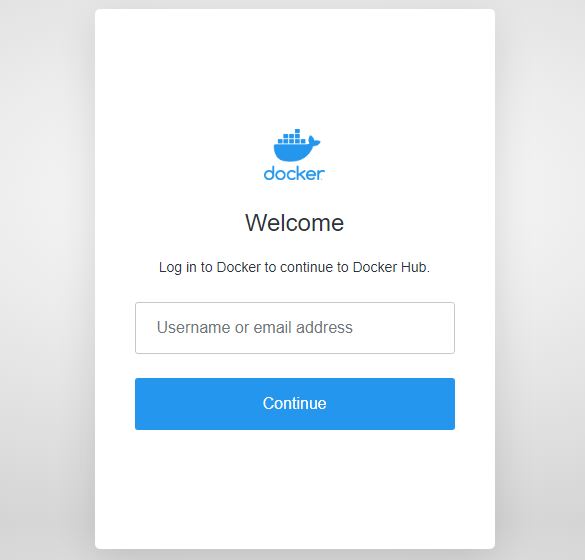
Docker-Hub
Docker Hub

You can review some related articles on Azure: How to Upload Batch Files to Azure Storage Account Using Azure CLI, and Serverless in Azure: How to deploy a function app from Visual Studio to Azure Platform.

Create Azure Container Instance

Here we are going to see how to create Azure Container Instance using Azure CLI and pull an image from Docker Hub. Do the following:

  1. Azure CLI is installed on your PC.
  2. Active Azure Subscription, if you don’t have one already sign up on Azure.

Create a Resource Group

Next, create a resource group. A resource group is a logical folder that holds all your resources together. We are going to create one by running the below CLI command:

az group create --name <YourResourceGroupName> --location <ChoosePreferredLocation>
Create-Resource-Group
Creating a Resource Group

Create an Azure Container Instance (ACI)

We have created the resource group, it’s time to create the Container using the az container create command by providing the name of the resource group we have just created. Here we will use the public image  provided by Microsoft named mcr.microsoft.com/azuredocs/aci-helloworld. This image packages a small web app written in Node.js that serves a static HTML page.

To create the container run:

az container create --resource-group My-Test-RG  --name my-con-aci --image mcr.microsoft.com/azuredocs/aci-helloworld --dns-name-label aci-con --ports 80
Deployed-the-container
Deploying the container

We have successfully deployed the image to Azure Container Instance. Let’s check the status by running the below command:

az container show --resource-group <YourResourceGroupName> --name <YourContainerName --query "{FQDN:ipAddress.fqdn,ProvisioningState:provisioningState}" --out table
Container-Status-Succeeded
Checking the container deployment status

As you can see from the screenshot, the fully qualified domain name for the container is aci-con.eastus.azurecontainer.io. The FQDN is derived from the DNS name that we specified. During the container deployment, you might receive a prompt indicating the availability of the DNS name.

Now, let’s browse to the URL using a web browser.

FQDN-of-the-Container
Azure Container Instance deployed successfully

Pull the container logs

When troubleshooting a container or the application it runs, or simply viewing its output, start by examining the container instance’s logs. Using the az container logs command, you can retrieve the container instance logs.

az container logs --resource-group <YourResourceName> --name <YourContainerName>
Pull-the-container-logs
Pulling Container logs

Next, let’s attach output streams. You can connect your local standard out and standard error streams to the container’s standard out and standard error streams. This allows you to view its current output or interact with it as if the commands were running directly in your terminal.

To connect your local console to the container’s output streams, use the az container attach command as shown below:

az container attach --resource-group <YourResourceGroupName> --name <YourContainerName>
Note: This will continue to run without stopping. To stop it, press Ctrl + C key combination on your PC.  
Attach-output-Stream
Attaching output streams

I hope you found this article useful on create Azure Container instance to deploy your image to Azure using Azure CLI. Please feel free to leave a comment below.

Rate this post

Thank you for reading this post. Kindly share it with others.

  • Click to share on X (Opens in new window) X
  • Click to share on Reddit (Opens in new window) Reddit
  • Click to share on LinkedIn (Opens in new window) LinkedIn
  • Click to share on Facebook (Opens in new window) Facebook
  • Click to share on Pinterest (Opens in new window) Pinterest
  • Click to share on Tumblr (Opens in new window) Tumblr
  • Click to share on Telegram (Opens in new window) Telegram
  • Click to share on WhatsApp (Opens in new window) WhatsApp
  • Click to share on Pocket (Opens in new window) Pocket
  • Click to share on Mastodon (Opens in new window) Mastodon
  • Click to share on Bluesky (Opens in new window) Bluesky
  • Click to share on Threads (Opens in new window) Threads
  • Click to share on Nextdoor (Opens in new window) Nextdoor
AWS/Azure/OpenShift Tags:Azure, Azure CLI, docker hub, docker image

Post navigation

Previous Post: How to create a Shortcut That enables Standard Users to run Applications as Administrator
Next Post: Install Windows Server 2022 on VirtualBox

Related Posts

  • AADSTS50020  User from Identity Provider does not exist in Tenant
    AADSTS50020: User from Identity Provider does not exist in Tenant AWS/Azure/OpenShift
  • CreateanAWSact
    How to Set up an Amazon Web Services (AWS) Account AWS/Azure/OpenShift
  • fjkjcvbnm
    How to enable Enhanced Networking Adapter (ENA) on Windows AWS/Azure/OpenShift
  • azure file share feature image
    Deploy Legacy App to Azure Fileshare AWS/Azure/OpenShift
  • IAM AWS
    Creating IAM Users, Adding MFA and Policies on AWS AWS/Azure/OpenShift
  • image 12
    How to Use Postman with the Amazon Pinpoint API AWS/Azure/OpenShift

More Related Articles

AADSTS50020  User from Identity Provider does not exist in Tenant AADSTS50020: User from Identity Provider does not exist in Tenant AWS/Azure/OpenShift
CreateanAWSact How to Set up an Amazon Web Services (AWS) Account AWS/Azure/OpenShift
fjkjcvbnm How to enable Enhanced Networking Adapter (ENA) on Windows AWS/Azure/OpenShift
azure file share feature image Deploy Legacy App to Azure Fileshare AWS/Azure/OpenShift
IAM AWS Creating IAM Users, Adding MFA and Policies on AWS AWS/Azure/OpenShift
image 12 How to Use Postman with the Amazon Pinpoint API AWS/Azure/OpenShift

Leave a Reply Cancel reply

You must be logged in to post a comment.

Microsoft MVP

VEEAMLEGEND

vexpert-badge-stars-5

Virtual Background

GoogleNews

Categories

veeaam100

sysadmin top30a
 
  • images 8
    Microsoft Direct Access: Now Always On VPN Windows Server
  • drivelock
    How to perform DriveLock quick setup Security | Vulnerability Scans and Assessment
  • HYBRID BENEFITS FEATURE
    Azure Hybrid Use Cases and Benefits AWS/Azure/OpenShift
  • featuredpkg
    How to solve /var/lib/dpkg/lock Error in Ubuntu Linux Linux
  • prettier boot image
    How to stop Cisco Webex Meetings from starting up automatically on macOS Mac
  • Panic failed
    Panic: Failed to register the GitLab-runner, you may be having network issues Version Control System
  • original 1
    Install Wim: How to Add Packages to Windows image Using the DISM Tool Windows Server
  • 1 kajkbmlyehn0inifwrh 8w
    How to install Kerberos packages with Cygwin on Windows Windows Server

Subscribe to Blog via Email

Enter your email address to subscribe to this blog and receive notifications of new posts by email.

Join 1,841 other subscribers
  • RSS - Posts
  • RSS - Comments
  • About
  • Authors
  • Write for us
  • Advertise with us
  • General Terms and Conditions
  • Privacy policy
  • Feedly
  • Telegram
  • Youtube
  • Facebook
  • Instagram
  • LinkedIn
  • Tumblr
  • Pinterest
  • Twitter
  • mastodon

Tags

AWS Azure Bitlocker Microsoft Windows PowerShell WDS Windows 10 Windows 11 Windows Deployment Services Windows Server 2016

Copyright © 2025 TechDirectArchive


Loading Comments...
 

You must be logged in to post a comment.