How to remove RDS Client Access Licenses from RDS Server


Each user and device that connects to a Remote Desktop Session host need a client access license (CAL). You use RD Licensing to install, issue, and track RDS CALs. There is a licensing grace period of 120 days during which no license server is required. Once the grace period ends, clients must have a valid RDS CAL issued by a license server before they can log on to an RD Session Host server. Here is a guide on how to install HTML 5 Web Client for Microsoft RDS Server. In this article, you will learn How to remove RDS Client Access Licenses from RDS Server.
Please see Remove Remote Desktop Services Role on Windows Server, How to add and remove RDS Collection, How to Remove and Manage RDS Licenses, and The following servers in this deployment are not part of the deployment Pool: Create an RDS Session Host and Collection.
How does Remote Desktop Licensing Work?
When a user or a device connects to an RD Session Host server, the RD Session Host server determines if an RDS CAL is needed. The RD Session Host server then requests an RDS CAL from the Remote Desktop license server. If an appropriate RDS CAL is available from a license server, the RDS CAL is issued to the client, and the client is able to connect to the RD Session Host server and from there to the desktop or apps, they’re trying to use.
Remove RDS Client Access Licenses from RDS Server
Why would you remove an RDS CALs
Having previously entered the wrong quantity of license, there was a need to reduce it. In your case, this might not be the reason. But if for whatever reason, you wish to remove an RDS CALs from an RDS Server, or have the entire RD licensing database rebuilt. This is possible as Microsoft allows you to remove an individual CAL license pack using PowerShell, or the database. In this guide, I will be showing you how to do it.
To install a new license, you would need the MBSA number from your Microsoft license management and the license type. Here is a guide on how to install a new Per User Remote Desktop Services license.
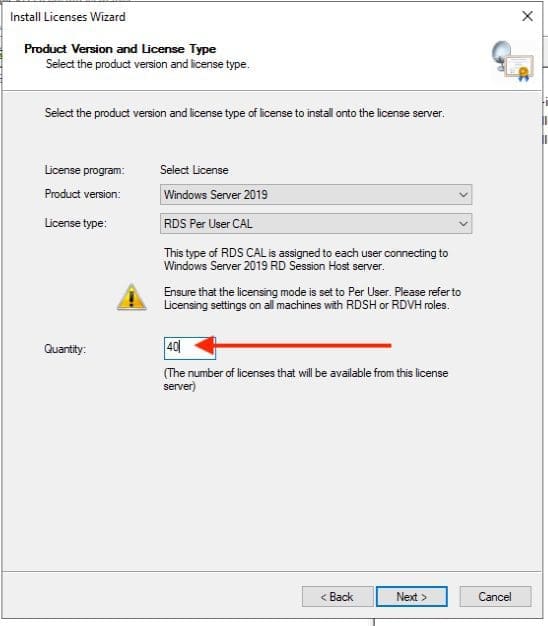
As you can see from the image below, we have a total/Available licenses of 40 installed. This was wrong and there is a need to fix it by reducing the RDS CALs licenses.

Note: You can also run PowerShell commands to check the number of CAL with the following command below.
Get-WmiObject Win32_TSLicenseKeyPack|Select KeyPackId, ProductVersion, TotalLicenses, TypeAndModel|Format-List
Remove Licenses With Id Count
To remove the additional license, kindly determine the KeyPack ID as shown in any of the images above. To determine the keyPackID with PowerShell, please run the command below.
wmic /namespace:\\root\CIMV2 PATH Win32_TSLicenseKeyPack CALL UninstallLicenseKeyPackWithId votre-KeyPackIdAlso, the number of CALs to be removed should be noted. In this guide, you will see, I want to remove 30 CALs. Here is the PowerShell command that will enable you to do this. “Invoke-WmiMethod -Class Win32_TSLicenseKeyPack -Name RemoveLicensesWithIdCount -ArgumentList <KeyPackId>,<NumberOfCALsToRemove>“
Invoke-WmiMethod -Class Win32_TSLicenseKeyPack -Name RemoveLicensesWithIdCount -ArgumentList 4, 30
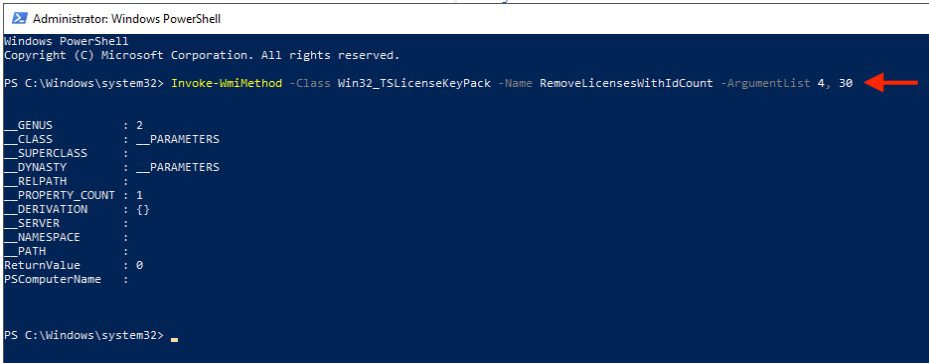
As you can see below, we have successfully reduced the number of CAL licenses.
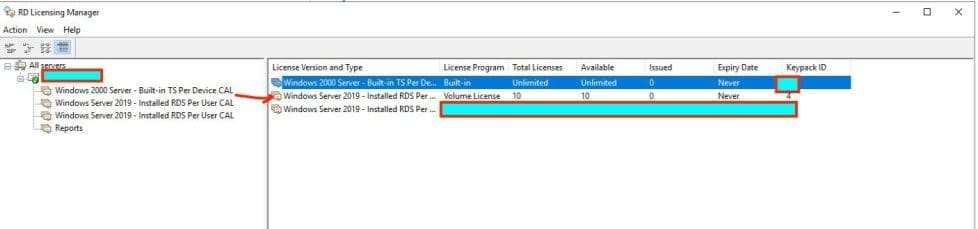
As I said, you can also verify using the command as well “Get-WmiObject Win32_TSLicenseKeyPack|Select KeyPackId, ProductVersion, TotalLicenses, TypeAndModel|Format-List“.
Please see Commandline: How to create an AMI from the CLI, how can I tell if a password is set for a user account, WARNING: The provided hosts list is empty only the localhost is available and note that the implicit localhost does not match all, and DriveLock Error: The server could not be reached or validated: Timeout expired. The Time out expired prior to obtaining a connection from the pool.
Rebuild the RDS CALs Database
Before proceeding, kindly ensure you have noted your MS License agreement that includes the Authorization number, License number, License type (User/Device CAL), and Quantity proceeding. When this is done, please proceed with the steps below.
- Stop the Remote Desktop Licensing service
- Rename C:\Windows\System32\lserver\TLSLic.edb to C:\Windows\System32\lserver\TLSLic.old
- Start the Remote Desktop Licensing service
- All licenses will now be cleared out of RD Licensing Manager, and you will need to reinstall the licenses you want to add back in
I hope you found this blog post helpful on how to remove RDS Client Access Licenses from RDS Server. Please let me know in the comment session if you have any questions.