Skip to content

TechDirectArchive

Hands-on IT, Cloud, Security & DevOps Insights

  • Home
  • About
  • Advertise With US
  • Contact
  • Reviews
  • Toggle search form
Home » Network | Monitoring » How to check graphics card temperature on Windows 11
  • MacOS Catalina Desktop
    Mac FileVault Encryption: How to enable FileVault disk encryption Security | Vulnerability Scans and Assessment
  • GoogleTimeError
    Google Chrome reports your clock is behind: How to fix clock synchronization issues in Windows Windows
  • create a Mapped Drive via GPO
    How to create a Mapped Drive via GPO Preferences Windows
  • Machine does not support XSAve
    How to disable side-channel mitigations on VMware Workstation Virtualization
  • Windows 10 1024x683 1
    ADK|WinPE|MDT: Deploy Windows with WDS Windows Server
  • How to pause updates and why
    How to Pause Windows Update via Windows Settings Windows
  • veeam
    How to uninstall Veeam Backup and Replication from your server Backup
  • BitRecDelegation
    Delegate control for BitLocker recovery keys in Active Directory Windows

How to check graphics card temperature on Windows 11

Posted on 26/12/202212/04/2023 Matthew By Matthew No Comments on How to check graphics card temperature on Windows 11
Featured-image_GPU_Temp
GPU Temperature Monitor

It’s important to keep an eye on the temperature of your graphics card because it can help you figure out if there are any problems with your hardware. If the temperature of your graphics card gets too high, it can cause performance issues and even damage the card. The graphics card, also known as a graphics processing unit (GPU), is a hardware component in a computer that is responsible for rendering images, videos, and other visual content. It is an important part of any computer that is used for things like gaming, editing videos, or making 3D models because it enables the computer to display high-quality graphics and smoothly render complex visual effects. In this article. ypu will learn how to check graphics card temperature on Windows 11.

Graphics card temperature on Windows 11

You may need to know the temperature of your graphics card on Windows 11 to fix problems with performance or overheating. We’ll show you how to do this without using third-party tools in this set of steps. Even though GPUs can run hot without affecting performance when they reach a certain temperature. They can cause a number of problems, which you will usually notice when gaming, running graphics-intensive applications, watching ultra-high-definition videos, or driving a multi-monitor setup.

For more on Windows, read: How to Add a Device to your Microsoft account, Add Hardware and Peripherals: How to add a device to a Windows 10 Computer,  how to remove a Bluetooth device and connect a new Bluetooth device to Macbook, Microsoft Phone Link: How to Link and Unlink an Android Phone to Windows 11.

Windows 11 makes it easy to check the temperature of every GPU installed on your computer. Here is a step-by-step guide on how to check the temperature of your graphics card on a Windows 11 computer.

How to check graphics card temperature on Windows 11

To view the graphics card temperature on Windows 11, use these steps:

Press the Windows key to open Start menu. Search for Task Manager and click the top result to open the app. Or click the keyboard shortcut “Ctrl + Shift + Esc” at once to open the app.
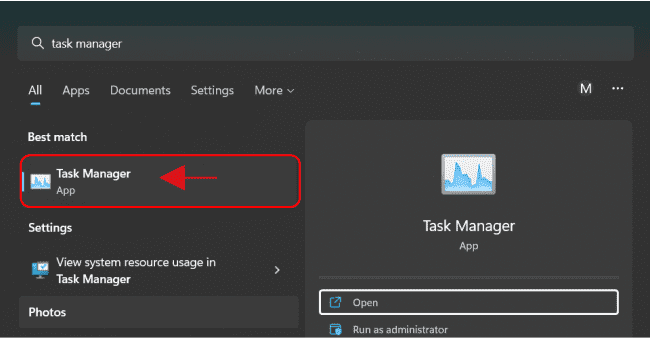
image3
Task Manager

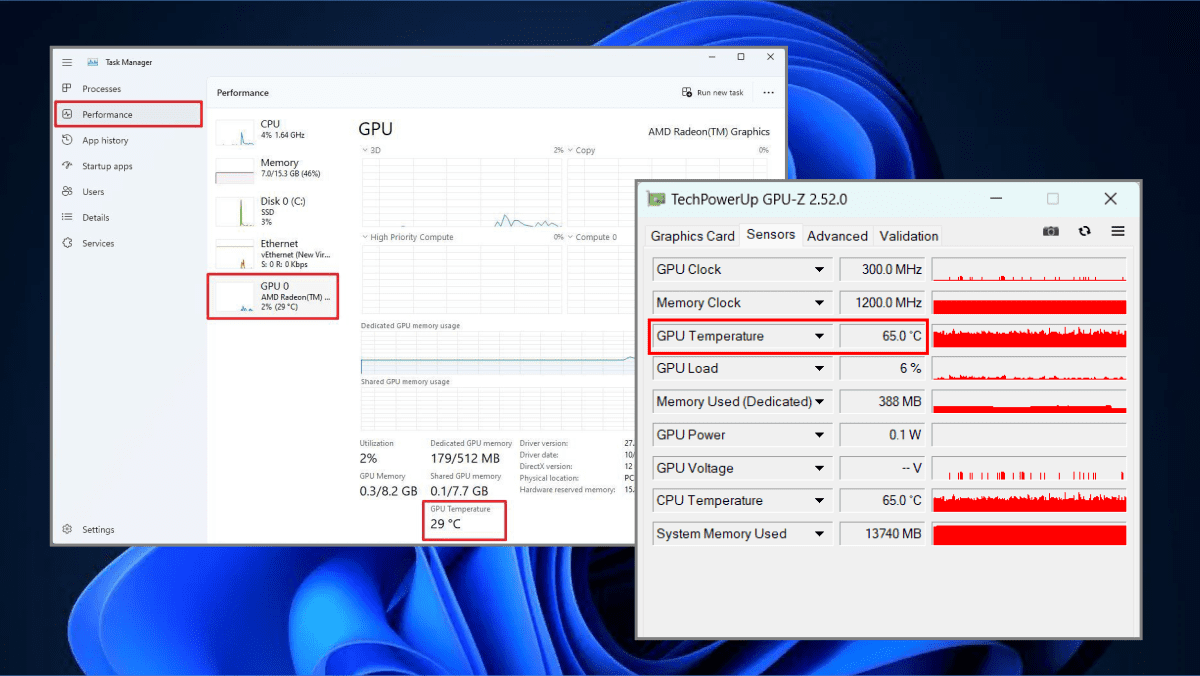
Click the Performance tab. Select the GPU from the left side.

image1-1
GPU Temperature Monitor

Under the “GPU Temperature” section, confirm the current hardware temperature. (The temperature will also be shown on the left side.)

After you finish the steps, Task Manager will tell you the temperature of the graphics card in Celsius.

Please see the following related articles: How to fix the external display not working on Windows 11, How to Add or Remove Network Interface from a VM in Azure, How to use the Widgets feature on Windows 11, Change the default start page for File Explorer on Windows 11, and how to Check the Size of Video Random Access Memory (VRAM) in Windows.

How to check GPU temperature using third-party app

Download and install a graphics card temperature monitoring tool. There are several free tools available that can help you monitor the temperature of your graphics card, such as MSI Afterburner, EVGA Precision XOC, and GPU-Z. Choose a tool that works with your graphics card and operating system, then download and install it on your PC.

Launch the temperature monitoring tool. Once the tool is installed, open it from the Start menu or by double-clicking its icon on the desktop.

Monitor the temperature of your graphics card. The main interface of the temperature monitoring tool should show the temperature of your graphics card at the moment. The temperature will be displayed in degrees Celsius (°C) or degrees Fahrenheit (°F).
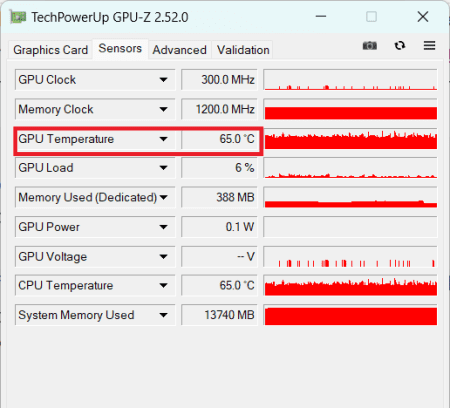
image2
TechPowerUp GPU Temperature Monitor

Check the temperature while the GPU is under load. To get an accurate reading of your graphics card’s temperature, it’s important to check it while the GPU is under load. You can do this by running a resource-intensive program, such as a game or a benchmarking tool.

Check the manufacturer’s recommended temperature range. Most graphics card manufacturers provide a recommended temperature range for their hardware. You can check this range by looking at the documentation that came with your graphics card or by visiting the manufacturer’s website. Check if the temperature of your graphics card is within the acceptable range by comparing it to the recommended range.

Take action if the temperature is too high. If your graphics card’s temperature is always above the recommended range, you should take steps to lower the temperature. This could include cleaning the graphics card and the inside of your PC, improving airflow in the case, or replacing the thermal paste on the graphics card.

Conclusion

Monitoring the temperature of your graphics card is an important part of maintaining the health of your PC. By following these steps, you can easily check the temperature of your graphics card and take action if necessary to keep it running smoothly. Please see how to demote and remove a Domain Controller on Windows Servers, and how to Fix “There was a problem starting logilda.dll” in Windows.

I hope you find this guide helpful on how to check graphics card temperature on Windows 11. If you have any questions, feel free to leave them in the comment section below.


Rate this post

Thank you for reading this post. Kindly share it with others.

  • Share on X (Opens in new window) X
  • Share on Reddit (Opens in new window) Reddit
  • Share on LinkedIn (Opens in new window) LinkedIn
  • Share on Facebook (Opens in new window) Facebook
  • Share on Pinterest (Opens in new window) Pinterest
  • Share on Tumblr (Opens in new window) Tumblr
  • Share on Telegram (Opens in new window) Telegram
  • Share on WhatsApp (Opens in new window) WhatsApp
  • Share on Pocket (Opens in new window) Pocket
  • Share on Mastodon (Opens in new window) Mastodon
  • Share on Bluesky (Opens in new window) Bluesky
  • Share on Threads (Opens in new window) Threads
  • Share on Nextdoor (Opens in new window) Nextdoor
Network | Monitoring Tags:Microsoft Windows, Windows 10, Windows 11, Windows Server 2016

Post navigation

Previous Post: How to install Cypress on Windows and perform Automation
Next Post: Change the default start page for File Explorer on Windows 11

Related Posts

  • screenshot 2020 02 08 at 17.23.28
    How to disable Password Change for all Exchange Server Users Network | Monitoring
  • UpdateOfficeOnlineServer 1
    Perform Office Online Server Update via the Microsoft Update Catalog Network | Monitoring
  • Screenshot 2020 05 14 at 19.08.33
    Backup image to TFTP server Network | Monitoring
  • Featured image   Network Access Permission...
    Fix You Might Not Have Permission to Use This Network Resource Error Network | Monitoring
  • Docker Installation on Ubuntu
    Docker Engine Installation on Ubuntu Network | Monitoring
  • requestedlogon
    Error 1385: The user has not been granted the requested logon type at this time Network | Monitoring

More Related Articles

screenshot 2020 02 08 at 17.23.28 How to disable Password Change for all Exchange Server Users Network | Monitoring
UpdateOfficeOnlineServer 1 Perform Office Online Server Update via the Microsoft Update Catalog Network | Monitoring
Screenshot 2020 05 14 at 19.08.33 Backup image to TFTP server Network | Monitoring
Featured image   Network Access Permission... Fix You Might Not Have Permission to Use This Network Resource Error Network | Monitoring
Docker Installation on Ubuntu Docker Engine Installation on Ubuntu Network | Monitoring
requestedlogon Error 1385: The user has not been granted the requested logon type at this time Network | Monitoring

Leave a Reply Cancel reply

You must be logged in to post a comment.

Microsoft MVP

VEEAMLEGEND

vexpert-badge-stars-5

Virtual Background

GoogleNews

Categories

veeaam100

sysadmin top30a

  • MacOS Catalina Desktop
    Mac FileVault Encryption: How to enable FileVault disk encryption Security | Vulnerability Scans and Assessment
  • GoogleTimeError
    Google Chrome reports your clock is behind: How to fix clock synchronization issues in Windows Windows
  • create a Mapped Drive via GPO
    How to create a Mapped Drive via GPO Preferences Windows
  • Machine does not support XSAve
    How to disable side-channel mitigations on VMware Workstation Virtualization
  • Windows 10 1024x683 1
    ADK|WinPE|MDT: Deploy Windows with WDS Windows Server
  • How to pause updates and why
    How to Pause Windows Update via Windows Settings Windows
  • veeam
    How to uninstall Veeam Backup and Replication from your server Backup
  • BitRecDelegation
    Delegate control for BitLocker recovery keys in Active Directory Windows

Subscribe to Blog via Email

Enter your email address to subscribe to this blog and receive notifications of new posts by email.

Join 1,832 other subscribers
  • RSS - Posts
  • RSS - Comments
  • About
  • Authors
  • Write for us
  • Advertise with us
  • General Terms and Conditions
  • Privacy policy
  • Feedly
  • Telegram
  • Youtube
  • Facebook
  • Instagram
  • LinkedIn
  • Tumblr
  • Pinterest
  • Twitter
  • mastodon

Tags

AWS Azure Bitlocker Microsoft Windows PowerShell WDS Windows 10 Windows 11 Windows Deployment Services Windows Server 2016

Copyright © 2025 TechDirectArchive


Loading Comments...
 

You must be logged in to post a comment.