Install and Manage Applications with Winget


It will interest you to know now that the Windows Package Manager “Winget” command-line tool is now bundled by default with Windows 11 and modern versions of Windows 10 by default as the App Installer. In this guide, you will learn how to install and manage applications with Winget. Please see LACP Configuration on Cisco 3650 Switch, and PowerShell Script: Uninstalling Applications Made Easy. If you are running an earlier version of Windows and the App Installer is not installed, you can get App Installer from the Microsoft Store.
If it’s already installed, make sure it is updated with the latest version. In Linux, here are some similar command line tools such as “yum” and “apt-get” etc. Kindly refer to these guides on how to install Windows Package Manager (Winget CLI), and Windows App Package: How to Bundle MSIX packages.
Winget Commands for Installing and Managing Applications
The winget command line tool is only supported on Windows 10 1709 (build 16299) or later at the time of writing this guide.
Update- 01.09.2023: Windows Package Manager winget command-line tool is available on Windows 11 and modern versions of Windows 10 as a part of the App Installer.
As you can see in the image below, the current preview of the Winget tool supports the following commands.
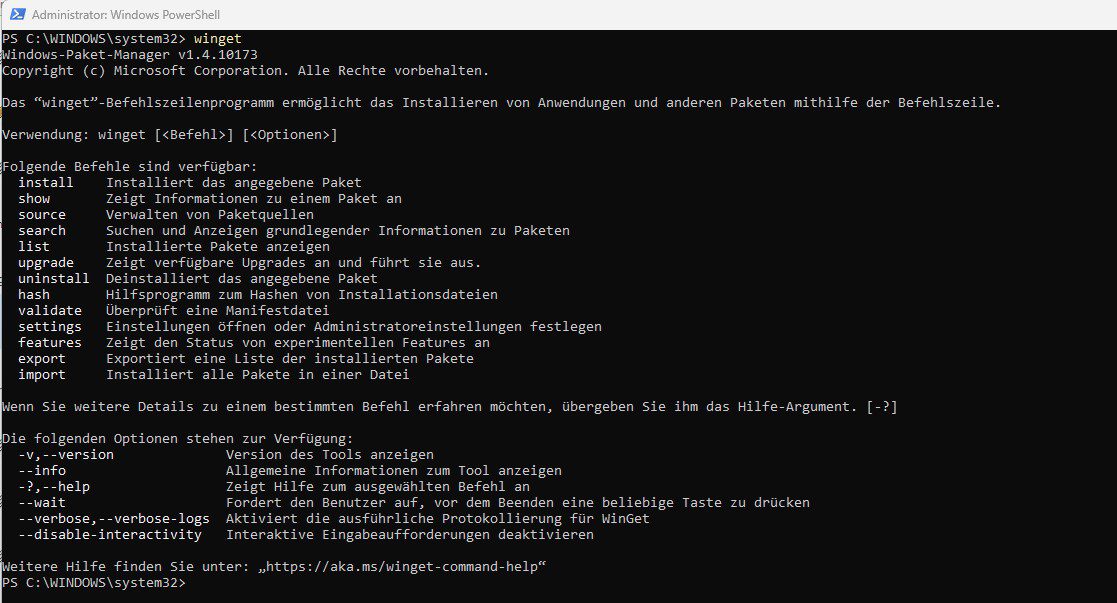
You may be interested in these articles: How to install, upgrade and uninstall Chocolatey, how to install, upgrade and uninstall software with Chocolatey, and how to install applications with Winget CLI on Windows.
Below is a table showing the various commands and associated descriptions of them.

The Winget list command
The winget list command will display more than just apps installed with the winget. Therefore you can use these commands to quickly and easily remove apps from your PC

Note: You can also use the list tool to find the application. This will display the app name, id and version of the application.
winget list clipchampPlease see How to install Winget CLI on Windows,
Winget Install Command
The install command of the winget tool installs a specified application you wish to have installed. You can also use the search winget command to identify the application you want to install. Below is the command to search command. After determining that the app you want is available, you can proceed with the installation.
winget search <appname>The install command requires that you specify the exact string to install. If there is any ambiguity, you will be prompted to further filter the install command to an exact application. To install an application, kindly use the command below if the application name is determined already.
winget install "vlc media player"
As you can see below, Cipchamp is a single word, and there isn’t any need to have a double quotation (“”) wrapping the application.
winget install clipchampIf you wish to install a specific version, kindly proceed and include the version number alongside the installation command as shown below. You can also install an application from its ID or install an application by version and ID.
winget install clipchamp --version x.xx.xwinget install --id Microsoft.clipchamp --version x.xx.xUninstall Tool – Winget
The uninstall command uninstalls the specified application you wish to remove from your device. The uninstall command requires that you specify the exact string to uninstall. If there is any ambiguity, you will be prompted to further filter the uninstall command to an exact application. To uninstall an application via winget, kindly run the command below followed by the application
winget uninstall "Microsoft to do"
Note: Just like the install command, you can uninstall a specific version of an application or uninstall an application using the application ID.
If the query provided to winget does not result in a single application to uninstall, then winget will display multiple results. You can then use additional filters to refine the search for the correct application. Below is an example of how to install an app that has a single name.

Windows Package Manager Upgrade Command
The upgrade command helps upgrade your specified application. This command requires that you specify the exact string to upgrade. If there is any ambiguity, you will be prompted to specify the exact application.
To see already installed applications that require an upgrade, kindly run the following command winget upgrade. This will list available apps that require an upgrade.
winget upgrade
To upgrade an app, kindly run the command winget upgrade notepad++.

Winget Upgrade All
The winget upgrade --all the command will identify all the applications with upgrades available. When you run winget upgrade --all the Windows Package Manager will look for all applications that have updates available and attempt to install the updates.
I hope you found this blog post helpful. Now, you have learned how to install and manage applications with Winget on a Windows PC. If you have any questions, please let me know in the comment session.


