Skip to content

TechDirectArchive

Hands-on IT, Cloud, Security & DevOps Insights

  • Home
  • About
  • Advertise With US
  • Contact
  • Reviews
  • Toggle search form
Home » Microsoft Exchange/Office/365 » How to change Windows 11 and 10 default mail app to Outlook
  • Veeam Virtual Appliance for Backup and Restore
    How to setup Veeam Software Appliance v13 Backup
  • screenshot 2020 04 23 at 00.30.09
    How to mount a USB Drive in Linux Linux
  • screenshot 2020 02 07 at 21.56.50
    Setup Kiosk Mode on Windows 10 with AD User Account Windows
  • Fix 0x800f0831 Windows Update
    Fix 0x800f0831 Error when installing Windows update Windows
  • Wingettool
    Install and Manage Applications with Winget Windows
  • PXE Boot to Install OS HyperV
    Run Hype-V on Windows 11 and Install Windows OS via PXE Boot Windows
  • enable or disable WinRM
    How to enable or disable WinRM via the command-line Network | Monitoring
  • Docker Volumes
    Create and Mount Volume to Docker Container Containers

How to change Windows 11 and 10 default mail app to Outlook

Posted on 30/08/202329/09/2023 Matthew By Matthew No Comments on How to change Windows 11 and 10 default mail app to Outlook
Featured image - change default mail app
Change Windows Default Mail App to Outlook

Being able to manage your email inbox effectively is crucial in today’s professional and personal lives. Windows 11, like its predecessor Windows 10, allows users to easily include their favourite email client within the operating system. Microsoft Outlook is the most powerful and feature-rich of these solutions for organizing your inbox, calendar, and to-do list. Kindly see How to Recall an Email in Microsoft Outlook, and Microsoft Outlook: Adding & Removing Folders in Favorites. This article shall discuss how to change the Windows 11 and 10 default mail app to Outlook.

We will show you how to make Microsoft Outlook the default email client on Windows 11 and 10 and walk you through the rest of the procedure if you are unfamiliar with the process. You can improve your digital communication, workflow, and email organization all from your desktop by making this one simple change. Here are other related guides on outlook: How to Share Microsoft Outlook Calendar on Desktop and on Web, 5 Steps to Fix Outlook continually prompts for passwords on Windows 10 and 11, and How to install new fonts in Microsoft Office.

How to change the Windows 11 default mail app to Outlook

Press the “Windows key + I” to open the system settings. Then, select “Apps,” and on the right pane, choose “Default apps.”

Select Default apps in the App settings

Within the default apps section, scroll down and click on the current default mail app on your system.

Click on Mail
Select the current default mail app

In the current default mail app, click on “Choose a default.” Upon completing that action, proceed to click on the MAILTO option and also modify the default to Outlook.
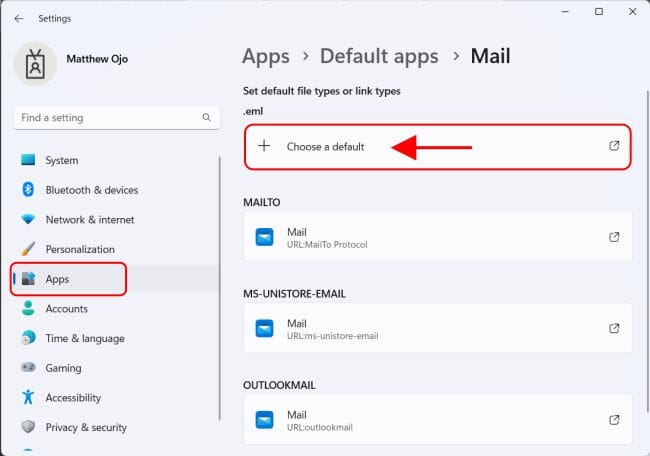
Click on choose a default

Under the suggested apps, select Outlook as the default app.

Select outlook as the default app

After completing this process, every email you send will automatically open Outlook as the mail app.

How to change Windows 10 default mail app to Outlook

Press the Windows key to open the Start menu, then type “Control Panel” in the search box and open it.

Open control panel from start menu

Click on “Programs” in the control panel”

Click on Programs
Click on Programs

Within the Programs section, select “Default Programs.”

Select default programs

Under the Default Programs, click on “Associate a file type or protocol with a program.”

Click on Associate a file type or protocol with a program

This will open up the “Default apps” settings. On the right-hand side of this interface, under the “Email” category, click on the default Mail app.

Click on Mail app
Click on Mail app

Under the “Choose an app,” select Outlook as the default app.

Click Outlook to set default app

To finalize the process, verify that Outlook is now confirmed as the designated default email application.

Outlook set as default app

I hope you found this blog post helpful on how to “change Windows 11 and 10 default mail app to Outlook”. Please let me know in the comment section if you have any questions.

Rate this post

Thank you for reading this post. Kindly share it with others.

  • Click to share on X (Opens in new window) X
  • Click to share on Reddit (Opens in new window) Reddit
  • Click to share on LinkedIn (Opens in new window) LinkedIn
  • Click to share on Facebook (Opens in new window) Facebook
  • Click to share on Pinterest (Opens in new window) Pinterest
  • Click to share on Tumblr (Opens in new window) Tumblr
  • Click to share on Telegram (Opens in new window) Telegram
  • Click to share on WhatsApp (Opens in new window) WhatsApp
  • Click to share on Pocket (Opens in new window) Pocket
  • Click to share on Mastodon (Opens in new window) Mastodon
  • Click to share on Bluesky (Opens in new window) Bluesky
  • Click to share on Threads (Opens in new window) Threads
  • Click to share on Nextdoor (Opens in new window) Nextdoor
Windows Tags:email, Microsoft outlook, Microsoft Windows, Outlook, Windows 10, Windows 11, Windows Server 2016

Post navigation

Previous Post: Great details on VMware Tech Showcase
Next Post: Convert Google Forms Into Microsoft Forms

Related Posts

  • screenshot 2020 02 07 at 21.56.50
    Setup Kiosk Mode on Windows 10 with AD User Account Windows
  • Startup delay mbam
    Force immediate MBAM Encryption: Why does the MBAM Agent delay most times in encrypting devices? Windows
  • nodee
    How to install Cypress on Windows and perform Automation Windows
  • Secure Web Server
    How to secure a Web Server on a Windows VM in Azure using TLS/SSL Certificates Saved in Azure Key Vault AWS/Azure/OpenShift
  • printserver
    How to set up a Print Server on Windows Servers Windows
  • wds
    What are the differences between Lite-Touch and Zero-Touch installation? Windows

More Related Articles

screenshot 2020 02 07 at 21.56.50 Setup Kiosk Mode on Windows 10 with AD User Account Windows
Startup delay mbam Force immediate MBAM Encryption: Why does the MBAM Agent delay most times in encrypting devices? Windows
nodee How to install Cypress on Windows and perform Automation Windows
Secure Web Server How to secure a Web Server on a Windows VM in Azure using TLS/SSL Certificates Saved in Azure Key Vault AWS/Azure/OpenShift
printserver How to set up a Print Server on Windows Servers Windows
wds What are the differences between Lite-Touch and Zero-Touch installation? Windows

Leave a Reply Cancel reply

You must be logged in to post a comment.

Microsoft MVP

VEEAMLEGEND

vexpert-badge-stars-5

Virtual Background

GoogleNews

Categories

veeaam100

sysadmin top30a

  • Veeam Virtual Appliance for Backup and Restore
    How to setup Veeam Software Appliance v13 Backup
  • screenshot 2020 04 23 at 00.30.09
    How to mount a USB Drive in Linux Linux
  • screenshot 2020 02 07 at 21.56.50
    Setup Kiosk Mode on Windows 10 with AD User Account Windows
  • Fix 0x800f0831 Windows Update
    Fix 0x800f0831 Error when installing Windows update Windows
  • Wingettool
    Install and Manage Applications with Winget Windows
  • PXE Boot to Install OS HyperV
    Run Hype-V on Windows 11 and Install Windows OS via PXE Boot Windows
  • enable or disable WinRM
    How to enable or disable WinRM via the command-line Network | Monitoring
  • Docker Volumes
    Create and Mount Volume to Docker Container Containers

Subscribe to Blog via Email

Enter your email address to subscribe to this blog and receive notifications of new posts by email.

Join 1,841 other subscribers
  • RSS - Posts
  • RSS - Comments
  • About
  • Authors
  • Write for us
  • Advertise with us
  • General Terms and Conditions
  • Privacy policy
  • Feedly
  • Telegram
  • Youtube
  • Facebook
  • Instagram
  • LinkedIn
  • Tumblr
  • Pinterest
  • Twitter
  • mastodon

Tags

AWS Azure Bitlocker Microsoft Windows PowerShell WDS Windows 10 Windows 11 Windows Deployment Services Windows Server 2016

Copyright © 2025 TechDirectArchive


Loading Comments...
 

You must be logged in to post a comment.