Skip to content

TechDirectArchive

Hands-on IT, Cloud, Security & DevOps Insights

  • Home
  • About
  • Advertise With US
  • Contact
  • Reviews
  • Toggle search form
Home » Windows » How to Fix Python was not found run without arguments to install from the Microsoft Store
  • Storage Explorer
    How to Install Azure Storage Explorer on Windows AWS/Azure/OpenShift
  • Anyviewer Review
    Free Remote Desktop Software for Windows in 2023 Windows
  • Veeam SureBackup
    Ensuring Backup Integrity and Reliable Recovery with SureBackup Backup
  • feature image nodejs
    How to install Node.js on Ubuntu Linux
  • Enable autologon and autostart for user session
    Enable Autologon and Autostart for user session Windows
  • how to fix the sorry this file type is not permitted for security reasons error in wordpress 5e4a5632967c7
    Error 1707: Network address invalid when trying to connect remotely Windows
  • sdgfdhx
    MDT Warning: Unable to set working directory, the application returned an unexpected code 2 Windows Server
  • upgrade Microsoft SQL Server
    How to upgrade Microsoft SQL Server 2019 to 2022 Oracle/MSSQL/MySQL

How to Fix Python was not found run without arguments to install from the Microsoft Store

Posted on 30/09/202304/10/2023 Temitope Odemo By Temitope Odemo No Comments on How to Fix Python was not found run without arguments to install from the Microsoft Store
banner

Sometimes you may try to install a package via CLI. While running the command you get this message “Python was not found; run without arguments to install from the Microsoft Store”. This message is displayed because what you intend to install needs Python for a successful installation or configuration. In this guide, I will be showing you how to fix Python that was not found run without arguments to install from the Microsoft Store. You may want to read further on How to Run Python Script via Windows Task Scheduler and Python Automation in Windows with Visual Studio Code and How you can Visualize MBAM Recovery Audit Report with Python

Fix Python was not found

Following the steps below to resolve the issue, python not found to run with an argument on Windows.

A. Using Environment Variable

1. Open AppData and Navigate to the Python folder. You will need to navigate to the python folder and copy the path

AppData > Local > Programs > Python > Python311
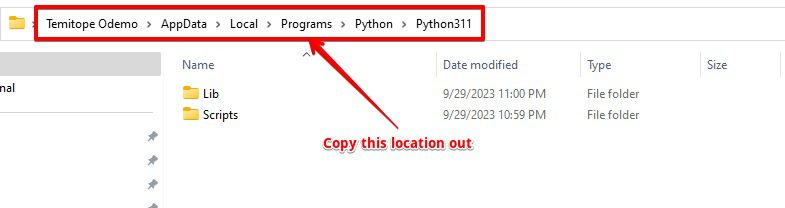
How-to-Fix-Python-was-not-found-run-without-arguments-to-install-from-the-Microsoft-Store-location

2. Open the Scripts folder

You will also need to navigate further into the Scripts folder and copy the path.

AppData > Local > Programs > Python > Python311 > Scripts
How-to-Fix-Python-was-not-found-run-without-arguments-to-install-from-the-Microsoft-Store-location-2

3. Open Environment Variables

Open Windows Environment Variable and navigate to system variables. Under Path click New and paste the two paths you copied earlier and click OK to close the Environment Variable.

How-to-Fix-Python-was-not-found-run-without-arguments-to-install-from-the-Microsoft-Store-Environment-Variable

Learn how to upgrade and downgrade PIP on Windows, how To Add Google Drive To File Explorer on Windows, and How to check the BIOS version on Windows.

A. Install Python for Windows: Add to the Environment Variable

During the installation of Python, you may need to check the box “Add Python to environment variables” and install. If already installed, you can still check this box by relaunching the installation file and modifying the installation.

How-to-Fix-Python-was-not-found-run-without-arguments-to-install-from-the-Microsoft-Store-add-python

Here are some interesting guides: Ansible: No python interpreters found for the host, and how to create an Advanced Windows Scheduled Task.

FAQs

How do I fix Python not found on Windows 10?

Confirm that the Python installation was successful, and you can try to re-install it and check the “Add Python to environment variables”. You can also update the PATH variable to include the Python executable path.

How do I install Python in the Microsoft Store?

On your Windows system search for “Microsoft Store”, and select the link to open the store. Once the store is open, select Search from the upper-right menu and enter “Python”. Select which version of Python you would like to use from the results under Apps and start the installation.

I hope you found this blog post on “how to Fix Python was not found run without arguments to install from the Microsoft Store“. Interesting and helpful. In case you have any questions do not hesitate to ask in the comment section.

Rate this post

Thank you for reading this post. Kindly share it with others.

  • Click to share on X (Opens in new window) X
  • Click to share on Reddit (Opens in new window) Reddit
  • Click to share on LinkedIn (Opens in new window) LinkedIn
  • Click to share on Facebook (Opens in new window) Facebook
  • Click to share on Pinterest (Opens in new window) Pinterest
  • Click to share on Tumblr (Opens in new window) Tumblr
  • Click to share on Telegram (Opens in new window) Telegram
  • Click to share on WhatsApp (Opens in new window) WhatsApp
  • Click to share on Pocket (Opens in new window) Pocket
  • Click to share on Mastodon (Opens in new window) Mastodon
  • Click to share on Bluesky (Opens in new window) Bluesky
  • Click to share on Threads (Opens in new window) Threads
  • Click to share on Nextdoor (Opens in new window) Nextdoor
Windows Tags:Microsoft Store, Python, Windows 10, Windows 11, Windows Server 2016

Post navigation

Previous Post: How to check Hard Drive Health (SMART) in Windows
Next Post: How To Add Google Drive To File Explorer in Windows

Related Posts

  • How to use Netstat.exe to confirm which Program uses or blocks a port
    How to use Netstat.exe to confirm which Program uses or blocks a port Linux
  • fba7f screenshot 2019 04 15 at 18.33.30
    File System Overview: How to decide on the right File System to use for your USB Linux
  • VMware workstation networking issues
    Network cable Unplugged: Fix VMware “Warning – Multiple default gateways are intended to provide redundancy to a single network Virtualization
  • Enable a Pre Boot BitLocker PIN on Windows
    How to Enable a Pre-Boot BitLocker PIN on Windows Security | Vulnerability Scans and Assessment
  • delete5
    How to Delete Diagnostic Data in Windows 10 and Windows 11 Windows
  • RemoteDesktopLinceseServer
    Fix Remote session was disconnected because there are no Remote Desktop License Servers available to provide a license Network | Monitoring

More Related Articles

How to use Netstat.exe to confirm which Program uses or blocks a port How to use Netstat.exe to confirm which Program uses or blocks a port Linux
fba7f screenshot 2019 04 15 at 18.33.30 File System Overview: How to decide on the right File System to use for your USB Linux
VMware workstation networking issues Network cable Unplugged: Fix VMware “Warning – Multiple default gateways are intended to provide redundancy to a single network Virtualization
Enable a Pre Boot BitLocker PIN on Windows How to Enable a Pre-Boot BitLocker PIN on Windows Security | Vulnerability Scans and Assessment
delete5 How to Delete Diagnostic Data in Windows 10 and Windows 11 Windows
RemoteDesktopLinceseServer Fix Remote session was disconnected because there are no Remote Desktop License Servers available to provide a license Network | Monitoring

Leave a Reply Cancel reply

You must be logged in to post a comment.

Microsoft MVP

VEEAMLEGEND

vexpert-badge-stars-5

Virtual Background

GoogleNews

Categories

veeaam100

sysadmin top30a
 
  • Storage Explorer
    How to Install Azure Storage Explorer on Windows AWS/Azure/OpenShift
  • Anyviewer Review
    Free Remote Desktop Software for Windows in 2023 Windows
  • Veeam SureBackup
    Ensuring Backup Integrity and Reliable Recovery with SureBackup Backup
  • feature image nodejs
    How to install Node.js on Ubuntu Linux
  • Enable autologon and autostart for user session
    Enable Autologon and Autostart for user session Windows
  • how to fix the sorry this file type is not permitted for security reasons error in wordpress 5e4a5632967c7
    Error 1707: Network address invalid when trying to connect remotely Windows
  • sdgfdhx
    MDT Warning: Unable to set working directory, the application returned an unexpected code 2 Windows Server
  • upgrade Microsoft SQL Server
    How to upgrade Microsoft SQL Server 2019 to 2022 Oracle/MSSQL/MySQL

Subscribe to Blog via Email

Enter your email address to subscribe to this blog and receive notifications of new posts by email.

Join 1,841 other subscribers
  • RSS - Posts
  • RSS - Comments
  • About
  • Authors
  • Write for us
  • Advertise with us
  • General Terms and Conditions
  • Privacy policy
  • Feedly
  • Telegram
  • Youtube
  • Facebook
  • Instagram
  • LinkedIn
  • Tumblr
  • Pinterest
  • Twitter
  • mastodon

Tags

AWS Azure Bitlocker Microsoft Windows PowerShell WDS Windows 10 Windows 11 Windows Deployment Services Windows Server 2016

Copyright © 2025 TechDirectArchive


Loading Comments...
 

You must be logged in to post a comment.