



Create Folders and Enable File sharing on Windows


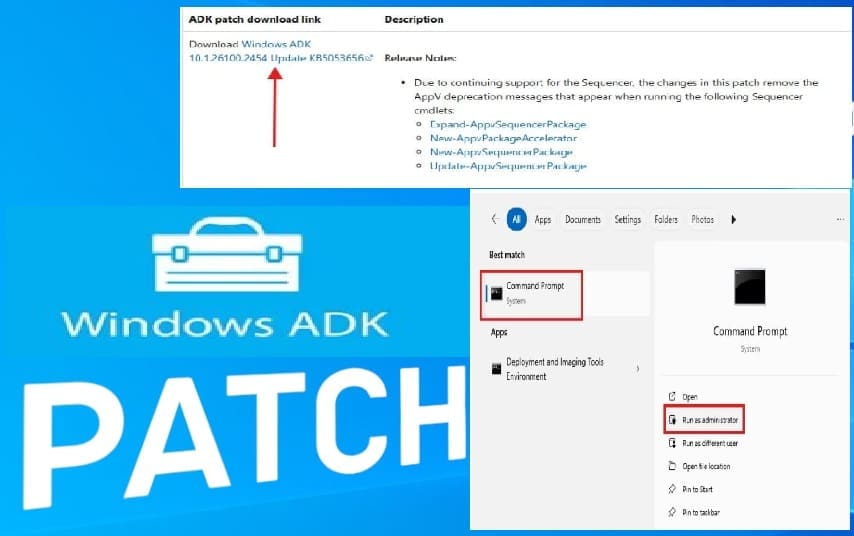
A file share is a directory on a device whether physical or virtual containing files and directories that are accessible to other users via the network. It utilizes the supported file sharing protocols “SMB or NFS”. In this article, we shall Create Folders and Enable File sharing on Windows Server. This is also application to Windows OS’. Please see how to Install DBeaver on macOS: Connect to PostgreSQL Database and Windows ADK working for Windows 11 and Windows Server 2022.
You can utilize Azure Files which is a cloud file system. In the next guide, I will work you through a detailed of how to create ACLs on Synology NAS Shares and Windows Server.
Note: To use an Azure file share via the public endpoint outside of the Azure region it is hosted in, such as on-premises or in a different Azure region. The OS must support SMB 3.x. Older versions of Windows that support only SMB 2.1 can’t mount Azure file shares via the public endpoint. To use an Azure file share with Windows, you must either mount it, which means assigning it a drive letter or mount point path, or access it via its UNC path.
Please see “how to fix Error Code: 0x80070035: MDT unable to access the Log share, the Network Path was not found. Also, see how to Create and access a hidden share folder on Windows.
Create a Folder
To create a Folder in Windows, launch File Explorer or by using the shortcut “Windows + E“. Alternatively, you ccould use ‘Ctrl + Shift + N“. I will be creating this folder on the data drive (Drive D).
Right-click on an empty space, hover over “New,” and then click “Folder” as shown below.

As you can see, we have created a new folder.

Please see How to access shared resources from two different domains, how to remove an MDT Deployment Share, and how to “Copy Deployment Share between Servers without using linked Deployment Shares‘.
Option 1: Windows File Sharing Setup
To share a Folder in Windows, right-click on the folder and select Properties from the menu.

In the Properties window, click on the Sharing tab and click on Share.

This will open the Network access window. You can choose the users or groups you want to share the folder with. You can add them by typing their names and clicking Add.
For this guide, I will select the Administrator and click on Share as shown below. Here, the permission (Read or Read/Write) level is set for this user. you can also do this for the group.

Select “Change settings”

On the network access window, click done to complete this step. To access this Folder over the network, below is the associated UNC path. Here is How to Find the Pathname of a Mapped Network Drive.

Please, see Convert Windows Server Datacenter to Standard: Install via iDRAC Virtual Media, and How to delete a VM and Storage in Proxmox.
Option 2: Create File Sharing with Advanced Sharing
If you need more advanced sharing options with granular permission. You can use the Advanced Sharing button in the Sharing tab.
Click on the Advanced Sharing button as shown below. I will be using a different folder for this example.

Check the box that says Share this folder

You can add Group and users and set custom permissions based on your need.

As you can see, File sharing has been set for this folder using the Advanced sharing option.

As we can see sharing folders allows you to grant access to resources over the network. You can also share folders via the command line and PowerShell.
Note: You can undo the sharing operation by unchecking the share button as shown above.
I hope you found this article useful on how to Create Folders and Enable File sharing on Windows Server. Please feel free to leave a comment below.