The Trusted Platform Module (TPM) technology provides hardware-based security functions. A TPM chip performs cryptographic operations securely on your device. In this article, we will discuss the various steps on how to fix a vulnerable Trusted Platform Module [TPM]. Here is an exciting article on Manage TPM Protector: How to encrypt additional drives on an MBAM-protected device, and how to Enable TPM: Determine if TPM is present. Discovering how to fix a vulnerable Trusted Platform Module [TPM] can save you from potential security threats.
Patching a vulnerable Trusted Platform Module (TPM) in Windows involves updating the firmware and the associated drivers of the TPM to protect against known vulnerabilities. TPM vulnerabilities can expose systems to security risks. Therefore, keeping your TPM firmware up to date is crucial.
How to determine why an MBAM-protected device is non-compliant, Reasons for BitLocker Recovery Prompt: Query the number of BitLocker recovery request, and
Determine if my Windows PC TPM is vulnerable?
Please use the following command to quickly view the TPM information of the device as shown in the image below. You may want to learn some Windows Management Instrumentation Commands.
tpmtool getdeviceinformation

As you can see, we are also able to determine the TPM version. You could also use the TPM Management console to determine the manufacturer information and the TPM version. To do this, search for TPM from the search bar or run the shortcut “tpm.msc”.
Steps to fix a Vulnerable TPM
Step 1: First, check to see the Security Update guide to see if your TPM is vulnerable by reviewing advisories (Microsoft Security Response Center (MSRC)) from Microsoft or the TPM manufacturer.
Step 2: Most importantly, visit the website of your PC’s manufacturer (e.g., Dell, HP, Lenovo etc.) and check for any TPM firmware updates related to your specific model.
Note: For custom-built PCs, check the motherboard manufacturer’s website. Please take a look at this Microsoft Link by Device manufacturers.
For example, a DELL PC as it is in my case. You can launch the DELL Command Update to check for applicable or available firmware updates.
Note: This approach is recommended because if you have BitLocker enabled on your volumes. BitLocker will automatically be suspended. But if you manually download firmware updates, you have to manually suspend BitLocker. Else, you will be prompted for the BitLocker recovery Key when the device restarts.

Note: As mentioned above. when the
BIOS setup fileis downloaded manually, Please check the option “Suspend BitLocker Drive Encryption” as discussed in this guide “how to update the BIOS on your Dell system“.
When will the Dell Update prompt the BitLocker Recovery Screen?
BIOS-related changes or upgrades can trigger the BitLocker recovery window because encrypted devices store the BIOS/UEFI settings. When these settings change, the boot measurement alters, prompting BitLocker to enter recovery mode.
Step 3: Install Windows Updates because Microsoft sometimes bundles TPM updates with Windows updates. You can automate Windows Update with PowerShell.
Go to Settings > Update & Security > Windows Update, and click on Check for updates.

Update is in progress
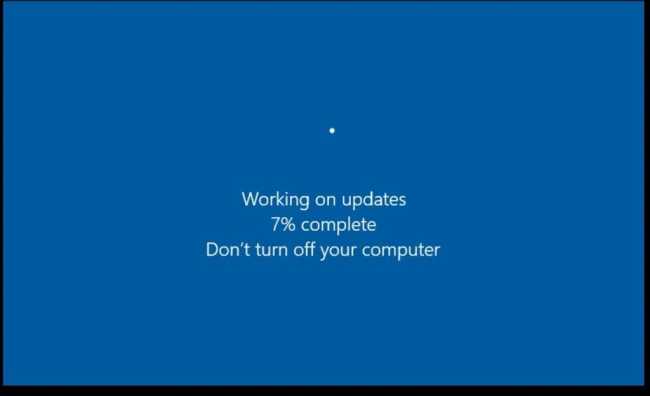
Please see how to fix Windows update Install error 0x800700b7, how to fix Fix Keep personal files and apps option greyed out during Upgrade, how to get lists of installed Microsoft Windows Updates, and how to check if Windows Updates were installed on your device via the Registy Editor.
Note: In the past, you will have to manually suspend BitLocker before updating the BIOS and Firmware updates. This is no longer the case starting with Windows 10 and Windows 11. Modern Windows devices are increasingly protected with BitLocker Device Encryption out of the box and support SSO to help protect the BitLocker encryption keys from cold boot attacks.
Check if the TPM Vulnerability is still Present
To do this, run the command “tpmtool getdeviceinformation” to determine if the TPM has a vulnerability.
The value of “False” indicates that the patch has been applied correctly

Other TPM related Information
You could check if your device has TPM via the Command Prompt: To do this, open the elevated Command Prompt and run the following command below. You could also use the command “get-tpm” to get your desired result.

I hope you found this article on How to fix a vulnerable Trusted Platform Module [TPM] very useful. Please feel free to leave a comment below.