In this guide we shall discuss “Azure Managing Subscriptions with PowerShell: From Login-AzAccount to Resource Control and Private Endpoint Verification for Azure File Share””. In the world of cloud computing, efficient resource management is essential to ensure security, performance, and cost control. Microsoft Azure provides several tools to manage complex environments, including PowerShell, which allows you to automate operations and simplify repetitive tasks. Please see Azure Application Gateway: Practical Configuration Guide, and Azure Arc for SQL Server PAYG: Installation, Connectivity Requirements and Operational Best Practices.
This article is designed as a practical guide to help you navigate the main commands of the Az PowerShell module, starting from authentication using Login-AzAccount to exploring subscriptions, resource groups, and specific resources. Additionally, it includes practical examples for querying advanced services such as Azure Storage Sync, with a focus on identifying Cloud Endpoints.
Special attention is also given to the verification of Private Endpoints for Azure File Shares, an essential aspect for ensuring secure and private connectivity between your environments and Azure storage services.
Please see How to Assign a Public IP to Azure Virtual Machine (VM), how to Upgrade Veeam ONE to 13.0.2.6723 to Address Security Fixes, and Fix Vulnerable Veeam Backup and Replication 13.0.1.2067 and Earlier.
1: Install and Authenticate to Azure
Before starting, make sure the Az module is installed:
Install-Module -Name Az
or
Install-Module -Name Az -Scope CurrentUser -Repository PSGallery -Force

Check available commands related to account management:
Get-Command AzAccount -Module Az*

Authenticate to Azure:
Login-AzAccount

Please see how to upgrade Veeam One from v12 to v13, how to Integrate Trellix ePolicy Orchestrator with a Syslog Server, and Veeam Backup and Replication: PowerShell must be Remote Signed.
2: Explore Azure Subscriptions
List all available subscriptions:
Get-AzSubscriptionFilter subscriptions by Tenant ID:Get-AzSubscription -TenantId ******************************fSelect a specific subscription:Select-AzSubscription -SubscriptionId ********************************9


Please see Prevent Automatic Driver Updates in Windows and Xen-Orchestra, how to Switch from IP Addresses to DNS for Backup Infrastructure in VBR, and how to remove a Repository from Veeam Backup and Replication.
3: Explore Resource Groups and Resources
List all resources:
Get-AzResource
Retrieve a specific Resource Group:
Get-AzResourceGroup -Name YourFilesRG
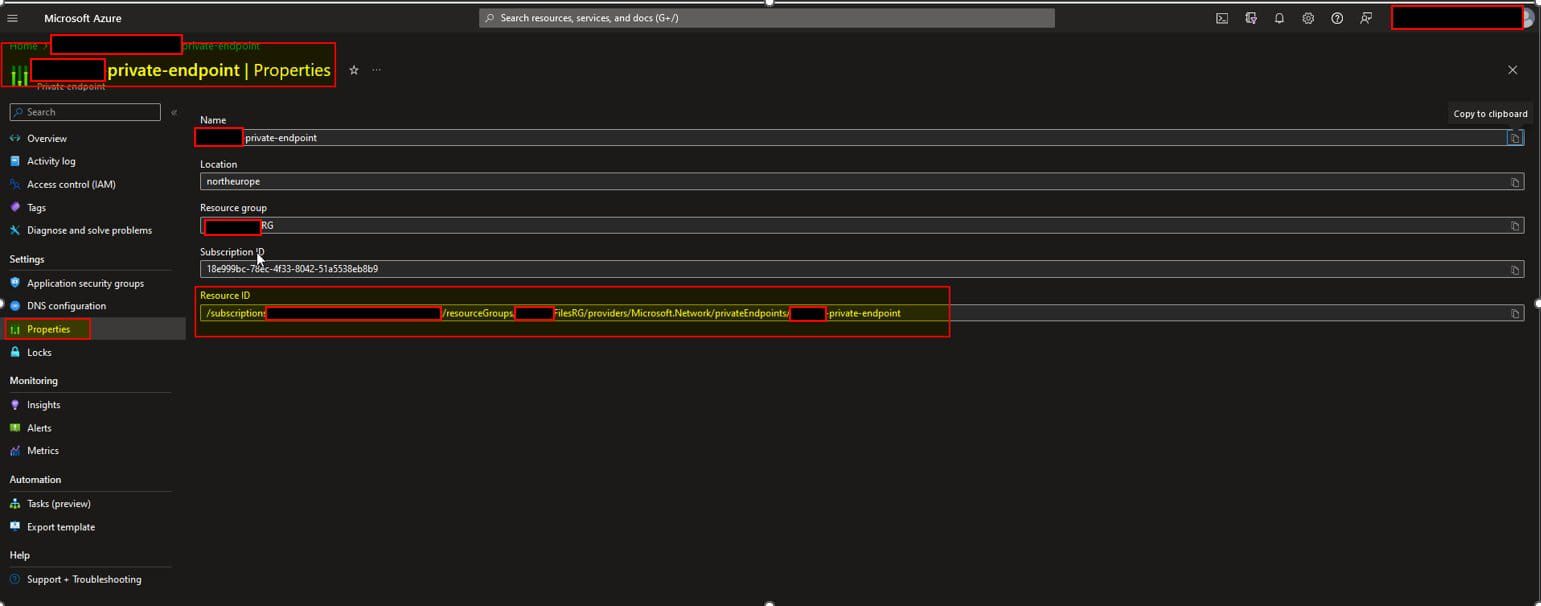
Retrieve details of a specific resource (e.g., Private Endpoint):
Get-AzResource -ResourceId /subscriptions/******9/resourceGroups/Your-FilesRG/providers/Microsoft.Network/privateEndpoints/your-private-endpoint

Retrive Endpoint From GUI
Please see how to Update Veeam Backup & Replication to Build 13.0.1.2067, and how to Fix broken Repository Path in Veeam Scale-Out Backup Repository.
4: Verify Private Endpoint for Azure File Share
Private Endpoints allow secure access to Azure services over a private network.
To verify a Private Endpoint associated with an Azure File Share:
Get-AzPrivateEndpoint -ResourceGroupName "YourFilesRG"
To inspect its configuration in detail:
$pe = Get-AzPrivateEndpoint -Name "your-private-endpoint" -ResourceGroupName "YourFilesRG"
$pe.NetworkInterfaces
$pe.PrivateLinkServiceConnections
Check the linked storage account (Azure Files):
$pe.PrivateLinkServiceConnections.PrivateLinkServiceId
This value should reference a Microsoft.Storage resource, confirming that the Private Endpoint is connected to an Azure Storage Account hosting File Shares.

5: Retrieve Azure File Sync Cloud Endpoint
To identify the Cloud Endpoint used in Azure File Sync:
Get-AzStorageSyncCloudEndpoint -ResourceGroupName "Your-RG" -StorageSyncServiceName "your-syncservice" -SyncGroupName "-Your-sync-disk-g"
This command returns:
- Storage Account linked to sync
- Azure File Share name
- Cloud Endpoint configuration

Please see how to Leverage Azure Blob Storage as an Object Storage Repo in Veeam, and PXE Boot Failure: “Access Denied or Aborted” with Secure Boot on [Part 4].
6: Architecture Overview: Azure File Share with Private Endpoint
Below is a simplified architecture showing how a Private Endpoint secures access to an Azure File Share:
+—————————+
| On-Premises |
| (Client / Server) |
+————-+————-+
|
| VPN / ExpressRoute
|
+————-v————-+
| Azure VNet |
| |
| +——————-+ |
| | Private Endpoint |————————+
| | (Private IP) | |
| +——————-+ |
| |
+———————————————–+
|
v
+———————-+
| Azure Storage |
| Account |
| (File Share) |
+———————-+
Conclusion
Using PowerShell with the Az module, you can efficiently:
- Authenticate to Azure
- Manage subscriptions and tenants
- Explore and query resources
- Validate Private Endpoint configurations
- Inspect Azure File Sync components
This approach is particularly useful in enterprise environments where automation, governance, and security validation are critical.
I hope you found this guide on “Azure Managing Subscriptions with PowerShell: From Login-AzAccount to Resource Control and Private Endpoint Verification for Azure File Share” very useful. Please feel free to leave a comment below.