Windows Security (formerly Windows/Microsoft Defender) is a critical component of modern Windows systems. However, you may occasionally encounter issues where SecHealthUI.exe crashes or generates event viewer errors, leading to malfunctioning security notifications. Therefore, we will discuss “Faulting SecHealthUI: Resolve Windows Defender Notification”. Please see how to Update Your AMD Radeon Display Adapter Driver, and how to update Proxmox VE to the latest version 9.2.3 today.
What is SecHealthUI.exe?
SecHealthUI.exe is a legitimate Windows system process that powers the Windows Security interface. It is responsible for:
- Displaying antivirus and firewall status
- Showing threat alerts and notifications
- Providing access to Windows Security dashboard
Note: If the process crashes, Windows Security notifications will stop working. This file can be found in the below location.
C:\Windows\System32\SecHealthUI.exe
Please see how to add a new Domain Controller to an Existing Domain, how to keep Apps up to date on Windows devices, and how to Raise or Downgrade AD Domain and Forest Functional Level
Faulting SecHealthUI
As mentioned above, SecHealthUI.exe is a legitimate, a native Microsoft component associated with the Windows Security application. Its main function is to handle the graphical user interface (UI) where end-users and administrators configure antivirus settings, review firewall rules, monitor device health, and check security notifications.
When this process repeatedly faults as shown in the image below. You will notice that the Windows Security application fails to open, crashes unexpectedly during usage, and continuously log errors into Windows Logs.
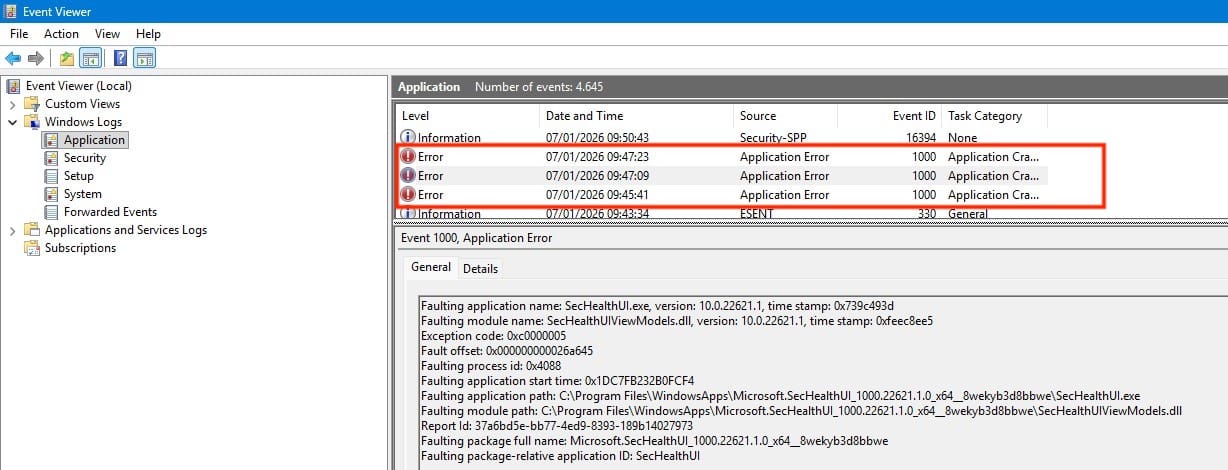
According to the system diagnosis (Event Viewer). This crash point directly to a memory alignment or dependency mismatch within the AppX package structure:
- Faulting Application Name: SecHealthUI.exe
- Faulting Module Name: SecHealthUIViewModels.dll
- Exception Code: 0xc0000005 (Access Violation)
- Faulting Application Path: C:\Program Files\WindowsApps\Microsoft.SecHealthUI_1000.22621.1.0_x64__8wekyb3d8bbwe\SecHealthUI.exe
Here, the exception code of 0xc0000005 means the application tried to access a memory location it shouldn’t. This is because the underlying WindowsApp package has become unaligned (changed) during a Windows update. Note that there are other common causes but they do not apply and will not be discussed here.
Please see how to Install Lets Encrypt Certificate on Windows with Certbot, AD Recovery: Fix device ran into an issue with error 0xc00002e2, and how to integrate ObjectFirst OOTBI Appliance with VBR.
Resolve Faulting SecHealthUI and Restore Windows Defender Notifications
Since SecHealthUI.exe operates as a Modern (UWP/AppX) application packaged within the C:\Program Files\WindowsApps directory, traditional file replacements will not work. We must repair or reregister the package package using the following steps.
To resolve a package misalignment issue specifically for SecHealthUI. You need to target the Windows AppX package management system directly. Below are some methods to reinstall, re-align, and fix the provisioned package for SecHealthUI using elevated PowerShell.
Method 1: Re-install and Re-register the Provisioned AppX Package
When a native Windows package becomes unaligned, the best approach is to force Windows to read the manifest directly from its system deployment location and re-register it to your user profile.
- Right-click the Start menu and select Terminal (Admin) or PowerShell (Admin).
- Run the following command to completely reset and re-register the Windows Security interface package:
Get-AppxPackage -AllUsers -Name Microsoft.SecHealthUI | Foreach {Add-AppxPackage -DisableDevelopmentMode -Register "$($_.InstallLocation)\AppXManifest.xml" -Verbose}
Adding the -Verbose flag allows you to see the deployment operation in real-time, confirming that the package is successfully re-aligning itself.
Please see How to Configure Object First OOTBI Appliance, how to Disable device encryption on Windows, and how to Configure and Run Performance Tests in Postman.
Method 2: Reset the Application via PowerShell (Alternative Package Alignment)
If a standard re-registration fails to clear the faulting state captured. You can use the AppX reset command. This forces the package back to its original provisioned factory state, clearing out any bad cache or misaligned runtime files. To do this, open PowerShell as an Admin, and execute the package reset command:
Get-AppxPackage -Name Microsoft.SecHealthUI | Reset-AppxPackage
Please see Deploying Next.Js App Using Heroku Cloud Application Platform, how to Secure your API key in Postman, and BitLocker Windows Update Shutdown or Reboot option behavior.
Method 3: Reinstall via the Microsoft Security App Package AppxManifest
If the package registration is badly broken that Get-AppxPackage cannot find it under the user (your) profile. You can point directly to the hardcoded system path where Windows keeps the application blueprint. To do this, launch PowerShell and run the command below to force a global registration from the system folder:
Add-AppxPackage -Register -DisableDevelopmentMode "C:\Windows\SystemApps\Microsoft.Windows.SecHealthUI_cw5n1h2txyewy\AppXManifest.xml"
Once the command finishes executing, restart your machine to allow the AppX deployment service to complete the registration cycle and stop the SecHealthUI.exe crashes.
I hope you found this guide on “Faulting SecHealthUI: Resolve Windows Defender Notification” very useful. Please feel free to leave a comment below.