Skip to content

TechDirectArchive

Hands-on IT, Cloud, Security & DevOps Insights

  • Home
  • About
  • Advertise With US
  • Contact
  • Reviews
  • Toggle search form
Home » AWS/Azure/OpenShift » AWS Flow Logs IAM Role Setup

AWS Flow Logs IAM Role Setup

Posted on 09/03/201818/12/2025 Christian By Christian No Comments on AWS Flow Logs IAM Role Setup
AWS Flow Logs

In this article, we shall discuss “AWS Flow Logs IAM Role Setup” To effectively monitor traffic within your VPC, subnet, or network interface using flow logs, it’s crucial to have the required permissions to create AWS Flow Logs roles. Please, see Logon Failure Reasons for Windows Event Viewer, how to Add and Remove Multiple Virtual Desktops in Windows, and KDC reply did not match expectations while getting initial credential.

However, this role enables the creation of flow logs for VPCs, subnets, or network traffic, ensuring comprehensive monitoring across all network interfaces within the designated VPC or subnet.

To enhance your AWS environment, create an AWS Flow Logs Role. However, This role ensures the efficient publishing of flow log data to a dedicated log group in CloudWatch Logs, with each network interface having its unique log stream.

Also, see How to add servers to the Trusted Hosts list, and Preparation failed: Error during connect in the default daemon configuration on Windows, the docker client must be run with elevated privileges.

Create an IAM role

To create an IAM role for flow logs, open the IAM console at https://console.aws.amazon.com/iam/.

In the navigation pane, choose Roles, Create role. Under Select type of trusted entity, choose AWS service (EC2, lambda and others) and select EC2 (Allow EC2 instance to call AWS services on your behalf)
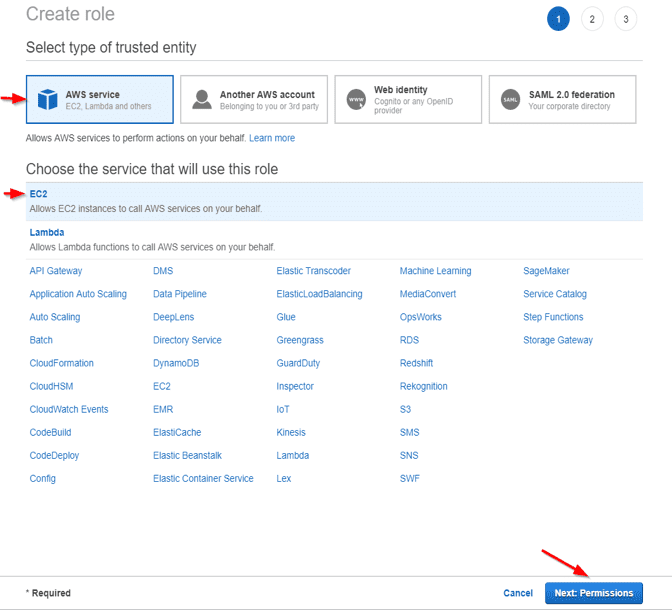
IAM Role

Choose Next: Permissions. On the attached permissions policies, Do not select anything and (click on Next: Review.
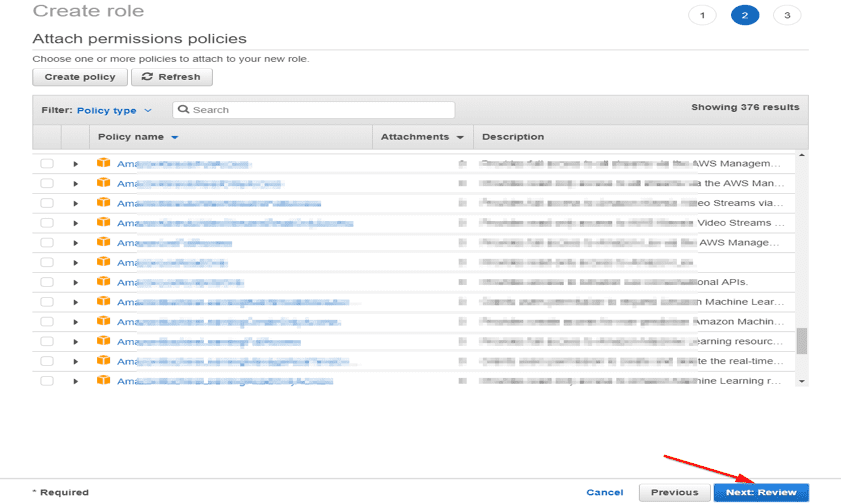
Network Monitoring

Enter a name for your role; for example, Chris-Flow-Logs-Role, and optionally provide a description. Choose Create role.
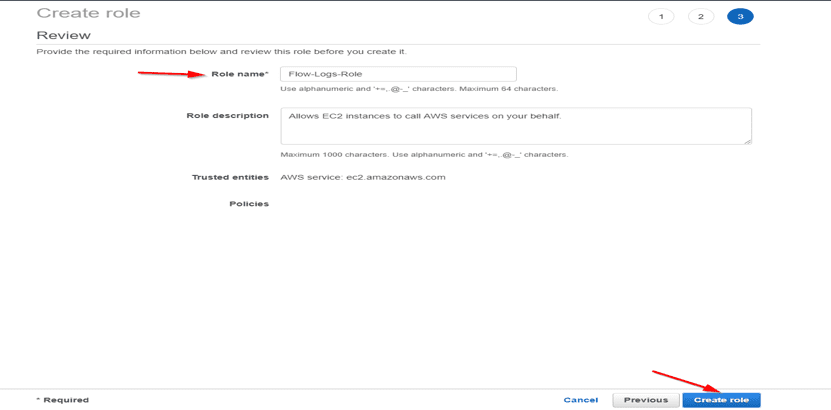
Cloud Security
AWS Flow Logs

Please, see Creating IAM Users, Adding MFA and Policies on AWS, How to prevent emails from going into a junk folder in Office365, and Administer Cisco ASA: Mastering CLI Management.

Add Policy

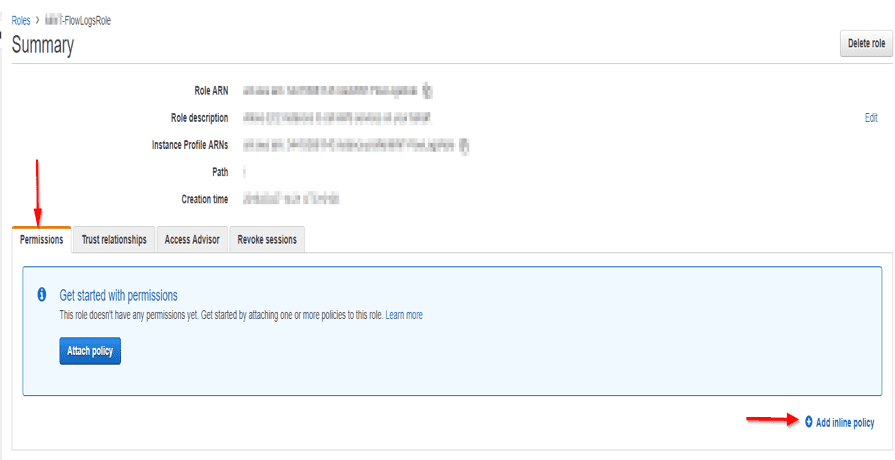
Moreover, After successfully creating the AWS Flow Logs Role, select its name and click to open it.

Under Permissions, choose to add inline policy. Choose the JSON tab as shown below
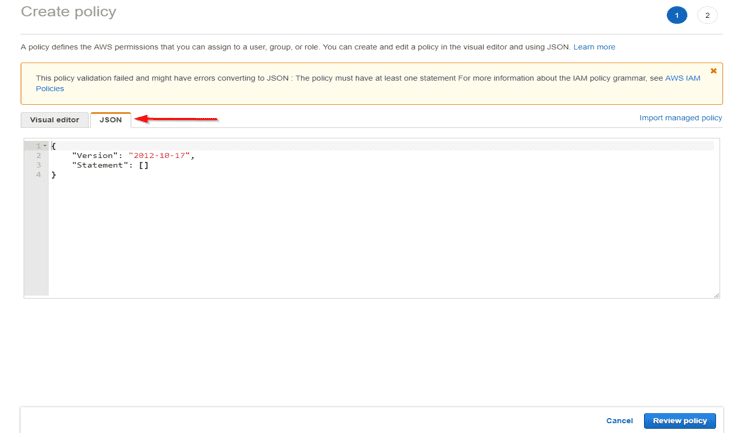
IAM Role

Nonetheless Navigate to this URL and copy the IAM Roles for Flow logs. Copy the IAM roles for flow logs and paste in the window as shown below

{
"Version": "2012-10-17",
"Statement": [
{
"Action": [
"logs:CreateLogGroup",
"logs:CreateLogStream",
"logs:PutLogEvents",
"logs:DescribeLogGroups",
"logs:DescribeLogStreams"
],
"Effect": "Allow",
"Resource": "*"
}
]
}
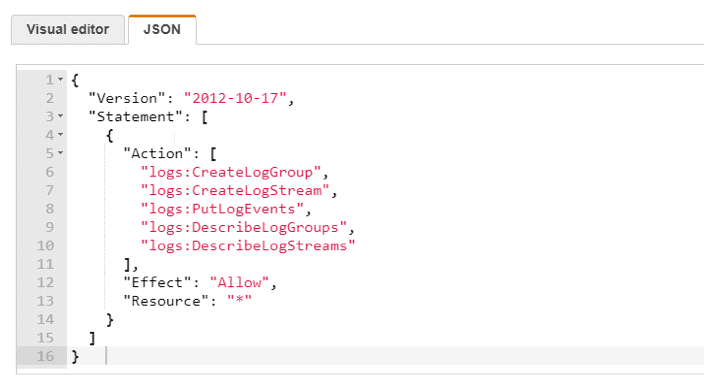
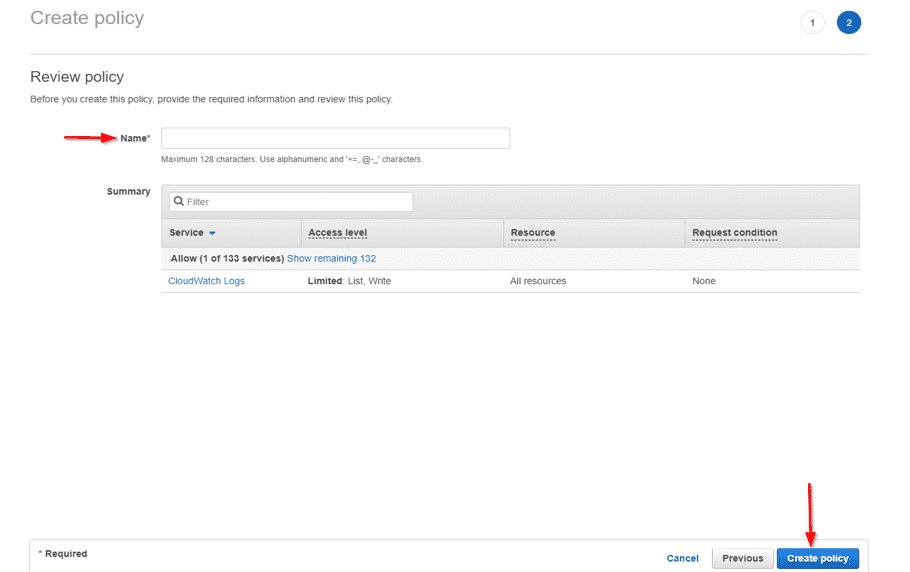
– Choose Review policy.
– Enter a name for your policy, and then choose to Create policy.
– and then choose to Create policy.
– In the section, IAM Roles for Flow Logs created previously (i.e, click on the role)
–  In the section, IAM Roles for Flow Logs created previously,
– choose Trust relationships
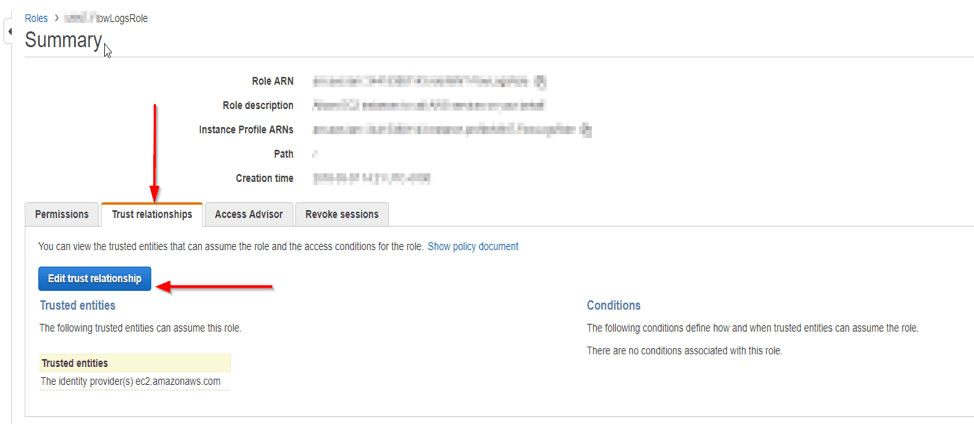
To optimize network monitoring. Start by editing the trust relationship, then proceed to delete the existing policy document.

Copy and paste in the new trust relationship policy from https://docs.aws.amazon.com/AmazonVPC/latest/UserGuide/flow-logs.html#flow-logs-iam
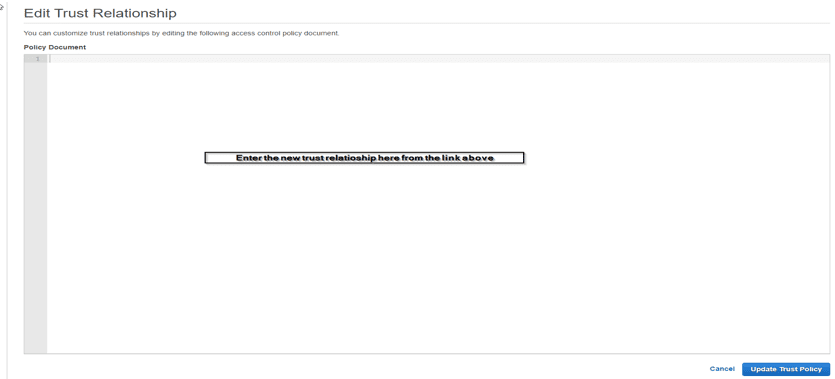
{
"Version": "2012-10-17",
"Statement": [
{
"Sid": "",
"Effect": "Allow",
"Principal": {
"Service": "vpc-flow-logs.amazonaws.com"
},
"Action": "sts:AssumeRole"
}
]
}

Please, see Creating Profiles for your AWS Access Credentials for AWS Toolkit in Visual Studio, and MFA on Root Account: Create a User on AWS and Register MFA.

Update Trust Policy

When you are done, choose Update Trust Policy.

Note: On the Summary page, take note of the Role ARN for your role. You need this ARN when you create your flow log. To create a flow log, view flog and delete flow log, pls follow this URL below.

I hope you found this article on AWS Flow Logs IAM Role Setup very useful. Please, feel free to leave a comment below.

5/5 - (1 vote)

Thank you for reading this post. Kindly share it with others.

  • Share on X (Opens in new window) X
  • Share on Reddit (Opens in new window) Reddit
  • Share on LinkedIn (Opens in new window) LinkedIn
  • Share on Facebook (Opens in new window) Facebook
  • Share on Pinterest (Opens in new window) Pinterest
  • Share on Tumblr (Opens in new window) Tumblr
  • Share on Telegram (Opens in new window) Telegram
  • Share on WhatsApp (Opens in new window) WhatsApp
  • Share on Mastodon (Opens in new window) Mastodon
  • Share on Bluesky (Opens in new window) Bluesky
  • Share on Threads (Opens in new window) Threads
  • Share on Nextdoor (Opens in new window) Nextdoor
AWS/Azure/OpenShift Tags:AWS, AWS Flow Logs IAM Role Setup, Flow logs

Post navigation

Previous Post: Upgrade ManageEngine Password Manager Pro
Next Post: Access EC2 Linux Instance via the Password

Related Posts

  • IAM AWS
    Creating IAM Users, Adding MFA and Policies on AWS AWS/Azure/OpenShift
  • Cloud Cost
    How to Control Cloud Cost Using Azure VM AWS/Azure/OpenShift
  • Convert PEM to PPK 1
    Convert a PEM Key to a PPK Key on a Linux and Windows AWS/Azure/OpenShift
  • CloudFrontAWS
    Serve Private S3 Bucket Contents Via CloudFront AWS/Azure/OpenShift
  • azure logo
    Azure CLI commands: How to use Azure Command-line Interface AWS/Azure/OpenShift
  • Microsoft LAPS
    Configure Windows LAPS Management with Microsoft Intune AWS/Azure/OpenShift

More Related Articles

IAM AWS Creating IAM Users, Adding MFA and Policies on AWS AWS/Azure/OpenShift
Cloud Cost How to Control Cloud Cost Using Azure VM AWS/Azure/OpenShift
Convert PEM to PPK 1 Convert a PEM Key to a PPK Key on a Linux and Windows AWS/Azure/OpenShift
CloudFrontAWS Serve Private S3 Bucket Contents Via CloudFront AWS/Azure/OpenShift
azure logo Azure CLI commands: How to use Azure Command-line Interface AWS/Azure/OpenShift
Microsoft LAPS Configure Windows LAPS Management with Microsoft Intune AWS/Azure/OpenShift

Leave a Reply Cancel reply

You must be logged in to post a comment.

Microsoft MVP

VEEAMLEGEND

vexpert-badge-stars-5

Virtual Background

GoogleNews

Categories

veeaam100

Veeam Vanguard

  • banner
    How to fix Git always asking for my Username and Password Version Control System
  • 960x0
    How to resolve request timed out when pinging Windows Server
  • Enable TPM and ecure boot on HyperV to run windoows 11
    How to run Windows 11 on HyperV Virtualization
  • Featured image Clearing cache
    How to clear cache in Windows 11 Windows
  • screenshot 2020 02 08 at 20.02.50
    Windows 10 Administrative Shortcut command key Windows Server
  • Screenshot 2020 05 16 at 17.13.18
    What is Jira re-indexing and why you should perform it JIRA|Confluence|Apps
  • How to create and delete MySQL database
    How to delete and create MySQL Databases Oracle/MSSQL/MySQL
  • Featured image 2
    Microsoft Account Password Reset via Web and Windows Windows

Subscribe to Blog via Email

Enter your email address to subscribe to this blog and receive notifications of new posts by email.

Join 1,814 other subscribers
  • RSS - Posts
  • RSS - Comments
  • About
  • Authors
  • Write for us
  • Advertise with us
  • General Terms and Conditions
  • Privacy policy
  • Feedly
  • Telegram
  • Youtube
  • Facebook
  • Instagram
  • LinkedIn
  • Tumblr
  • Pinterest
  • Twitter
  • mastodon

Tags

Active Directory Azure Bitlocker Microsoft Windows PowerShell WDS Windows 10 Windows 11 Windows Deployment Services Windows Server 2016

Copyright © 2025 TechDirectArchive


Loading Comments...
 

You must be logged in to post a comment.