Skip to content

TechDirectArchive

Hands-on IT, Cloud, Security, Veeam & DevOps

  • Home
  • About
  • Advertise With US
  • Reviews
  • Contact
  • Toggle search form

Configure WSUS Email Notification for Office365

Posted on 10/03/201816/03/2024 IT Expert By IT Expert 2 Comments on Configure WSUS Email Notification for Office365
  1. Home
  2. Windows Server
  3. Configure WSUS Email Notification for Office365
WSUS email setup

Configuring WSUS Email Notifications ensures effective communication. It’s a powerful way to inform subscribers about changes or updates to a website or service alongside push notifications. For related content, see these guides, Windows Server Update Services Commands, WAUACLT, PowerShell, and USOClient. How to Start, Stop, and Restart Windows Server Update Services (WSUS) via PowerShell and CMD, Windows 2016 Servers does not show up on WSUS console, and WSUS clients appear and disappear from the WSUS Update Services console.

To effectively configure WSUS Email Notification, as WSUS lacks SSL/TLS support, an SMTP relay setup is essential for connecting to the Mail Server (Office365).

For more articles I have written, see the following hyperlinks below: How to set up and configure Windows server update services (WSUS), important Areas to Master on WSUS (Installed and not applicable, Install 1/4, and Installed / Not applicable 100),

SMTP-Relay server

To Solve this problem, you will have to setup an SMTP-relay server: Setting up smtp relay on windows server 2012:

Install SMTP on Windows Server

To do this, open Server Manager and select Add Roles and Features.

roles-and-features

Select Server Selection and make sure that the server that will be running the SMTP server is selected and then select Features.

On the Select Features screen. Choose SMTP Server. You may be prompted to install additional components. If that’s the case, select Add Required Features and Click Next.

SNMP-feature

Select Install to install the SNMP Server. After the installation is finished, you may have to start the SMTP service by using the Services snap-in for the Microsoft Management Console (MMC).

install-the-SNMP-Server

See how to configure WSUS Clients to get Updates from the WSUS server using Registry settings, how to apply Windows Updates from WSUS to the server using AWS RunCommand, how to Configure SSL between WSUS servers (Upstream and Downstream Servers).

Configure SMTP on Windows Server

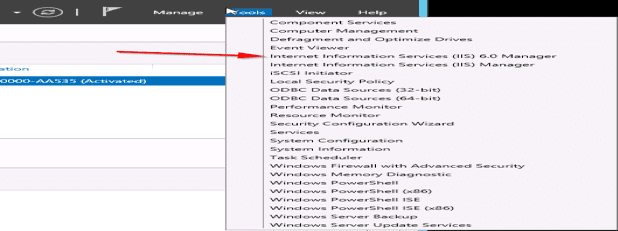
Open Server Manager, select Tools, and then select Internet Information Services (IIS) 6.0.
WSUS notification

Adjust Server Settings: SMTP Virtual Server Properties

Expand the current server, right-click the SMTP Virtual Server, and then select Properties.

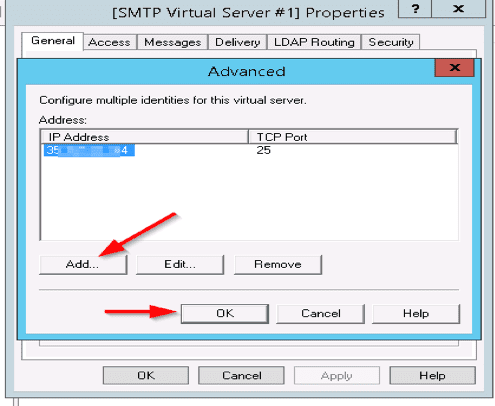
On the General tab, select Advanced, and then click on Add. Enter the Public IP of the WSUS/SMTP server if they are installed on the same server but if not enter the IP of the SMTP server followed by port 25

Office 365 WSUS integration

In the IP Address box, specify the address of the server that’s hosting the SMTP server. In the Port box, enter 25 and select OK.
WSUS email configuration

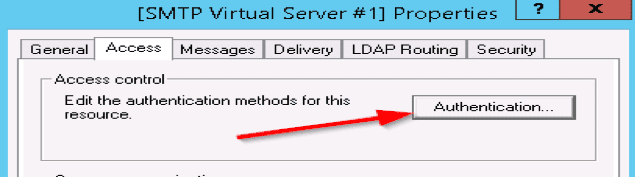
Step 3: On the Access tab, do the following: Select Authentication
WSUS email setup

and make sure that Anonymous Access is selected.

WSUS notification

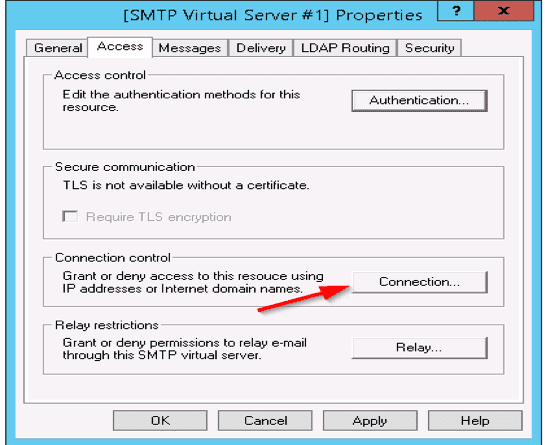
Select Connection as shown below

Office 365 WSUS integration

Select “Only the List” below, and then specify the IP addresses of the devices that will be connecting to the SMTP server, such as the WSUS server itself or a printer
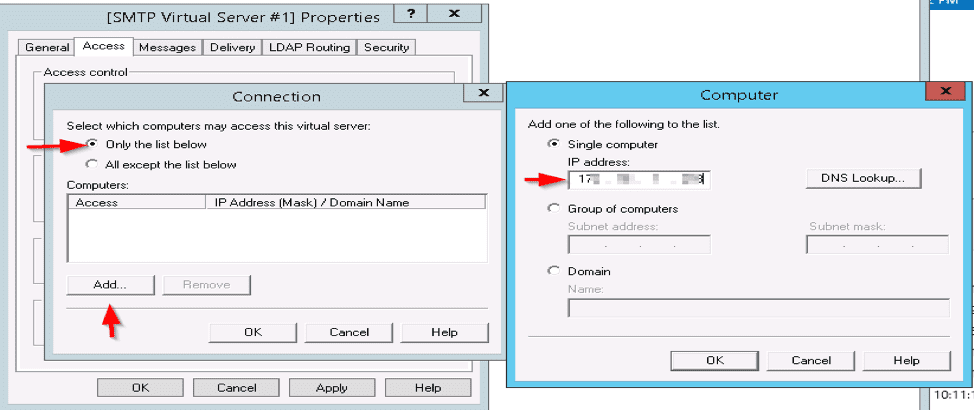
WSUS email configuration

Upon click ok, this will be granted to the Private IP address
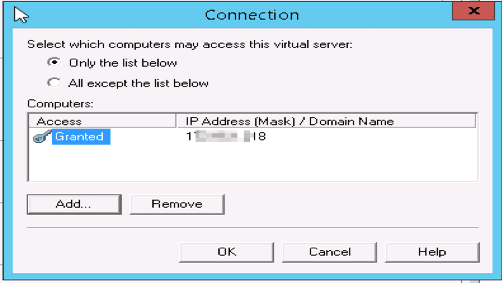
WSUS email setup

Select Relay > Only the List Below, and then specify the IP address of the devices relaying through this SMTP server
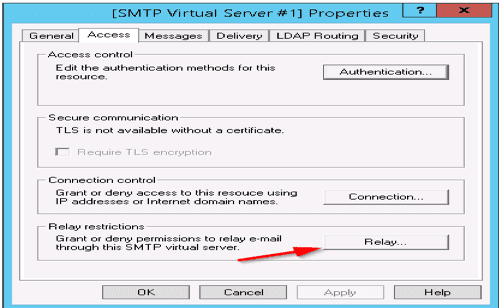
WSUS notification

While we’re here, click on “Relay” and check that the box labeled “Allow all computers which successfully authenticate to relay…” is ticked and also enter the Private IP Address here.
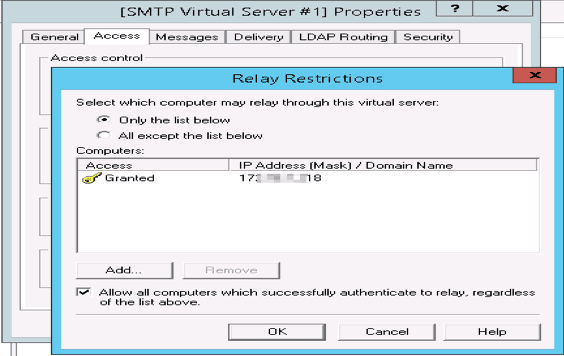
Office 365 WSUS integration

On the Delivery tab, select Outbound Security, and then do the following:
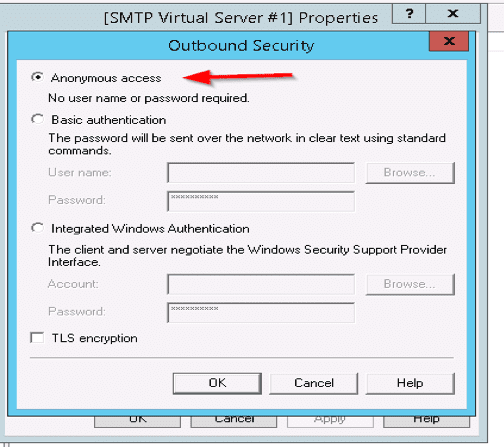
Select Basic Authentication.
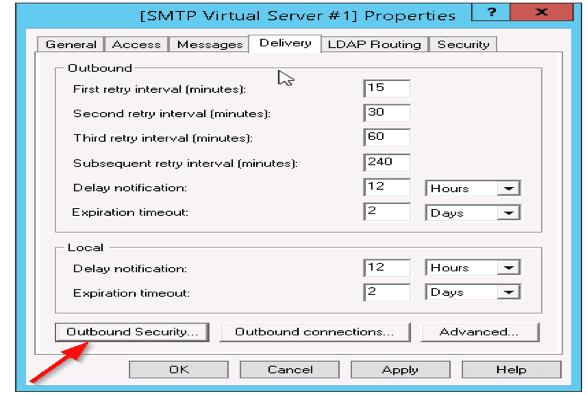
And select Anonymous access as shown below
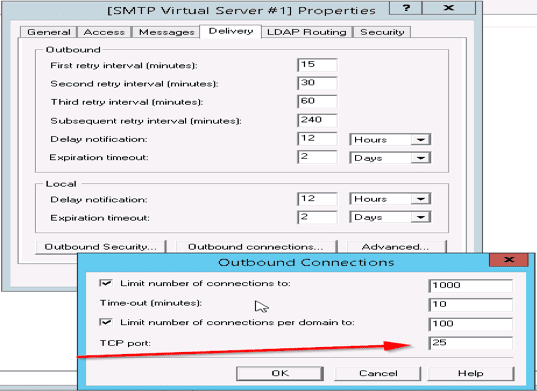
Select Outbound Connections, and in the TCP Port box, enter 25 and select OK.
Finally, Select Advanced and specify the SMTP server as smart host as the Smart Host.
Configure WSUS Email Notification: Admin Center Connection

Note: This is not smtp.office365.com. You can find this when you connect to the Office365 admin center

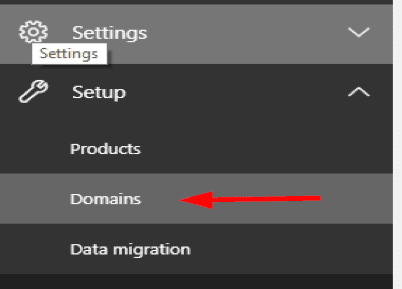
Go to settings on Office365 and select domain as shown below
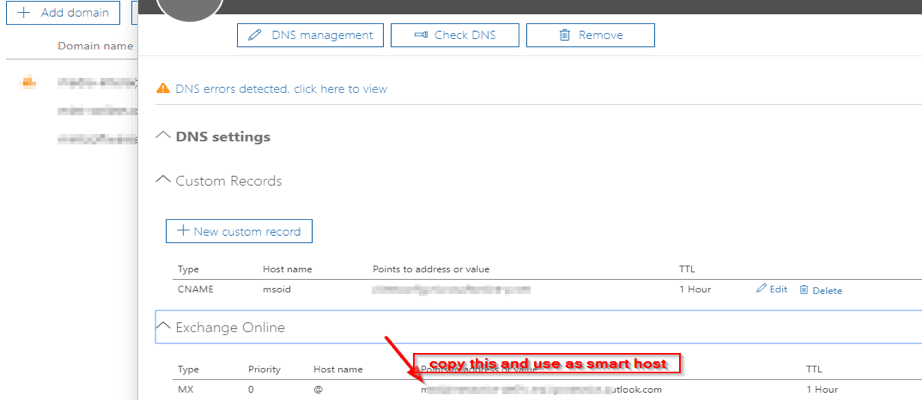
Note: Create a connector on Office365 using the EIP (Public IP Address of the SMTP server). This process is very simple. Now go back to the SMTP-Relay server,

Select Advanced and enter the FQDN and the MX record for your office365
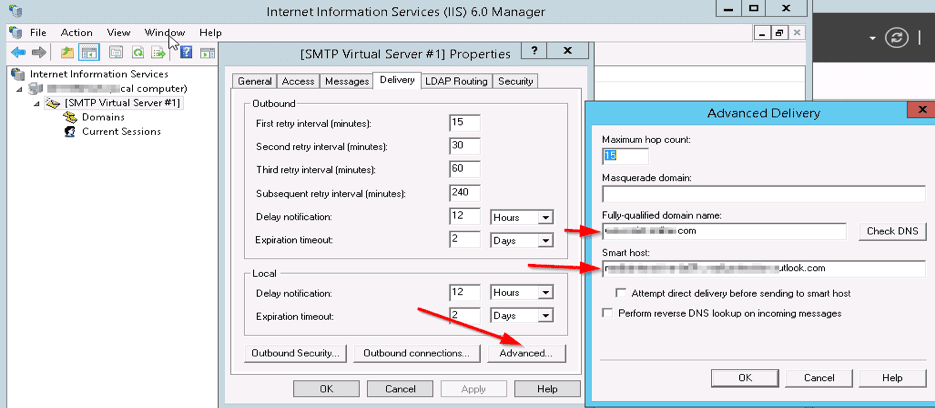
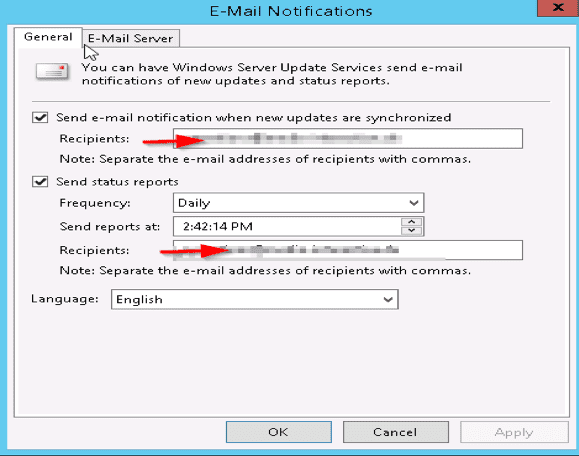
Now restart the IIS service and the SMTP service. Now go to the WSUS server (Enter your email here in order to get status report)
Test the configuration
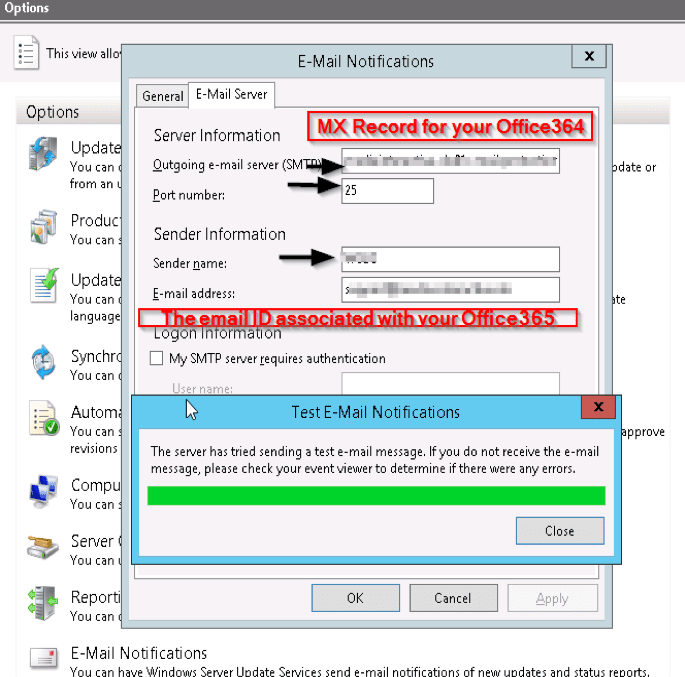
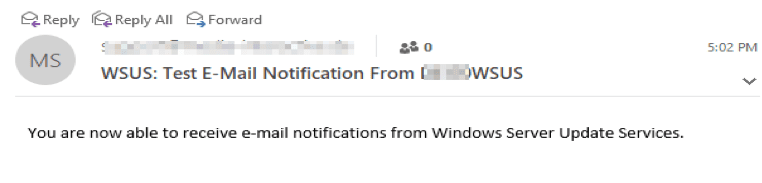
However, Now, you should get an email notification showing your smtp server-relay setup is working
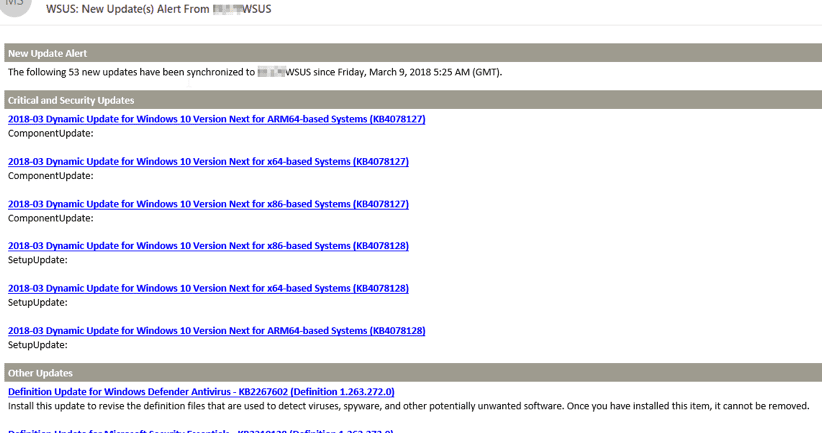
Subsequently, you should get emails from time t time showing updates status and windows updates available as shown below

I hope you found this blog post helpful. If you have any questions, please let me know in the comment session.

Rate this post

Thank you for reading this post. Kindly share it with others.

  • Share on X (Opens in new window) X
  • Share on Reddit (Opens in new window) Reddit
  • Share on LinkedIn (Opens in new window) LinkedIn
  • Share on Facebook (Opens in new window) Facebook
  • Share on Pinterest (Opens in new window) Pinterest
  • Share on Tumblr (Opens in new window) Tumblr
  • Share on Telegram (Opens in new window) Telegram
  • Share on WhatsApp (Opens in new window) WhatsApp
  • Share on Mastodon (Opens in new window) Mastodon
  • Share on Bluesky (Opens in new window) Bluesky
  • Share on Threads (Opens in new window) Threads
  • Share on Nextdoor (Opens in new window) Nextdoor
Windows Server Tags:email, Exchange Server, Microsoft Windows, office365, services, Windows Server 2016

Post navigation

Previous Post: Configure SSL connection for WSUS Upstream and Downstream Servers
Next Post: How to uninstall Applications with PowerShell Script

Related Posts

  • banner 5
    How to fix Wi-Fi not connecting on Windows 11 Windows
  • QueryBitLocker1
    Query Windows BitLocker status remotely Windows
  • Active Directory Security Hardening with GPO and Policy Analyzer
    Harden Active Directory Using CIS Benchmark and MSCT 1.0 Windows Server
  • wacxx
    How to set up System Insights on Windows Admin Center Windows Server
  • screenshot 2020 03 13 at 20.24.17
    How to install additional packages via Cygwin Windows Server
  • ghm
    MDT Driver injection: How to import drivers in .exe format into Microsoft Deployment Toolkit Windows Server

More Related Articles

banner 5 How to fix Wi-Fi not connecting on Windows 11 Windows
QueryBitLocker1 Query Windows BitLocker status remotely Windows
Active Directory Security Hardening with GPO and Policy Analyzer Harden Active Directory Using CIS Benchmark and MSCT 1.0 Windows Server
wacxx How to set up System Insights on Windows Admin Center Windows Server
screenshot 2020 03 13 at 20.24.17 How to install additional packages via Cygwin Windows Server
ghm MDT Driver injection: How to import drivers in .exe format into Microsoft Deployment Toolkit Windows Server

Comments (2) on “Configure WSUS Email Notification for Office365”

  1. Avatar photo Adam Marshall says:
    07/07/2022 at 3:05 AM

    Why not just use direct send? MX Endpoint, port 25, no authentication, no SSL. Sending to a mailbox or distribution group or alias.

    Log in to Reply
    1. Avatar photo Christian says:
      07/07/2022 at 11:15 AM

      Thank you, Adam! I haven’t used O365 Direct Send. I will check this out…

      Log in to Reply

Leave a Reply Cancel reply

You must be logged in to post a comment.

Microsoft MVP

VEEAMLEGEND

vexpert-badge-stars-5

Virtual Background

GoogleNews

Categories

veeaam100

Veeam Vanguard

  • speedtest
    How to set up a self-hosted speed test server on Ubuntu Linux Linux
  • How to Fix Scanning and Repairing Drive on Every Boot
    How to Fix Scanning and Repairing Drive on Every Boot Windows
  • How to Enable and use Sudo in Windows 11
    How to Enable and use Sudo in Windows 11 Windows
  • vmware
    Windows Startup Error: VMware Status 0xc000014c – Missing Boot Data Windows
  • Prevent the downloads of apps without password on App store
    Download Apps without passwords on App Store Mac
  • MP Tools
    Veles Software: How to install and configure MPA Tools Reviews
  • blog banner 1
    Reset and reinstall Windows 10 from the cloud and how to recover your Windows 10 when you cannot boot to Windows Windows
  • Protect M365 Beyond The Limits
    How to protect Microsoft 365 beyond native limits with VDC [Part 1] Backup

Subscribe to Blog via Email

Enter your email address to subscribe to this blog and receive notifications of new posts by email.

Join 1,801 other subscribers
  • RSS - Posts
  • RSS - Comments
  • About
  • Authors
  • Write for us
  • Advertise with us
  • General Terms and Conditions
  • Privacy policy
  • Feedly
  • Telegram
  • Youtube
  • Facebook
  • Instagram
  • LinkedIn
  • Tumblr
  • Pinterest
  • Twitter
  • mastodon

Tags

Active Directory Azure Bitlocker Microsoft Windows PowerShell WDS Windows 10 Windows 11 Windows Deployment Services Windows Server 2016

Copyright © 2025 TechDirectArchive

Loading Comments...

You must be logged in to post a comment.