Skip to content

TechDirectArchive

Hands-on IT, Cloud, Security & DevOps Insights

  • Home
  • About
  • Advertise With US
  • Reviews
  • Contact
  • Toggle search form
Home » Version Control System » AWS CodeCommit: A Guide to Efficient Usage
  • Screenshot 2020 05 14 at 19.28.50
    How to install and configure Rancid Linux
  • SSD Trim and Disable delete operaion from ending up in Recycle bin
    SSD TRIM: Delete files permanently without using the Recycle Bin Windows
  • Screenshot 2021 03 29 at 01.56.17
    How to prevent VLC player from reverting to the native video size on Mac Mac
  • Pluggin cable
    System check found some issues during MBAM encryption: Fail, the Power cable must be connected Windows
  • fix windows activation 0x87E10BC6 error
    Fix Error 0x87E10BC6 on a PC running Windows non-core Edition Windows
  • WhatsApp
    How to retrieve deleted WhatsApp messages on iPhone JIRA|Confluence|Apps
  • Slide1 4
    How to create and configure a Shared Folder on Windows Server Windows Server
  • Trellix configurations after ePo setup
    ePO Server Settings: Trellix ePO AD integration and ENS Agents Installation Security | Vulnerability Scans and Assessment

AWS CodeCommit: A Guide to Efficient Usage

Posted on 13/07/201807/12/2023 Christian By Christian 1 Comment on AWS CodeCommit: A Guide to Efficient Usage
Code collaboration

AWS CodeCommit is a secure, highly scalable, managed source control service provided by Amazon web services that you can use to host your Git-based code repositories. This service enables teams to collaborate securely on code, properly encrypting it in transit and at rest. Please see how to deploy a .NET application to AWS Elastic Beanstalk using AWS Tool Kit, and How to Deploy MVC Application to AWS EC2 Using RDP Connection and Web Deploy.

The AWS CodeCommit service allows organizations to import and host scalable private Git code repositories securely. All open-source git clients can integrate and work with CodeCommit repositories via the CLI.

Kindly refer to these related guides: For how to install Git on macOS, how to install Git on Windows, How to manage and use Amazon S3 access points using the AWS Management Console, and how to enable Amazon S3 default bucket encryption using S3 Console.

AWS CodeCommit is a fully-managed source control service that hosts secure Git-based repositories. It makes it easy for teams to collaborate on code in a secure and highly scalable ecosystem. CodeCommit eliminates the need to operate your own source control system or worry about scaling its infrastructure.

CodeCommit also supports several Git commands and works with Jenkins, an open-source tool for continuous integration. There is no size limit with repositories hosted with AWS CodeCommit and can be up to 2GB. AWS CodeCommit stores data in Amazon S3 and Amazon DynamoDB. CodeCommit automatically encrypts files and repositories at rest through AWS Key

Greater security measures can be implemented by integrating CodeCommit with AWS IAM (Identity and Access Management), which enables Admins to assign user-access rights (policies) and establish MFA. Connection to CodeCommit can be achieved via HTTPS or SSH.

Step 1: Create Repository

Navigate to this Url and select your desired region. Then click on Create Repository on AWS CodeCommit

Version control

Step 2: Configure the email notification

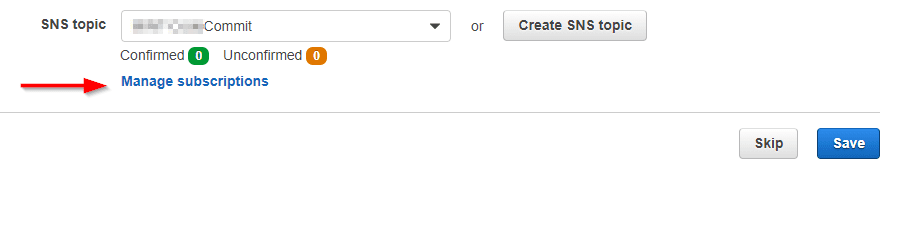
Here, you can either select an existing SNS Topic or create a new Topic

AWS DevOps

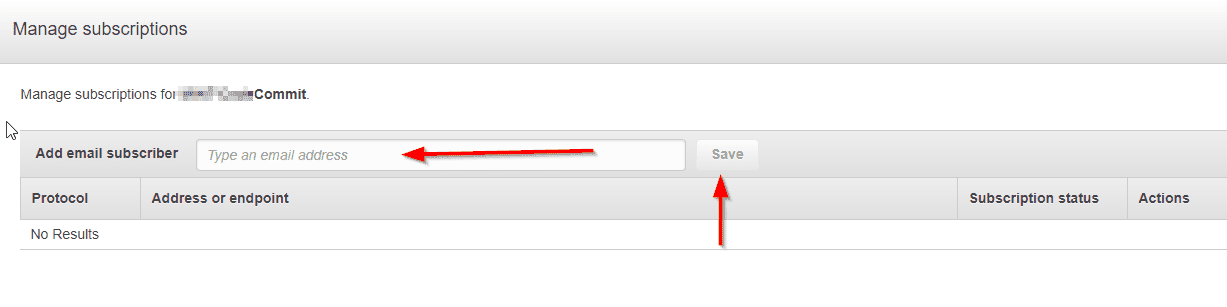
Now, on the same page a new dialog window pops up and here, you can subscribe users
Enter the email and save
Create IAM Policies

You should get an email, to confirm the subscription to the Topic and close the Subscribe window and save.

Create IAM policies and attach these Policies to the users
– For Admins: Attached AWSCodeCommitFullAccess to the users
– For normal users: Attached AWSCodeCommitPowerUser

Note: Without having these policies assigned to the IAM user(s), you will never be able to clone the repository nor perform any related task. Now you can select your connection types to get tips

For the HTTP connection to the Repository, I will discuss this in the next article.

Step 3:  For SSH connection

To connect using SSh, please follow these steps. Proceed and download git for Windows.

Note: Since you are using git, the .ssh file would be located in the install path e.g., for me C:Program FilesGitetcssh

Your might be different <installPath>Gitetcsshssh_config

Generate your Public and Private Keys for Git and AWS CodeCommit

Run the Git Bash program: Enter ssh-keygen as shown below to generate your public and private key files and follow the directions to save the file to the .ssh directory for your profile.

Git repository

Note: This generates the public and private key files

  • Navigate to the path .ssh to get the public key and copy the content
  • Sign in to AWS Console
    note: You must have the right policies assigned in order to perform this.
  • In the IAM console, in the navigation pane, choose Users, and from the list of users, choose your IAM user.
  • On the user details page, choose the Security Credentials tab, and then choose Upload SSH public key.
  • Paste the contents of your SSH public key into the field, and then choose Upload SSH public key.
  • Copy or save the information in SSH Key ID (for example, AxxxxxxxxxxxxxxxxxE).
  • Navigate to .ssh/config
  • Add the following lines to the file, where the user is the SSH Key ID generated after uploading the Public Key.

and the value for IdentityFile is the path to and name of the private key file:

Note: Ensure you give the right name and path of the private key  for the IdentityFile and

Save the file as config

Note: not with any extension but just config and close the notepad. If you use an extension, the ssh connection will fail.

You can test your SSH configuration by running this syntax:

ssh git-codecommit.us-east-2.amazonaws.com

Step 4: Connect to the AWS CodeCommit Console and Clone the Repository

To connect to an AWS CodeCommit repository

  • Open the AWS CodeCommit console.
  • In the region selector, choose the right region where the repository was created. Repositories are specific to an AWS region
  • Choose the repository and this will open the code page for the specific repository
  • Choose Clone URL, and then copy the SSH URL

In the git bash program (In the Bash emulator), run the git clone command followed by the copied url to clone the repository.

This command will clone and create a local repo in a subdirectory of the directory where this command is run.

I hope you found this blog post helpful. If you have any questions, please let me know in the comment session.

Rate this post

Thank you for reading this post. Kindly share it with others.

  • Share on X (Opens in new window) X
  • Share on Reddit (Opens in new window) Reddit
  • Share on LinkedIn (Opens in new window) LinkedIn
  • Share on Facebook (Opens in new window) Facebook
  • Share on Pinterest (Opens in new window) Pinterest
  • Share on Tumblr (Opens in new window) Tumblr
  • Share on Telegram (Opens in new window) Telegram
  • Share on WhatsApp (Opens in new window) WhatsApp
  • Share on Pocket (Opens in new window) Pocket
  • Share on Mastodon (Opens in new window) Mastodon
  • Share on Bluesky (Opens in new window) Bluesky
  • Share on Threads (Opens in new window) Threads
  • Share on Nextdoor (Opens in new window) Nextdoor
Version Control System Tags:AWS, Git, Repository

Post navigation

Previous Post: How to create an AMI using AWS console
Next Post: Advantage of using a 3rd party software for Backup (N2WS by Veeam) over AMI

Related Posts

  • GitLabrunner
    Install and Register GitLab Runner on Windows Version Control System
  • Gitfixed
    GitLab-runner is not recognized as an internal or external command, operable program, or batch file Version Control System
  • connect GitHub and Build a CI:CD Pipeline with Vercel
    How to connect GitHub and Build a CI/CD Pipeline with Vercel Version Control System
  • banner
    How to fix Git always asking for my Username and Password Version Control System
  • install git 1024x512 1
    How to install Git on macOS Version Control System
  • Screenshot 2024 02 28 at 11.17.41 PM
    GitHub Pages Deployment Guide Linux

More Related Articles

GitLabrunner Install and Register GitLab Runner on Windows Version Control System
Gitfixed GitLab-runner is not recognized as an internal or external command, operable program, or batch file Version Control System
connect GitHub and Build a CI:CD Pipeline with Vercel How to connect GitHub and Build a CI/CD Pipeline with Vercel Version Control System
banner How to fix Git always asking for my Username and Password Version Control System
install git 1024x512 1 How to install Git on macOS Version Control System
Screenshot 2024 02 28 at 11.17.41 PM GitHub Pages Deployment Guide Linux

Comment (1) on “AWS CodeCommit: A Guide to Efficient Usage”

  1. Avatar photo Jayme Silvestri says:
    26/12/2021 at 6:20 AM

    Howdy! This article couldn’t be written much better! Looking through this article reminds me of my previous roommate! He continually kept talking about this. I’ll send this article to him. Pretty sure he’s going to have a good read. Thank you for sharing!

    Log in to Reply

Leave a Reply Cancel reply

You must be logged in to post a comment.

Microsoft MVP

VEEAMLEGEND

vexpert-badge-stars-5

Virtual Background

GoogleNews

Categories

veeaam100

sysadmin top30a

  • Screenshot 2020 05 14 at 19.28.50
    How to install and configure Rancid Linux
  • SSD Trim and Disable delete operaion from ending up in Recycle bin
    SSD TRIM: Delete files permanently without using the Recycle Bin Windows
  • Screenshot 2021 03 29 at 01.56.17
    How to prevent VLC player from reverting to the native video size on Mac Mac
  • Pluggin cable
    System check found some issues during MBAM encryption: Fail, the Power cable must be connected Windows
  • fix windows activation 0x87E10BC6 error
    Fix Error 0x87E10BC6 on a PC running Windows non-core Edition Windows
  • WhatsApp
    How to retrieve deleted WhatsApp messages on iPhone JIRA|Confluence|Apps
  • Slide1 4
    How to create and configure a Shared Folder on Windows Server Windows Server
  • Trellix configurations after ePo setup
    ePO Server Settings: Trellix ePO AD integration and ENS Agents Installation Security | Vulnerability Scans and Assessment

Subscribe to Blog via Email

Enter your email address to subscribe to this blog and receive notifications of new posts by email.

Join 1,832 other subscribers
  • RSS - Posts
  • RSS - Comments
  • About
  • Authors
  • Write for us
  • Advertise with us
  • General Terms and Conditions
  • Privacy policy
  • Feedly
  • Telegram
  • Youtube
  • Facebook
  • Instagram
  • LinkedIn
  • Tumblr
  • Pinterest
  • Twitter
  • mastodon

Tags

AWS Azure Bitlocker Microsoft Windows PowerShell WDS Windows 10 Windows 11 Windows Deployment Services Windows Server 2016

Copyright © 2025 TechDirectArchive


Loading Comments...
 

You must be logged in to post a comment.