Windows Package Manager is an open-source package manager designed for Microsoft Windows 10. It consists of a command-line utility and a set of services for installing applications. Please see how to Install Applications with Winget CLI on Windows. Please see How to keep Apps up to date on Windows devices, How to uninstall AWS CLI in Windows, and “AWS CLI Error: All commands return Unknown output type [None]“.
They are a collection of tools that enable users to automate the installation, configuration, and updating of apps and programs. They deal with packages, or collections, of bundled files.
Package managers make it easy to install, upgrade, or remove software for a computer’s operating system. There is nothing more exciting than using a package manager to install apps instead of double-clicking boring executables. Linux users will be able to see similarities between the yum and the apt-get.
Kindly refer to these guides on how to install Windows Package Manager (Winget CLI), how to install, upgrade and uninstall Chocolatey, and how to install, upgrade and uninstall software with Chocolatey. In this guide, you will learn how to install applications with Winget CLI on Windows.
Here is an update to this guide “How to use the Winget tool to install and manage applications on Windows 11“. In Windows 11, the Winget Tools comes bundled with Windows 11, and some versions of Windows 10 by default as the App Installer.
What does the Windows Package Manager enable us to do?
The Winget CLI command enables developers to discover, install, upgrade, remove and configure applications on Windows 10 computers. If you do not see an app of your choice, just create a new manifest, and submit it.
For more information, see the Microsoft Community Windows Package Manager manifest repository.

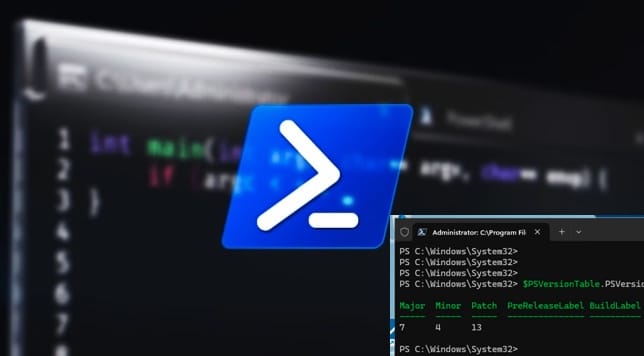
Now that the Windows Package Manager is installed, you can start using winget in the Windows Terminal, Windows command line, or PowerShell.
The command-line client “winget.exe” is already pre-configured to point to the Microsoft community repository.
To see a full list of commands for the Windows package manager, simply type winget at a PowerShell prompt and a help screen will be displayed.

Use the Winget Help Command
To use help for each command, you can just type the specific command and follow it with a -? For example, to see the help screen for the install command, you would enter the command:

To search for an Application with Winget Package Manager
You can search for available packages with the command below if you are very sure of the application name.
winget search APPLICATION

When you are not sure of the name of the application, then use the following syntax without completing the application name. The command below will display all applications having the Microsoft name attached to them.
winget search Microsoft

If you want to see a list of all available packages, you also type “winget search” without any arguments, and the full list will be displayed.
It is more useful when you use the “winget search | more” command to see a list of packages one page at a time.
Please see how to Fix unable to start the Application Identity Service, Creating a WinPE USB Drive: Fixing System Boot Issues, and how to update Veeam Backup and Replication [VBR].
To display information about an application
To display information about a specific package available in the Microsoft Community repository.
These details include the version, its license, the program’s description, the developer, and where it will be installed. We use the following command:
winget show APPLICATION

Install the Application On Windows with Winget
In this section, we will start to install applications with Winget CLI on Windows. The first example is “1: Let’s install “Chrome”. We shaöll be installing Chrome via Winget CLI.
Note: If you have the User Access Control enabled on your system, you will be prompted to accept this.
In this case, click on Yes.
winget install APPLICATION


Example 2: Let’s install Notepad++ via Winget CLI
winget install notepad++

List Package Repositories on Windows with Winget
Note: This tool allows you to add repositories, or sources, that will be used to search for applications to install.
While Microsoft plans on allowing you to add multiple repositories in the future, at this point winget only allows you to configure one at a time. To manage your repositories/sources, you can use the winget source command.
winget source (add/list/update/remove/reset)
Below are some planned features for Winget 1.0
- Dependency management
- Uninstall apps
- Install apps from the Microsoft Store
- Update one or all installed apps
- List installed apps
- Group Policy control
- Support for silent installs, though this may be used by threat actors when installing malware from their own repositories.
I hope you found this blog post helpful. Now you have learned how to install applications with Winget CLI on Windows. If you have any questions, please let me know in the comment session.