Skip to content

TechDirectArchive

Hands-on IT, Cloud, Security & DevOps Insights

  • Home
  • About
  • Advertise With US
  • Reviews
  • Contact
  • Toggle search form
Home » Windows Server » Error 0x204: Unable to Connect to Remote PC [Part 1]
  • Screenshot 2022 04 27 at 17.51.48
    Remote Desktop Services Setup on Windows Server Windows Server
  • HP driver
    Printer Driver Information: How to determine the version and type of a Printer Driver Windows
  • Account restrictions are preventing this user from signing in
    Resolve Account restrictions are preventing this user from signing in: User Account Password has expired Windows
  • Machine translation software min
    Self-hosted translator: How to install and uninstall SYSTRAN 6 translator on Windows Security | Vulnerability Scans and Assessment
  • hero windowsadmincenter
    How to schedule and run update via Windows Admin Center Windows Server
  • How to Change the Default Web Browser on Windows 11 banner
    How to Change the Default Web Browser on Windows 11 Windows
  • Disable automatic updates
    Turn off Automatic Updates in Windows via Windows Registry and Group Policy Windows
  • convert HEIC image format to JPEG format
    Convert HEIC images to JPEG format on Mac with Quick Actions Mac

Error 0x204: Unable to Connect to Remote PC [Part 1]

Posted on 15/06/202006/12/2024 Christian By Christian No Comments on Error 0x204: Unable to Connect to Remote PC [Part 1]

I got the error prompt when I moved my device to a different network, leading to Error 0x204: Unable to Connect to Remote PC [Part 1]. Remote Desktop Protocol is a proprietary protocol developed by Microsoft which provides a user with a graphical interface to connect to another computer over a network connection. See the following guides for how to allow saved credentials for RDP connection and. “We could not connect to the remote PC with error code 0x204 and make sure the PC is turned on and connected to the network – Part 2“.

The user employs RDP client software for this purpose, while the other computer must run RDP server software.

Before proceeding with the steps below, see if this simple solution works for you. Depending on the error you receive, such as Error 0x204: Unable to Connect to Remote PC [Part 1], it is worth taking a look at this “What is Transit Failed, General Failure, Request timed out and Destination Host unreachable“. And how to fix Remote Desktop Connection issues.

Scenario – Error 0x204

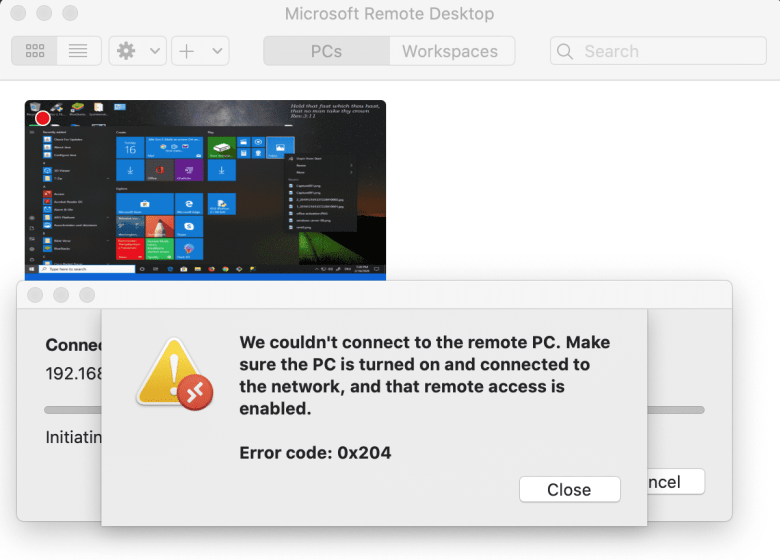
Error code 0x204: We could not connect to the remote PC, make sure the PC is turned on and connected to the right network, and that remote access is enabled on the PC. In order to be able to perform RDP on this new PC, ensure a new TCP/IP Address is assigned to the PC.

Note: The Remote Desktop Connection error 0x204 can be due to various reasons. Some include driver issues, security permission, recently installed hardware, network-related issues, etc.

But in this case, it is a network issue (I had the wrong TCP /IP Address entered on the PC). To resolve Error 0x204: Unable to Connect to Remote PC [Part 1], please follow the steps below.
error code 0x204

For other topics on RDP, see the following hyperlinks below

  • How to Remove saved RDP credentials entries in Windows 10.
  • Guide to remove entries histories from the Remote Desktop Connection
  • How to prevent the saving of Remote Desktop Credentials in Windows.
  • Remote Desktop can not find the computer FQDN and this might mean that FQDN does not belong to the specified network.
  • How to disconnect a Remote Desktop User.

Solution

If this is a workstation. You may need to connect a monitor to it in order to have an interface to configure this device. But if this is not the case. Launch the control panel and navigate “Open Network and Internet Setting”.

Click on properties in order to open the Ethernet Status as shown below. Enter a new TCP/IP Address on the PC as shown below.

Open Network and Internet Setting

Having entered the new TCP IP on the PC in the specified network. I was able to connect to perform the RDP Connection. This resolved Error 0x204: Unable to Connect to Remote PC [Part 1].

Remote Desktop has connected

RDP connection is successful

RDP connection is successful

I hope you found this blog post helpful. If you have any questions, please let me know in the comment session.


5/5 - (1 vote)

Thank you for reading this post. Kindly share it with others.

  • Share on X (Opens in new window) X
  • Share on Reddit (Opens in new window) Reddit
  • Share on LinkedIn (Opens in new window) LinkedIn
  • Share on Facebook (Opens in new window) Facebook
  • Share on Pinterest (Opens in new window) Pinterest
  • Share on Tumblr (Opens in new window) Tumblr
  • Share on Telegram (Opens in new window) Telegram
  • Share on WhatsApp (Opens in new window) WhatsApp
  • Share on Pocket (Opens in new window) Pocket
  • Share on Mastodon (Opens in new window) Mastodon
  • Share on Bluesky (Opens in new window) Bluesky
  • Share on Threads (Opens in new window) Threads
  • Share on Nextdoor (Opens in new window) Nextdoor
Windows Server Tags:errors, RDP, Remote Desktop, RemoteConnection, Windows 10, Windows Server 2016

Post navigation

Previous Post: DriveLock Components: Important DriveLock components to master
Next Post: How to setup and arrange your external displays on your Mac

Related Posts

  • IIS8
    How to add an account to the local IIS_IUSRS group Windows Server
  • screenshot 2020 04 07 at 01.42.57
    How to enable Telnet in Windows 10 and Windows Server Windows Server
  • article 1280x720.192a2586 1
    How to apply Windows Updates from WSUS to AWS Instances AWS/Azure/OpenShift
  • powershell commands lede 1024x276 1
    Enable WinRM on Windows Servers and Windows PCs Scripts
  • 10.0.17763.1 error
    Fix Windows 10 Setup 1809 build 10.0.17763.1 is not supported Error Windows Server
  • domain14 1
    How To Configure a Domain Password Policy Windows

More Related Articles

IIS8 How to add an account to the local IIS_IUSRS group Windows Server
screenshot 2020 04 07 at 01.42.57 How to enable Telnet in Windows 10 and Windows Server Windows Server
article 1280x720.192a2586 1 How to apply Windows Updates from WSUS to AWS Instances AWS/Azure/OpenShift
powershell commands lede 1024x276 1 Enable WinRM on Windows Servers and Windows PCs Scripts
10.0.17763.1 error Fix Windows 10 Setup 1809 build 10.0.17763.1 is not supported Error Windows Server
domain14 1 How To Configure a Domain Password Policy Windows

Leave a Reply Cancel reply

You must be logged in to post a comment.

Microsoft MVP

VEEAMLEGEND

vexpert-badge-stars-5

Virtual Background

GoogleNews

Categories

veeaam100

sysadmin top30a

  • Screenshot 2022 04 27 at 17.51.48
    Remote Desktop Services Setup on Windows Server Windows Server
  • HP driver
    Printer Driver Information: How to determine the version and type of a Printer Driver Windows
  • Account restrictions are preventing this user from signing in
    Resolve Account restrictions are preventing this user from signing in: User Account Password has expired Windows
  • Machine translation software min
    Self-hosted translator: How to install and uninstall SYSTRAN 6 translator on Windows Security | Vulnerability Scans and Assessment
  • hero windowsadmincenter
    How to schedule and run update via Windows Admin Center Windows Server
  • How to Change the Default Web Browser on Windows 11 banner
    How to Change the Default Web Browser on Windows 11 Windows
  • Disable automatic updates
    Turn off Automatic Updates in Windows via Windows Registry and Group Policy Windows
  • convert HEIC image format to JPEG format
    Convert HEIC images to JPEG format on Mac with Quick Actions Mac

Subscribe to Blog via Email

Enter your email address to subscribe to this blog and receive notifications of new posts by email.

Join 1,831 other subscribers
  • RSS - Posts
  • RSS - Comments
  • About
  • Authors
  • Write for us
  • Advertise with us
  • General Terms and Conditions
  • Privacy policy
  • Feedly
  • Telegram
  • Youtube
  • Facebook
  • Instagram
  • LinkedIn
  • Tumblr
  • Pinterest
  • Twitter
  • mastodon

Tags

Active Directory AWS Azure Bitlocker Microsoft Windows PowerShell WDS Windows 10 Windows 11 Windows Server 2016

Copyright © 2025 TechDirectArchive


Loading Comments...
 

You must be logged in to post a comment.