No valid offer received: WDS PXE-E16 error when booting clients


Windows Deployment Services (WDS) is the revised version of Remote Installation Services (RIS). WDS enables the deployment of new clients with a network-based installation without requiring that administrators visit each computer or install directly from CD or DVD media. For how to set up and install WDS role, and how to configure Windows Deployment Services on Windows Server 2019. Also, see how to configure Windows Deployment Services on Windows Server 2019. In this article, you will learn how to fix the “No valid offer received: WDS PXE-E16 error when booting clients”.
When prompted with this error below, as I always say, there are many factors that can be responsible for this. Below is what I did to resolve my issue. Please see How to remove Windows Deployment Services role via the GUI and PowerShell, and how to fix WinRM cannot complete the operation, verify that the specified computer name is valid.
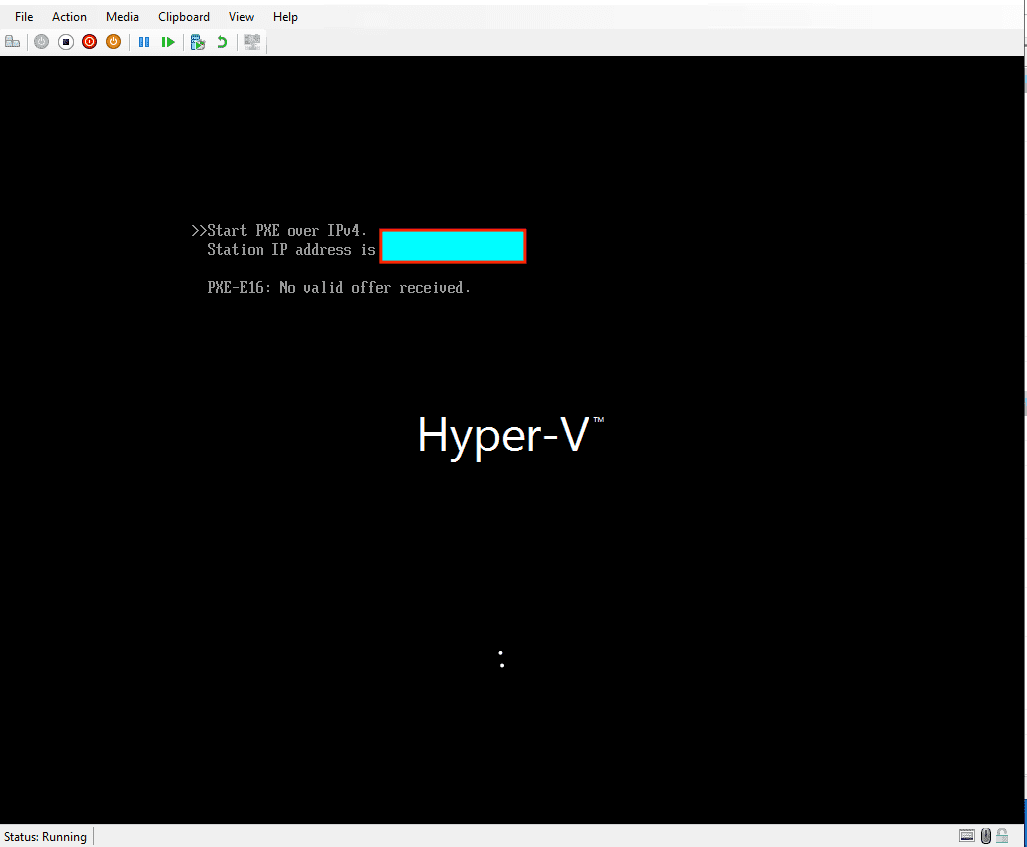
The solution to fixing no valid offer received: WDS PXE-E16 error when booting clients
Ensure the Windows Deployment Server Services are running. To verify this, log on to the WDS Server, and launch the Windows Deployment Services Tool.
Right-click on the server, select “All Tasks” and click on Start. Please see What are the differences between MDT and WDS?, and how to fix “The service could not be started either because it is disabled or because it has no enabled devices associated with it.“

The Windows Deployment Services have started successfully.

There are numerous reasons why this error is prompted. If the solution discussed above does not resolve your issue, kindly visit WDS PXE-E16 error when booting UEFI clients to see if what they discussed about this error can help you resolve your issue.
Optional: WDS moved to a different Subnet prompts PXE-E16 error
The PXE bootstrap broadcasts a DHCPDISCOVER packet with PXE-specific options on UDP port 67, which is not usually routed. Because of this, the PXE server must be located on the same subnet. But when in a different subnet, you must configure your network for forwarding UDP traffic via any of the following steps below;
- Multihome the WDS server via additional NICs (or VLAN tagging via a single NIC if your NIC and switch support it) or,
- Configure your network to forward UDP broadcasts. First set up the IP helper/DHCP relay on the router that communicates between the networks. For Cisco IOS this is done using the IP helper-address command.
If the DHCP server and WDS are in a different subnet now. You will also have to configure the DHCP options 66 and 67. I would recommend taking a look at WDS and DHCP Deployment Scenarios: Configure DHCP Options 60, 66, and 67
Please see how to fix Stuck at Start PXE over IPv4: PXE-E18, Server response timeout, resolve MDT Warning: Unable to set working directory, the application returned an unexpected code 2. Also, see What happens when WDS and DNS are installed on the same Windows Server? DNS issues with WDS.
I hope you found this blog post helpful. If you have any questions, please let me know in the comment session.


I feel like DHCP is also installed on that server and both WDS and DHCP trying to use same port 67
check on cmd
Text
If yes,
Method 1At the command prompt, type the following command, and then press ENTER:
wdsutil /set-Server /UseDhcpPorts:No
Method 2Click Start, click Run, type wdsmgmt.msc, and then press OK.In the Windows Deployment Services window, expand Servers, right-click the WDS server name, and then click Properties.
In the Server Properties dialog box, click the DHCP tab.
Click to select the Do not listen on port 67 check box, and then click Apply.
Hello Rashid,
Thank you very much for sharing this information with the community. As I mentioned, here is another possible solution to this issue.
Cheers!