Skip to content

TechDirectArchive

Hands-on IT, Cloud, Security & DevOps Insights

  • Home
  • About
  • Advertise With US
  • Reviews
  • Contact
  • Toggle search form
Home » Windows Server » Remove Windows 10 Apps with DISM: How to remove pre-provisioned apps from Windows Image
  • Missing Windows defender
    Missing Windows Defender? Install and manage Microsoft Defender via Windows Security on Windows Server Windows Server
  • Featured Image 1
    System Drive Conversion: MBR to GPT on Windows 10 Storage
  • Featured image 1
    How to Change User Account Type in Windows 10 Windows
  • Configure Multiple IP Addresses on a Single or Multiple Network Cards
    Configure Multiple IP Addresses on a Single or Multiple NICs Network | Monitoring
  • DUE Deligence vs Due Care
    Relating Due Diligence and Due Care to Veeam Backup and Replication Backup
  • maxresdefault 2
    How to uninstall Applications with PowerShell Script Scripts
  • How to Disable Windows Startup Sound in Windows 11 banner
    How to Disable and Enable Startup Sound in Windows 11 Windows
  • Featured image   The Local Device Name is Already in Use
    How to Fix The Local Device Name is Already in Use Windows

Remove Windows 10 Apps with DISM: How to remove pre-provisioned apps from Windows Image

Posted on 19/09/202022/03/2024 Christian By Christian 1 Comment on Remove Windows 10 Apps with DISM: How to remove pre-provisioned apps from Windows Image
Remove pre-provisioned apps

You can use app package-servicing commands to add, remove, and list provisioned app packages (.appx or .appxbundle) in a Windows image. A .appxbundle, new for Windows 10, is a collection of app and resource packages used together to enrich the app experience while minimizing the disk footprint on a given PC. Please see How to determine Apps UWP and remove pre-provisioned appx in Windows 10, and How to deploy MBAM Client as part of a Windows Deployment.

These apps are available to users upon login on Windows 10 devices. Windows starts to install apps for that particular user. These apps are referred to as provisioned apps (pre-installed apps).

Pre-provisioned apps can be useless for some organisations. Often times, these apps are deleted and there are new updates from Microsoft prompting you to upgrade your Operating System. Most times, after these OS are upgraded to the latest version of Windows, these preinstalled apps appear again. To mitigate this issue, this appx needs to be removed in the Windows Image even before installing the OS.

Here are some possible errors you can encounter while resolving this issue Error 0xc1570103: The license file was not found in the specified path, and how to fix error 0xc1510114: The wim file needs to be remounted.

Remove Windows 10 Apps with DISM

For related articles, please see how to fix error 0xc1510114: The wim file needs to be remounted, Error 0x80070002: When trying to mount an image file, Error code 15601: 

The idea is, when an upgrade is performed. This appx will not be detected by the upgrade and therefore the appx will not be deployed. Before proceeding with the steps below. The Install.wim file needs to be mounted, after which you can manipulate the windows image file with DISM Tool. To mount a wim file, please use the command below.

dism /Mount-Wim /WimFile:<Path>image.wim /Index:<indexnumber> /MountDir:<mountDir>
dism /Mount-Wim /WimFile:G:\Path-to-the-install.wim-file\install.wim /Index:2 /MountDir:G:\Path-to-the-mount-file\MountZ

How to resolve DISM unspecified error when removing preinstalled packages, and Error 0xc1420127: The specified image in the specified wim is already mounted for read and write access.

How to remove Pre-installed Applications?

Via PowerShell or DISM. This guide will teach you how to remove packages in an install.wim image.

1: DISM:

Querying the Windows image for pre-installed apps requires using any of the following commands.

dism /Image: <MountedDir> /Get-Provisionedappxpackages
dism /image:G:\Path-to-the-mount-file\MountZ  /Get-Provisionedappxpackages

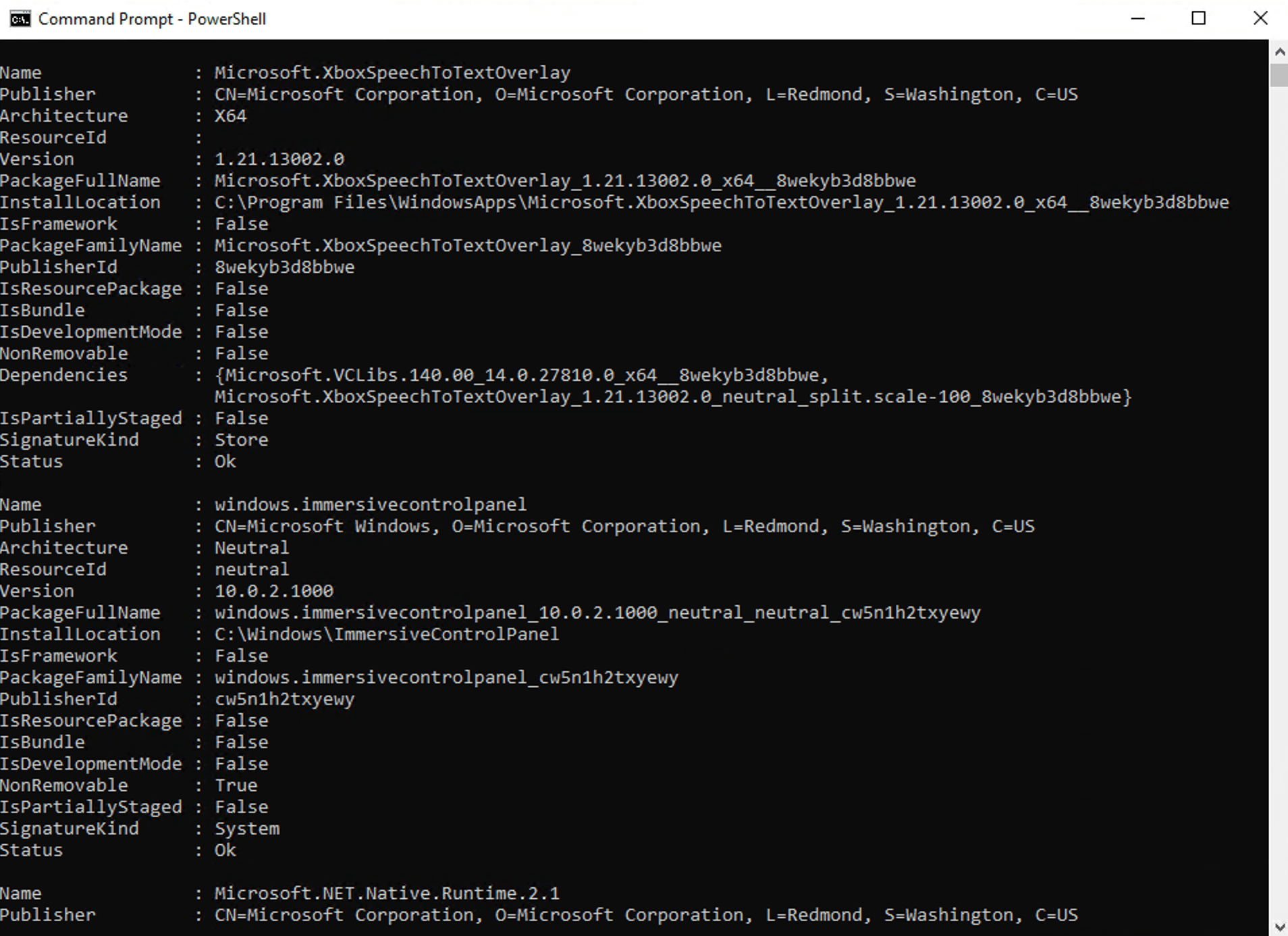
Now that you have determined the Package Family name (UWP), we can proceed to remove them.

Note: This Family name changes from one version of Windows to the other. Please pay attention to it or else you will get an error.
DISM

Next step in removing Windows 10 Apps with DISM is determining. Now, you can proceed to remove the appx after determining the PackageFullName to use as shown in the image above. use the /Remove-Package – Removes packages from the image to get rid of the package name this way.

dism /image:G:\Path-to-the-mount-file\MountZ /Remove-Provisionedappxpackage /PackageName:Microsoft.WindowsCalculator_2015.1009.20.0_neutral_~_8wekyb3d8bbwe
dism /image:G:\Path-to-the-mount-file\MountZ /Remove-Provisionedappxpackage /PackageName:Microsoft.XboxSpeechToTextOverlay_1.21.13002.0_x64__8wekyb3d8bbwe

Enter the following command again to check whether your selected apps have been removed.

dism /image:G:\Path-to-the-mount-file\MountZ /Get-Provisionedappxpackages

Once you finish modifying the WIM file, simply commit (save) it. This will unmount and save the newest state.

dism /unmount-wim /mountdir:G:\Path-to-the-mount-file\MountZ /commit

2: PowerShell

You can also use PowerShell to add, remove, and list app packages (.appx or .appxbundle) per image or per user in a Windows installation. See the following articles on how to use the PowerShell instead of DISM.

Mount-WindowsImage -Path .\mount\ -ImagePath .\install.wim -Index 2
Remove-AppxProvisionedPackage -PackageName Microsoft.WindowsCalculator_2015.1009.20.0_neutral_~_8wekyb3d8bbwe -Path .\mount
Dismount-WindowsImage -Path .\mount -Save

I hope you found this blog post helpful. By now, you should have a vivid knowledge of how to remove Windows 10 Apps with DISM. Please let me know in the comment session if you have any questions.

Rate this post

Thank you for reading this post. Kindly share it with others.

  • Click to share on X (Opens in new window) X
  • Click to share on Reddit (Opens in new window) Reddit
  • Click to share on LinkedIn (Opens in new window) LinkedIn
  • Click to share on Facebook (Opens in new window) Facebook
  • Click to share on Pinterest (Opens in new window) Pinterest
  • Click to share on Tumblr (Opens in new window) Tumblr
  • Click to share on Telegram (Opens in new window) Telegram
  • Click to share on WhatsApp (Opens in new window) WhatsApp
  • Click to share on Pocket (Opens in new window) Pocket
  • Click to share on Mastodon (Opens in new window) Mastodon
  • Click to share on Bluesky (Opens in new window) Bluesky
  • Click to share on Threads (Opens in new window) Threads
  • Click to share on Nextdoor (Opens in new window) Nextdoor
Windows Server Tags:Windows 10, Windows Apps

Post navigation

Previous Post: Add languages to Windows images using DISM and PowerShell
Next Post: Determine Apps UWP and remove pre-provisioned Appx in Windows

Related Posts

  • How do I disable credentials from Remote Desktop
    Disable credential Prompts for Remote Desktop Connections Windows
  • image 117
    Deploy MVC Application to AWS EC2 Using RDP and Web Deploy Configuration Management Tool
  • fix frequent shutdown due to licensing issues   Windows
    Fix Windows Server frequent disconnects and shutdown Windows Server
  • Active Directory migration
    Migrate Active Directory Domain and Forest with Veeam Replica Backup
  • Add or remove features   fix dotnet framework issues
    Fix the request to add or remove features on the specified server failed Windows
  • microsoft logo rgb wht
    All about Group Policies: Group Policy GPUpdate Commands Windows Server

More Related Articles

How do I disable credentials from Remote Desktop Disable credential Prompts for Remote Desktop Connections Windows
image 117 Deploy MVC Application to AWS EC2 Using RDP and Web Deploy Configuration Management Tool
fix frequent shutdown due to licensing issues   Windows Fix Windows Server frequent disconnects and shutdown Windows Server
Active Directory migration Migrate Active Directory Domain and Forest with Veeam Replica Backup
Add or remove features   fix dotnet framework issues Fix the request to add or remove features on the specified server failed Windows
microsoft logo rgb wht All about Group Policies: Group Policy GPUpdate Commands Windows Server

Comment (1) on “Remove Windows 10 Apps with DISM: How to remove pre-provisioned apps from Windows Image”

  1. Avatar photo SV1978 says:
    07/05/2022 at 12:30 PM

    Nice! Thanks for explaining this

    Log in to Reply

Leave a Reply Cancel reply

You must be logged in to post a comment.

Microsoft MVP

VEEAMLEGEND

vexpert-badge-stars-5

Virtual Background

GoogleNews

Categories

veeaam100

sysadmin top30a

  • Missing Windows defender
    Missing Windows Defender? Install and manage Microsoft Defender via Windows Security on Windows Server Windows Server
  • Featured Image 1
    System Drive Conversion: MBR to GPT on Windows 10 Storage
  • Featured image 1
    How to Change User Account Type in Windows 10 Windows
  • Configure Multiple IP Addresses on a Single or Multiple Network Cards
    Configure Multiple IP Addresses on a Single or Multiple NICs Network | Monitoring
  • DUE Deligence vs Due Care
    Relating Due Diligence and Due Care to Veeam Backup and Replication Backup
  • maxresdefault 2
    How to uninstall Applications with PowerShell Script Scripts
  • How to Disable Windows Startup Sound in Windows 11 banner
    How to Disable and Enable Startup Sound in Windows 11 Windows
  • Featured image   The Local Device Name is Already in Use
    How to Fix The Local Device Name is Already in Use Windows

Subscribe to Blog via Email

Enter your email address to subscribe to this blog and receive notifications of new posts by email.

Join 1,836 other subscribers
  • RSS - Posts
  • RSS - Comments
  • About
  • Authors
  • Write for us
  • Advertise with us
  • General Terms and Conditions
  • Privacy policy
  • Feedly
  • Telegram
  • Youtube
  • Facebook
  • Instagram
  • LinkedIn
  • Tumblr
  • Pinterest
  • Twitter
  • mastodon

Tags

Active Directory AWS Azure Bitlocker Microsoft Windows PowerShell WDS Windows 10 Windows 11 Windows Server 2016

Copyright © 2025 TechDirectArchive


Loading Comments...
 

You must be logged in to post a comment.