Enable or disable automatic Google Chrome Live Caption on macOS

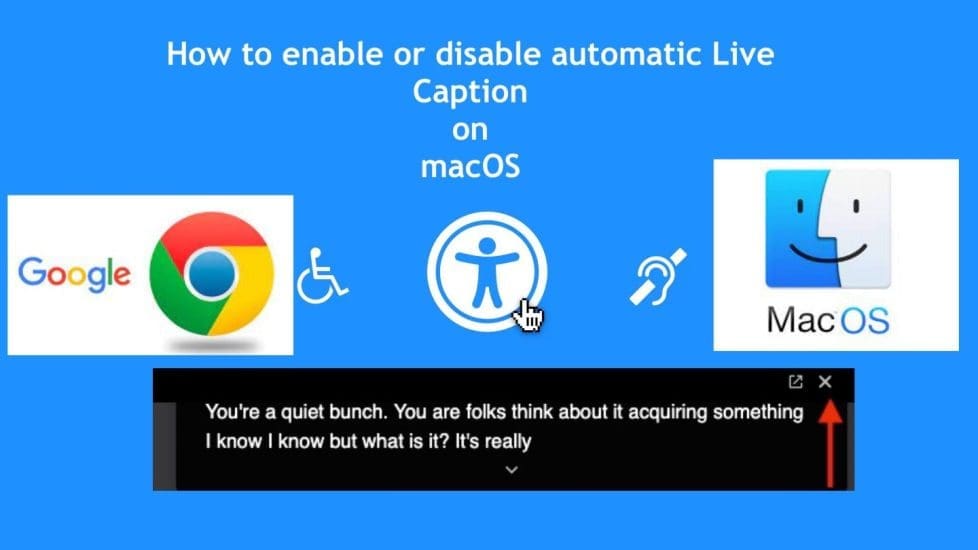
Google has included the Live Caption transcription feature in version 89 of its Chrome browser for desktops. In this article, you will learn how to enable or disable automatic Google Chrome Live Caption on Mac. Please see How to use SysInternals Live Tools, how to set a browser as default in Windows, and learn about the Feature of Home Design in the Modern World. Also, see Fix missing path and delete a Veeam Backup Repository, and how to Install OpenSSL on Windows Computers.
Live Captions uses machine learning to create a real-time transcription for videos or audio played through the browser, which can make online media more accessible for members of the Deaf community and other people with hearing loss.
Kindly refer to some of my content around Microsoft Edge “How to block automatic delivery of Microsoft Edge Chromium-based. How to configure static page in Microsoft Edge browser via Local Group Policy, and how to configure favorites on Microsoft Edge via Group Policy.
Live Captions in Chrome
Live captions of videos and podcasts first made headlines feature on Google’s Pixel smartphones sometime last year. In the latest update of Chrome, this feature “accessibility option” is now available on macOS.
Once enabled, Live Captions appear in a box at the bottom of the browser. Whenever you play audio or video that includes people talking. It works on every video played on your devices such as YouTube, podcasts, and Spotify’s web player.
Computer accessibility refers to the accessibility of a computer system to all people, regardless of disability type or severity of impairment. If you love to have this feature, simply update your Chrome to the latest version.
As you can see below, this can be very annoying. In this guide, I will be discussing how to turn (disable or enable) this feature.

Note: You can “turn off Live Caption for now” but this is only temporary. Because when a new video is played, it will reappear. This can be done by clicking on the close (x) button as shown in the image below.

How to Disable Automative Live Caption
To disable the Live Caption, please follow the steps below.
– Launch Google Chrome on your desktop and click the customize button in the top-right corner of the browser window. I.e., the vertical column with three dots as shown below.
– Click on Settings

This will open the Settings menu as shown below.
Expand the Advanced heading and click on Accessibility. All you need to do is to toggle off the feature, which turns off the speech into text.

As you can see, this feature has been disabled and you will the Live Caption will no longer appear on your macOS when playing videos.

Note: This feature in part relies on Apple’s built-in Accessibility features, so if you click the preferences it will open up the Accessibility tab in your Mac’s System Preferences.
Please see how to forcefully remove Microsoft Edge Browser the hard way from your device, how to stop Microsoft Edge from remembering your email, and all Group Policies (GPO) available for configuring Microsoft Edge settings.
Enable automatic Live Caption
To enable this feature (Live Caption), you will have to toggle on this accessibility feature
If you cannot see the option, make sure you’ve updated Chrome to the latest version. You can tell the version of Chrome you are running and it should be at least Chrome 89. (Settings -> About Chrome).
- If the browser’s already up-to-date, quit the app and then relaunch it, and you should see the new Live Captions setting appear.
- As you can see, I am running the latest version of Chrome as of the time of writing this piece.

I hope you found this blog post helpful on how to enable or disable automatic Google Chrome Live Caption on Mac. If you have any questions, please let me know in the comment session.





Thanks so much, you are a life saver!
You are welcome. I am glad you found this guide useful
thank you!
You are welcome!
Thank you so much, I literally searched through everything on my imac trying to figure out what the issue was, realized it wasn’t my imac at all but chrome after it appeared again on YouTube.
You are very welcome @McG4thGen. On this specific topic, there are a lot of misleading guides out there. I am glad Chrome provided a way to disable it.
Thanks a million
You are very welcome
Thank you. Thank you.
You are welcome!
Thank you so much.
You are welcome, Arjun!
Thank you. This was driving me batty!
Hi,
I want to save the Live Caption transcript. How can I do that?
Checked, but not extensively, I am not sure Chrome has a built-in option to save Live Caption transcripts at the time of writing this comment. You could use other 3rd party tools for screen Recording with transcription.