Skip to content

TechDirectArchive

Hands-on IT, Cloud, Security & DevOps Insights

  • Home
  • About
  • Advertise With US
  • Reviews
  • Contact
  • Toggle search form
Home » AWS/Azure/OpenShift » Creating and Deploying Docker Registry Using Docker Image
  • How to Decrypt Files and Folders Encrypted with EFS in Windows 10
    How to decrypt Files and Folders Encrypted with an Encryption File System (EFS) in Windows Windows
  • f97cd picture1 128
    How to disable Windows Hardware Power Button Windows
  • images 4
    How to set up WatchGuard Log Server Network | Monitoring
  • Disable Hardware Acceleration in Browsers and Windows
    How to Disable Hardware Acceleration in Browsers and Windows Windows
  • ansible logo600 591x296 1
    Ansible_user=UNREACHABLE {Failed to connect to the host via SSH: SSH: Could not resolve hostname (Name or service not known, unreachable true) Configuration Management Tool
  • powershell01 3
    How to install and Update Azure PowerShell on your Windows PC AWS/Azure/OpenShift
  • TLS1.2
    Unable to install Azure AD Connect, TLS 1.2 is required: How to enable or disable TLS 1.2 on a Windows Server via the Registry and PowerShell AWS/Azure/OpenShift
  • Featured image 4
    How to remove a Device from your Microsoft Account Microsoft Exchange/Office/365

Creating and Deploying Docker Registry Using Docker Image

Posted on 19/09/202117/08/2023 Imoh Etuk By Imoh Etuk 1 Comment on Creating and Deploying Docker Registry Using Docker Image
header-picture
Docker Registry

Creating and deploying a Docker registry gives you the autonomy to manage your images within your network, ensuring security, compliance, and faster access without relying on external resources.

First, What is Docker Registry? The Registry is a stateless, highly scalable server-side application that stores and lets you distribute Docker images. In addition, the Registry is open-source, under the permissive Apache license. It is also considered as a storage and content delivery system that holds named Docker images, available in various tagged versions. Hence, you can use it for hosting your own registry using the open-source Docker Registry. This tutorial explains how to create and deploy Docker registry.

For information about Docker Hub, which offers a hosted registry with additional features such as teams, organizations, webhooks, automated builds, etc, use  Docker Hub which is a managed cloud-based registry. Therefore, for full steps on how to pull an image from Docker Hub, see the related article.

Docker has become one of the most popular, largest and one of the most widely adopted containerized platforms by organization for hosting and sharing their application codes with their team. It is an open source containerization platform that enables developers to package applications into containers. For deep insights into what Docker is all about see this article. For further reading check this out.

When to use registry

You should use the Registry if you want to:

  • tightly control where your images are being stored
  • fully own your images distribution pipeline
  • integrate image storage and distribution tightly into your in-house development workflow

Few differences between Docker Registry and Docker Hub

  • Docker registries are used to host and distribute Docker Images
  • Docker Hub is Docker’s official cloud-based registry
  • To get started with Docker Hub, you can pull (download) an image or push (upload) one of your local images

So, in this writeup, I will take you through the steps required to pull a docker image, tag it to your local registry and push it to your own registry. See related articles where I took time to explain how to Pull your first Nginx Container Image from Docker Hub and deploy it to your local machine. In this related article, I covered the steps on how to download and install Docker Desktop including Windows Subsystem for Linux (WSL2), the difference between Containers VS Virtual Machine as well as the difference between Docker Image and Container.

Deploying your Docker Registry

Before you can deploy your registry server you need to have the Docker Desktop host installed on your local system following the steps in the related article on how to Pull your first Nginx Container Image from Docker Hub and deploy it to your local machine. Thus, it is time to launch the application after installation and inspect the interface as shown in the screenshot below.

Docker-desktop-screen
Docker Desktop Screen

As you can see there are no containers currently running on our runtime environment. Let’s manage some containers by creating before we start pushing them to Docker Hub.

The following steps will take you through how to deploy a registry server

  1. Run a local Registry

To create local docker registry, use the command below:

docker run -d -p 5000:5000 --restart=always --name registry registry:2

The registry is ready now. See screenshot.

Registry-is-ready-main
Registry is running
Please note that these first few examples show registry configurations that are only appropriate for testing. You must protect a production-ready registry with TLS. For more information on deploying a production-ready registry see configuration guide.

Pull an image from Docker Hub to your registry

You can pull an image from Docker Hub and push it to your registry. The following example pulls the nginx image from Docker Hub and re-tags it as my-nginx, then pushes it to the local registry. Finally, the nginx and my-nginx images are deleted locally and the my-nginx image is pulled from the local registry.

  1. Pull the nginx image from Docker Hub.
docker pull nginx

2. Then, tag the image as localhost:5000/my-nginx. Following this, it creates an additional tag for the existing image. When the first part of the tag is a hostname and port, Docker interprets this as the location of a registry, when pushing.

docker tag nginx:latest localhost:5000/my-nginx
Container-Images-in-Registry
Container Images in local host

From the screenshot above, you can see the registry we created earlier, the nginx image pulled from docker hub and the image we just tagged as localhost:5000/my-nginx

So, having tagged the image as confirmed from the screenshot below, it’s time to push the image to my local registry. My local registry is located at localhost:5000

Tagged-Image
Tagged Container Image

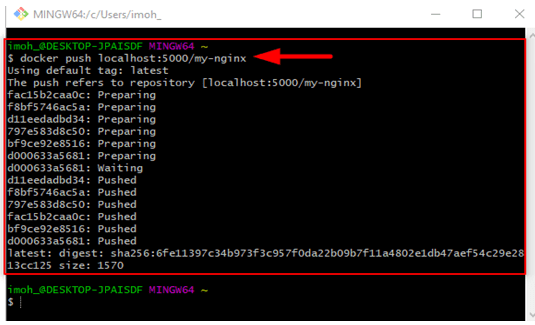
3. Push the image to the local registry running at localhost:5000:

docker push localhost:5000/my-nginx
Pushed-Image-1
Image pushed to local registry

4. Next step is to remove the locally-cached nginx and localhost:5000/my-nginx images, so that you can test the pulling of the image from your registry. However, this does not remove the localhost:5000/my-nginx  image from your registry.

 docker image remove nginx
 docker image remove localhost:5000/my-nginx
Removed-Image-1
Locally-cached images removed

5. Pull the localhost:5000/my-nginx image from your local registry.

docker pull localhost:5000/my-nginx
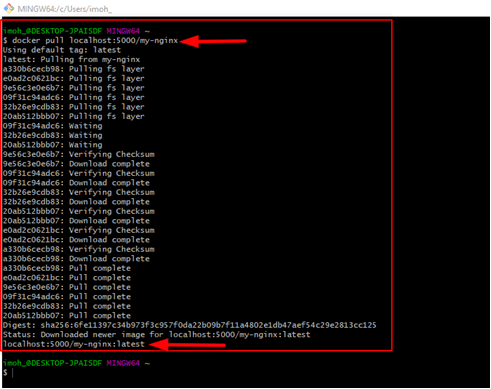
Image-Pulled-from-Local-Registry
Image Pulled from Local Registry

Start the Nginx container image

Use the docker run command to run the image you have just pulled from your registry:

docker run -d -p 8080:80 localhost:5000/my-nginx

The command above shows that the image will run in detached mode, and use tcp port 8080 while the tcp port for the image on the local registry is 80.

Congratulations! You can now browse to your container at http://localhost:8080 to view the running container as shown in the screenshot below.

Web-page-screenshot
Nginx Container Image Web Page

Now, we’ve successfully created and deployed Docker Registry.

Rate this post

Thank you for reading this post. Kindly share it with others.

  • Share on X (Opens in new window) X
  • Share on Reddit (Opens in new window) Reddit
  • Share on LinkedIn (Opens in new window) LinkedIn
  • Share on Facebook (Opens in new window) Facebook
  • Share on Pinterest (Opens in new window) Pinterest
  • Share on Tumblr (Opens in new window) Tumblr
  • Share on Telegram (Opens in new window) Telegram
  • Share on WhatsApp (Opens in new window) WhatsApp
  • Share on Pocket (Opens in new window) Pocket
  • Share on Mastodon (Opens in new window) Mastodon
  • Share on Bluesky (Opens in new window) Bluesky
  • Share on Threads (Opens in new window) Threads
  • Share on Nextdoor (Opens in new window) Nextdoor
AWS/Azure/OpenShift Tags:containers, docker, docker hub, docker image, docker registry

Post navigation

Previous Post: RDP Users are unable to change Passwords
Next Post: How to use Container Insights for Azure Kubernetes Workload

Related Posts

  • Deploy Web App from GitHub
    Deploy Code from GitHub to Azure Apps Services via the Command line AWS/Azure/OpenShift
  • feature functionapp
    Deploy a function app from Visual Studio to Azure Platform AWS/Azure/OpenShift
  • Webp.net resizeimage 1
    Automate Infrastructure Deployments in the Cloud with Ansible and Azure Pipelines AWS/Azure/OpenShift
  • Azure App Service
    How to Restore Deleted Azure App Service Using PowerShell Automation
  • AWS import issues   OVA
    Error importing OVA file to AWS: Client error saved empty is empty AWS/Azure/OpenShift
  • cloudqueryfeature
    How to Manage Cloud Assets in AWS with CloudQuery AWS/Azure/OpenShift

More Related Articles

Deploy Web App from GitHub Deploy Code from GitHub to Azure Apps Services via the Command line AWS/Azure/OpenShift
feature functionapp Deploy a function app from Visual Studio to Azure Platform AWS/Azure/OpenShift
Webp.net resizeimage 1 Automate Infrastructure Deployments in the Cloud with Ansible and Azure Pipelines AWS/Azure/OpenShift
Azure App Service How to Restore Deleted Azure App Service Using PowerShell Automation
AWS import issues   OVA Error importing OVA file to AWS: Client error saved empty is empty AWS/Azure/OpenShift
cloudqueryfeature How to Manage Cloud Assets in AWS with CloudQuery AWS/Azure/OpenShift

Comment (1) on “Creating and Deploying Docker Registry Using Docker Image”

  1. Avatar photo fawef says:
    25/03/2022 at 6:34 PM

    people should be aware that this method is useless for deploying to kubernetes which ignores local registries and tries to use docker.io

    Log in to Reply

Leave a Reply Cancel reply

You must be logged in to post a comment.

Microsoft MVP

VEEAMLEGEND

vexpert-badge-stars-5

Virtual Background

GoogleNews

Categories

veeaam100

sysadmin top30a

  • How to Decrypt Files and Folders Encrypted with EFS in Windows 10
    How to decrypt Files and Folders Encrypted with an Encryption File System (EFS) in Windows Windows
  • f97cd picture1 128
    How to disable Windows Hardware Power Button Windows
  • images 4
    How to set up WatchGuard Log Server Network | Monitoring
  • Disable Hardware Acceleration in Browsers and Windows
    How to Disable Hardware Acceleration in Browsers and Windows Windows
  • ansible logo600 591x296 1
    Ansible_user=UNREACHABLE {Failed to connect to the host via SSH: SSH: Could not resolve hostname (Name or service not known, unreachable true) Configuration Management Tool
  • powershell01 3
    How to install and Update Azure PowerShell on your Windows PC AWS/Azure/OpenShift
  • TLS1.2
    Unable to install Azure AD Connect, TLS 1.2 is required: How to enable or disable TLS 1.2 on a Windows Server via the Registry and PowerShell AWS/Azure/OpenShift
  • Featured image 4
    How to remove a Device from your Microsoft Account Microsoft Exchange/Office/365

Subscribe to Blog via Email

Enter your email address to subscribe to this blog and receive notifications of new posts by email.

Join 1,825 other subscribers
  • RSS - Posts
  • RSS - Comments
  • About
  • Authors
  • Write for us
  • Advertise with us
  • General Terms and Conditions
  • Privacy policy
  • Feedly
  • Telegram
  • Youtube
  • Facebook
  • Instagram
  • LinkedIn
  • Tumblr
  • Pinterest
  • Twitter
  • mastodon

Tags

AWS Azure Bitlocker Microsoft Windows PowerShell WDS Windows 10 Windows 11 Windows Deployment Services Windows Server 2016

Copyright © 2025 TechDirectArchive


Loading Comments...
 

You must be logged in to post a comment.