Skip to content

TechDirectArchive

Hands-on IT, Cloud, Security & DevOps Insights

  • Home
  • About
  • Advertise With US
  • Reviews
  • Contact
  • Toggle search form
Home » Windows » Fix Remote session was disconnected because there are no Remote Desktop License Servers available to provide a license
  • Slide1
    Read-only Files: Saving Files in VIM Editor on Linux/Unix-like OS Linux
  • images 5
    How to use the Pleasant Password Server tool Password Manager
  • ansible business cards 1600x0 c default
    Various Ansible Authentication Options Configuration Management Tool
  • LINUX CONTAINERS
    How to install LXC/LXD for container management Linux
  • openshift
    Set up OpenShift Cluster using Red Hat CodeReady Containers Linux
  • Trellix BitLocker and fileVault Recovery
    Selfservice Recovery: Trellix BitLocker and fileVault Recovery Security | Vulnerability Scans and Assessment
  • a Multiple SPF Records  Issues and Examples@2x
    How to setup SPF and TXT Records in AWS AWS/Azure/OpenShift
  • image 79
    How to import SSL Certificate to Windows Server using DigiCert Utility Windows

Fix Remote session was disconnected because there are no Remote Desktop License Servers available to provide a license

Posted on 24/10/202104/09/2023 Temitope Odemo By Temitope Odemo No Comments on Fix Remote session was disconnected because there are no Remote Desktop License Servers available to provide a license
RemoteDesktopLinceseServer

Remote connection issue is not a new problem for someone who connects regularly to an office network or to a site network. Some of these issues are simply caused as a result of hitches on the network, wrong network configuration, or system issues. But in this guide, I will be discussing on remote connection issue caused as a result of the license. This article shows you the steps on how to fix this issue “The remote session was disconnected because there are no Remote Desktop License Servers available to provide a license”. Please see how to setup and configure Remote Desktop Services via Standard Deployment on Windows Server.

Remote Desktop License is also known as Client Access Licenses (CALS), this license can be purchased from Microsoft and configured on the server with the connection issue.

These are some related guides on fixing issues on your computer How to fix the issue “The Security Database on the Server does not have a Computer Account for this Workstation Trust Relationship” on Windows Server, and how to Quickly Fix Windows Search Bar Not Working

Reason for the remote session disconnection

The image below is the error displayed when you have a connection issue as a result of the license server.
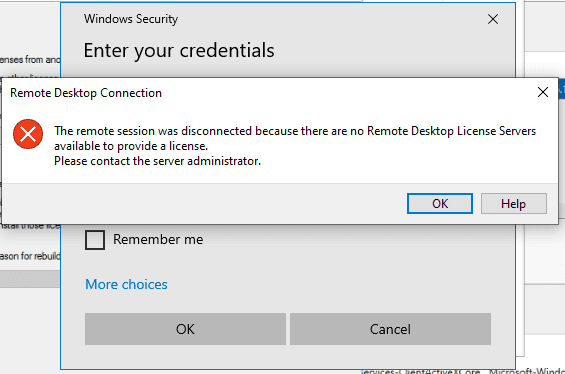
image-194
Error Message

Resolve “There are no Remote Desktop License Servers available to provide a license”

Follow the steps below to fix this issue. Open the Server Manager and click on RD Licensing Diagnoser
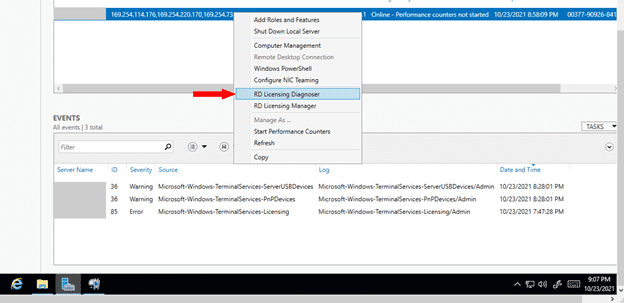
image-195
Entering RD Licensing Diagnoser Page

When the RD Licensing Diagnoser opens you will see the below image and see that licenses are not available.
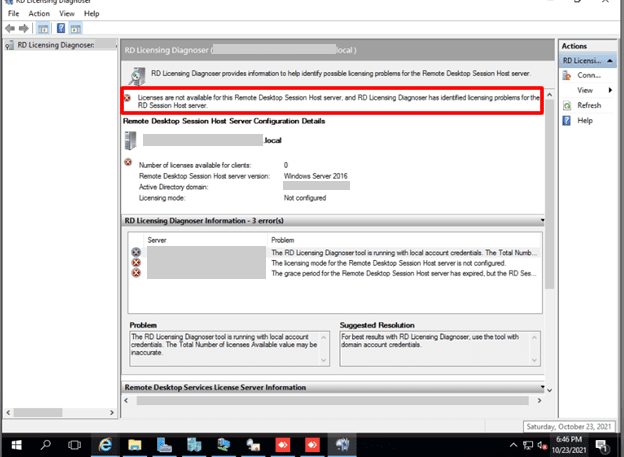
image-197
RD Licensing Diagnoser Page

Now click on RD Licensing Manager to install the license you have purchased.
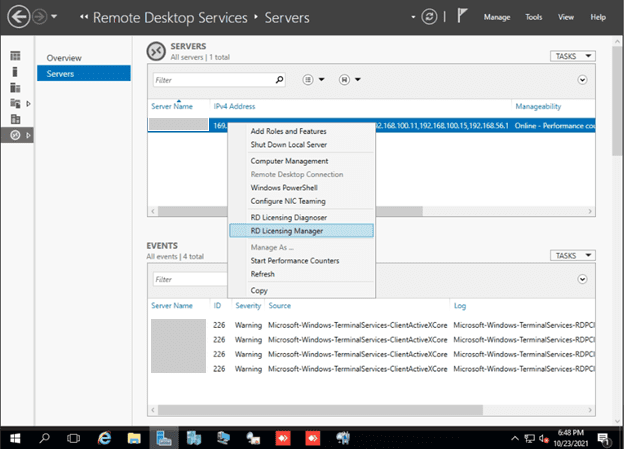
image-198
Entering RD Licensing Manager

Right-click the server and select Install Licenses
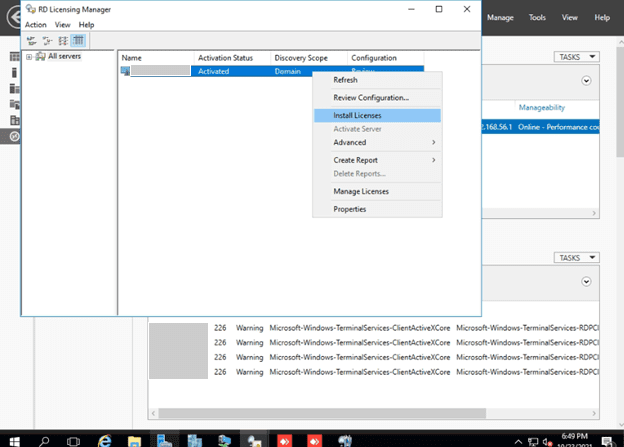
image-199
Installing the License

You need to know the type of license you purchased whether its
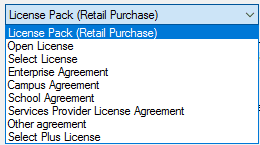
image-200
Select your License program

In this guide, we will be using License Pack (Retail Purchase) as our License program.

image-201
License Program

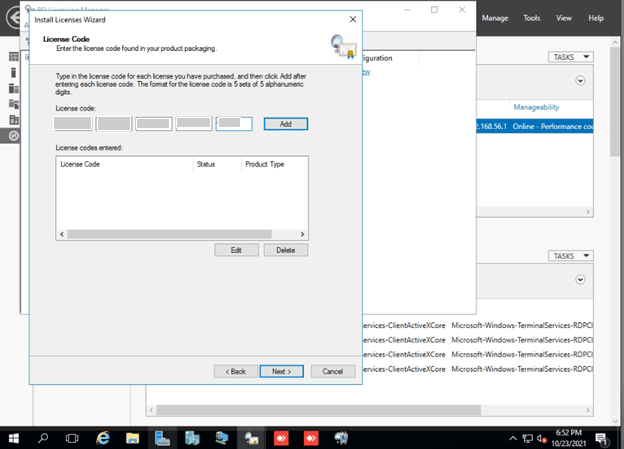
Add the License key and click next

image-202
Adding License Key

After the License is successfully installed click on Finish.
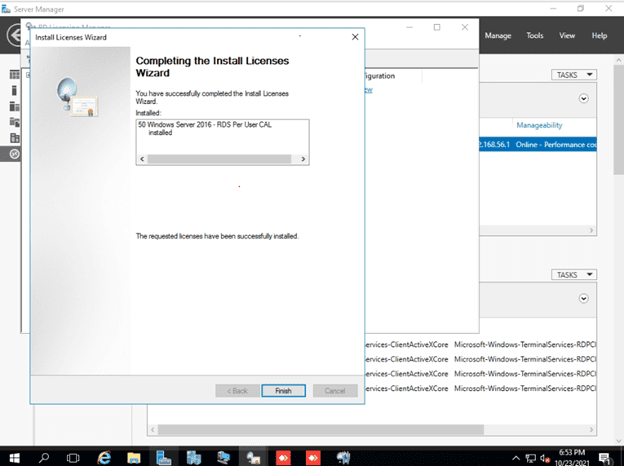
image-203
License installed successfully

Now let’s review the configuration by opening the RD Licensing Manager and selecting Review Configuration.
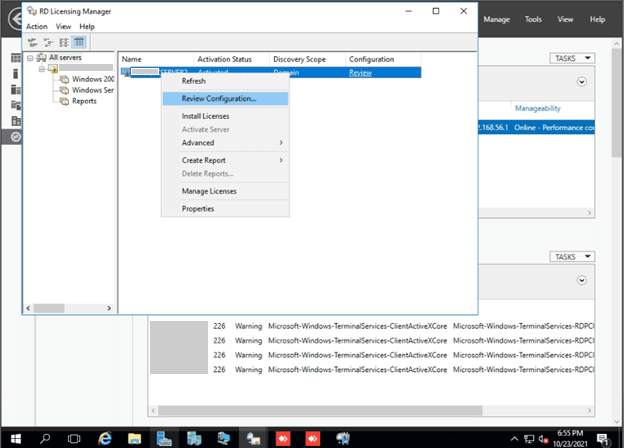
image-204
Reviewing Configuration

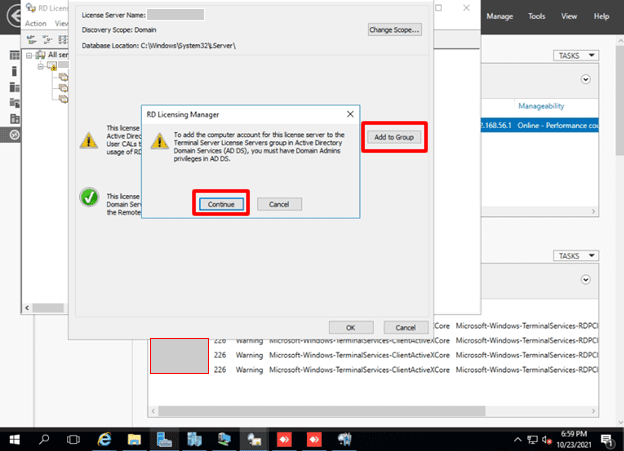
Add the License Server as a Member of the Terminal Server License

It’s possible you will have some issues like the issue of The license server is not a member of the Terminal Server License.

image-205
Terminal Server License Group Error

Click Add to Group and Continue

image-206
Adding to Group

Enter the Domain user name and password and click Ok
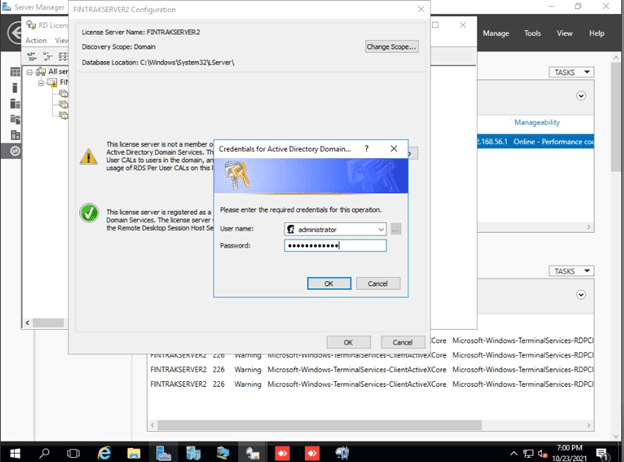
image-207
Entering Domain Login Details

If the domain username and password are correct. Then the license server will be added to the Terminal Server License Servers Group in Active Directory.

image-208
License server added successfully

If you refresh the RD License Manager all configurations will be fine.
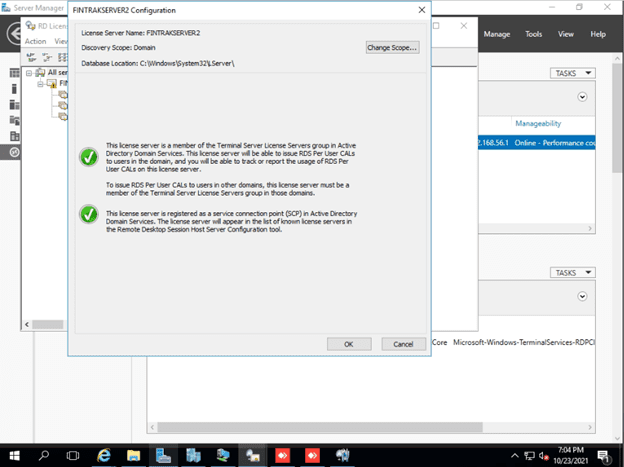
image-209
RD License Manager

Fix the RD Licensing Diagnoser Error

But if you check the RD Licensing Diagnoser you might still see some errors like the below image.
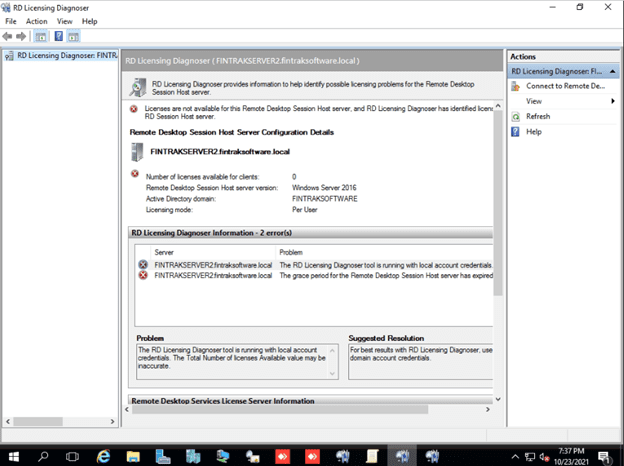
image-210
RD License Diagnoser

To fix the above error, In the search button of your taskbar enter edit group policy

image-214
Edit Group Policy Screen

Click on Use the specified Remote Desktop license servers. Here are some exciting articles: What to do when your Remote Desktop Licensing Manager Server Crashed, and how to fix “Failed to create a scheduled task: There is no disconnected command associated with the runspace“.

Select Enabled and enter the License server you want to use which is the name of the physical server and click Ok.
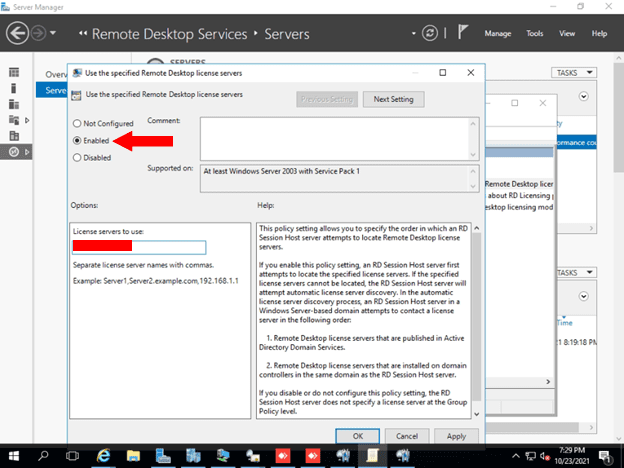
image-213
Using the specified Remote Desktop license server

Click on Set the Remote Desktop licensing mode. Please see How to disconnect a Remote Desktop User, and RDS client access licenses: How to install a new Per User Remote Desktop Services license.

Select Enabled and Specify the licensing mode for the RD Session Host server either Per device or Per User and click Ok.
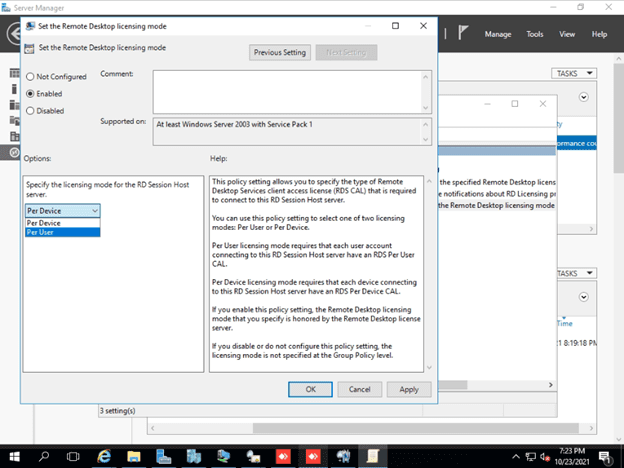
image-212
Setting the Remote Desktop Licensing mode

If you check the RD Licensing Diagnoser again the number of licenses available for clients should display and no error or warnings would display.

You can now go ahead and remote desktop to the server and the connection will be successful because the license configuration has been implemented successfully.
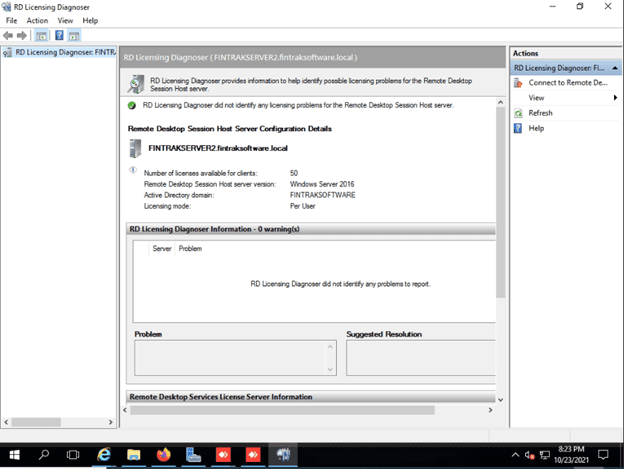
image-215
RD Licensing Diagnoser

I hope you found this blog post on how to fix the issue “The remote session was disconnected because there are no Remote Desktop License Servers available to provide a license” very interesting and helpful. In case you have any questions do not hesitate to ask in the comment section.

Rate this post

Thank you for reading this post. Kindly share it with others.

  • Click to share on X (Opens in new window) X
  • Click to share on Reddit (Opens in new window) Reddit
  • Click to share on LinkedIn (Opens in new window) LinkedIn
  • Click to share on Facebook (Opens in new window) Facebook
  • Click to share on Pinterest (Opens in new window) Pinterest
  • Click to share on Tumblr (Opens in new window) Tumblr
  • Click to share on Telegram (Opens in new window) Telegram
  • Click to share on WhatsApp (Opens in new window) WhatsApp
  • Click to share on Pocket (Opens in new window) Pocket
  • Click to share on Mastodon (Opens in new window) Mastodon
  • Click to share on Bluesky (Opens in new window) Bluesky
  • Click to share on Threads (Opens in new window) Threads
  • Click to share on Nextdoor (Opens in new window) Nextdoor
Network | Monitoring, Windows, Windows Server Tags:Licensing, RDP, rds, Remote Access, Remote Desktop, Remote Desktop Protocol, Remote Server Administration Tools, RemoteConnection

Post navigation

Previous Post: Shell Scripting: How to Automate a Process in Linux
Next Post: Stopping, Removing and Naming Docker Container

Related Posts

  • Featured image 5
    How to uninstall and prevent the installation of Microsoft Teams on Windows Windows
  • Perform slfservice rBitLocker recovery
    Resolve Invalid Key ID when requesting BitLocker Recovery Key Windows
  • hero activedirectory
    How to find disabled Active Directory User accounts Windows Server
  • GPO Blocked Downloads 3
    How to Block downloads on Microsoft Edge using GPO on Windows Server 2019 and 2022 Windows
  • powershell commands lede 1024x276 1
    Enable WinRM on Windows Servers and Windows PCs Scripts
  • How to install and configure a Standalone DNS Server
    How to Install and Configure a Standalone DNS Server Windows Server

More Related Articles

Featured image 5 How to uninstall and prevent the installation of Microsoft Teams on Windows Windows
Perform slfservice rBitLocker recovery Resolve Invalid Key ID when requesting BitLocker Recovery Key Windows
hero activedirectory How to find disabled Active Directory User accounts Windows Server
GPO Blocked Downloads 3 How to Block downloads on Microsoft Edge using GPO on Windows Server 2019 and 2022 Windows
powershell commands lede 1024x276 1 Enable WinRM on Windows Servers and Windows PCs Scripts
How to install and configure a Standalone DNS Server How to Install and Configure a Standalone DNS Server Windows Server

Leave a Reply Cancel reply

You must be logged in to post a comment.

Microsoft MVP

VEEAMLEGEND

vexpert-badge-stars-5

Virtual Background

GoogleNews

Categories

veeaam100

sysadmin top30a
 
  • Slide1
    Read-only Files: Saving Files in VIM Editor on Linux/Unix-like OS Linux
  • images 5
    How to use the Pleasant Password Server tool Password Manager
  • ansible business cards 1600x0 c default
    Various Ansible Authentication Options Configuration Management Tool
  • LINUX CONTAINERS
    How to install LXC/LXD for container management Linux
  • openshift
    Set up OpenShift Cluster using Red Hat CodeReady Containers Linux
  • Trellix BitLocker and fileVault Recovery
    Selfservice Recovery: Trellix BitLocker and fileVault Recovery Security | Vulnerability Scans and Assessment
  • a Multiple SPF Records  Issues and Examples@2x
    How to setup SPF and TXT Records in AWS AWS/Azure/OpenShift
  • image 79
    How to import SSL Certificate to Windows Server using DigiCert Utility Windows

Subscribe to Blog via Email

Enter your email address to subscribe to this blog and receive notifications of new posts by email.

Join 1,841 other subscribers
  • RSS - Posts
  • RSS - Comments
  • About
  • Authors
  • Write for us
  • Advertise with us
  • General Terms and Conditions
  • Privacy policy
  • Feedly
  • Telegram
  • Youtube
  • Facebook
  • Instagram
  • LinkedIn
  • Tumblr
  • Pinterest
  • Twitter
  • mastodon

Tags

AWS Azure Bitlocker Microsoft Windows PowerShell WDS Windows 10 Windows 11 Windows Deployment Services Windows Server 2016

Copyright © 2025 TechDirectArchive


Loading Comments...
 

You must be logged in to post a comment.