




How to create a Traffic Manager Profile in Azure


I’ll be creating a Traffic Manager profile that delivers high availability for our web application. In this article, we will read about two instances of a web application where both Instances are running in a different Azure region. Also, we will create a Traffic Manager profile based on endpoint priority. In this article, you will learn how to create a Traffic Manager profile in Azure.
The profile instructs user traffic to the primary site running the web application. The traffic Manager continuously monitors the web application. If the primary site is unavailable, this provides automatic failover to the (secondary site) backup site.
In this piece, we’ll need two instances of a web application deployed in two different Azure regions (1st in East US and 2nd in West Europe). Each one will serve as primary & failover endpoints for Traffic Manager.
Also here are some of my related guides: How to manage azure resource manager resource groups by using Azure CLI, how to configure azure resources with tools, how to install and configure Ansible on Ubuntu, how to install Ansible on Windows with Cygwin, and how to automate infrastructure deployments in the cloud with ansible and azure pipelines.
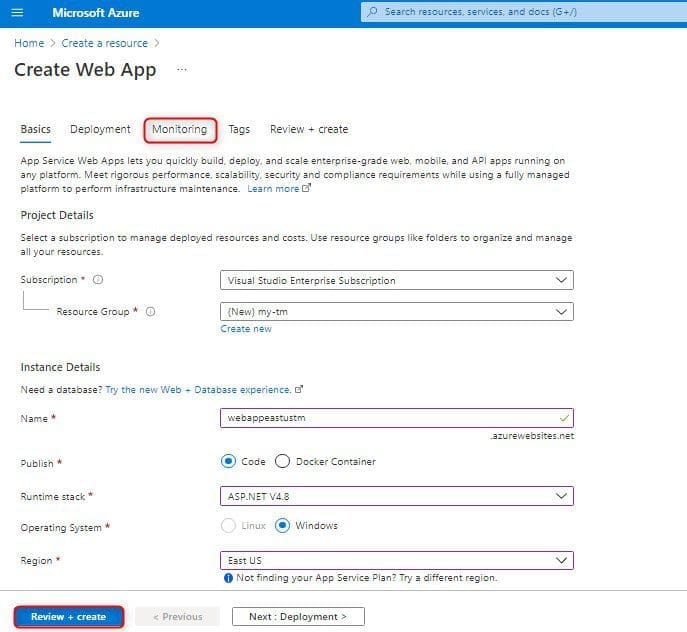
Create A Web App (1)
Go to the Azure Portal, select Create a resource.
– Click on Web App
– Type the following below:
Create a Web App wizard, Basics tab.
- Select your Subscription
- Create or Select a Resource Group (my-tm).
Instance Details.
- Name – webappeastustm1.
- Publish – Select Code.
- Runtime stack – Select ASP.NET V4.8.
- Operating System – Select Windows.
- Region – Select East US
App Service Plan
– Windows Plan (East US)
Select Create new
Type a name (AppServicePlanEastUS) and then click OK.
SKU and size
– Select Standard S1.
Select Next : Monitoring >
Under Monitoring Tab
Application Insights
Enable Application Insights select No and then select Review + create
Please see how to install Kerberos packages in Windows via Cygwin, how to configure a remote server (windows) to Support Ansible, and how to deploy Azure VMware solution private cloud, how to create a Traffic Manager profile in Azure, and how to improve website response using Traffic Manager
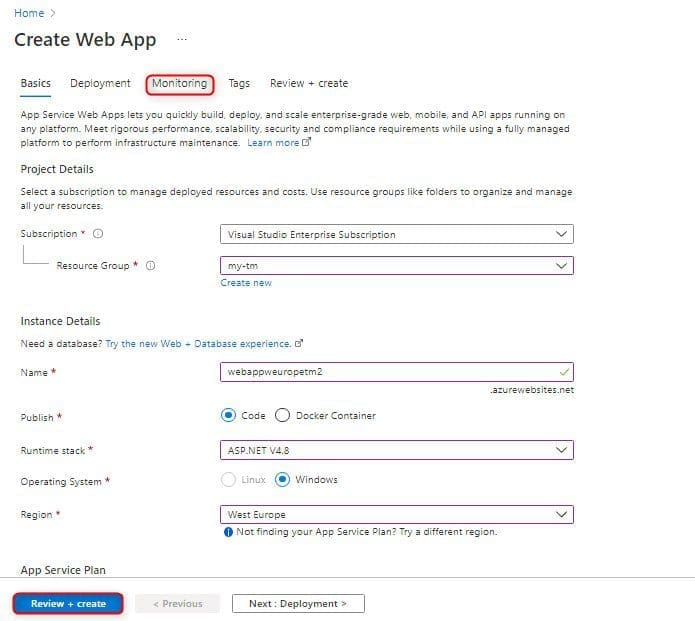
Create A Web App (2)
Go to the Azure Portal, select Create a resource. Click on Web App
– Type the following below:
Create a Web App wizard, Basics tab.
- Select your Subscription
- Create or Select a Resource Group (my-tm).
Instance Details.
- Name – webappweuropetm2.
- Publish – Select Code.
- Runtime stack – Select ASP.NET V4.8.
- Operating System – Select Windows.
- Region – Select West europe
App Service Plan
– Windows Plan (East US)
Select Create new
Type a name (AppServicePlanWEurope) and then click OK.
SKU and size
– Select Standard S1.
Select Next : Monitoring >
Under Monitoring Tab
Application Insights
Enable Application Insights select No and then select Review + create
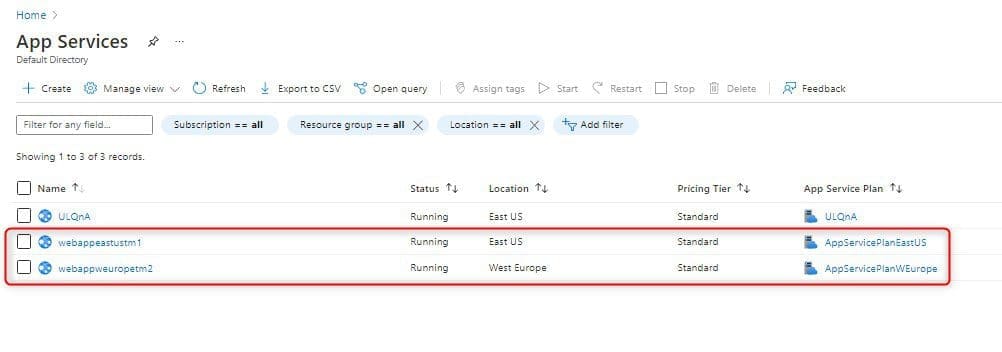
Now you can see two Web apps successfully created in 2 different regions.
Create a Traffic Manager profile
We’ll be creating a Traffic Manager Profile that instructs user traffic based on endpoint priority. Go to the Azure Portal, and type traffic manager profile in Azure search bar.
Click on Traffic Manager Profiles, and Type the following below:
Create Traffic Manager Profiles wizard
- Type a name – myTManager
- Routing Method – select Priority
- Resource group – select my-tm and then click create.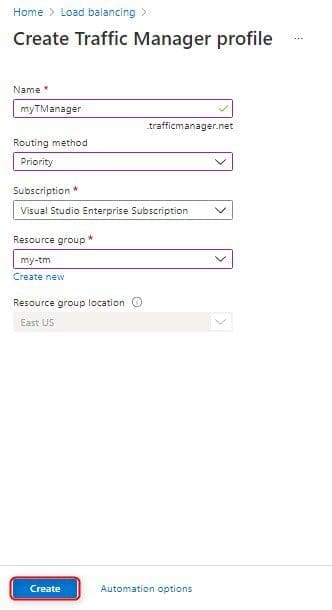
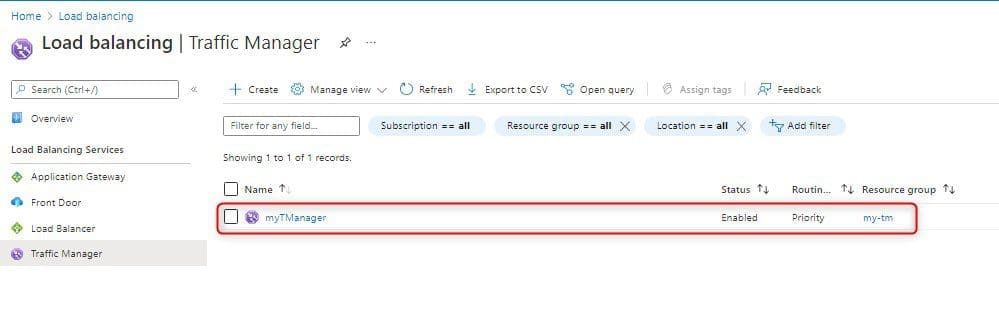
The traffic Manager profile successfully created.
How to Add Traffic Manager Endpoints
Add the website in the target resource (East US) as a Primary Endpoint to route all the user traffic. Add the website in target resource “West Europe” as a Failover Endpoint. When the primary endpoint is unavailable, then the traffic automatically routes to the failover endpoint.
- Select the Traffic Manager profile name that you created in the preceding section.
- Select Endpoints under Settings section and then click on + Add.
- Type the following below:
Add endpoint
Type > Select Azure endpoint
Name > Type PrimaryEndpoint
Target resource type > Select App Service
Target resource > select webappeatus (East US)
Priority > Select 1
Select OK.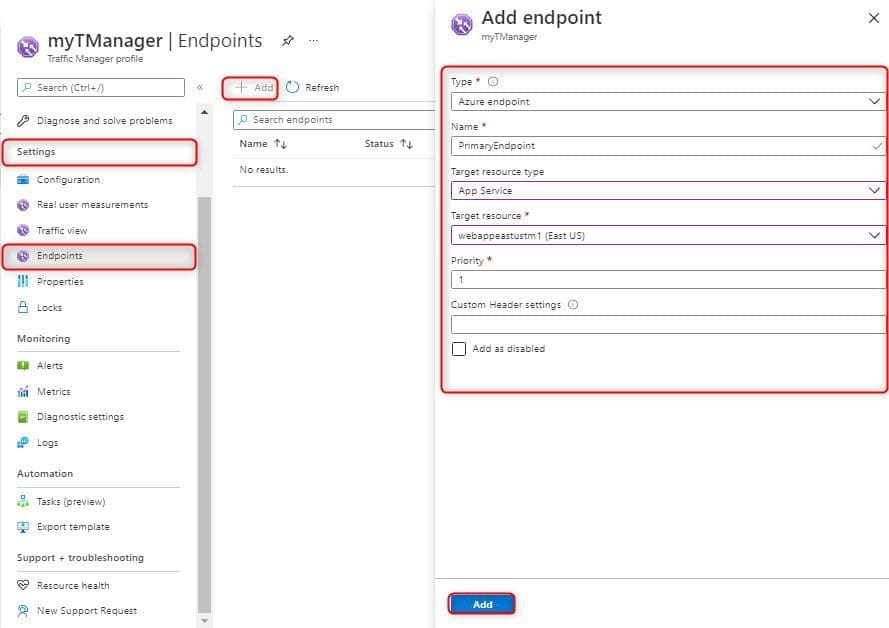
Create a failover endpoint for your 2nd Azure region.
Click on + Add button again. Type the following below to add an endpoint.
Add endpoint
Type > Select Azure endpoint
Name > Type FailoverEndpoint
Target resource type > Select App Service
Target resource > select webappweurope (West Europe)
Priority > Select 2
Select OK.
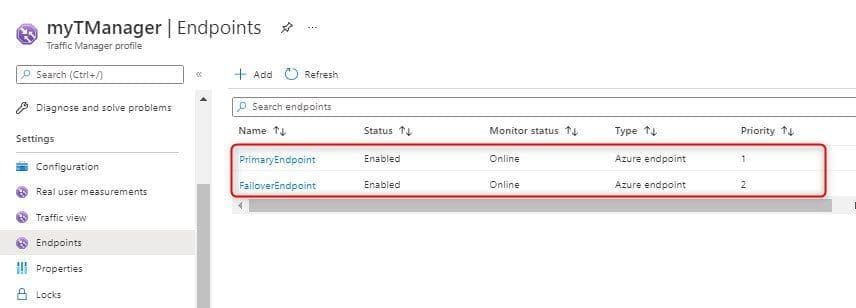
When you are done adding both endpoints, they are displayed in the Traffic Manager profile. Notice that their monitoring status is Online now.
Test Traffic Manager Profile
In this article, we will check the domain name of our Traffic Manager profile. You will also configure the primary endpoint to be unavailable. Finally, we get to see that the web app is still available. It is because the Traffic Manager sends the traffic to the failover endpoint.
Check the DNS name
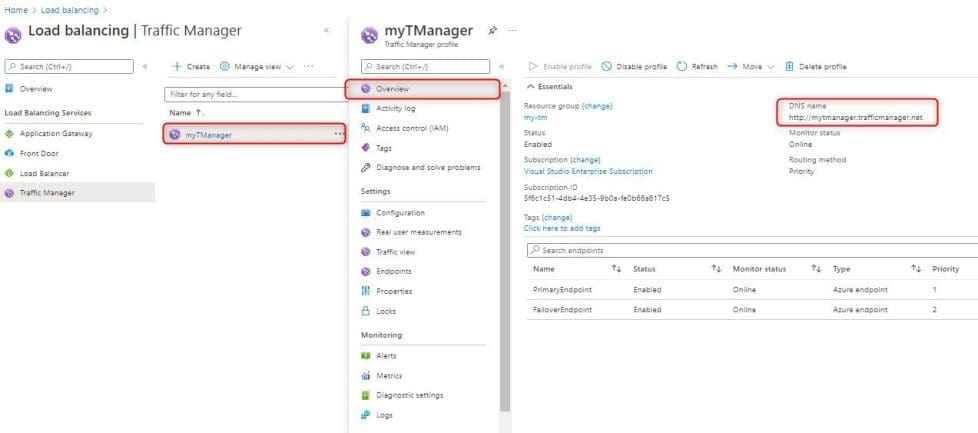
Go to your Traffic Manager profile name that you have just created. Select the traffic manager profile and then overview. In the Traffic Manager profile, you can see the DNS name of your newly created Traffic Manager profile.
View Traffic Manager in action
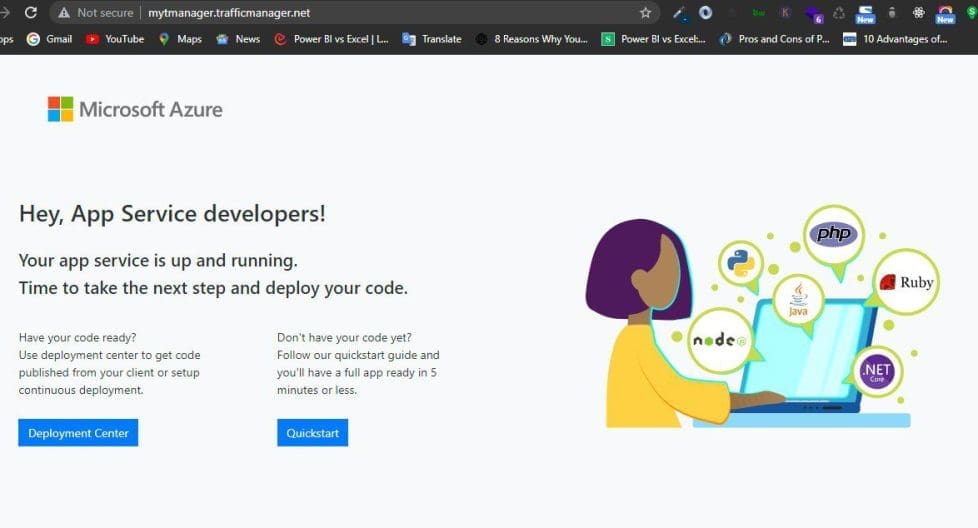
In the web browser, paste the DNS name of your Traffic Manager profile to view your Web App’s default website.
Note, all requests route to the primary endpoint. Because we set it to Priority 1.
Disable your primary site, to test Traffic Manager Failover:
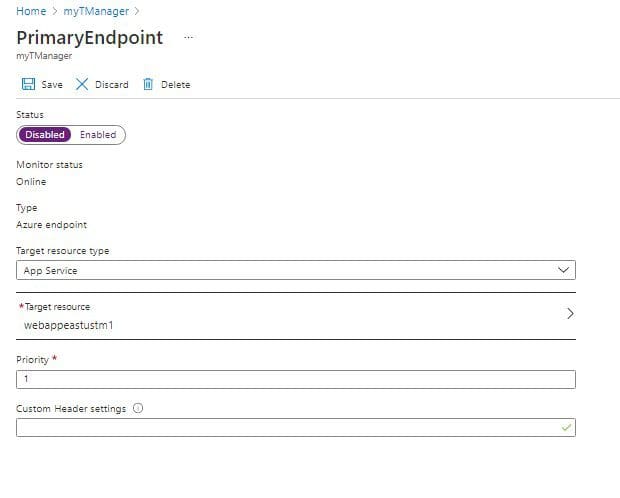
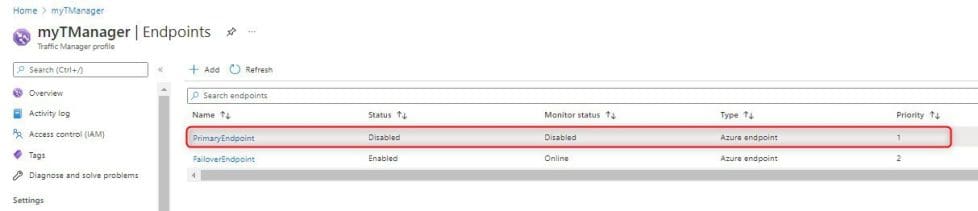
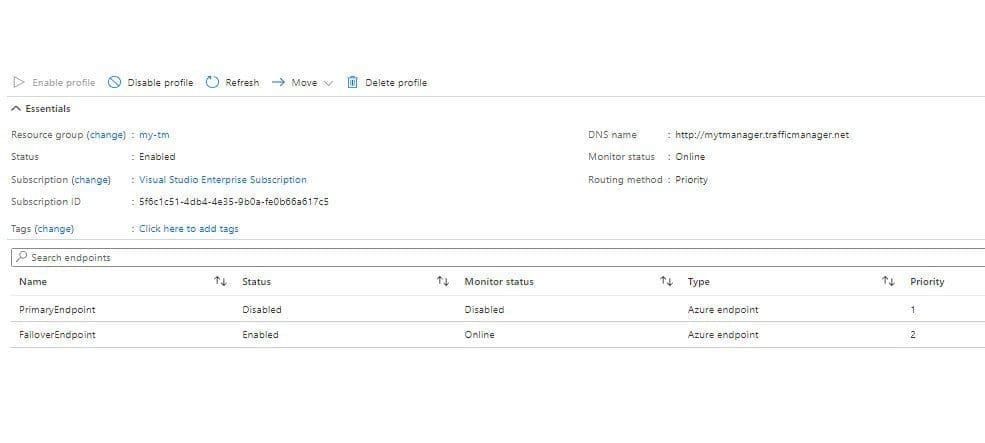
In the Traffic Manager Profile page, select Endpoint under settings and then select PrimaryEndpoint. In PrimaryEndpoint, select Disabled and then click on Save. Close PrimaryEndpoint window. Then notice that the status is Disabled now.
Notice that the status is Disabled now.
Copy the DNS name of the Traffic Manager Profile to view the website in a new web browser session. Verify that the web app is still available.
The primary endpoint is not available, so you were routed to the failover endpoint.
From the article, we have seen how to create a traffic manager profile in Azure, create a traffic manager profile, add a traffic manager endpoint, run a test traffic manager profile.


