Skip to content

TechDirectArchive

Hands-on IT, Cloud, Security & DevOps Insights

  • Home
  • About
  • Advertise With US
  • Contact
  • Reviews
  • Toggle search form
Home » Windows » How to use the DigiCert certificate utility for Windows to create a CSR

How to use the DigiCert certificate utility for Windows to create a CSR

Posted on 19/11/202125/08/2023 Temitope Odemo By Temitope Odemo No Comments on How to use the DigiCert certificate utility for Windows to create a CSR
DigiCert

The free DigiCert Certificate Utility for Windows is a very good an indispensable tool for administrators and a must-have for anyone that uses SSL Certificates for Websites and servers or Code Signing Certificates for trusted software. This is a globally accepted tool that you can used for certificate management and various certificate troubleshooting. It is very easy to configure and a straight-forward approach in the usage.

You can read more related guides like: Enable LDAP over SSL with a Third-party Certification Authority such as DigiCert, Generate a self-signed SSL certificate: How to enable LDAP over SSL with a self-signed certificate, and How to Import your SSL Certificate to Your Windows Server using DigiCert Utility

Follow these Steps to Create Your CSR with the DigiCert Utility

  • On your Windows Server, download and save the DigiCert Certificate Utility for Windows executable DigiCertUtil.exe
  • After downloading run the utility file.
certificate utility
Setting up the DigiCert Utility
  • Launch the DigiCert Certificate Utility for Windows and click SSL (with gold lock), and then, click Create CSR.
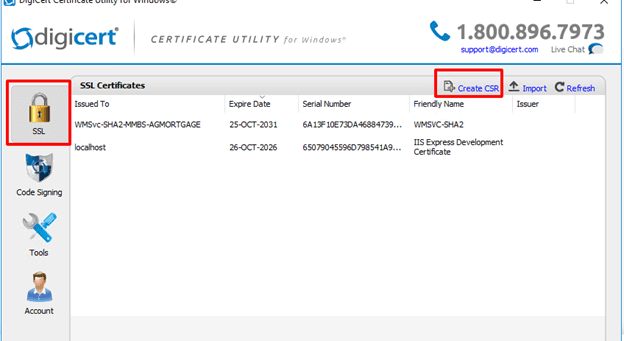
Windows
Creating CSR

On the Create CSR page, enter this information:

  • Select SSL as the Certificate Type
  • Common Name: enter the fully qualified domain name (e.g., www.techdirectarchive.com) or you may enter the IP address.
  • Subject Alternative Names: assuming you are requesting a Multi-Domain (SAN) Certificate, you can enter any SANs e.g (www.techdirectarchive2.com)
  • Organization: Enter your company’s legally registered name. e.g TechDirectArchive
  • Department: Optional
  • City: Enter the city where your company is located.
  • State: Select the correct state your company is located.
  • Country: Select the correct country your company is located.
  • Key Size: In the drop-down list select 2048.
CSR
Creating CSR
  • Click the Generate button.
  • You can either click the Copy CSR button to copy the certificate contents to a clipboard like Notepad or you can save to file.
image-76
Certificate request successful

I hope you found this blog post on How to use the DigiCertCertificate Utility for Windows to create a CSR very interesting and helpful. In case you have any questions do not hesitate to ask in the comment section

Rate this post

Thank you for reading this post. Kindly share it with others.

  • Share on X (Opens in new window) X
  • Share on Reddit (Opens in new window) Reddit
  • Share on LinkedIn (Opens in new window) LinkedIn
  • Share on Facebook (Opens in new window) Facebook
  • Share on Pinterest (Opens in new window) Pinterest
  • Share on Tumblr (Opens in new window) Tumblr
  • Share on Telegram (Opens in new window) Telegram
  • Share on WhatsApp (Opens in new window) WhatsApp
  • Share on Mastodon (Opens in new window) Mastodon
  • Share on Bluesky (Opens in new window) Bluesky
  • Share on Threads (Opens in new window) Threads
  • Share on Nextdoor (Opens in new window) Nextdoor
Windows, Windows Server Tags:Certificate Signing Request

Post navigation

Previous Post: How to backup Azure VM with VM Settings
Next Post: What are the differences between dnf and apt package managers?

Related Posts

  • Feature image 1
    Configure and validate Exclusions for Microsoft Defender Antivirus scans Anti-Virus Solution
  • Featured image BSOD
    How to troubleshoot and fix Windows 11 blue screen Windows
  • image 10
    Change Visual Studio Code UI language JIRA|Confluence|Apps
  • connect to RDP automatically
    RDP Configuration Settings: Connect automatically to RDP session Windows
  • group
    How to update PowerShell and Package Management via Group Policy Object Windows Server
  • image 37
    There was an error opening the Trusted Platform Module snap-in: You do not have permission to open the Trusted Platform Module Console Windows

More Related Articles

Feature image 1 Configure and validate Exclusions for Microsoft Defender Antivirus scans Anti-Virus Solution
Featured image BSOD How to troubleshoot and fix Windows 11 blue screen Windows
image 10 Change Visual Studio Code UI language JIRA|Confluence|Apps
connect to RDP automatically RDP Configuration Settings: Connect automatically to RDP session Windows
group How to update PowerShell and Package Management via Group Policy Object Windows Server
image 37 There was an error opening the Trusted Platform Module snap-in: You do not have permission to open the Trusted Platform Module Console Windows

Leave a Reply Cancel reply

You must be logged in to post a comment.

Microsoft MVP

VEEAMLEGEND

vexpert-badge-stars-5

Virtual Background

GoogleNews

Categories

veeaam100

Veeam Vanguard

  • CMtrace
    How to install and debug logs with the CMTrace Tool Windows Server
  • microsoft warns windows 10 cumulative update kb4494441 breaks down some websites 526066 2
    Launch an application automatically during startup on Windows Windows
  • Exchange Admin Centre   EMC
    How to grant Access to User Mailbox Network | Monitoring
  • Featured image  Install new fonts
    How to install new fonts in Microsoft Office Windows
  • Featured image 4
    Focus on Tasks: Limit Distraction & Get Things Done on Windows Windows
  • Featured image 1
    How to Share Microsoft Outlook Calendar on Desktop and on Web Microsoft Exchange/Office/365
  • Install Microsoft PKI   ADCS
    Set up Microsoft PKI (ADCS) for SystoLOCK via PowerShell Windows Server
  • vvd
    Unable to connect to Eduroam WLAN: WiFi Username remembered on MAC Mac

Subscribe to Blog via Email

Enter your email address to subscribe to this blog and receive notifications of new posts by email.

Join 1,817 other subscribers
  • RSS - Posts
  • RSS - Comments
  • About
  • Authors
  • Write for us
  • Advertise with us
  • General Terms and Conditions
  • Privacy policy
  • Feedly
  • Telegram
  • Youtube
  • Facebook
  • Instagram
  • LinkedIn
  • Tumblr
  • Pinterest
  • Twitter
  • mastodon

Tags

Active Directory Azure Bitlocker Microsoft Windows PowerShell WDS Windows 10 Windows 11 Windows Deployment Services Windows Server 2016

Copyright © 2025 TechDirectArchive


Loading Comments...
 

You must be logged in to post a comment.