Skip to content

TechDirectArchive

Hands-on IT, Cloud, Security & DevOps Insights

  • Home
  • About
  • Advertise With US
  • Contact
  • Reviews
  • Toggle search form
Home » AWS/Azure/OpenShift » Create a new Azure Disk: How to create and attach an extra Disk to Azure Virtual Machine

Create a new Azure Disk: How to create and attach an extra Disk to Azure Virtual Machine

Posted on 26/11/202104/06/2023 Christian By Christian No Comments on Create a new Azure Disk: How to create and attach an extra Disk to Azure Virtual Machine
Webp.net-resizeimage-7

Azure-managed disks are block-level storage volumes that are managed by Azure and used with Azure Virtual Machines. This guide discusses steps to create a new Azure Disk: How to create and attach an extra Disk to Azure Virtual Machine. Therefore, I’ll be showing you how to create and attach a managed disk to a Windows Azure VM through the Azure portal. You can create and attach a new lab data disk for a lab Azure virtual machine (VM). Please see how to install Kerberos packages in Windows via Cygwin, how to configure a remote server (windows) to Support Ansible, and how to deploy Azure VMware solution private cloud, how to create a Traffic Manager profile in Azure, and how to improve website response using Traffic Manager.

The data disk can then be detached, either: deleted, reattached, or attached to a different lab virtual machine that you deployed. Kindly refer to some of these related guides: How to manage azure resource manager resource groups by using Azure CLI, how to configure Azure resources with tools, and how to automate infrastructure deployments in the cloud with ansible and azure pipelines.

Create an Azure Managed Disk

Go to the Azure Portal. Here is how this is done on AWS. In the search bar, type and then select virtual machines. Select & click the Virtual Machine which you have created. Click on this link to see how to create a virtual machine in Azure

Under settings, select disks. On the Disks section, click the + Create and attached a new disk button then create a virtual network. Create a Manage disk wizard, type the disk name(Extra Disk), select the storage type, the size, specifies the IOPS size.

Capture-79

Under Host caching choose Read/Write and to attach the data disk, click on Save option.

Capture-80

Connect to the VM via RDP

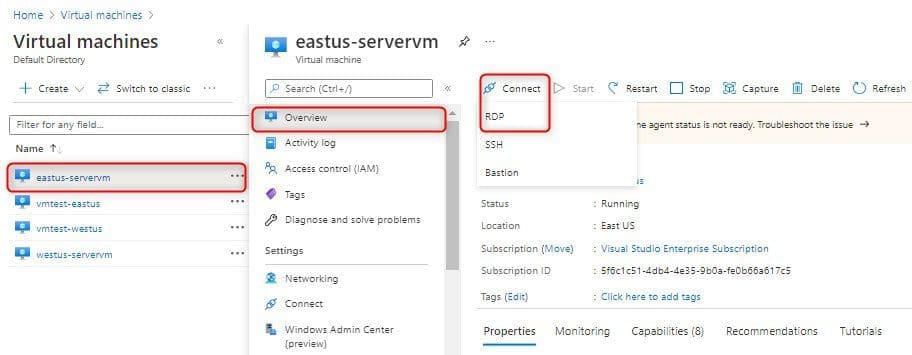
Then go back to your created virtual machine. From the Overview page, Select Connect and click on RDP, and click download RDP file.
Capture-81

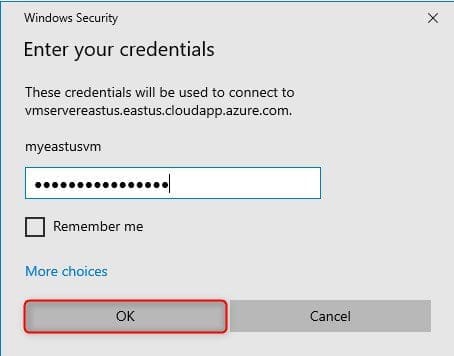
On local pc. Go to your downloaded folder. Click the downloaded RDP file, and enter your credentials and then click OK, this will connect to your remote desktop environment
Capture-82

Access the File and Storage Services

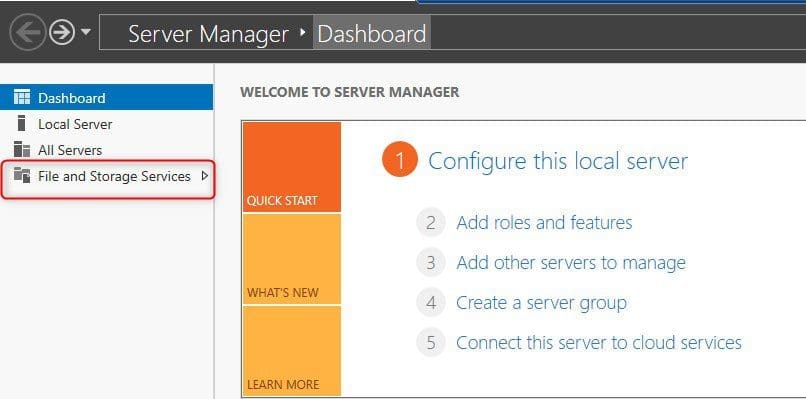
Once you logged into the VM, under Server Manager click File and Storage Services.
Capture-83

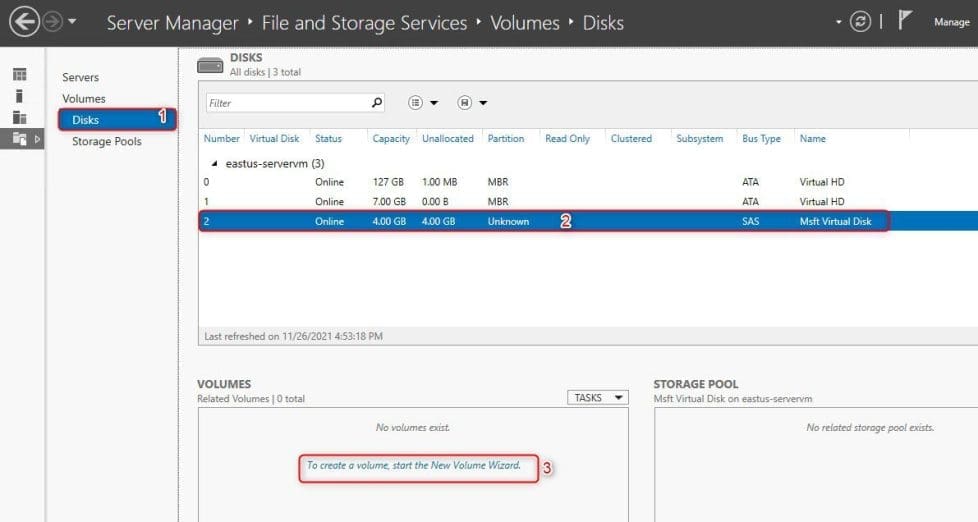
Select Disks option, select your 4GB unknown disk, under Volumes to create a volume start the new volume wizard.
Capture-84

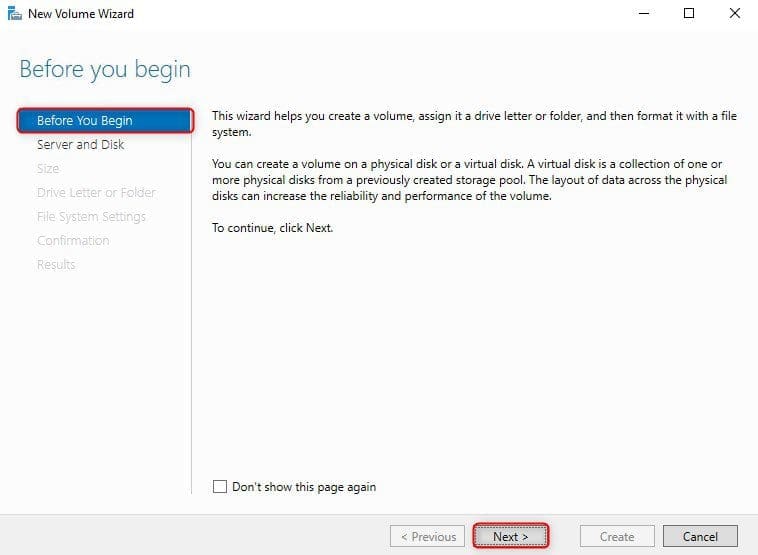
New volume wizard click next.

Capture-85

Select server and disk, click Next.

Capture-86

The selected disk will be brought online click OK. Choose a volume size as per your requirement and then click next.
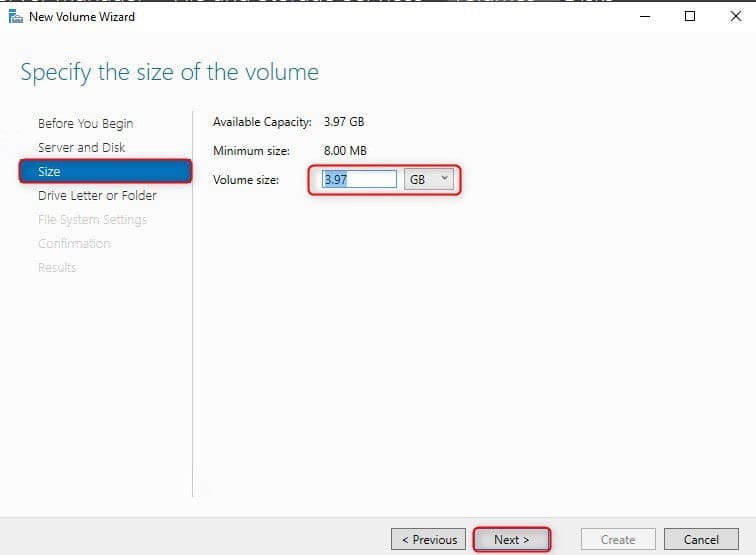
Capture-87

Assign a drive letter and then click next.
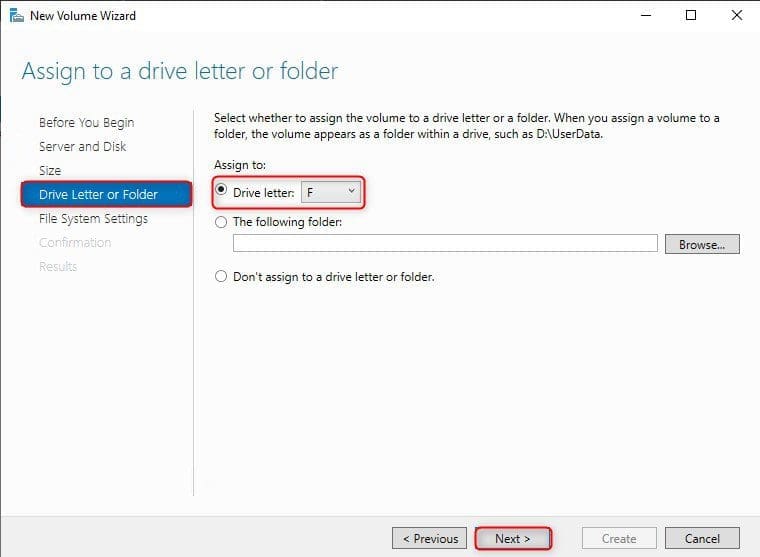
Capture-88

Enter a volume label and then click next.
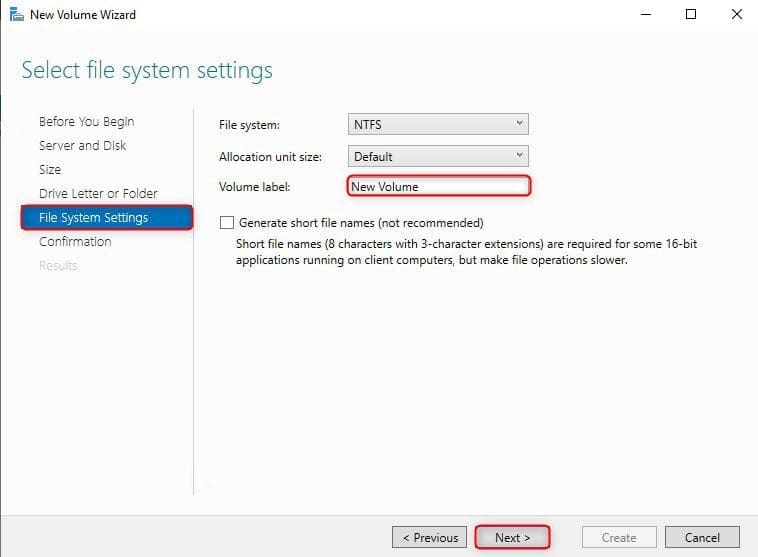
Capture-89

Lastly, Verify the settings and then click create.
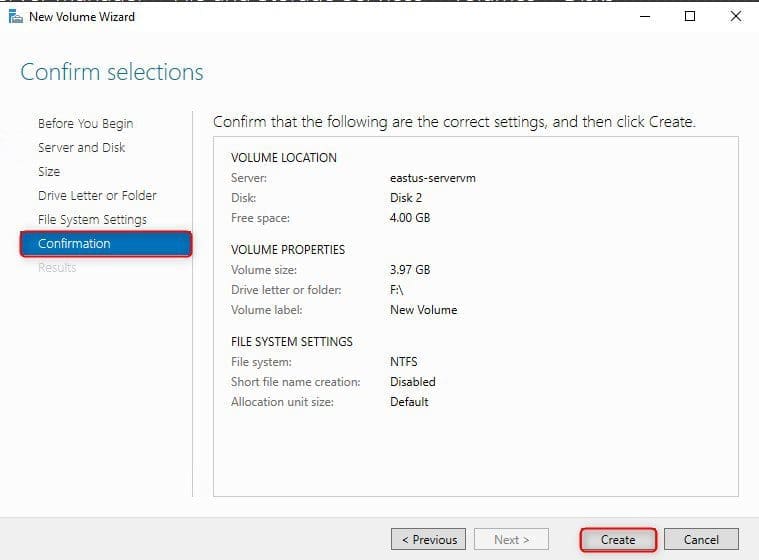
Capture-90

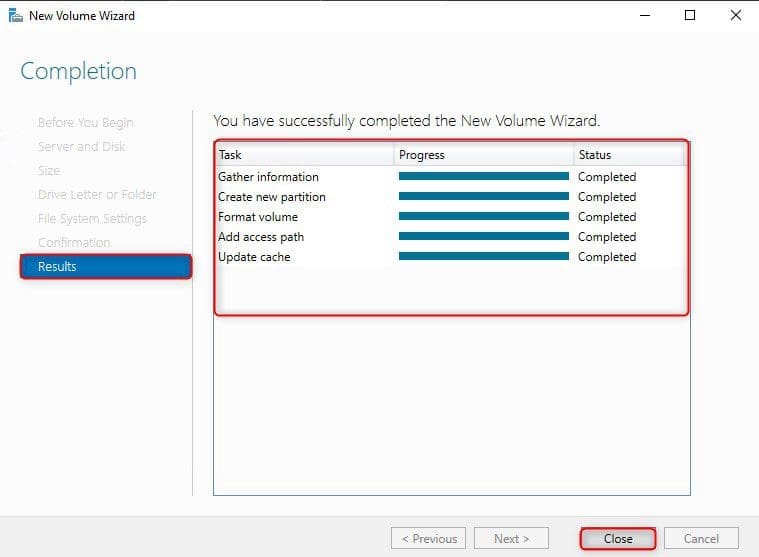
Result Completed

Capture-91

The new disk is now online, as shown below:
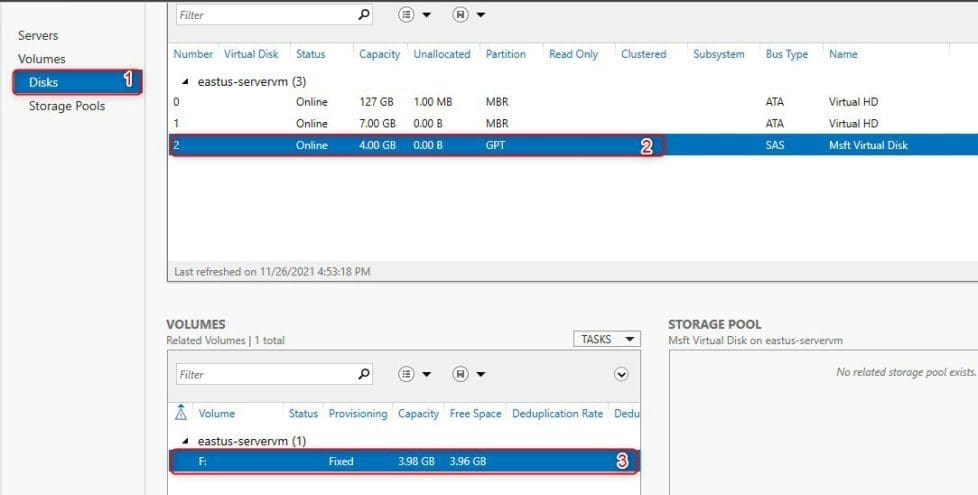
Capture-93

Open MY PC from the virtual machine, so you can able to see the newly attached managed disk as (F) drive as shown below. For similar steps on adding and formatting disks, kindly refer to these guides: How to add and remove a new virtual disk from a VM on VMware Workstation, and how to extend a VM’s Hard Disk on VMware Workstation

Capture-94

I hope you found this blog post helpful on steps to create a new Azure Disk: How to create and attach an extra Disk to Azure Virtual Machine. If you have any questions, please let me know in the comment session.

Rate this post

Thank you for reading this post. Kindly share it with others.

  • Share on X (Opens in new window) X
  • Share on Reddit (Opens in new window) Reddit
  • Share on LinkedIn (Opens in new window) LinkedIn
  • Share on Facebook (Opens in new window) Facebook
  • Share on Pinterest (Opens in new window) Pinterest
  • Share on Tumblr (Opens in new window) Tumblr
  • Share on Telegram (Opens in new window) Telegram
  • Share on WhatsApp (Opens in new window) WhatsApp
  • Share on Mastodon (Opens in new window) Mastodon
  • Share on Bluesky (Opens in new window) Bluesky
  • Share on Threads (Opens in new window) Threads
  • Share on Nextdoor (Opens in new window) Nextdoor
AWS/Azure/OpenShift Tags:Azure, disk, Microsoft Windows, Virtual Machine, VMs, Windows 10, Windows 11

Post navigation

Previous Post: How to create and configure a Shared Folder on Windows Server
Next Post: How to decrypt Files and Folders Encrypted with an Encryption File System (EFS) in Windows

Related Posts

  • CloudFrontAWS
    Serve Private S3 Bucket Contents Via CloudFront AWS/Azure/OpenShift
  • WCD
    Join Bulk Devices using a Provisioning Package to Azure AWS/Azure/OpenShift
  • image 19
    Download your MySQL database from Azure to a local PC with MySQL Workbench AWS/Azure/OpenShift
  • Screenshot 2024 02 29 at 8.03.48 PM
    How to create an Elastic Beanstalk environment in AWS AWS/Azure/OpenShift
  • Azure subscription role assignment
    Fix Users must have at least permission on these subscriptions AWS/Azure/OpenShift
  • MSSQL Always On Cluster on Azure
    [AZURE] Procedure for creating an MSSQL Always On Cluster on Azure AWS/Azure/OpenShift

More Related Articles

CloudFrontAWS Serve Private S3 Bucket Contents Via CloudFront AWS/Azure/OpenShift
WCD Join Bulk Devices using a Provisioning Package to Azure AWS/Azure/OpenShift
image 19 Download your MySQL database from Azure to a local PC with MySQL Workbench AWS/Azure/OpenShift
Screenshot 2024 02 29 at 8.03.48 PM How to create an Elastic Beanstalk environment in AWS AWS/Azure/OpenShift
Azure subscription role assignment Fix Users must have at least permission on these subscriptions AWS/Azure/OpenShift
MSSQL Always On Cluster on Azure [AZURE] Procedure for creating an MSSQL Always On Cluster on Azure AWS/Azure/OpenShift

Leave a Reply Cancel reply

You must be logged in to post a comment.

Microsoft MVP

VEEAMLEGEND

vexpert-badge-stars-5

Virtual Background

GoogleNews

Categories

veeaam100

Veeam Vanguard

  • hero windowsserver hyperv
    Why does the legacy PXE not does work on Generation 2 VM Virtualization
  • APACHECASS FEATURE
    How to Install and Configure Apache Cassandra on Linux Server Linux
  • a3a5a8be58fa09468cd4f70d36869e98
    Restore AD Objects: How to restore deleted user accounts in Active Directory with Microsoft LDP and PowerShell Windows Server
  • Featured image   Black screen issue
    How to Fix Black Screen Issues on Windows 11/10 Windows
  • Encryption
    How to encrypt Microsoft SQL Server Traffic Oracle/MSSQL/MySQL
  • 2FA For SSH in Linux
    Set Two-Factor Authentication for SSH in Linux Linux
  • maxresdefault
    Linux Directory Hierarchy Linux
  • image 78
    How to enable LDAP over SSL with a third-party Certificate such as DigiCert Windows

Subscribe to Blog via Email

Enter your email address to subscribe to this blog and receive notifications of new posts by email.

Join 1,814 other subscribers
  • RSS - Posts
  • RSS - Comments
  • About
  • Authors
  • Write for us
  • Advertise with us
  • General Terms and Conditions
  • Privacy policy
  • Feedly
  • Telegram
  • Youtube
  • Facebook
  • Instagram
  • LinkedIn
  • Tumblr
  • Pinterest
  • Twitter
  • mastodon

Tags

Active Directory Azure Bitlocker Microsoft Windows PowerShell WDS Windows 10 Windows 11 Windows Deployment Services Windows Server 2016

Copyright © 2025 TechDirectArchive