Skip to content

TechDirectArchive

Hands-on IT, Cloud, Security & DevOps Insights

  • Home
  • About
  • Advertise With US
  • Reviews
  • Contact
  • Toggle search form
Home » AWS/Azure/OpenShift » Create a new Azure Disk: How to create and attach an extra Disk to Azure Virtual Machine
  • windows sysinternals
    Sysmon from SysInternal: What is System Monitor and how to install and use it Windows Server
  • File Audit
    File Audit: How to install and configure PA File Sight Ultra and PA Endpoints Reviews
  • wmic4
    Security Identifier: Find User SID in Windows Windows
  • Reduce VMDK dile defragment and compact
    Analyse Disks with Treesize: Defragment and Shrink VMware Workstation VM Disks Virtualization
  • Screenshot 2022 04 13 at 21.38.35
    Check Weather Conditions via Command Line on Windows, macOS, Linux and Web Linux
  • Windows 10 1024x683 1
    ADK|WinPE|MDT: Deploy Windows with WDS Windows Server
  • FEATURE IMAGE BASE URL 1
    How to solve cannot find a valid base URL for repo: base/7/x86_64 Linux
  • How to Fix Microsoft Outlook Not Syncing Issue
    How to Fix Microsoft Outlook Not Syncing Issue Network | Monitoring

Create a new Azure Disk: How to create and attach an extra Disk to Azure Virtual Machine

Posted on 26/11/202104/06/2023 Christian By Christian No Comments on Create a new Azure Disk: How to create and attach an extra Disk to Azure Virtual Machine
Webp.net-resizeimage-7

Azure-managed disks are block-level storage volumes that are managed by Azure and used with Azure Virtual Machines. This guide discusses steps to create a new Azure Disk: How to create and attach an extra Disk to Azure Virtual Machine. Therefore, I’ll be showing you how to create and attach a managed disk to a Windows Azure VM through the Azure portal. You can create and attach a new lab data disk for a lab Azure virtual machine (VM). Please see how to install Kerberos packages in Windows via Cygwin, how to configure a remote server (windows) to Support Ansible, and how to deploy Azure VMware solution private cloud, how to create a Traffic Manager profile in Azure, and how to improve website response using Traffic Manager.

The data disk can then be detached, either: deleted, reattached, or attached to a different lab virtual machine that you deployed. Kindly refer to some of these related guides: How to manage azure resource manager resource groups by using Azure CLI, how to configure Azure resources with tools, and how to automate infrastructure deployments in the cloud with ansible and azure pipelines.

Create an Azure Managed Disk

Go to the Azure Portal. Here is how this is done on AWS. In the search bar, type and then select virtual machines. Select & click the Virtual Machine which you have created. Click on this link to see how to create a virtual machine in Azure

Under settings, select disks. On the Disks section, click the + Create and attached a new disk button then create a virtual network. Create a Manage disk wizard, type the disk name(Extra Disk), select the storage type, the size, specifies the IOPS size.

Capture-79

Under Host caching choose Read/Write and to attach the data disk, click on Save option.

Capture-80

Connect to the VM via RDP

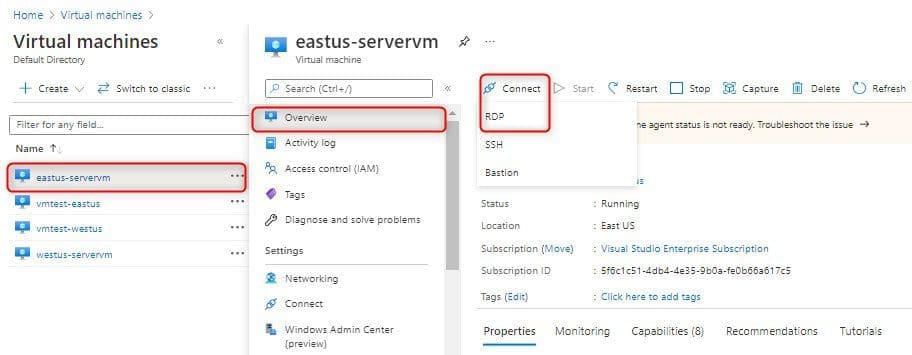
Then go back to your created virtual machine. From the Overview page, Select Connect and click on RDP, and click download RDP file.
Capture-81

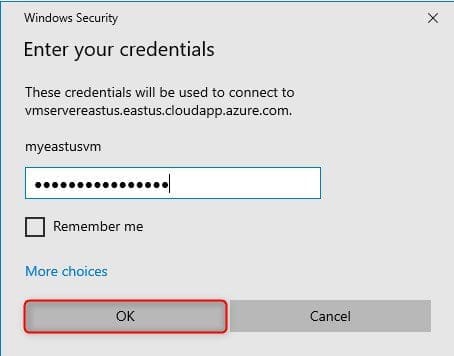
On local pc. Go to your downloaded folder. Click the downloaded RDP file, and enter your credentials and then click OK, this will connect to your remote desktop environment
Capture-82

Access the File and Storage Services

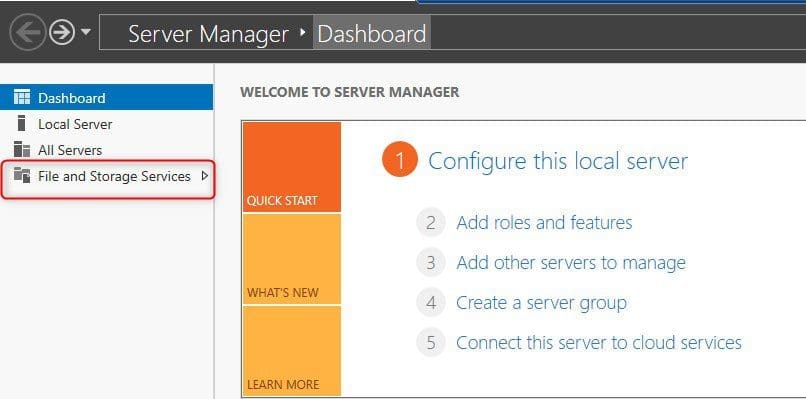
Once you logged into the VM, under Server Manager click File and Storage Services.
Capture-83

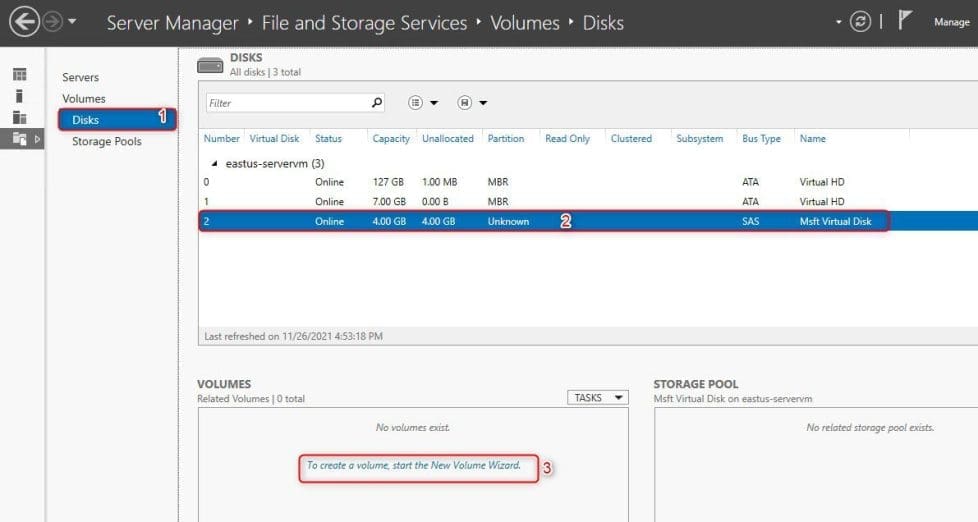
Select Disks option, select your 4GB unknown disk, under Volumes to create a volume start the new volume wizard.
Capture-84

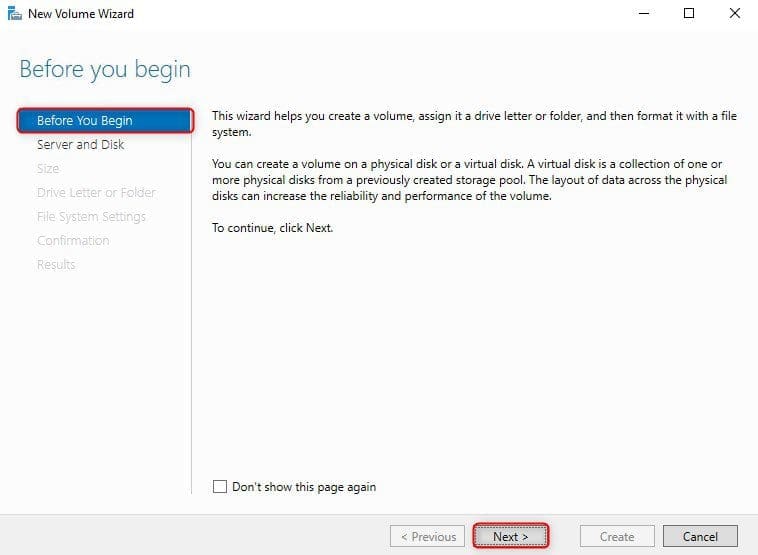
New volume wizard click next.

Capture-85

Select server and disk, click Next.

Capture-86

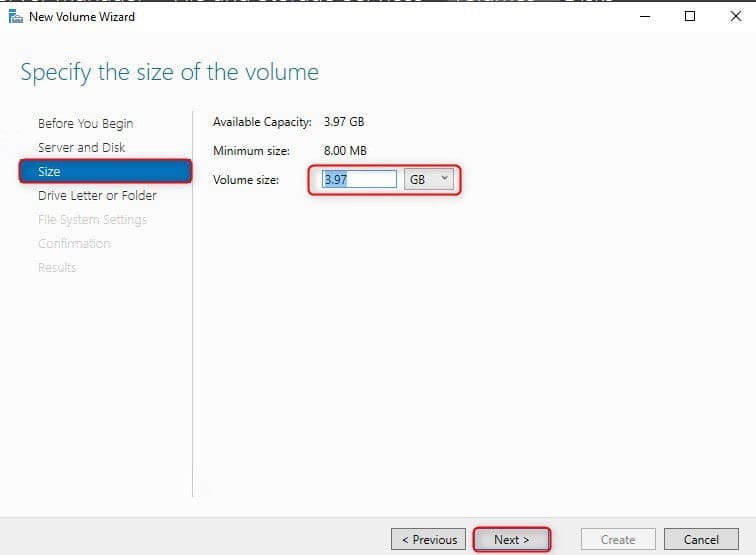
The selected disk will be brought online click OK. Choose a volume size as per your requirement and then click next.
Capture-87

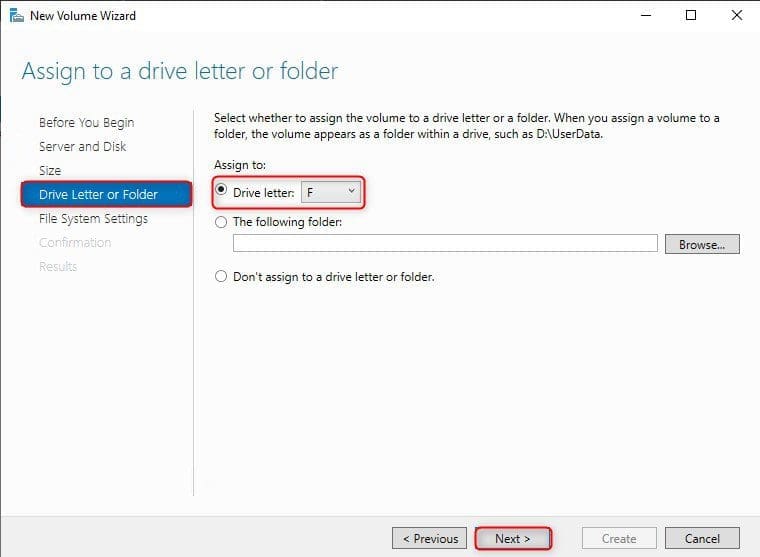
Assign a drive letter and then click next.
Capture-88

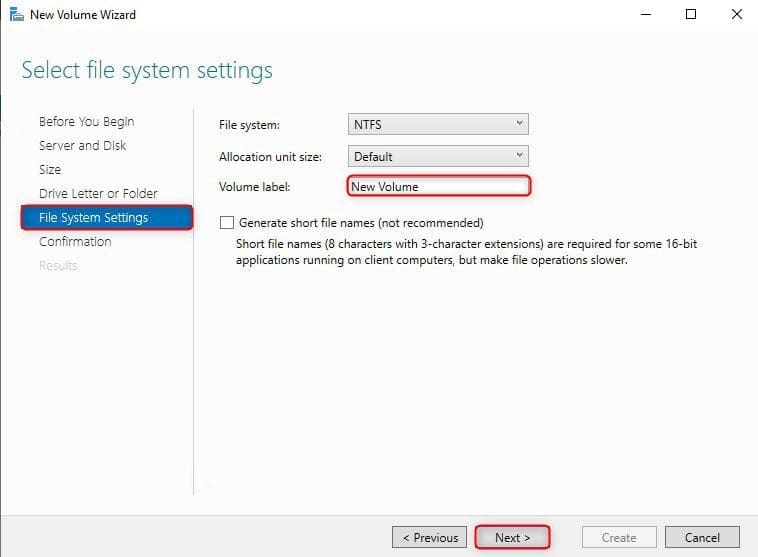
Enter a volume label and then click next.
Capture-89

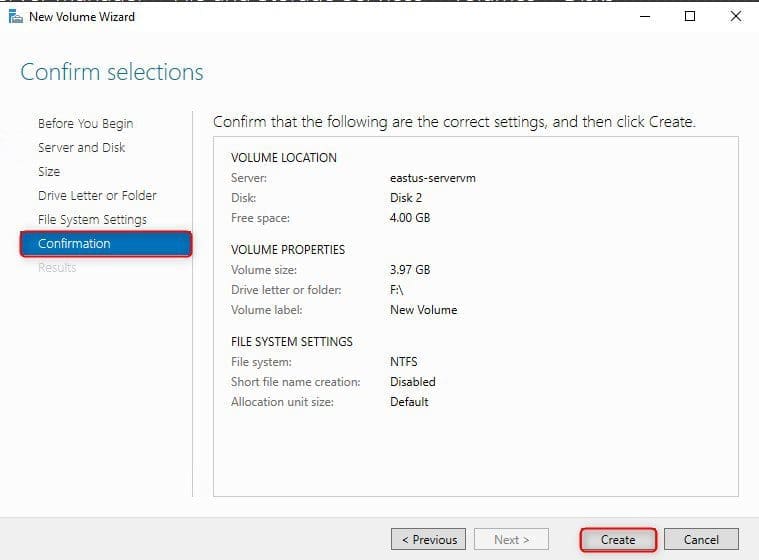
Lastly, Verify the settings and then click create.
Capture-90

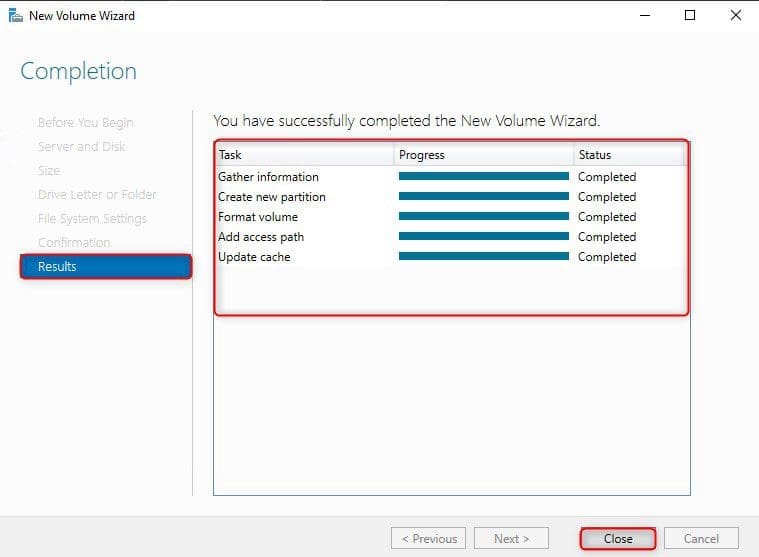
Result Completed

Capture-91

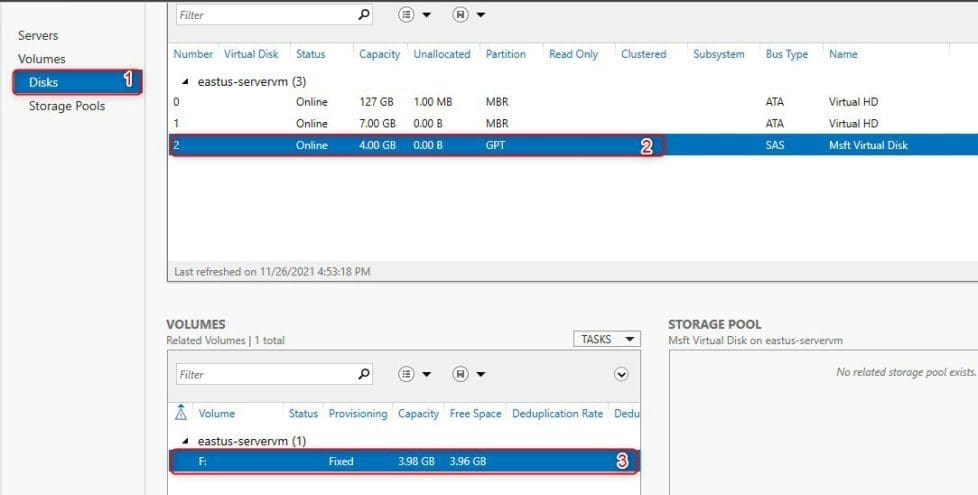
The new disk is now online, as shown below:
Capture-93

Open MY PC from the virtual machine, so you can able to see the newly attached managed disk as (F) drive as shown below. For similar steps on adding and formatting disks, kindly refer to these guides: How to add and remove a new virtual disk from a VM on VMware Workstation, and how to extend a VM’s Hard Disk on VMware Workstation

Capture-94

I hope you found this blog post helpful on steps to create a new Azure Disk: How to create and attach an extra Disk to Azure Virtual Machine. If you have any questions, please let me know in the comment session.

Rate this post

Thank you for reading this post. Kindly share it with others.

  • Click to share on X (Opens in new window) X
  • Click to share on Reddit (Opens in new window) Reddit
  • Click to share on LinkedIn (Opens in new window) LinkedIn
  • Click to share on Facebook (Opens in new window) Facebook
  • Click to share on Pinterest (Opens in new window) Pinterest
  • Click to share on Tumblr (Opens in new window) Tumblr
  • Click to share on Telegram (Opens in new window) Telegram
  • Click to share on WhatsApp (Opens in new window) WhatsApp
  • Click to share on Pocket (Opens in new window) Pocket
  • Click to share on Mastodon (Opens in new window) Mastodon
  • Click to share on Bluesky (Opens in new window) Bluesky
  • Click to share on Threads (Opens in new window) Threads
  • Click to share on Nextdoor (Opens in new window) Nextdoor
AWS/Azure/OpenShift Tags:Azure, disk, Microsoft Windows, Virtual Machine, VMs, Windows 10, Windows 11

Post navigation

Previous Post: How to create and configure a Shared Folder on Windows Server
Next Post: How to decrypt Files and Folders Encrypted with an Encryption File System (EFS) in Windows

Related Posts

  • How to Set up a Single Site to Site VPN Connection on AWS
    Setup a Site-to-Site VPN Connection on AWS AWS/Azure/OpenShift
  • youtube cover blue
    How to use the Azure Cloud Shell or Azure CLI and Azure PowerShell AWS/Azure/OpenShift
  • a Multiple SPF Records  Issues and Examples@2x
    How to setup SPF and TXT Records in AWS AWS/Azure/OpenShift
  • BLOG LOGO
    How to create a static pod in Kubernetes AWS/Azure/OpenShift
  • images
    Fix the Synchronization service scheduler is suspended AWS/Azure/OpenShift
  • featureimagepshell 1
    Running PowerShell remotely on Azure VMs AWS/Azure/OpenShift

More Related Articles

How to Set up a Single Site to Site VPN Connection on AWS Setup a Site-to-Site VPN Connection on AWS AWS/Azure/OpenShift
youtube cover blue How to use the Azure Cloud Shell or Azure CLI and Azure PowerShell AWS/Azure/OpenShift
a Multiple SPF Records  Issues and Examples@2x How to setup SPF and TXT Records in AWS AWS/Azure/OpenShift
BLOG LOGO How to create a static pod in Kubernetes AWS/Azure/OpenShift
images Fix the Synchronization service scheduler is suspended AWS/Azure/OpenShift
featureimagepshell 1 Running PowerShell remotely on Azure VMs AWS/Azure/OpenShift

Leave a Reply Cancel reply

You must be logged in to post a comment.

Microsoft MVP

VEEAMLEGEND

vexpert-badge-stars-5

Virtual Background

GoogleNews

Categories

sysadmin top30a
 
  • windows sysinternals
    Sysmon from SysInternal: What is System Monitor and how to install and use it Windows Server
  • File Audit
    File Audit: How to install and configure PA File Sight Ultra and PA Endpoints Reviews
  • wmic4
    Security Identifier: Find User SID in Windows Windows
  • Reduce VMDK dile defragment and compact
    Analyse Disks with Treesize: Defragment and Shrink VMware Workstation VM Disks Virtualization
  • Screenshot 2022 04 13 at 21.38.35
    Check Weather Conditions via Command Line on Windows, macOS, Linux and Web Linux
  • Windows 10 1024x683 1
    ADK|WinPE|MDT: Deploy Windows with WDS Windows Server
  • FEATURE IMAGE BASE URL 1
    How to solve cannot find a valid base URL for repo: base/7/x86_64 Linux
  • How to Fix Microsoft Outlook Not Syncing Issue
    How to Fix Microsoft Outlook Not Syncing Issue Network | Monitoring

Subscribe to Blog via Email

Enter your email address to subscribe to this blog and receive notifications of new posts by email.

Join 1,841 other subscribers

veeaam100

  • RSS - Posts
  • RSS - Comments
  • About
  • Authors
  • Write for us
  • Advertise with us
  • General Terms and Conditions
  • Privacy policy
  • Feedly
  • Telegram
  • Youtube
  • Facebook
  • Instagram
  • LinkedIn
  • Tumblr
  • Pinterest
  • Twitter
  • mastodon

Tags

AWS Azure Bitlocker Microsoft Windows PowerShell WDS Windows 10 Windows 11 Windows Deployment Services Windows Server 2016

Copyright © 2025 TechDirectArchive


Loading Comments...
 

You must be logged in to post a comment.