Skip to content

TechDirectArchive

  • Home
  • About
  • Advertise With US
  • Contact
  • Reviews
  • Toggle search form
Home » Windows » How to use Microsoft SQL Server Management Studio to Export and Import your MsSQL database from Azure to local computer
  • Database Collation
    Change SQL Database Collation: ePO events DB and SQL server should match with ePO core collation Oracle/MSSQL/MySQL
  • Route53AWS
    Set up and configure Route 53 for your Domain in AWS AWS/Azure/OpenShift
  • Slide1
    Enable Exploit Protection feature on Windows using the Windows Security App, Microsoft Endpoint Configuration Manager, and Group Policy Windows
  • admin6 1
    How to run Apps as an administrator on Windows Windows
  • windows 10 creators update wallpaper 1
    How to locate and edit the host file on Windows Windows Server
  • Certificate does not contain the private key
    Server Certificate could not be updated: Private key does not match Windows Server
  • QueryBitLocker1
    Query Windows BitLocker status remotely Windows
  • adfs training
    Post-Deployment of Active Directory Federation Service (ADFS) Windows Server

How to use Microsoft SQL Server Management Studio to Export and Import your MsSQL database from Azure to local computer

Posted on 14/12/202125/08/2023 Temitope Odemo By Temitope Odemo No Comments on How to use Microsoft SQL Server Management Studio to Export and Import your MsSQL database from Azure to local computer
Export

Microsoft SQL Server Management Studio (SSMS) is an integrated environment where you can manage your SQL infrastructure. SSMS can be used to access, configure, manage, administer, and develop all components of SQL Server and Azure SQL Database. Microsoft SQL server management studio is a free software for public use and can be connected to any of your SQL server instances. MsSQL is a collection of tables that stores structured data in the form that contains a collection of rows that is referred to as records and columns that is referred to as attributes.

Here are some similar guides you can read: How to install Microsoft SQL Server Management Studio, How to uninstall Microsoft SQL Server Management Studio, How to download and install Microsoft SQL Server 2019 Express Edition and Microsoft Management Studio on Windows Server, How to uninstall Microsoft SQL Server on Windows 10 and Windows Server

Step-by-Step Guide: Exporting and Importing Azure Database to Local Computer

In this guide I will show you how to quickly export and import your database from Azure account to your local computer.

  • Login to your Azure Portal: https://portal.azure.com
  • Under Azure Services click SQL databases and select the Database you want to access.
Import
Open your MsSQL Database on Azure
  • Click Set server firewall and add your system IP to the firewall rule and Save.
Microsoft SQL Server Management Studio
Setting your Firewall rule on Azure
  • Download SSMS and install on your local system.
  • Copy the Server name and login name from the Azure portal and enter the valid password and connect to your Azure database.
Azure
Microsoft SQL Server Management Studio

Exporting Database

  • After you have connected right-click database. Click Tasks > Export Data-tier Application.
MsSQL database
Exporting Database
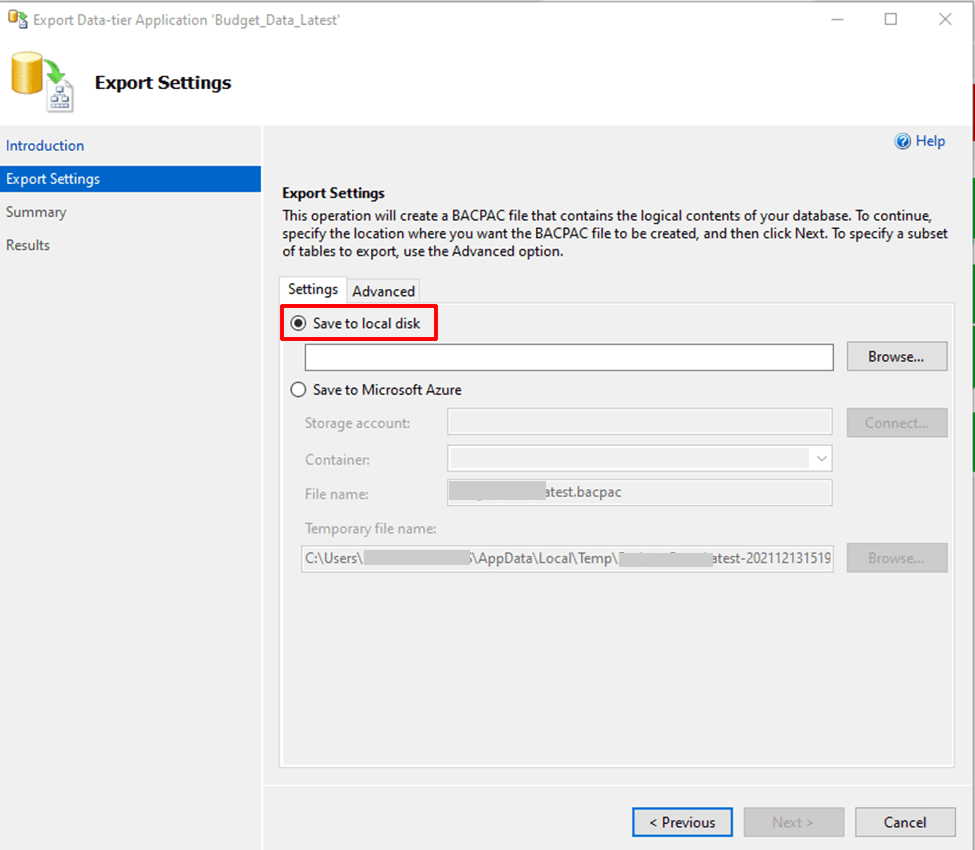
  • Select Save to local disk and browse to the location you want to export the data.
Export
Export Setting
  • Click on Next and you start exporting
image-5
Exporting Database

Importing Database

  • After you have connected right-click database and select Import Data-tier Application.
image-6
Importing Database
  • Select Import from local disk and browse to the location you have the database file you want to import.
image-7
Import Settings
  • Make sure you give the database a name, enter the edition, maximum database size and service objective.
image-8
Database settings
  • Importing of Database starts.
image-9
Importing Database

I hope you found this blog post on How to use Microsoft SQL Server Management Studio to Export and Import your MsSQL database from Azure to local computer very interesting and helpful. In case you have any questions do not hesitate to ask in the comment section.

Rate this post

Thank you for reading this post. Kindly share it with others.

  • Click to share on X (Opens in new window) X
  • Click to share on Reddit (Opens in new window) Reddit
  • Click to share on LinkedIn (Opens in new window) LinkedIn
  • Click to share on Facebook (Opens in new window) Facebook
  • Click to share on Pinterest (Opens in new window) Pinterest
  • Click to share on Tumblr (Opens in new window) Tumblr
  • Click to share on Telegram (Opens in new window) Telegram
  • Click to share on WhatsApp (Opens in new window) WhatsApp
  • Click to share on Pocket (Opens in new window) Pocket
  • Click to share on Mastodon (Opens in new window) Mastodon
  • Click to share on Bluesky (Opens in new window) Bluesky
  • Click to share on Threads (Opens in new window) Threads
  • Click to share on Nextdoor (Opens in new window) Nextdoor
AWS/Azure/OpenShift, Oracle/MSSQL/MySQL, Windows, Windows Server Tags:Database, Microsoft SQL, Microsoft SQL Server 2019 Express Edition, Microsoft SQL Server Management Studio, Microsoft SQL Server Studio

Post navigation

Previous Post: How to Solve “The parameter is incorrect” problem on External Hard Disk in Windows
Next Post: Download your MySQL database from Azure to a local PC with MySQL Workbench

Related Posts

  • blue screen error during windows 10 upgrade thumbnail
    Replace a blue screen error with a blank screen for system errors Windows
  • LAPS PAssword Not Showing Up
    LAPS password not showing up in GUI Windows
  • How To Upgrade Windows 11 Pro to Enterprise
    Upgrade Windows 11 Pro to Enterprise and vice Versa Windows
  • Deploy static website to azure blog storage
    Deploy a Static Website to Azure Storage from VSCode AWS/Azure/OpenShift
  • How to Disable the Command Prompt on Windows 11
    How to Disable the Command Prompt on Windows 11 Windows
  • banner 1
    How to fix Windows Microsoft Store not opening Windows

More Related Articles

blue screen error during windows 10 upgrade thumbnail Replace a blue screen error with a blank screen for system errors Windows
LAPS PAssword Not Showing Up LAPS password not showing up in GUI Windows
How To Upgrade Windows 11 Pro to Enterprise Upgrade Windows 11 Pro to Enterprise and vice Versa Windows
Deploy static website to azure blog storage Deploy a Static Website to Azure Storage from VSCode AWS/Azure/OpenShift
How to Disable the Command Prompt on Windows 11 How to Disable the Command Prompt on Windows 11 Windows
banner 1 How to fix Windows Microsoft Store not opening Windows

Leave a Reply Cancel reply

You must be logged in to post a comment.

VEEAMLEGEND

vexpert-badge-stars-5

Virtual Background

GoogleNews

Categories

veeaam100

Microsoft MVP

  • Database Collation
    Change SQL Database Collation: ePO events DB and SQL server should match with ePO core collation Oracle/MSSQL/MySQL
  • Route53AWS
    Set up and configure Route 53 for your Domain in AWS AWS/Azure/OpenShift
  • Slide1
    Enable Exploit Protection feature on Windows using the Windows Security App, Microsoft Endpoint Configuration Manager, and Group Policy Windows
  • admin6 1
    How to run Apps as an administrator on Windows Windows
  • windows 10 creators update wallpaper 1
    How to locate and edit the host file on Windows Windows Server
  • Certificate does not contain the private key
    Server Certificate could not be updated: Private key does not match Windows Server
  • QueryBitLocker1
    Query Windows BitLocker status remotely Windows
  • adfs training
    Post-Deployment of Active Directory Federation Service (ADFS) Windows Server

Subscribe to Blog via Email

Enter your email address to subscribe to this blog and receive notifications of new posts by email.

Join 1,843 other subscribers
  • RSS - Posts
  • RSS - Comments
  • About
  • Authors
  • Write for us
  • Advertise with us
  • General Terms and Conditions
  • Privacy policy
  • Feedly
  • Telegram
  • Youtube
  • Facebook
  • Instagram
  • LinkedIn
  • Tumblr
  • Pinterest
  • Twitter
  • mastodon

Tags

AWS Azure Bitlocker Microsoft Windows PowerShell WDS Windows 10 Windows 11 Windows Deployment Services Windows Server 2016

Copyright © 2025 TechDirectArchive


Loading Comments...
 

You must be logged in to post a comment.