Skip to content

TechDirectArchive

Hands-on IT, Cloud, Security & DevOps Insights

  • Home
  • About
  • Advertise With US
  • Reviews
  • Contact
  • Toggle search form
Home » Linux » How to install MariaDB on Ubuntu
  • Manage OU
    Delete or Rename and Create a Protected Organisation Unit in AD Windows Server
  • image 42
    How to Install and Setup WordPress into a cPanel and Configure Your First WordPress Theme Configuration Management Tool
  • windows 10 lock screen
    How to reset your lost or forgotten Windows 10 Password Windows
  • PXE Boot Stuck or No Boot Image was found   Te bootloader did not find any operating system
    Fix PXE Boot Stuck or No Boot Image was found for HyperV VM Virtualization
  • NortonEvents
    View and Clear or Print Norton Security Events on a Mac Anti-Virus Solution
  • reboot computer
    Determine the last boot time of a Windows Server Windows Server
  • How to Register Devices to Microsoft Intune and EntraID Using My Company Portal
    Register Devices to Intune and EntraID Using Company Portal AWS/Azure/OpenShift
  • aks 1
    Azure Storage: How to create Blob Storage and upload files AWS/Azure/OpenShift

How to install MariaDB on Ubuntu

Posted on 23/12/202105/07/2023 Raphael Gab-Momoh By Raphael Gab-Momoh No Comments on How to install MariaDB on Ubuntu
On_ubuntu_mariadb-1

MariaDB is an open-source, multi-threaded relational database management system, backward compatible replacement for MySQL. The MariaDB Foundation including some of the original developers of the MySQL developed and maintained the system. Installing MariaDB on Ubuntu is a simple process that lets you set you a massive database server for your applications.

                             Benefits of Using MariaDB

Installation that is simple to use
Your database administrators won't be complaining about your company's operations being affected by prolonged deployment. You could set up MariaDB ColumnStore as a stand-alone server or use it in combination with a Hybrid Transactional/Analytical Processing platform. The underlying structure has a lot of flexibility as well. Choose whether to deploy to the cloud or on-premises, and whether to deploy it on a server or a container.

Large - scale data Operations Support
Because the amount of data that businesses collect and process is tremendous, it's necessary to have a database framework that can help to reap benefits from it. ColumnStore can manage large petabytes of data, which truly supports corporate world's ever-growing collection of data sources. Standard SQ can be used.

MariaDB has Columnar storage
Columnar storage presents numerous benefits to analytics activities, including significantly faster rate when dealing with MariaDB Platform's huge data and magnification compression. By moving workloads to the storage type that makes the most sense for the way you're using it, you can improve the effectiveness of your database operations. Traditional database operations continue to use a row-based method, while analytical data is moved to columnar storage.

In this tutorial I will walk you through on how to install MariaDB on your Ubuntu 18.04 or even 20.0 as the commands work fine on either of them from the Ubuntu repositories. Explore other guides in this link: How to Install LAMP Stack on Ubuntu 18.04/ and What are the differences between dnf and apt package managers?/ and How to Configure Advanced PAM in Linux/ also How to create and deliver a report on System Utilization on a Linux based OS

Requirements for Installing MariaDB on Ubuntu

Before proceeding, ensure that you log in as a user with sudo privileges. Follow the steps below to install MariaDB on your Ubuntu system.

Method 1:

Step 1: Update packages index.

sudo apt update

Step 2: use the command below to install MariaDB on Ubuntu

sudo apt install mariadb-server

how to install MariaDB on Ubuntu-error
error
The error showed up because I had MySQL installed in the system. To proceed, we will need to remove with the command below:
$sudo apt-get remove --purge mysql*  
So, if you have not had any similar databases like mysql,  just follow the steps because you won't have any installation errors

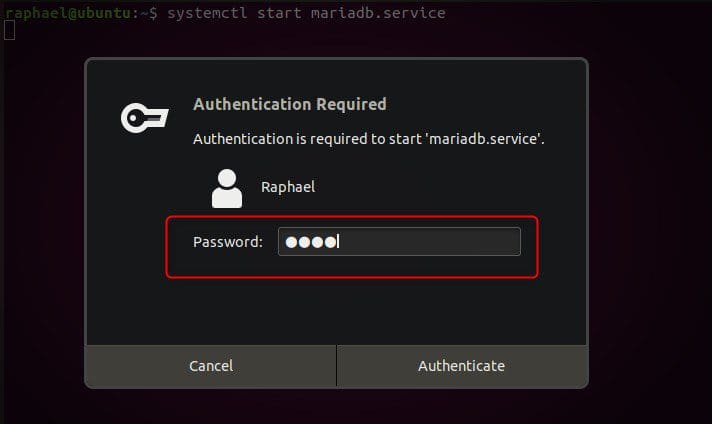
Step 3: verify the status of mariadb with the command:

$sudo systemctl start mariadb.service
$sudo systemctl status mariadb.service
how to install MariaDB on Ubuntu-verify

Just enter your user password and you are good to go

Method 2: Installing MariaDB from MariaDB Repositories

You can find the latest versions of MariaDB in the official MariaDB repositories. Before you begin the installation, you should go to the official MariaDB repository page and download the most recent version of MariaDB.

Step 1: Install MariaDB on Ubuntu to add the MariaDB GPG key to the system, run the following command:

sudo apt-key adv --recv-keys --keyserver hkp://keyserver.ubuntu.com:80 0xF1656F24C74CD1D8

Step 2 : Once the key has been imported, run the following command to add the MariaDB repository:

sudo add-apt-repository 'deb [arch=amd64, arm64,ppc64el] http://mirrors.accretive-networks.net/mariadb/repo/10.3/ubuntu bionic main'

After adding the repository, proceed with the update.

Step 3: You should first update the package list before installing any package from the MariaDB repository. Besides. this necessitates the execution of the following command:

sudo apt update

Step 4: Now that you’ve added the repository, run the following command to install the MariaDB package on Ubuntu:

sudo apt install mariadb-server
how to install MariaDB on Ubuntu-installing
Installing mariadb

If you see this you this without error messages, then everything is alright.

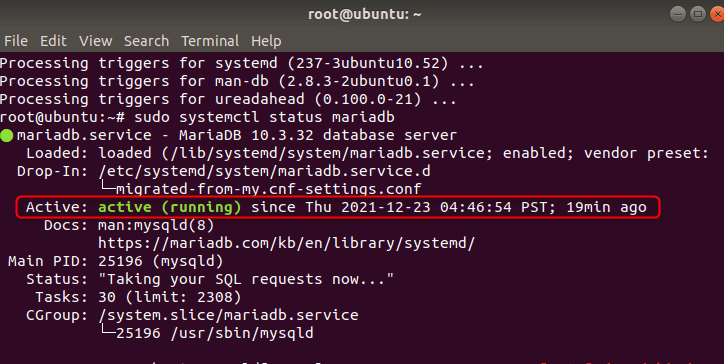
Step 5: The MariaDB service should be started automatically. Run the following command to check its status:

systemctl status mariadb
how to install MariaDB on Ubuntu-active
status

Configuring MariaDB on Ubuntu

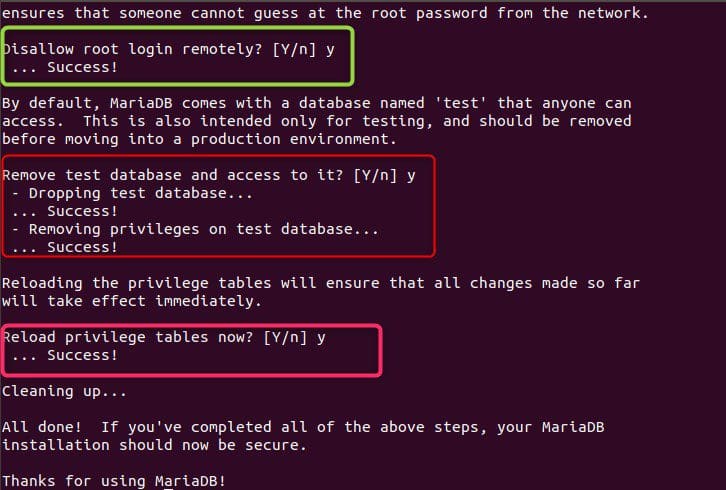
Now that you’ve installed MariaDB on Ubuntu, next is to configure it. The line of code shown below modifies a few of the less secure default settings. Furthermore, it will be used to prevent remote root logins and to remove unutilized database users. Run the command and answer all the questions the prompt will present to you. They are either yes or no

$sudo mysql_secure_installation
config
configuration

Summary

MariaDB is an open-source database maintained by MariaDB foundation. Furthermore, you can install the application on ubuntu18.04 by following a series of simple steps described in the guide above.

Rate this post

Thank you for reading this post. Kindly share it with others.

  • Click to share on X (Opens in new window) X
  • Click to share on Reddit (Opens in new window) Reddit
  • Click to share on LinkedIn (Opens in new window) LinkedIn
  • Click to share on Facebook (Opens in new window) Facebook
  • Click to share on Pinterest (Opens in new window) Pinterest
  • Click to share on Tumblr (Opens in new window) Tumblr
  • Click to share on Telegram (Opens in new window) Telegram
  • Click to share on WhatsApp (Opens in new window) WhatsApp
  • Click to share on Pocket (Opens in new window) Pocket
  • Click to share on Mastodon (Opens in new window) Mastodon
  • Click to share on Bluesky (Opens in new window) Bluesky
  • Click to share on Threads (Opens in new window) Threads
  • Click to share on Nextdoor (Opens in new window) Nextdoor
Linux

Post navigation

Previous Post: How to install IIS Web Server on Windows Server
Next Post: How to manage and use Amazon S3 access points using the AWS Management Console

Related Posts

  • Wiki in Linux
    How to Use Wiki from Linux Terminal Linux
  • squid proxy feature
    How to Set Up and Configure a Squid Proxy Server Linux
  • SystemUtilization
    Delivering System Utilization Report on a Linux based OS Linux
  • Screenshot 2022 03 21 at 18.06.30
    How to Configure Virtual Host for Apache HTTP Web Server to Host Several Domains on Ubuntu 20.04 LTS Linux
  • Manage Log Files via Logrotate
    How To Use Logrotate For Managing Log Files In Ubuntu Linux Linux
  • image 36
    Keepalive Settings: Understanding keepalive configuration Linux

More Related Articles

Wiki in Linux How to Use Wiki from Linux Terminal Linux
squid proxy feature How to Set Up and Configure a Squid Proxy Server Linux
SystemUtilization Delivering System Utilization Report on a Linux based OS Linux
Screenshot 2022 03 21 at 18.06.30 How to Configure Virtual Host for Apache HTTP Web Server to Host Several Domains on Ubuntu 20.04 LTS Linux
Manage Log Files via Logrotate How To Use Logrotate For Managing Log Files In Ubuntu Linux Linux
image 36 Keepalive Settings: Understanding keepalive configuration Linux

Leave a Reply Cancel reply

You must be logged in to post a comment.

Microsoft MVP

VEEAMLEGEND

vexpert-badge-stars-5

Virtual Background

GoogleNews

Categories

veeaam100

sysadmin top30a

  • Manage OU
    Delete or Rename and Create a Protected Organisation Unit in AD Windows Server
  • image 42
    How to Install and Setup WordPress into a cPanel and Configure Your First WordPress Theme Configuration Management Tool
  • windows 10 lock screen
    How to reset your lost or forgotten Windows 10 Password Windows
  • PXE Boot Stuck or No Boot Image was found   Te bootloader did not find any operating system
    Fix PXE Boot Stuck or No Boot Image was found for HyperV VM Virtualization
  • NortonEvents
    View and Clear or Print Norton Security Events on a Mac Anti-Virus Solution
  • reboot computer
    Determine the last boot time of a Windows Server Windows Server
  • How to Register Devices to Microsoft Intune and EntraID Using My Company Portal
    Register Devices to Intune and EntraID Using Company Portal AWS/Azure/OpenShift
  • aks 1
    Azure Storage: How to create Blob Storage and upload files AWS/Azure/OpenShift

Subscribe to Blog via Email

Enter your email address to subscribe to this blog and receive notifications of new posts by email.

Join 1,841 other subscribers
  • RSS - Posts
  • RSS - Comments
  • About
  • Authors
  • Write for us
  • Advertise with us
  • General Terms and Conditions
  • Privacy policy
  • Feedly
  • Telegram
  • Youtube
  • Facebook
  • Instagram
  • LinkedIn
  • Tumblr
  • Pinterest
  • Twitter
  • mastodon

Tags

AWS Azure Bitlocker Microsoft Windows PowerShell WDS Windows 10 Windows 11 Windows Deployment Services Windows Server 2016

Copyright © 2025 TechDirectArchive


Loading Comments...
 

You must be logged in to post a comment.