Skip to content

TechDirectArchive

Hands-on IT, Cloud, Security & DevOps Insights

  • Home
  • About
  • Advertise With US
  • Contact
  • Reviews
  • Toggle search form
Home » Windows » USB Drive: Create a Multiboot with Multiple OS ISOs
  • Configure Synology DS923+ NAS for File Sharing
    How to Configure Synology DS923+ NAS for File Sharing [Part 2] Reviews
  • IIS Installed
    Add and remove IIS Web Server on Windows Server 2019 via the Server Manager and PowerShell Web Server
  • Startup delay mbam
    Force immediate MBAM Encryption: Why does the MBAM Agent delay most times in encrypting devices? Windows
  • ddf
    How to configure Windows Deployment Services on Windows Server Windows Server
  • EC2
    How to Add and Format a New Virtual Disk to an EC2 Instance AWS/Azure/OpenShift
  • What Happens if You Turn Off Your Computer During windows update
    What Happens if You Turn Off Your Computer During an Update Windows
  • whois4578uh
    How to get Domain information using WHOIS Command in Linux Linux
  • rrd
    How to uninstall the DriveLock Agent from your device Security | Vulnerability Scans and Assessment

USB Drive: Create a Multiboot with Multiple OS ISOs

Posted on 10/01/202204/11/2024 Imoh Etuk By Imoh Etuk 2 Comments on USB Drive: Create a Multiboot with Multiple OS ISOs
How-To-Put-Multiple-OS-ISO-Files-In-One-Bootable-USB-Disk

Being able to put in a single USB to your PC and be presented with several choices of Operating Systems be it Windows or Linux to Boot from is something that will ease your workloads as IT, Admin. This write-up will take through the process of making one single USB drive to have more than one Bootable Operating System ISO file (Create a Multiboot with Multiple OS ISOs). The aim is to make a single USB to be a multiboot device. Please see How to create a Windows 11 Bootable USB drive, and Create a Windows 10 or 11 bootable USB with UEFI support.

The aim is to make a single USB to be a multiboot device. Creating a bootable USB disk comes in handy when we have to reinstall our operating system in the case of a system failure.

It’s effortless to put ISO files on portable flash drives by using various tools like Windows USB/DVD tool and the Startup Disk Creator in Ubuntu. There are many operating systems available in the market, either free or paid.

Each is having its multiple versions and features. You can’t waste a flash drive for each of them. It would be great if you put all the ISO files on a flash drive and make a multiboot USB. Life is a lot easier when a single storage media houses many ISO files.

See also how to fix CPU at 100% when nothing is running problem on Windows, how to Disable Or Enable Secure Boot on Windows 10 & 11, and how to Solve “The parameter is incorrect” problem on External Hard Disk in Windows.

Create a Multiboot USB Disk with WinSetupFromUSB

The process to create a multiboot USB disk is quite simple. For Windows OS, these multiboot USB disks can be created using a popular tool known as WinSetupFromUSB. It allows you to put multiple ISOs in one flash drive.

You can put Windows and Linux in the same bootable disk or create a master installation disk of Windows 10, and Windows 11. The choice is up to you. Moreover, making multiboot USBs can be very helpful for Linux users who have to deal with various distributions each having its own set of features.

Let’s get started with creating a multiboot USB drive. Before proceeding with the method, if you don’t have the ISO files for Windows OS, visit the Microsoft evaluation centre to download the ISO files for Windows 10, 11 or Windows Server. You must have it handy with you a USB flash drive of considerable size.

Create Multiboot in Windows

Please follow these steps below to create a multiboot in Windows PC.

  1. Download WinSetupFromUSB and extract the file after downloading it.
  2. Connect the flash drive to your computer.
  3. Double click to open WinSetupFromUSB. Open the 32-bit and 64-bit version according to your OS. It will work without any installation.
  4. Make sure your flash drive is listed and selected in the drop-down menu. Click Refresh, if it is not on the list.
  5. Tick Auto format it with FBinst.

Note: You have to tick this option only for the first ISO installation. Choose FAT32 if your computer is set to boot using UEFI mode or if UEFI sounds strange to your ears. Else, go with the NTFS option.

WinsetupUSB1
WinSetUpFromUSB

6. Click Advanced options.
7. Tick the Custom menu names for Vista/7/8/Server Source checkbox. Click the Cross (X) button to exit Advanced Options.

Advanced-Options-1
Advanced Options

8. To add the ISO file for your multiboot USB Drive, tick the checkbox corresponding to OS under Add to USB disk subheading.

Note that if the size of your ISO is larger than 4 Gb, it will show a message to split the file into parts. This is because you’ve chosen the FAT32 option. Click OK.
Insert-ISO-and-Press-Go
Windows 11 ISO Image

9. Click GO. A data deletion warning message will be displayed. This is because you’ve chosen to format the flash drive. Click Yes. Else, you’ll end up formatting some other connected storage media.
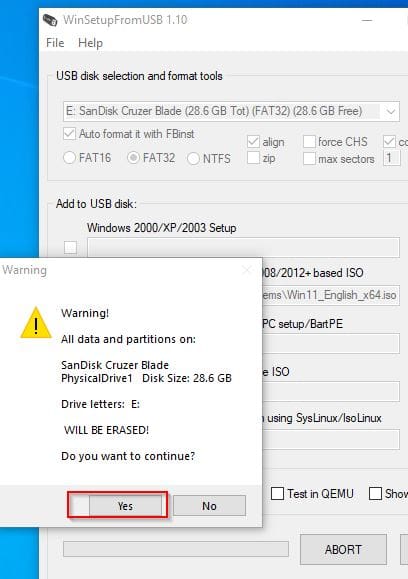
Formatting-Prompt
Formatting Prompt

10. The second warning message displayed is the one telling you that all the partitions will be erased. Click Yes to continue.
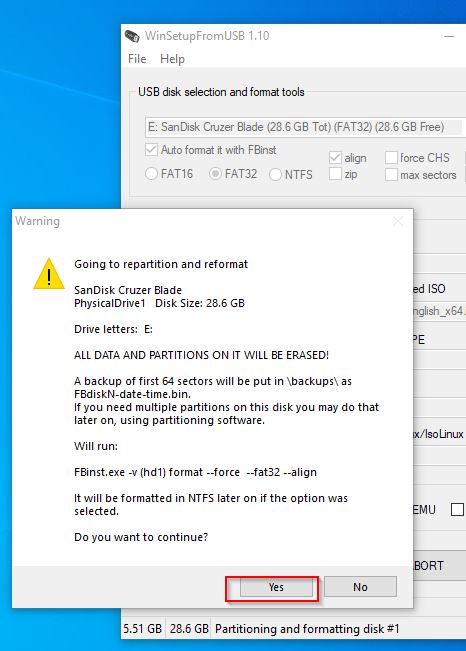
Formatting-Prompt2
WinSetUpFromUSB

This happens if you’re creating Windows 10 ISO Image file. If that happens, type the desired name in 45 seconds or it’ll auto select. Click Ok.

Naming-the-Second-ISO-File

The process will take a few minutes to finish.

Creating-Multiboot-USB-in-Progress
Done-Second-ISO
Create a Multiboot with Multiple OS ISOs

Finally, click EXIT to finish.

Note from the above exercises, the ISO images were not added simultaneously. They were added one after the other. See the steps for adding additional ISO image files below to make your USB drive a Multiboot drive.

Also, see Enable or disable BitLocker Drive Encryption on Windows, and how to create a bootable USB using Rufus on Windows.

Add a second ISO file

1: Adding a second, third or fourth ISO files to your USB depending on the size involves launching the tool again.

2: Select the same flash drive in the drop-down menu.
3: Click Advanced Options and look for Custom menu names for Vista/7/8/10/Server Source.

Don’t Click Auto format with FBinst. That’s because it will remove your previous ISO files.

4: Add the second ISO file for your multiboot USB.
5: Click GO and repeat the steps mentioned earlier.

Follow the same process to add more ISO files.

What to do after making your multiboot USB Drive?

Plug the flash drive into your computer and set the boot device to USB. Most desktops and laptops have a dedicated key to trigger the boot menu (which is often F9, or F12). After the multiboot USB loads, choose the desired operating system from the list.

In the above, we have learned about how to create a multiboot USB flash drive that allows you to choose between multiple operating systems at a time.

You can use the same method to put a 32-bit version of the same OS in one bootable media and watch the game played out perfectly for you. Enjoy!!

I hope you found this article useful on Create a Multiboot with Multiple OS ISOs useful. Please feel free to leave a comment below.

5/5 - (1 vote)

Thank you for reading this post. Kindly share it with others.

  • Click to share on X (Opens in new window) X
  • Click to share on Reddit (Opens in new window) Reddit
  • Click to share on LinkedIn (Opens in new window) LinkedIn
  • Click to share on Facebook (Opens in new window) Facebook
  • Click to share on Pinterest (Opens in new window) Pinterest
  • Click to share on Tumblr (Opens in new window) Tumblr
  • Click to share on Telegram (Opens in new window) Telegram
  • Click to share on WhatsApp (Opens in new window) WhatsApp
  • Click to share on Pocket (Opens in new window) Pocket
  • Click to share on Mastodon (Opens in new window) Mastodon
  • Click to share on Bluesky (Opens in new window) Bluesky
  • Click to share on Threads (Opens in new window) Threads
  • Click to share on Nextdoor (Opens in new window) Nextdoor
Windows Tags:Bootable USB drive, ISO, ISO Files, ISO Image

Post navigation

Previous Post: Manage Azure Virtual Machine with Windows Admin Center and Serial Console
Next Post: How to determine why an MBAM-protected device is non-compliant

Related Posts

  • fghj
    How to enable or disable DotNet Framework (NetFx3) via PowerShell, Control Panel, and DISM in Windows Windows
  • SSL on WAMPServer
    Setup VirtualHost with SSL on WAMP Server Linux
  • Remote Desktop Connection
    Connect to the Remote Desktop Console from Command Prompt Windows
  • Fix Secure Boot certificate expiration
    Enable Secure Boot: Fix Secure Boot certificates expiration Windows
  • How to Upgrade Windows 10 with an Unsupported CPU TPM 1.0 to Windows 11
    Upgrading from Windows 10 with Unsupported CPU and TPM 1.0 Windows
  • Hyper V Virtual Switch Copy
    How to Create VDI Collections on Windows Server 2022 Network | Monitoring

More Related Articles

fghj How to enable or disable DotNet Framework (NetFx3) via PowerShell, Control Panel, and DISM in Windows Windows
SSL on WAMPServer Setup VirtualHost with SSL on WAMP Server Linux
Remote Desktop Connection Connect to the Remote Desktop Console from Command Prompt Windows
Fix Secure Boot certificate expiration Enable Secure Boot: Fix Secure Boot certificates expiration Windows
How to Upgrade Windows 10 with an Unsupported CPU TPM 1.0 to Windows 11 Upgrading from Windows 10 with Unsupported CPU and TPM 1.0 Windows
Hyper V Virtual Switch Copy How to Create VDI Collections on Windows Server 2022 Network | Monitoring

Comments (2) on “USB Drive: Create a Multiboot with Multiple OS ISOs”

  1. Avatar photo implant media says:
    12/01/2022 at 7:42 AM

    Nice article written about how to use a bootable USB drive. If you are looking for Promotional USB sticks in Australia Then Implant media is the best choice.

    Implant media provides the best quality USB sticks, Cd, Dvd, Blu-ray Duplication and Replication Services, custom Vinyl record Pressing, Business card printing throughout Australia.

    Log in to Reply
    1. chris Christian says:
      04/11/2024 at 12:26 PM

      Contact us for a review!

      Log in to Reply

Leave a Reply Cancel reply

You must be logged in to post a comment.

Microsoft MVP

VEEAMLEGEND

vexpert-badge-stars-5

Virtual Background

GoogleNews

Categories

veeaam100

sysadmin top30a

  • Configure Synology DS923+ NAS for File Sharing
    How to Configure Synology DS923+ NAS for File Sharing [Part 2] Reviews
  • IIS Installed
    Add and remove IIS Web Server on Windows Server 2019 via the Server Manager and PowerShell Web Server
  • Startup delay mbam
    Force immediate MBAM Encryption: Why does the MBAM Agent delay most times in encrypting devices? Windows
  • ddf
    How to configure Windows Deployment Services on Windows Server Windows Server
  • EC2
    How to Add and Format a New Virtual Disk to an EC2 Instance AWS/Azure/OpenShift
  • What Happens if You Turn Off Your Computer During windows update
    What Happens if You Turn Off Your Computer During an Update Windows
  • whois4578uh
    How to get Domain information using WHOIS Command in Linux Linux
  • rrd
    How to uninstall the DriveLock Agent from your device Security | Vulnerability Scans and Assessment

Subscribe to Blog via Email

Enter your email address to subscribe to this blog and receive notifications of new posts by email.

Join 1,839 other subscribers
  • RSS - Posts
  • RSS - Comments
  • About
  • Authors
  • Write for us
  • Advertise with us
  • General Terms and Conditions
  • Privacy policy
  • Feedly
  • Telegram
  • Youtube
  • Facebook
  • Instagram
  • LinkedIn
  • Tumblr
  • Pinterest
  • Twitter
  • mastodon

Tags

AWS Azure Bitlocker Microsoft Windows PowerShell WDS Windows 10 Windows 11 Windows Deployment Services Windows Server 2016

Copyright © 2025 TechDirectArchive


Loading Comments...
 

You must be logged in to post a comment.