Skip to content

TechDirectArchive

Hands-on IT, Cloud, Security & DevOps Insights

  • Home
  • About
  • Advertise With US
  • Reviews
  • Contact
  • Toggle search form
Home » Windows » How to unlock a fixed drive protected by BitLocker

How to unlock a fixed drive protected by BitLocker

Posted on 05/02/202230/09/2023 Christian By Christian No Comments on How to unlock a fixed drive protected by BitLocker
How to unlock a fixed drive protected by BitLocker via the Control Panel or Command Prompt in Windows

BitLocker Drive Encryption is a data protection feature that integrates with the operating system and addresses the threats of data theft or exposure from lost, stolen, or inappropriately decommissioned computers. It provides the most protection when used with a Trusted Platform Module (TPM) version 1.2 or later (2.0) as at the time of writing this guide. Device manufacturers install the TPM as a hardware component in many newer computers. It collaborates with BitLocker to safeguard user data and verify the integrity of a computer that may have been offline. Please refer to these related guides: How to clear, enable or disable TPM in Windows via the BIOS or UEFI, MBAM reports cannot be accessed because it could not load folder contents, BitLocker Drive Encryption architecture and implementation types on Windows,

If your computer lacks TPM 1.2 or later, you can employ BitLocker to encrypt the OS drive. However, this implementation will require the user to insert a USB startup key to start the computer or resume hibernation. Since Windows 8, an OS volume password safeguards the volume on TPM-less computers for the operating system. Both option do not provide the pre-startup system integrity verification offered by BitLocker with a TPM.

Here are some relevant guides: How to enable or disable BitLocker Drive Encryption on Windows 10 and Virtual Machines, how to clear the TPM via the management console or Windows Defender Center App, and MBAM reports automatic E-mail notification: How to create MBAM Enterprise and Compliance, and Recovery Audit reports.

In addition to the TPM, BitLocker offers the option to lock the normal startup process until the user supplies a personal identification number (PIN) or inserts a removable device, such as a USB flash drive, that contains a startup key. These additional security measures provide multifactor authentication and assurance that the computer will not start or resume from hibernation until the correct PIN or startup key is presented. You may also want to seethis guides: “Implemented MBAM? Here is how to hide the Default BitLocker Drive Encryption item in the Windows Control Panel, and how to fix missing BitLocker Recovery Tab in Active Directory Users and Computers.

Unlock drive via Control Panel

The drive below shows an encrypted and locked drive. To unlock and unencrypt, you need to use its recovery key to unlock and restore functionality. Kindly refer to these related guides on BitLocker Keys recovery. How to backup existing and new BitLocker recovery keys to Active Directory using a simple script. And how to delegate control for Bitlocker recovery keys in Active Directory.

encrypted drive

Since the drive we wish to decrypt is locked, will have to right-click on the drive and then select the ‘Unlock Drive’ to unlock it.
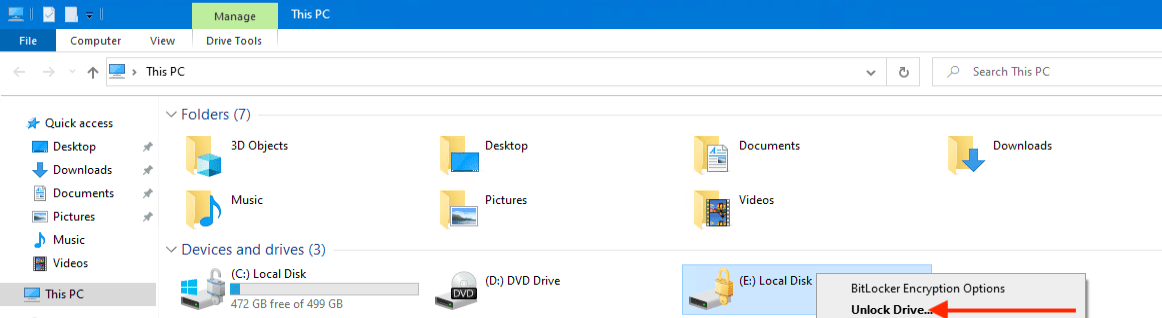
Click on Unlock drive

You can configure the saving of Recovery keys on USBs, Active Directory, or MBAM as needed.
– Then, enter the password and click “Unlock” to unlock the drive. This 48-character recovery password will decrypt the drives, granting access to the volume.

If this device was to be procted by MBAM, you can get this key via the MBAM helpdesk, database, or selfservice recovery portal!
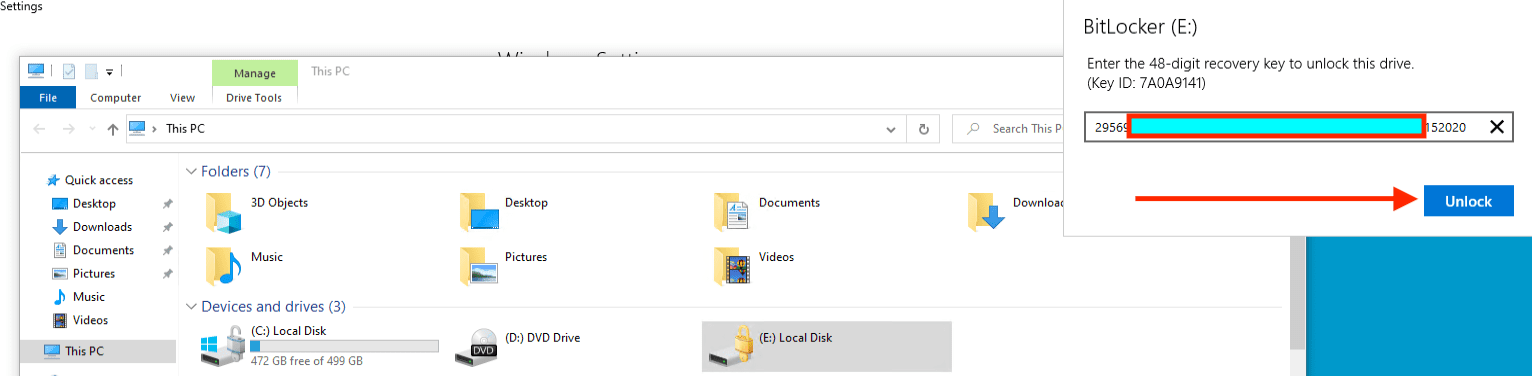
Enter the password to unlock the bitlocked drive

As shown below, the Drive is unlocked and ready for use. I recommend you check these guides: How to disable Microsoft BitLocker Administration and Monitoring encrypted devices. Also how to deploy Microsoft BitLocker Administration and Monitoring Tool. How to Uninstall your current version of MBAM and run setup again.

Drive is now unlocked

Unlock drive via Command Prompt

Could you also unlock a fixed drive protected by BitLocker from an elevated Command Prompt? All you need to do is type this command and press Enter.

manage-bde -unlock d: -password

When prompted, type the BitLocker password for this drive and hit Enter. It will unlock your drive immediately.

When prompted, input password in Command Prompt

I hope you found this blog post on unlocking a fixed drive protected by BitLocker helpful. Please let me know in the comment session if you have any questions.

Rate this post

Thank you for reading this post. Kindly share it with others.

  • Share on X (Opens in new window) X
  • Share on Reddit (Opens in new window) Reddit
  • Share on LinkedIn (Opens in new window) LinkedIn
  • Share on Facebook (Opens in new window) Facebook
  • Share on Pinterest (Opens in new window) Pinterest
  • Share on Tumblr (Opens in new window) Tumblr
  • Share on Telegram (Opens in new window) Telegram
  • Share on WhatsApp (Opens in new window) WhatsApp
  • Share on Mastodon (Opens in new window) Mastodon
  • Share on Bluesky (Opens in new window) Bluesky
  • Share on Threads (Opens in new window) Threads
  • Share on Nextdoor (Opens in new window) Nextdoor
Windows Tags:Bitlocker, Control Panel, MBAM, Microsoft BitLocker Administration and Monitoring, Windows 10, Windows 11

Post navigation

Previous Post: How to fix HyperV Virtual Machine display taking over the entire screen
Next Post: Manage TPM Protector: How to encrypt additional drives on an MBAM-protected device

Related Posts

  • How to Disable Automatic Opening of Previous files in Notepad on Windows 11
    How to Disable Automatic Opening of Previous Files in Notepad on Windows 11 Windows
  • Assigned Access
    Single App Kiosk Mode: Assigned Access using Local Settings Windows
  • Windows Container
    How to Install a Windows Server Container Host Containers
  • Disk Cleanup
    Create Disk Cleanup Shortcut: Perform disk cleanup in Windows Windows
  • image 35
    How to Activate and Press Ctrl+Alt+Del in Anydesk for Remote Access Connection to Windows system Windows
  • windowsztrf
    Microsoft Desktop Optimization Pack [MDOP] at a glance Windows

More Related Articles

How to Disable Automatic Opening of Previous files in Notepad on Windows 11 How to Disable Automatic Opening of Previous Files in Notepad on Windows 11 Windows
Assigned Access Single App Kiosk Mode: Assigned Access using Local Settings Windows
Windows Container How to Install a Windows Server Container Host Containers
Disk Cleanup Create Disk Cleanup Shortcut: Perform disk cleanup in Windows Windows
image 35 How to Activate and Press Ctrl+Alt+Del in Anydesk for Remote Access Connection to Windows system Windows
windowsztrf Microsoft Desktop Optimization Pack [MDOP] at a glance Windows

Leave a Reply Cancel reply

You must be logged in to post a comment.

Microsoft MVP

VEEAMLEGEND

vexpert-badge-stars-5

Virtual Background

GoogleNews

Categories

veeaam100

Veeam Vanguard

  • Veeam Virtual Appliance for Backup and Restore
    How to setup Veeam Software Appliance v13 Backup
  • Reduce VMDK dile defragment and compact
    Analyse Disks with Treesize: Defragment and Shrink VMware Workstation VM Disks Virtualization
  • BitLocker removal on Windows Server
    How to correctly disable BitLocker on Windows Server Windows Server
  • PIN9 1
    How to increase Windows PIN complexity Windows
  • Featured image
    Domain Naming System: Enabling DNS over TLS in Windows 11 Network | Monitoring
  • win 10 login screen
    How to Transfer User Profile to another User in Windows Windows
  • UpdateOfficeOnlineServer 1
    Perform Office Online Server Update via Windows Updates Windows Server
  • drivelock
    How to perform DriveLock quick setup Security | Vulnerability Scans and Assessment

Subscribe to Blog via Email

Enter your email address to subscribe to this blog and receive notifications of new posts by email.

Join 1,819 other subscribers
  • RSS - Posts
  • RSS - Comments
  • About
  • Authors
  • Write for us
  • Advertise with us
  • General Terms and Conditions
  • Privacy policy
  • Feedly
  • Telegram
  • Youtube
  • Facebook
  • Instagram
  • LinkedIn
  • Tumblr
  • Pinterest
  • Twitter
  • mastodon

Tags

Active Directory Azure Bitlocker Microsoft Windows PowerShell WDS Windows 10 Windows 11 Windows Deployment Services Windows Server 2016

Copyright © 2025 TechDirectArchive


Loading Comments...
 

You must be logged in to post a comment.