Skip to content

TechDirectArchive

Hands-on IT, Cloud, Security & DevOps Insights

  • Home
  • About
  • Advertise With US
  • Reviews
  • Contact
  • Toggle search form
Home » Windows » How to fix HyperV Virtual Machine display taking over the entire screen
  • Windows11
    How to change Regional Settings for all users on Windows 11 Windows
  • How To Enable Single Sign On (SSO) For Windows Admin Center
    Setup Windows Admin Center Modern Gateway for Single Sign-On Windows Server
  • PowerShell
    How to setup PowerShell on a Linux server Scripts
  • RDS Error
    RDP Users are unable to change Passwords Windows Server
  • Windows Hello with fake fingerprints
    Security researchers bypass Windows Hello with fake fingerprints with Raspberry Pi 4 Security | Vulnerability Scans and Assessment
  • AWS Principals
    MFA on Root Account: Create a User on AWS and Register MFA AWS/Azure/OpenShift
  • banner 3
    How to Create a React App with Vite Version Control System
  • Capture
    An account with the same name exists in Active Directory: Re-using the account was blocked by a security policy Security | Vulnerability Scans and Assessment

How to fix HyperV Virtual Machine display taking over the entire screen

Posted on 05/02/202230/09/2023 Christian By Christian No Comments on How to fix HyperV Virtual Machine display taking over the entire screen
HypervDisplay

In this guide, I will be discussing a recent issue I encountered which is a bit rare. It is about a full-screen virtual machine (VM) session that overtakes the entire screen when I connect to the VM. Windows normally display RDP sessions within a window. If you want to close the RDP session, then all you have to do is close the window. If your resolution is normal, you can also run the HyperV Virtual Machine in full-screen mode, enhancing the display.

Kindly refer to these related guides: How to Resolve Microsoft RDP Connection Black Screen, Enable Remote Desktop Connection on Windows 11 for non-administrators or selected users, How to change the default screen capture format in macOS, You can not open this application because it is in the bin, How to setup external displays on your Mac and arrange your display in Mac and How to fix VirtualBox Displaying only 32 bits Option: Windows Virtualization.

Solution: The control sequence to exit Full Screen mode is CTRL + ALT + PAUSE (Changes the Virtual Machine Connection window to / from full screen mode when using hyperV in full screen mode inside a remote desktop session. 
- Upon pressing all three keys CTRL + ALT + PAUSE, (which need to be held down simultaneously), a normal window bar will appear at the top of the RDP session. You can then use this bar to close or resize the window.

Alternatively, you may want to set the layout (resolution) of the VM using the steps below. In this way, you can also increase the screen resolution of a VM that is already too small in Hyper V. – Most times the CTRL + ALT + PAUSE does not work effectively and you will have to follow the steps discussed below.

Right-click on the Windows desktop and select Display Settings.
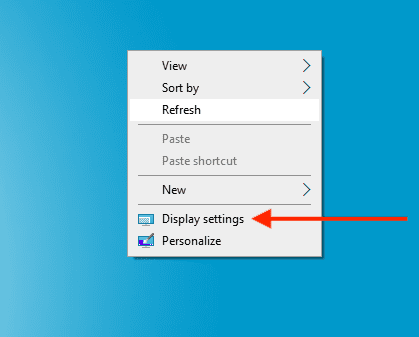
Display settings

Under Display, Scale, and Layout as shown below, select a resolution from the drop-down menu that fits your need.

Select a resolution that fits your needs

When this is done, you will get a prompt requesting you to keep the changes or to Revert.
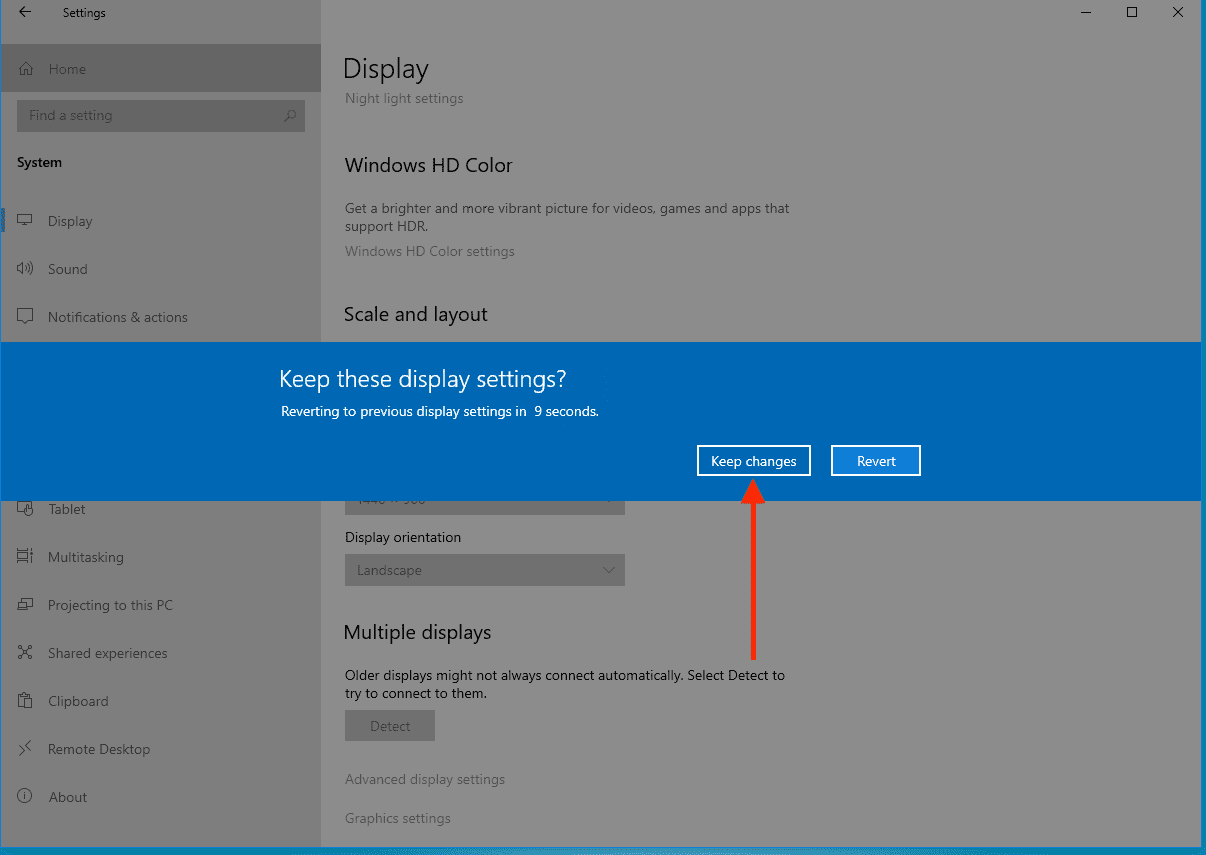
Select keep changes

As you can see below, the VM display is no longer occupying the Hyper Server itself.
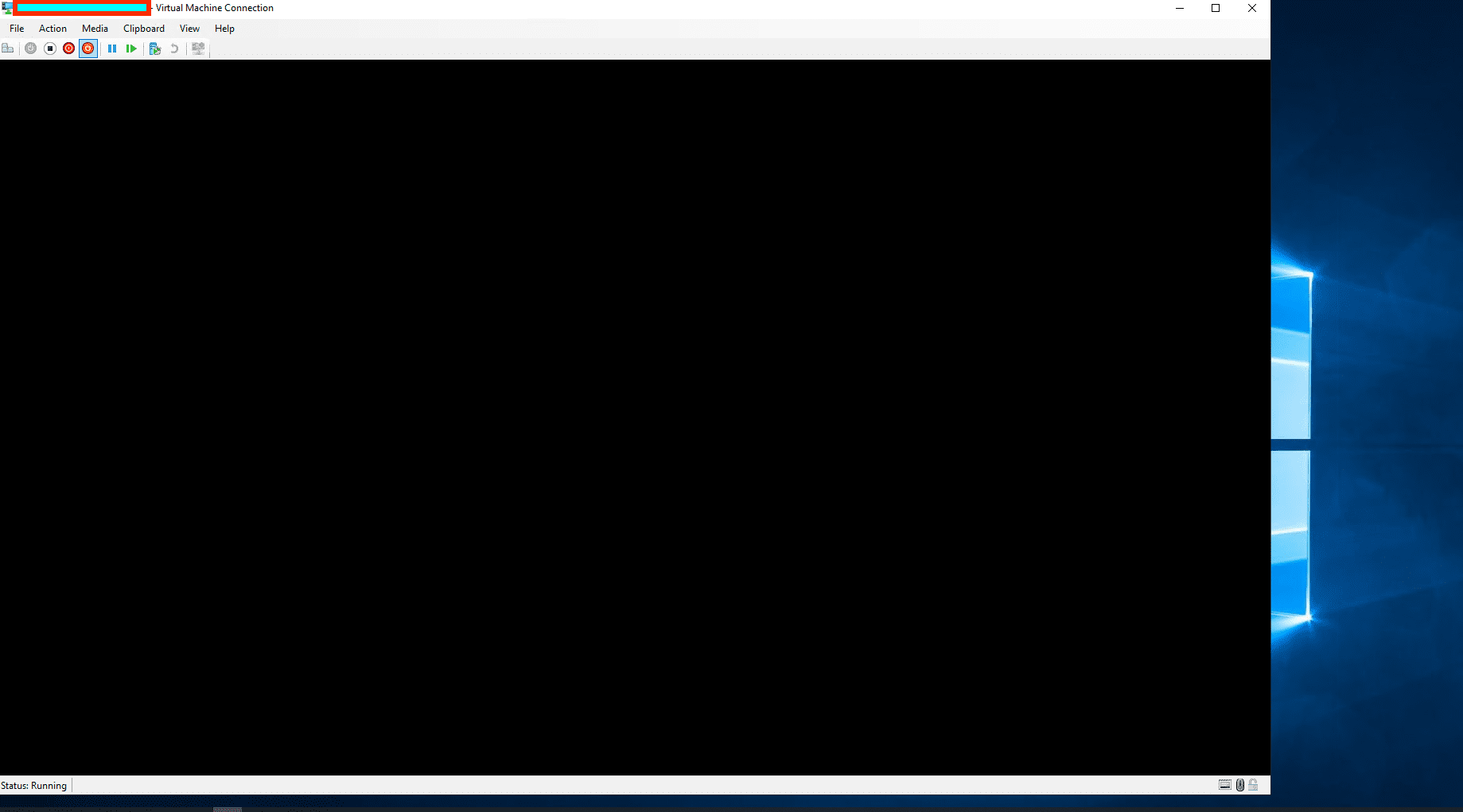
VM display is no longer occupying the Hyper Server itself

I hope you found this blog post on How to fix HyperV Virtual Machine display taking over the entire screen helpful. If you have any questions, please let me know in the comment session.

Rate this post

Thank you for reading this post. Kindly share it with others.

  • Click to share on X (Opens in new window) X
  • Click to share on Reddit (Opens in new window) Reddit
  • Click to share on LinkedIn (Opens in new window) LinkedIn
  • Click to share on Facebook (Opens in new window) Facebook
  • Click to share on Pinterest (Opens in new window) Pinterest
  • Click to share on Tumblr (Opens in new window) Tumblr
  • Click to share on Telegram (Opens in new window) Telegram
  • Click to share on WhatsApp (Opens in new window) WhatsApp
  • Click to share on Pocket (Opens in new window) Pocket
  • Click to share on Mastodon (Opens in new window) Mastodon
  • Click to share on Bluesky (Opens in new window) Bluesky
  • Click to share on Threads (Opens in new window) Threads
  • Click to share on Nextdoor (Opens in new window) Nextdoor
Windows Tags:desktop, Display, Microsoft Windows, Remote Desktop, Windows 10, Windows 11

Post navigation

Previous Post: Install Docker Desktop and register GitLab-Runner with Docker-windows executor
Next Post: How to unlock a fixed drive protected by BitLocker

Related Posts

  • maxresdefault
    How to remove a Printer from Windows 10 via PowerShell, Windows registry and Print Management Windows
  • How to Make the Taskbar Transparent in Windows 11
    How to Make Your Taskbar Completely Transparent on Windows 11 Windows
  • Enable TPM and ecure boot on HyperV to run windoows 11
    How to run Windows 11 on HyperV Virtualization
  • Featured image new 1
    Detect if an application was uninstalled on Windows: Find out who has uninstalled an application via Windows Event Viewer Windows
  • xxxxxx
    How to move the Taskbar to a second screen in Windows Windows
  • How to keep Apps up to date on Windows
    How to keep Apps up to date on Windows devices Windows

More Related Articles

maxresdefault How to remove a Printer from Windows 10 via PowerShell, Windows registry and Print Management Windows
How to Make the Taskbar Transparent in Windows 11 How to Make Your Taskbar Completely Transparent on Windows 11 Windows
Enable TPM and ecure boot on HyperV to run windoows 11 How to run Windows 11 on HyperV Virtualization
Featured image new 1 Detect if an application was uninstalled on Windows: Find out who has uninstalled an application via Windows Event Viewer Windows
xxxxxx How to move the Taskbar to a second screen in Windows Windows
How to keep Apps up to date on Windows How to keep Apps up to date on Windows devices Windows

Leave a Reply Cancel reply

You must be logged in to post a comment.

Microsoft MVP

VEEAMLEGEND

vexpert-badge-stars-5

Virtual Background

GoogleNews

Categories

veeaam100

sysadmin top30a
 
  • Windows11
    How to change Regional Settings for all users on Windows 11 Windows
  • How To Enable Single Sign On (SSO) For Windows Admin Center
    Setup Windows Admin Center Modern Gateway for Single Sign-On Windows Server
  • PowerShell
    How to setup PowerShell on a Linux server Scripts
  • RDS Error
    RDP Users are unable to change Passwords Windows Server
  • Windows Hello with fake fingerprints
    Security researchers bypass Windows Hello with fake fingerprints with Raspberry Pi 4 Security | Vulnerability Scans and Assessment
  • AWS Principals
    MFA on Root Account: Create a User on AWS and Register MFA AWS/Azure/OpenShift
  • banner 3
    How to Create a React App with Vite Version Control System
  • Capture
    An account with the same name exists in Active Directory: Re-using the account was blocked by a security policy Security | Vulnerability Scans and Assessment

Subscribe to Blog via Email

Enter your email address to subscribe to this blog and receive notifications of new posts by email.

Join 1,841 other subscribers
  • RSS - Posts
  • RSS - Comments
  • About
  • Authors
  • Write for us
  • Advertise with us
  • General Terms and Conditions
  • Privacy policy
  • Feedly
  • Telegram
  • Youtube
  • Facebook
  • Instagram
  • LinkedIn
  • Tumblr
  • Pinterest
  • Twitter
  • mastodon

Tags

AWS Azure Bitlocker Microsoft Windows PowerShell WDS Windows 10 Windows 11 Windows Deployment Services Windows Server 2016

Copyright © 2025 TechDirectArchive


Loading Comments...
 

You must be logged in to post a comment.