Understanding MBAM compliance state and error status

Microsoft BitLocker Administration and Monitoring (MBAM) provides a simplified administrative interface that you can use to manage BitLocker Drive Encryption. In this guide, we shall discuss “Understanding MBAM compliance state and error status”. Here are some interesting guides: MBAM components: How to deploy Microsoft BitLocker Administration and Monitoring Tool, and How to unlock a fixed drive protected by BitLocker.
You configure MBAM Group Policy Templates that enable you to set BitLocker Drive Encryption policy options that are appropriate for your enterprise and then use them to monitor client compliance with those policies.
You can also report on an individual computer’s and the enterprise’s encryption status.
In case of forgotten PIN/password or BIOS changes, access recovery keys. Explore related MBAM guides for insights on MBAM Frequent Report Errors: How to create MBAM Enterprise and Compliance, and Recovery Audit reports, how to determine why an MBAM protected device is non-compliant.
Encountering MBAM Errors and Solutions
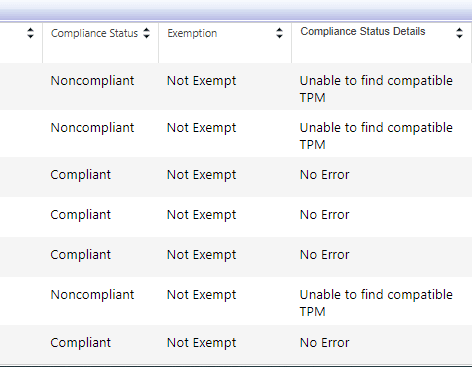
The figure below shows the possible errors you encounter when working with MBAM.
The System Drive hosts Windows, while a Fixed Drive, not removable, stores data, often internally, for extra capacity. Here is a guide on MBAM report fields: Enterprise Compliance, Computer Compliance, and Recovery Audit Report: Understanding the Microsoft BitLocker Administration and Monitoring (MBAM) reports fields.
Explanation of MBAM error types [Part 1]:
Below is a summary of the reasons for your non-compliant drives which in most cases is the System Drives.
| MBAM Errors | Possible Actions |
|---|---|
| No Errors | This can mean a lot. Some of which you may have not interactively accessed your device upon the installation of the MBAM agent. It could mean the device isn’t connected to your network. Even while in-home office, it is recommended to connect via VPN at least once a month. Rare case: You may also want to check if the agent is truly installed. Because if the GPO is applied only, this behavior is also expected. MBAM Client will NEVER start BitLocker Drive Encryption actions if a remote desktop protocol connection is active. All remote console connections must be closed and a user must be logged on to a physical console session via the Domain account before BitLocker Drive Encryption can begin as discussed previously: Reference: How to Deploy the MBAM Client to Desktop or Laptop Computers – Microsoft Desktop Optimization Pack | Microsoft Learn |
| Drives not yet encrypted | This could mean that the MBAM agent and update have not been installed. If you are using DSM, you do not have to worry about the update as they are being bundled together. Make sure that MBAM Group Policy settings are applied on the client’s computer. The following registry subkey is created if the Group Policy settings were applied on the client computer: HKEY_LOCAL_MACHINE\SOFTWARE\Policies\Microsoft\FVE\MDOPBitLockerManagement |
| Drive encrypted but shows non-compliant | Out of sync with your network. Please ensure your device is connected to the network. If you are working remotely, please initiate a VPN connection to the domain. |
MBAM error types [Part 2]
| Unable to find compatible TPM | This implies that the TPM is not visible. The TPM is likely does not have a compatible TPM or that the TPM is disabled in the BIOS, and Windows can’t see it at all. – Open TPM Management (tpm.msc), and check whether the computer has a TPM device. If tpm.msc does not show a device, open Device Manager (devmgmt.msc), and check for a Trusted Platform Module under Security Devices. If you do not see a Trusted Platform Module device, this might be true for one of the following reasons: Your system doesn’t have a Trusted Platform Module (TPM/Security) device. The TPM device is disabled in the BIOS, then the solution is to Enable TPM in the BIOS. TPM Device is enabled in the BIOS, but the management of the TPM device from the operating system setting is disabled in the BIOS. You aren’t using a Microsoft driver for the TPM device. Review the devices that are listed in the device manager to identify the Microsoft TPM device driver. If the TPM device is not using the C:\Windows\System32\tpm.sys driver, you should update the driver by selecting the C:\Windows\Inf\tpm.inf file – Related guides: How to fix unable to find compatible TPM, how to determine if TPM is present and how to enable TPM in the BIOS. |
| System Partition not available or large enough | BitLocker requires a SYSTEM partition to enable encryption. If this partition is missing, kindly use this command line to create the required Bitlocker partition.BdeHdCfg -target default -quiet. You may want to see these guides below.– How to fix System Partition not available or large enough on Microsoft BitLocker Administration and Monitoring [Part 1]. – BitLocker System Partition: Detailed steps to troubleshoot and fix System Partition not available or large enough [Part 2] |
An unknown error has occurred
The cipher suite might not be properly defined, leading to the occurrence of this error and so on.
Kindly take a look at the device Event Viewer. From the Event Viewer – Applications and Services Logs – Microsoft – Windows – MBAM – Operational path.

An unknown error has occurred under the expanded Compliance Status details as shown below but shows no error in Compliance Status details?

Another way to fix this would be have the device restarted or have the group policy reapplied. You could wait for the default GPO polices that happens after every 90 minutes. If this is not the case, then you can check the Event Viewer – Applications and Services Logs – Microsoft – Windows – MBAM – Operational path for more information.

You may want to see some guides on TPM: How to clear the TPM via the management console or Windows Defender Center App, how to delegate permissions for backing up TPM passwords, and how to clear, enable or disable TPM in Windows via the BIOS or UEFI.
No Errors
I would like to elaborate on this error “No Error”. If a remote desktop protocol (RDP) connection is active, the MBAM client doesn’t start BitLocker Drive Encryption actions. You will need to close all remote console connections and sign in to a console session with a domain user account. Then BitLocker Drive Encryption begins and the client uploads recovery keys and packages.
When dealing with MBAM frequent report errors, note that starting BitLocker Drive Encryption won’t happen if signing in with a local user account.
To access the console session of the device remotely, employ RDP with the /admin switch, as demonstrated below. A console session is either when you’re at the computer’s physical console, or a remote connection that’s the same as if you’re at the computer’s physical console.
mstsc.exe /admin /v:<IP address of device>I attached the following hyperlinks to describe topics and update you on MBAM aspects. System check found some issues during MBAM encryption: Fail, the Power cable must be connected. Also, see MBAM reports cannot be accessed because it could not load folder contents. Here is a guide on “Understanding Microsoft BitLocker Administration and Monitoring Roles“.
FAQs relating to Understanding MBAM compliance state and error status
Why is BitLocker prompting for a recovery key every time I boot my computer?
BitLocker may prompt for a recovery key during each boot for several reasons. Common causes include changes to the system hardware, firmware updates, or modifications to the boot configuration. Additionally, if the TPM (Trusted Platform Module) settings are altered, it can trigger the recovery key requirement. Ensure that recent system changes align with BitLocker requirements and that the TPM is correctly configured.
Why is a device that was complaint reported as not compliant again after Windows / Bios update?
If MBAM is unable to escrow the keys, the compliance status changes. Why would this happen? I had to check the logs for this specific device over AD. At a <specific time>, there was a BitLocker sweep paused for volume C: This prevented the agent from connecting to the MBAM Recovery and Hardware services, thereby not applying the policies. After a while, BitLocker resumed and the keys were successfully escrowed. Thereby making the device compliant gain.
From Experience, BIOS updates have set a switch for installation that puts Bitlocker into suspend mode. When the update is performed in time, this issue will not occur. But when prolonged, it can lead to BitLocker reporting as non-compliant with the Microsoft BitLocker Administration and Monitoring reporting services.
I trust you found valuable insights in this blog post in dealing with Understanding MBAM compliance state and error status. If any queries arise, kindly share in the comments section.