Skip to content

TechDirectArchive

Hands-on IT, Cloud, Security & DevOps Insights

  • Home
  • About
  • Advertise With US
  • Contact
  • Reviews
  • Toggle search form
Home » Storage » System Drive Conversion: MBR to GPT on Windows 10

System Drive Conversion: MBR to GPT on Windows 10

Posted on 28/05/202221/03/2024 Matthew By Matthew No Comments on System Drive Conversion: MBR to GPT on Windows 10
Featured-Image-1

In this article, we shall discuss System Drive Conversion: MBR to GPT on Windows 10. Upgrading your System Drive from MBR to GPT is crucial for Windows 10 to Windows 11 transition on older hardware with UEFI support. This change ensures proper booting, especially when “Secure Boot State” is Off and “BIOS Mode” is set to Legacy. In that case, you should make a backup of your System Drive, follow the instructions below to convert the installation from MBR to GPT and proceed with the procedures to enable Secure Boot.

To convert the partition type from MBR to GPT without reinstalling Windows 10, use the MBR2GPT command-line program. Here are some exciting guides: A brief Introduction to Linux and how to create disk partition in Ubuntu Linux, and How to encrypt a partition with Cryptsetup.

Here are other related guides: How to convert a GPT disk into an MBR disk – Error: Windows cannot be installed on drive 0 Partition 1, how to extend System Drive Partition on Windows, and to create a disk volume see: How to create volumes via the Command Prompt in Windows.

How to check the Partition Style on a System Drive

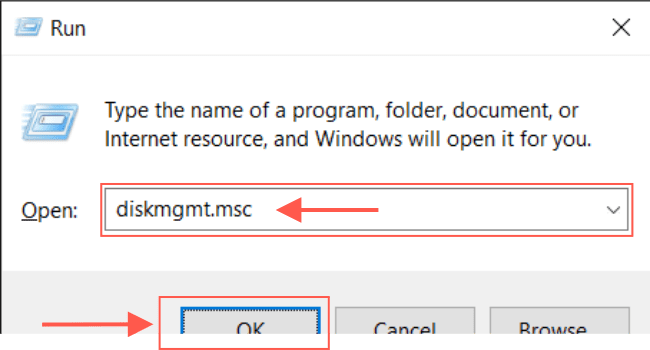
Follow these steps to determine the current disk partition style. To open Disk Management, press the Windows key + R to bring up Windows Run, then type diskmgmt.msc and click Ok for the System Drive.
Partition conversion

Right-click the drive on which Windows 10 is installed and choose Properties of System Drive.

Windows 10 drive upgrade

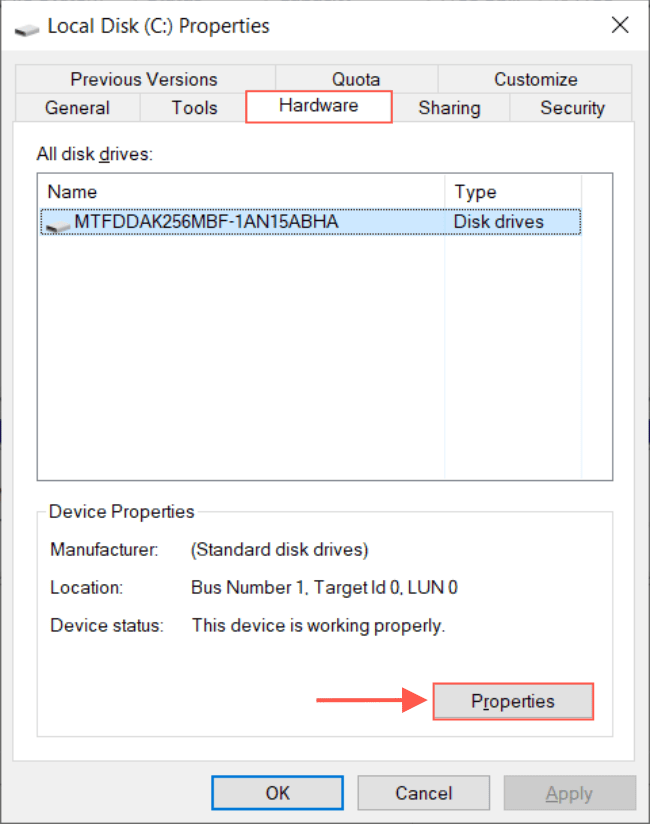
Click on the Hardware tab of the System Drive, and in the lower-right corner of the page, click on Properties.
GPT migration

On the Properties page, click on the Volumes tab. To view the Disk Information, click on Populate.

In the “Partition style” section, if it says GUID Partition Table (GPT), the disk does not need to be converted; however, if it says Master Boot Record (MBR), you can use the System Drive conversion tool to convert.

Disk format change

Press the Cancel button and exit the Disk management. Once you’ve completed the procedures, follow the instructions below if the System Drive requires conversion.

How to Convert MBR to GPT Partition Style

To convert an MBR partition to a GPT partition in Windows 10 System Drive, follow these steps:

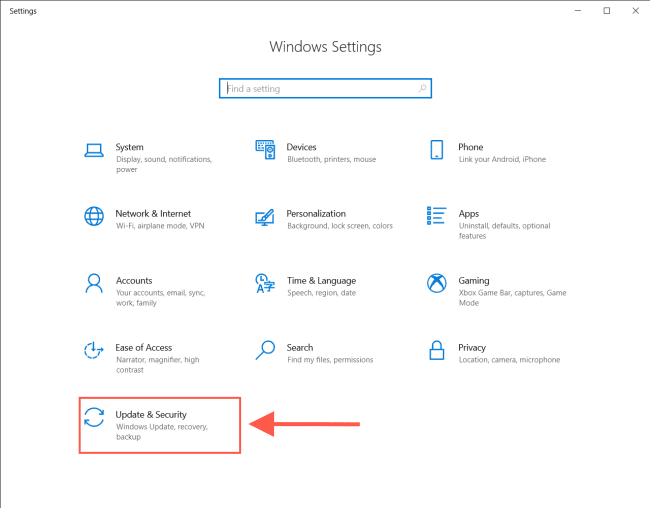
Press the Windows Key to access the Start menu and look for the Settings option.
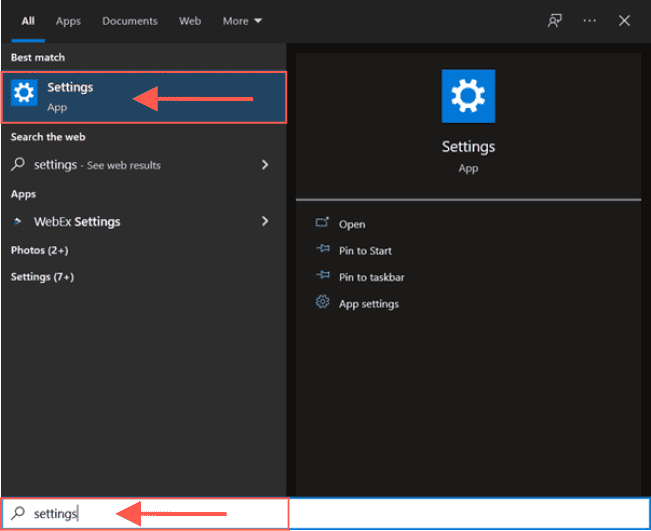
Partition conversion

Click on Update & Security.

Windows 10 drive upgrade

Click on the Recovery tab. Under the “Advanced Startup,” click on Restart now.
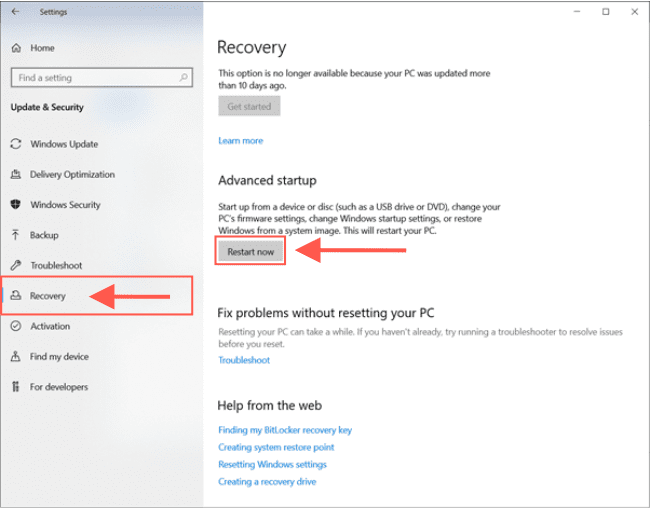
Image6-3

After the system restarts, click on Troubleshoot.

Img2

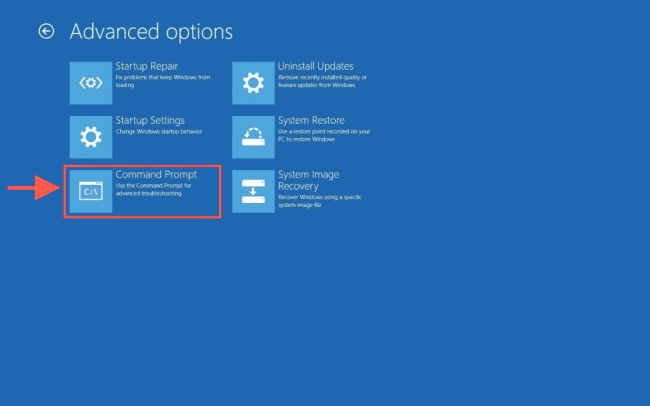
Click on Advanced options.

Img3

Click the Command Prompt option.

Image11-2

Select your administrator account and sign in if required. Enter the following System Drive command to confirm that the drive meets the requirements: mbr2gpt /validate

Use the mbr2gpt /? command to examine all of the possible choices.

Image5-3

Enter the following command to convert the disk from MBR to GPT: mbr2gpt /convert

Image6-4

Close the Command prompt and click the Turn off your computer option.

After completing the System Drive conversion, the command-line program will alter the partition type to GPT to meet the system requirements for installing Windows 11.

I hope you found this blog post on System Drive Conversion: MBR to GPT on Windows 10 helpful. Please let me know in the comment session if you have any questions.

5/5 - (1 vote)

Thank you for reading this post. Kindly share it with others.

  • Share on X (Opens in new window) X
  • Share on Reddit (Opens in new window) Reddit
  • Share on LinkedIn (Opens in new window) LinkedIn
  • Share on Facebook (Opens in new window) Facebook
  • Share on Pinterest (Opens in new window) Pinterest
  • Share on Tumblr (Opens in new window) Tumblr
  • Share on Telegram (Opens in new window) Telegram
  • Share on WhatsApp (Opens in new window) WhatsApp
  • Share on Mastodon (Opens in new window) Mastodon
  • Share on Bluesky (Opens in new window) Bluesky
  • Share on Threads (Opens in new window) Threads
  • Share on Nextdoor (Opens in new window) Nextdoor
Storage Tags:Disk Partition, drive, harddrive, Microsoft Windows, Partitions, Windows 10, Windows 11

Post navigation

Previous Post: Configure AWS Command Line Interface
Next Post: How to enable Secure Boot on PC to install Windows 11

Related Posts

  • Integrate OOTBI with VBR
    How to integrate ObjectFirst OOTBI Appliance with VBR Backup
  • Configure Synology DS923+ NAS for File Sharing
    How to Configure Synology DS923+ NAS for File Sharing [Part 2] Reviews
  • feature image mongo
    How to Install MongoDB on a Linux System Linux
  • Azure Backup Copy 1
    How to Delete Backup Job in Recovery Services Vault AWS/Azure/OpenShift
  • Synology Cloud Sync
    How to Sync Data in Cloud Drives to Synology NAS Backup
  • preometheus
    Monitoring Synology with Prometheus and Grafana Reviews

More Related Articles

Integrate OOTBI with VBR How to integrate ObjectFirst OOTBI Appliance with VBR Backup
Configure Synology DS923+ NAS for File Sharing How to Configure Synology DS923+ NAS for File Sharing [Part 2] Reviews
feature image mongo How to Install MongoDB on a Linux System Linux
Azure Backup Copy 1 How to Delete Backup Job in Recovery Services Vault AWS/Azure/OpenShift
Synology Cloud Sync How to Sync Data in Cloud Drives to Synology NAS Backup
preometheus Monitoring Synology with Prometheus and Grafana Reviews

Leave a Reply Cancel reply

You must be logged in to post a comment.

Microsoft MVP

VEEAMLEGEND

vexpert-badge-stars-5

Virtual Background

GoogleNews

Categories

veeaam100

Veeam Vanguard

  • article 1280x720.192a2586 1
    How to remove an MDT Deployment Share Windows Server
  • Key distribution center
    Perform Key Distribution Center Service [krbtgt] Password reset Windows
  • WhatsApp
    How to retrieve deleted WhatsApp messages on iPhone JIRA|Confluence|Apps
  • 0318 4
    Active Directory Authentication methods: How do Kerberos and NTLM work Windows Server
  • office365family
    How to Cancel Office 365 Family Subscription JIRA|Confluence|Apps
  • creating the perfect grafana dashboard  main
    How to install Grafana on Ubuntu Linux Network | Monitoring
  • DNS FEATURE
    Domain Name System: All you need to know about DNS Linux
  • Slide1 1
    Enable or disable Secure Boot in Windows via UEFI Firmware Settings Windows

Subscribe to Blog via Email

Enter your email address to subscribe to this blog and receive notifications of new posts by email.

Join 1,814 other subscribers
  • RSS - Posts
  • RSS - Comments
  • About
  • Authors
  • Write for us
  • Advertise with us
  • General Terms and Conditions
  • Privacy policy
  • Feedly
  • Telegram
  • Youtube
  • Facebook
  • Instagram
  • LinkedIn
  • Tumblr
  • Pinterest
  • Twitter
  • mastodon

Tags

Active Directory Azure Bitlocker Microsoft Windows PowerShell WDS Windows 10 Windows 11 Windows Deployment Services Windows Server 2016

Copyright © 2025 TechDirectArchive


Loading Comments...
 

You must be logged in to post a comment.