Skip to content

TechDirectArchive

Hands-on IT, Cloud, Security & DevOps Insights

  • Home
  • About
  • Advertise With US
  • Reviews
  • Contact
  • Toggle search form
Home » Windows » How to remove third-party cookies from Microsoft Edge
  • update set expire
    Windows 10 and Windows 11 updates will now expire for better performance Windows
  • windows 10 desktop 1
    Active Directory Forest – Trees and Domain and Sites Windows Server
  • Delete Expired Profiles on Mac
    Remove Expired Configuration Profiles on Mac Mac
  • redirects3endpoint
    How to redirect requests for your bucket’s website endpoint to another bucket or domain AWS/Azure/OpenShift
  • fba7f screenshot 2019 04 15 at 18.33.30
    File System Overview: How to decide on the right File System to use for your USB Linux
  • images
    AWS Network Adapter: Redhat to Citrix PV and AWS PV Driver AWS/Azure/OpenShift
  • GitLab runner update and upgrade
    How to update Gitlab-runners on Windows Windows
  • windows deployment services imagen destacada blog redigit
    How to create a capture image on Windows Deployment Services Windows Server

How to remove third-party cookies from Microsoft Edge

Posted on 17/08/202218/09/2024 Temitope Odemo By Temitope Odemo No Comments on How to remove third-party cookies from Microsoft Edge
cookies9

What exactly are cookies? These are text files that store every web information on your system. They are used for a better browsing experience. The reason why you get to see many of these cookies stored on a Microsoft Edge. Even though Cookies are meant to provide a better browsing experience. But there are times that there could be privacy abuse from bad actors. In this article, I will be showing you how to remove third-party cookies from Microsoft Edge. Please see how to enable LDAP over SSL with a third-party Certificate such as DigiCert, and How to Clear Cache in Windows 11 .

Cookies can be used by companies to track every movement you make on the internet as all the website pages you surf and they will use this to supply you with some targeted adverts and also some vital info they think you may need.

Below is a YouTube video showing how to remove third-party cookies from Microsoft Edge.

Play

You can stop advertisers from tracking and targeting you by blocking all third-party cookies or blocking all cookies. But there are times that aside from removing all cookies or third-party cookies you may just want to clear the cookies for a specific site only.

If you want to read more on cookies and browsers you can check these articles: macOS: How to clear cookies, history, and cache in Safari, No sound on Google Chrome: How to fix sound not working on Google Chrome, Microsoft Edge: All available Policies for the latest version of Microsoft Edge.

Remove third-party cookies from Microsoft Edge

Follow the below steps one after the other to remove third-party cookies from Microsoft Edge. If you wish to block ad trackers, please take a look at this guide under VPN “how to download and install Norton 360 Advanced Anti-Virus on your Mac device“.

1: To kick-start click on the three dots at the top-right corner and select Settings. The Settings page will open.
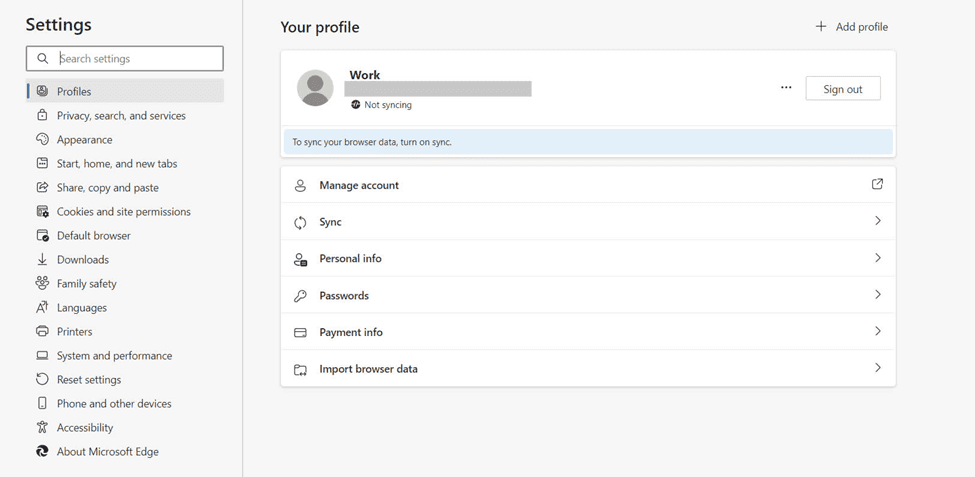
image-7
Settings Page

2. On the Settings page, click on Cookies and site permissions on the left pane.Se
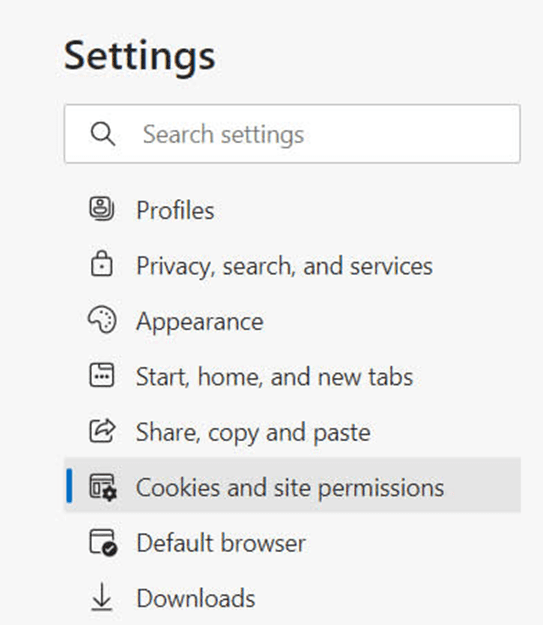
image-8
Cookies and site permissions

3. On the right-hand side check for Cookies and data stored section and click on Manage and delete cookies and site data.
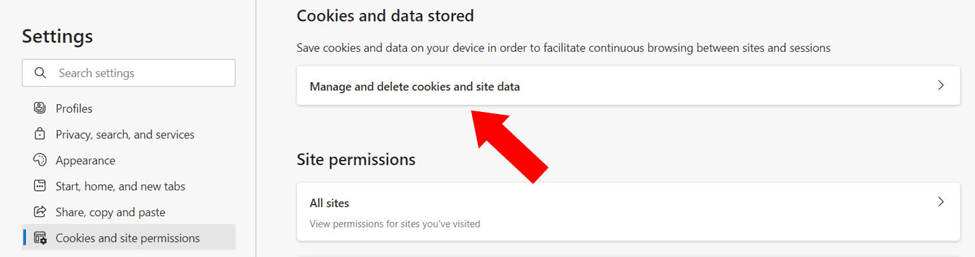
image-9
Cookies and data stored

4. If you want to block all third-party cookies just toggle the button to OFF and with this setting no third-party cookies will work on your system. Now to remove all cookies click on See all cookies and site data.
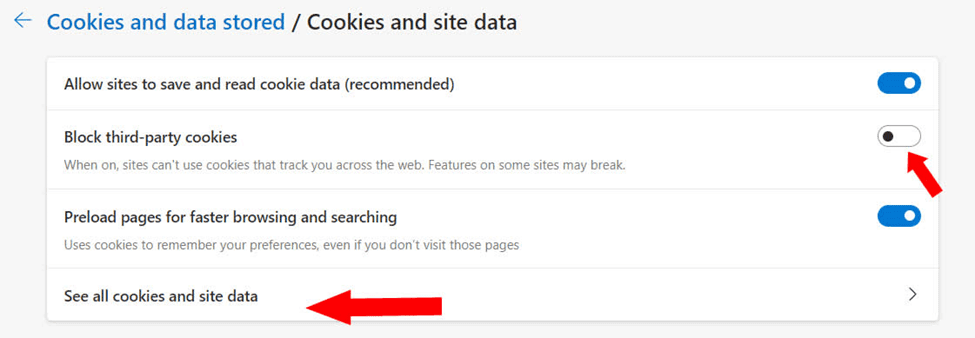
image-10
Cookies and site data

5. The next page will show you the full list of all the stored cookies in your browser. You can search or scroll down to find the site you want to remove the cookies.
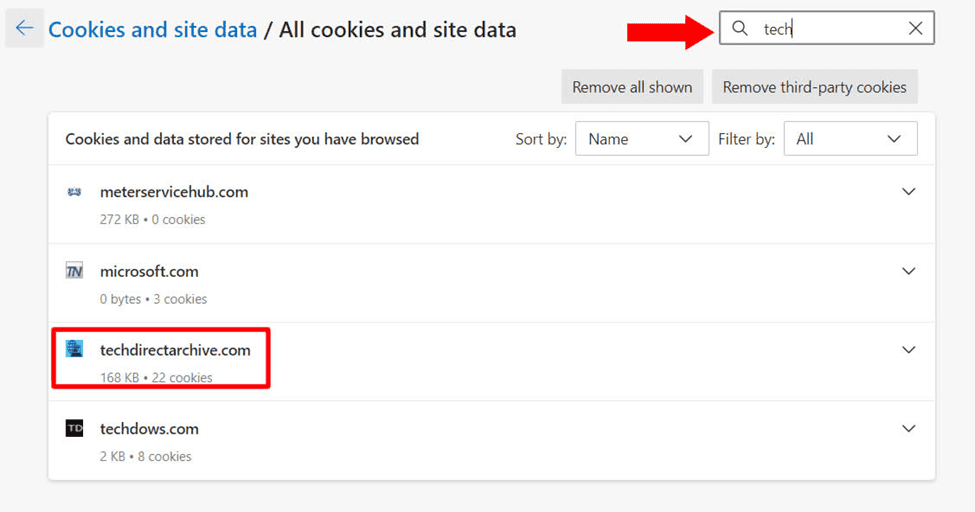
image-11
All cookies and site data

6. After searching the websites you want to delete the cookies, click the dropdown beside it and click the Delete icon next to the cookies you want to remove.
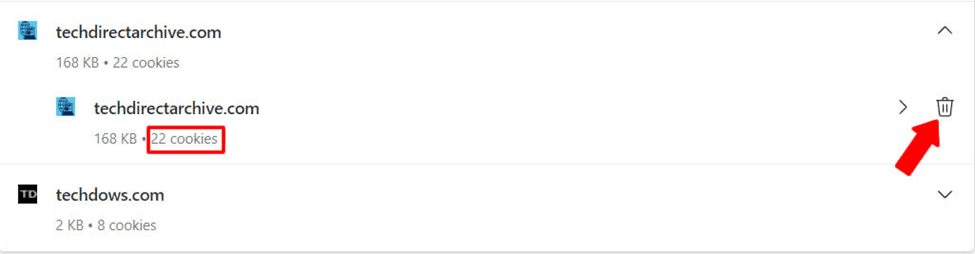
image-12
Cookies

Once the Delete icon is clicked the specific cookies is removed
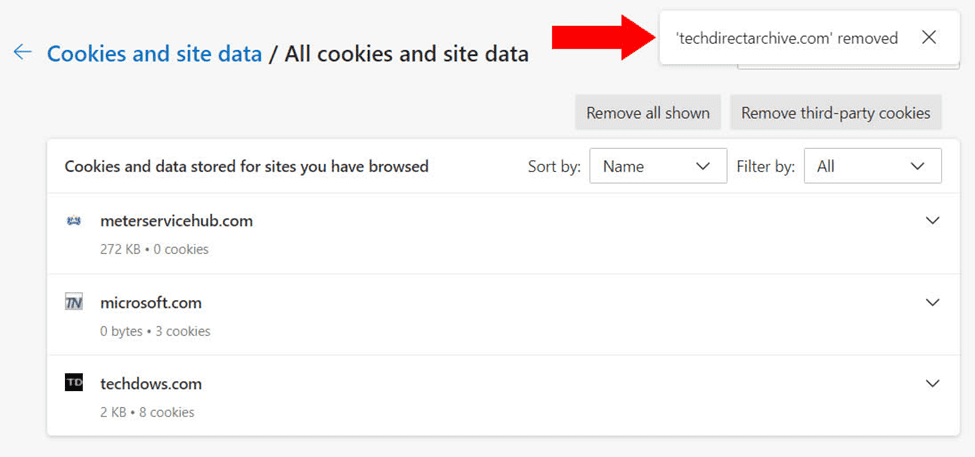
image-13
Cookies Removed

Remove all Cookies shown

7. You can also click the Remove all shown button to remove all the cookies that exist on your computer.

image-14
Clearing site data

8. You can also click the Remove third-party cookies button to remove all the cookies that belong to a third-party. You will need to agree to this removal.
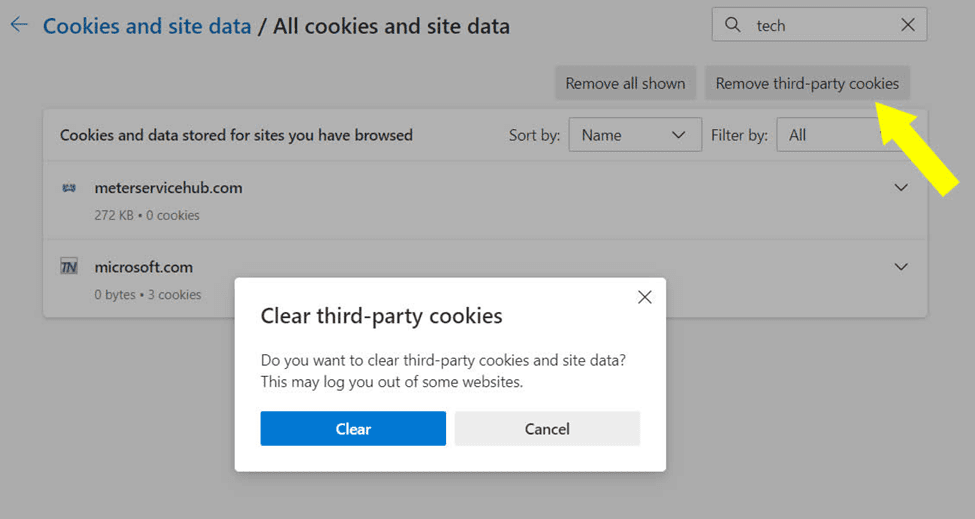
image-15
Clearing third party cookies

Also, see how to Add or Remove Sites from the Favorites List in Microsoft Edge, How to make Cortana use your default web browser such as Google Chrome, Install Microsoft Edge on Ubuntu: How to install and remove Microsoft Edge Browser on Linux, and Set Google Chrome as default: How to set a browser as default on macOS.

Clear browsing data in Edge

9. Under the Privacy, Search and Services. On the right side bar scroll to the Clear browsing data section and click to choose what to delete or clear from your system.

cookies11
Privacy and services

10. Part of what you can clear is the Cookies. Confirm that Cookies and other site data is toggled to ON. This will always Clear the Cookies on closing the browser and you can also add the Sites you do not want the cookies to be cleared.

COOKIES12
Cookies and site data

I hope you found this blog post on Remove all cookies: How to remove third-party cookies from Microsoft Edge interesting and helpful. In case you have any questions do not hesitate to ask in the comment section.

5/5 - (1 vote)

Thank you for reading this post. Kindly share it with others.

  • Click to share on X (Opens in new window) X
  • Click to share on Reddit (Opens in new window) Reddit
  • Click to share on LinkedIn (Opens in new window) LinkedIn
  • Click to share on Facebook (Opens in new window) Facebook
  • Click to share on Pinterest (Opens in new window) Pinterest
  • Click to share on Tumblr (Opens in new window) Tumblr
  • Click to share on Telegram (Opens in new window) Telegram
  • Click to share on WhatsApp (Opens in new window) WhatsApp
  • Click to share on Pocket (Opens in new window) Pocket
  • Click to share on Mastodon (Opens in new window) Mastodon
  • Click to share on Bluesky (Opens in new window) Bluesky
  • Click to share on Threads (Opens in new window) Threads
  • Click to share on Nextdoor (Opens in new window) Nextdoor
Windows Tags:Edge, Edge Browser, Microsoft Edge, Web-browser, Windows 10, Windows 11

Post navigation

Previous Post: Reveal Windows WiFi password of Network you are connected to
Next Post: Attack Surface Reduction Configuration with Microsoft Defender

Related Posts

  • Windows10
    Configure new GPO settings and Security baseline for Windows Windows
  • Driver Automation Tool
    Windows Driver Management: Upgrade Driver Automation Tool Windows
  • 5rgh65436
    New Windows 11 encryption features and security enhancements for Hybrid Work Security | Vulnerability Scans and Assessment
  • Secure Web Server
    How to secure a Web Server on a Windows VM in Azure using TLS/SSL Certificates Saved in Azure Key Vault AWS/Azure/OpenShift
  • Perform slfservice rBitLocker recovery
    Resolve Invalid Key ID when requesting BitLocker Recovery Key Windows
  • banner
    How to Fix Python was not found run without arguments to install from the Microsoft Store Windows

More Related Articles

Windows10 Configure new GPO settings and Security baseline for Windows Windows
Driver Automation Tool Windows Driver Management: Upgrade Driver Automation Tool Windows
5rgh65436 New Windows 11 encryption features and security enhancements for Hybrid Work Security | Vulnerability Scans and Assessment
Secure Web Server How to secure a Web Server on a Windows VM in Azure using TLS/SSL Certificates Saved in Azure Key Vault AWS/Azure/OpenShift
Perform slfservice rBitLocker recovery Resolve Invalid Key ID when requesting BitLocker Recovery Key Windows
banner How to Fix Python was not found run without arguments to install from the Microsoft Store Windows

Leave a Reply Cancel reply

You must be logged in to post a comment.

VEEAMLEGEND

vexpert-badge-stars-5

Virtual Background

GoogleNews

Categories

veeaam100

Microsoft MVP

  • update set expire
    Windows 10 and Windows 11 updates will now expire for better performance Windows
  • windows 10 desktop 1
    Active Directory Forest – Trees and Domain and Sites Windows Server
  • Delete Expired Profiles on Mac
    Remove Expired Configuration Profiles on Mac Mac
  • redirects3endpoint
    How to redirect requests for your bucket’s website endpoint to another bucket or domain AWS/Azure/OpenShift
  • fba7f screenshot 2019 04 15 at 18.33.30
    File System Overview: How to decide on the right File System to use for your USB Linux
  • images
    AWS Network Adapter: Redhat to Citrix PV and AWS PV Driver AWS/Azure/OpenShift
  • GitLab runner update and upgrade
    How to update Gitlab-runners on Windows Windows
  • windows deployment services imagen destacada blog redigit
    How to create a capture image on Windows Deployment Services Windows Server

Subscribe to Blog via Email

Enter your email address to subscribe to this blog and receive notifications of new posts by email.

Join 1,843 other subscribers
  • RSS - Posts
  • RSS - Comments
  • About
  • Authors
  • Write for us
  • Advertise with us
  • General Terms and Conditions
  • Privacy policy
  • Feedly
  • Telegram
  • Youtube
  • Facebook
  • Instagram
  • LinkedIn
  • Tumblr
  • Pinterest
  • Twitter
  • mastodon

Tags

AWS Azure Bitlocker Microsoft Windows PowerShell WDS Windows 10 Windows 11 Windows Deployment Services Windows Server 2016

Copyright © 2025 TechDirectArchive


Loading Comments...
 

You must be logged in to post a comment.