Skip to content

TechDirectArchive

Hands-on IT, Cloud, Security & DevOps Insights

  • Home
  • About
  • Advertise With US
  • Reviews
  • Contact
  • Toggle search form
Home » Windows » How to change the default RDP port in Windows

How to change the default RDP port in Windows

Posted on 27/08/202225/03/2024 Temitope Odemo By Temitope Odemo No Comments on How to change the default RDP port in Windows
rdp4

Remote Desktop Protocol is used by Windows users to connect remotely to another computer. By default, the RDP port is 3389 and sometimes you may want to change this port and assign another port for the RDP. In this article, we shall discuss how to change the default RDP port in Windows. If you want to read more on Remote Desktop Protocol you can check these: How to Resolve Microsoft RDP Connection Black Screen if the account is not authorized. Also, see how to fix “The connection was denied because the user account is not authorized for remote login: How to add and remove Remote Desktop Users“.

Here are some more guides you may be interested in: Remote Desktop cannot find the computer this in the specified network: Verify the computer name and domain that you are trying to connect. Here is a live demonstration on YouTube on how this can be done.

In this guide, we will be using the Registry Editor to make the changes to the RDP port. But you have to be very careful when you are using the Registry Editor because if not handled properly can cause permanent damage to the system.

But why do we want to change the Default RDP Port?

Everyone knows that Microsoft uses the standard port 3389 for all remote connections. This is to the bad actor’s advantage because they are always trying to access people’s systems without their knowledge. So changing this default port to another open port will make it much harder for an attacker to easily break into your system.

Please see Error 0x204: How to fix Remote Desktop Connection issues if you want to view or remove RDP History. See how to view Remote Desktop connection history or remove server connection entries from RDP.

Steps to change the Default Remote Desktop Port

To do this, please open the Registry Editor
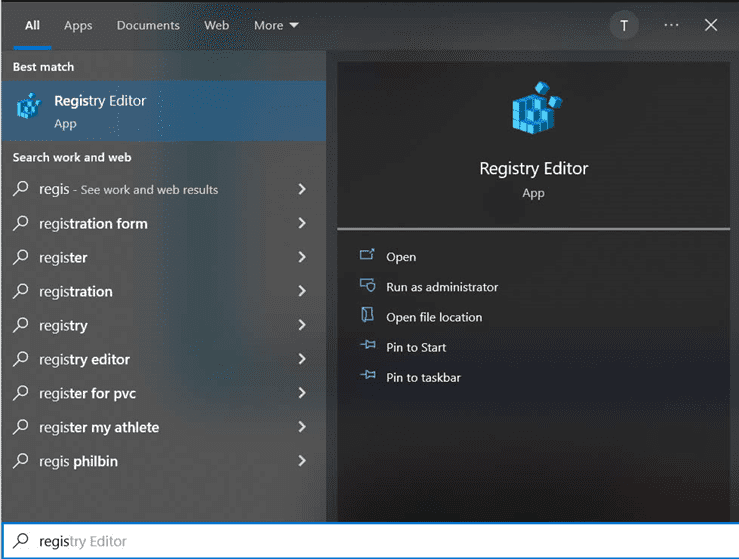
image-16
Registry Editor

You can also run the regedit command. Also, see Copy Deployment Share between Servers without using linked Deployment Shares.
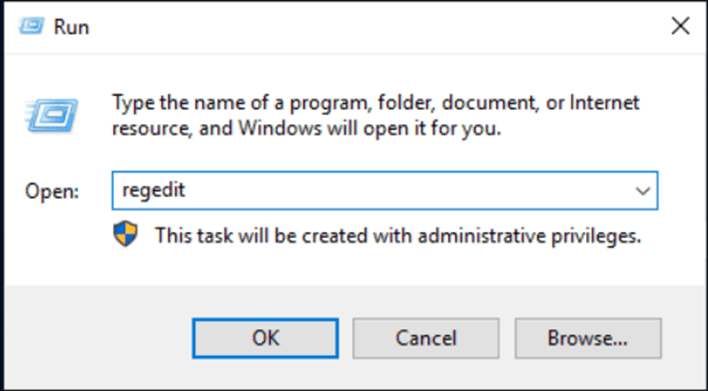
image-17
regedit

2. Browse to this key KEY_LOCAL_MACHINE\System\CurrentControlSet\Control\Terminal Server\WinStations\RDP-Tcp

image-18
Registry Editor

3. Click on the PortNumber and click Decimal option button. In the Value data field enter the new port number and click OK to save the changes. In this guide I will be changing 3389 to 3333.
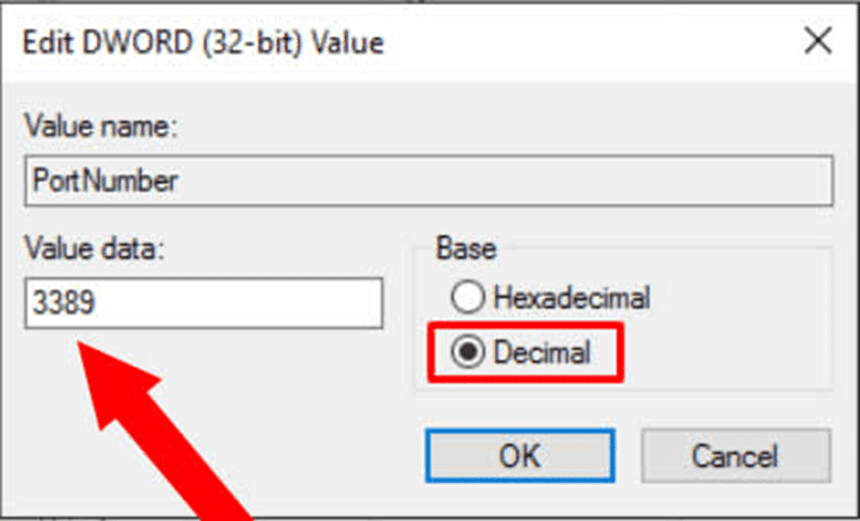
image-19
Editing PortNumber

Please see How to remove saved RDP connections in Windows, How to fix Remote Desktop can’t connect to the remote computer for one of these reasons, and How to configure a console port password on Cisco Router / Switch Configuration.

Verify Port change via PowerShell

You can confirm if the port has actually been changed using this command on PowerShell.

Get-ItemProperty -Path ‘HKLM:\SYSTEM\CurrentControlSet\Control\Terminal Server\WinStations\RDP-Tcp’ -name “PortNumber”

Run it on Windows PowerShell and you will see the RDP Port has now changed to 3333

image-20
Windows PowerShell

Another thing you will need to do is to open the ports. This is because if you try to RDP using this port may not work at first until you open it.

And also How to allow saved credentials for RDP connection. And What to do when your Remote Desktop Licensing Manager Server Crashes.

I hope you found this blog post on how to change the default RDP port in Windows Interesting and helpful. In case you have any questions do not hesitate to ask in the comment section.
Rate this post

Thank you for reading this post. Kindly share it with others.

  • Share on X (Opens in new window) X
  • Share on Reddit (Opens in new window) Reddit
  • Share on LinkedIn (Opens in new window) LinkedIn
  • Share on Facebook (Opens in new window) Facebook
  • Share on Pinterest (Opens in new window) Pinterest
  • Share on Tumblr (Opens in new window) Tumblr
  • Share on Telegram (Opens in new window) Telegram
  • Share on WhatsApp (Opens in new window) WhatsApp
  • Share on Mastodon (Opens in new window) Mastodon
  • Share on Bluesky (Opens in new window) Bluesky
  • Share on Threads (Opens in new window) Threads
  • Share on Nextdoor (Opens in new window) Nextdoor
Network | Monitoring, Windows, Windows Server Tags:Hyper-V, hyperV, Microsoft Windows, RDP, Remote Access, Remote Desktop Protocol, RemoteConnection, Windows 10, Windows 11, Windows Server 2016

Post navigation

Previous Post: How to clear cache in Windows 11
Next Post: How to demote and remove a Domain Controller on Windows Servers

Related Posts

  • Deploy BitLocker on Windows Server manually
    Install BitLocker on Windows Server via the Server Manager Windows Server
  • Featured image MsTeams.
    How to share an app window on Microsoft Teams Windows
  • nicedisk les chatfield cropped 100734348 large
    How to create a bootable USB using Rufus on Windows Windows
  • Feature Image
    How to Enable and Disable WMI Traffic through Windows CMD Windows
  • original
    Error 0x800710E0: Operator or Administrator has refused request Windows Server
  • MAP virtual disk error
    Install Workstation Pro 17: Fix failed to initialise library for mounting and unmounting virtual disks Virtualization

More Related Articles

Deploy BitLocker on Windows Server manually Install BitLocker on Windows Server via the Server Manager Windows Server
Featured image MsTeams. How to share an app window on Microsoft Teams Windows
nicedisk les chatfield cropped 100734348 large How to create a bootable USB using Rufus on Windows Windows
Feature Image How to Enable and Disable WMI Traffic through Windows CMD Windows
original Error 0x800710E0: Operator or Administrator has refused request Windows Server
MAP virtual disk error Install Workstation Pro 17: Fix failed to initialise library for mounting and unmounting virtual disks Virtualization

Leave a Reply Cancel reply

You must be logged in to post a comment.

Microsoft MVP

VEEAMLEGEND

vexpert-badge-stars-5

Virtual Background

GoogleNews

Categories

veeaam100

Veeam Vanguard

  • FEATURE IMAGE BASE URL 1
    How to solve cannot find a valid base URL for repo: base/7/x86_64 Linux
  • windows sysinternals
    Sysmon from SysInternal: What is System Monitor and how to install and use it Windows Server
  • image 6
    Set Browers and Windows to reopen Apps on Startup Windows
  • sid5
    How to Find Security Identifier on Windows [Part 2] Windows
  • diagnostic6
    How to enable and use Diagnostic Data Viewer on Windows Windows
  • snapshot replication
    How to create Synology Snapshot Replication Backup
  • ePO installation on Windows Server
    Trellix ePolicy Orchestrator Installation on Windows Server Security | Vulnerability Scans and Assessment
  • openshift
    Set up OpenShift Cluster using Red Hat CodeReady Containers Linux

Subscribe to Blog via Email

Enter your email address to subscribe to this blog and receive notifications of new posts by email.

Join 1,821 other subscribers
  • RSS - Posts
  • RSS - Comments
  • About
  • Authors
  • Write for us
  • Advertise with us
  • General Terms and Conditions
  • Privacy policy
  • Feedly
  • Telegram
  • Youtube
  • Facebook
  • Instagram
  • LinkedIn
  • Tumblr
  • Pinterest
  • Twitter
  • mastodon

Tags

Active Directory Azure Bitlocker Microsoft Windows PowerShell WDS Windows 10 Windows 11 Windows Deployment Services Windows Server 2016

Copyright © 2025 TechDirectArchive


Loading Comments...
 

You must be logged in to post a comment.