
Skip to content

TechDirectArchive

Hands-on IT, Cloud, Security & DevOps Insights

  • Home
  • About
  • Advertise With US
  • Reviews
  • Contact
  • Toggle search form
Home » Linux » How to Install PlayonLinux on a Linux System
  • Zoom Blurred Background
    Why Zoom blurred background option is not available to you on Mac JIRA|Confluence|Apps
  • react 1
    How to deploy a React Application to AWS S3 AWS/Azure/OpenShift
  • Encrypt Email Sent In Microsoft Outlook
    How To Encrypt Email Sent In Microsoft Outlook Microsoft Exchange/Office/365
  • win10 usb
    How to prevent installation of removable devices Windows
  • Windows server 2016 606x400 1
    How to install Windows Server 2016 Operating System on VirtualBox Windows Server
  • elasticsearch error feature
    Elasticsearch: How to stop systemd service start operation from timing out Linux
  • powershell
    How to perform PowerShell syntax check using PSScriptAnalyzer Scripts
  • uninstalloffice
    Remove All Microsoft Office Apps from Mac Network | Monitoring

How to Install PlayonLinux on a Linux System

Posted on 28/09/202215/07/2023 Raphael Gab-Momoh By Raphael Gab-Momoh No Comments on How to Install PlayonLinux on a Linux System
playonlfeature

PlayOnLinux is a graphical interface for software compatibility layer that enables Linux users to install Windows-based video games, and Microsoft Office. In addition, it is suitable for Microsoft Internet Explorer, and many other programs, including Apple iTunes and Safari. PlayOnLinux acts as a compatibility layer, providing a platform to run various Windows programs smoothly on your Linux distribution without the need for a Windows license. You will learn how to Install PlayOnLinux on Ubuntu 20.04 LTS using a Step by Step Process.

Therefore, with PlayOnLinux, the ultimate objective of being able to see and Run Windows Software and Games in Linux is achieved. The commands in this article will also work for ubuntu 14.04, ubuntu 16.04, and ubuntu 18.4. Furthermore, it’s suitable for ubuntu 20.04, ubuntu 21, and ubuntu 22.04 versions. Meanwhile, you can reference other useful articles here: How to install and Uninstall Discord in a Linux System and How to Overlay two files with UnionFs in a Linux System and How to install Windows Server 2022 on VirtualBox, and How to run apps as an administrator on Windows 10 and Windows 11 .

Installing PlayOnLinux on a Linux System

Follow these step-by-step instructions to install the software on your Linux system:

Step1: Update your Package Index

Before installation, it’s essential to update your package manager to ensure you have the latest software packages and dependencies.

Hence, to be sure that libraries and all that is needed for fetching what we need are up to date, run the command below:

sudo apt update
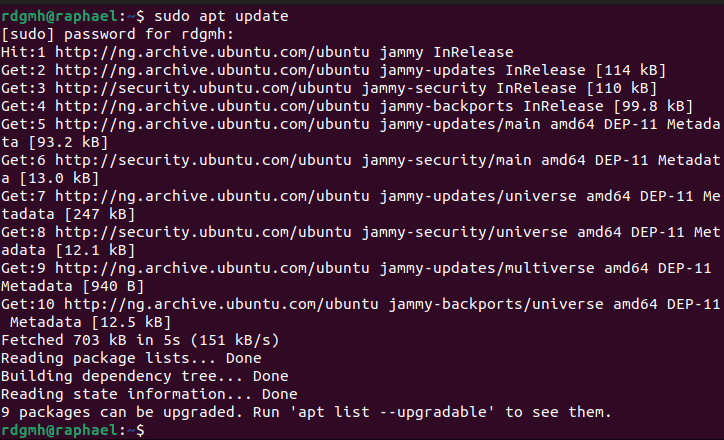
How to Install PlayonLinux on a Linux System-apti
package index

Step 2: Install PlayonLinux

By executing the following command after the new packages have loaded in the Ubuntu 22.04 repository, you can install PlayOnLinux:

sudo apt install playonlinux
How to Install PlayonLinux on a Linux System-apt2
installation process

Step 3: Verify Installation Of PlayOnLinux

Verify the installation by checking the version of the newly installed PlayOnLinux:

playonlinux --version
How to Install PlayonLinux on a Linux System-pv
playonlinux version

Launch PlayonLinux

Congratulations! You have successfully installed PlayOnLinux.

We can either check our apps and launch from there or use the terminal, launch using the terminal type the command:

playonlinux
How to Install PlayonLinux on a Linux System-playl
playonLinux Launched

Summary

PlayonLinux enables Linux users to install Windows-based video games, Microsoft Office, and others, and the steps to install it and start using are all outlined above. Furthermore, with PlayOnLinux installed on your Linux system, you have unlocked the ability to run numerous Windows applications seamlessly.

Rate this post

Thank you for reading this post. Kindly share it with others.

  • Click to share on X (Opens in new window) X
  • Click to share on Reddit (Opens in new window) Reddit
  • Click to share on LinkedIn (Opens in new window) LinkedIn
  • Click to share on Facebook (Opens in new window) Facebook
  • Click to share on Pinterest (Opens in new window) Pinterest
  • Click to share on Tumblr (Opens in new window) Tumblr
  • Click to share on Telegram (Opens in new window) Telegram
  • Click to share on WhatsApp (Opens in new window) WhatsApp
  • Click to share on Pocket (Opens in new window) Pocket
  • Click to share on Mastodon (Opens in new window) Mastodon
  • Click to share on Bluesky (Opens in new window) Bluesky
  • Click to share on Threads (Opens in new window) Threads
  • Click to share on Nextdoor (Opens in new window) Nextdoor
Linux Tags:Windows Apps

Post navigation

Previous Post: Discord Installation Guide for Linux System
Next Post: How to install WireShark on a Linux Ubuntu System

Related Posts

  • ERRORFEATURE
    How to Fix 404 Not Found Repository Errors in Ubuntu/Debian distribution Linux
  • SUBVERSION FEATURE
    How to Install Apache Subversion on a Linux System Linux
  • Screenshot 2021 02 14 at 00.35.50
    How to manage automatic login on Ubuntu Linux Linux
  • zoom feature
    How to install Zoom video conference software on Linux System Linux
  • Screenshot 2020 05 14 at 17.46.59
    Linux System Update: Upgrade vs. Dist-upgrade Differences Linux
  • 517443 637084112713220326 16x9 1
    How can I tell if a password is set for a user account on Linux Linux

More Related Articles

ERRORFEATURE How to Fix 404 Not Found Repository Errors in Ubuntu/Debian distribution Linux
SUBVERSION FEATURE How to Install Apache Subversion on a Linux System Linux
Screenshot 2021 02 14 at 00.35.50 How to manage automatic login on Ubuntu Linux Linux
zoom feature How to install Zoom video conference software on Linux System Linux
Screenshot 2020 05 14 at 17.46.59 Linux System Update: Upgrade vs. Dist-upgrade Differences Linux
517443 637084112713220326 16x9 1 How can I tell if a password is set for a user account on Linux Linux

Leave a Reply Cancel reply

You must be logged in to post a comment.

Microsoft MVP

VEEAMLEGEND

vexpert-badge-stars-5

Virtual Background

GoogleNews

Categories

veeaam100

sysadmin top30a
 
  • Zoom Blurred Background
    Why Zoom blurred background option is not available to you on Mac JIRA|Confluence|Apps
  • react 1
    How to deploy a React Application to AWS S3 AWS/Azure/OpenShift
  • Encrypt Email Sent In Microsoft Outlook
    How To Encrypt Email Sent In Microsoft Outlook Microsoft Exchange/Office/365
  • win10 usb
    How to prevent installation of removable devices Windows
  • Windows server 2016 606x400 1
    How to install Windows Server 2016 Operating System on VirtualBox Windows Server
  • elasticsearch error feature
    Elasticsearch: How to stop systemd service start operation from timing out Linux
  • powershell
    How to perform PowerShell syntax check using PSScriptAnalyzer Scripts
  • uninstalloffice
    Remove All Microsoft Office Apps from Mac Network | Monitoring

Subscribe to Blog via Email

Enter your email address to subscribe to this blog and receive notifications of new posts by email.

Join 1,841 other subscribers
  • RSS - Posts
  • RSS - Comments
  • About
  • Authors
  • Write for us
  • Advertise with us
  • General Terms and Conditions
  • Privacy policy
  • Feedly
  • Telegram
  • Youtube
  • Facebook
  • Instagram
  • LinkedIn
  • Tumblr
  • Pinterest
  • Twitter
  • mastodon

Tags

AWS Azure Bitlocker Microsoft Windows PowerShell WDS Windows 10 Windows 11 Windows Deployment Services Windows Server 2016

Copyright © 2025 TechDirectArchive


Loading Comments...
 

You must be logged in to post a comment.