Transfer Windows License from one PC to the other on Windows


In this article, we will learn how to transfer Windows license from one PC to the other on Windows. While many manufacturers still provide a licensed copy of Windows 10 and 11 with new PCs, this is not the case for systems that are custom-built for a user. You will need a new license for Windows 10 or 11 if you want to get the parts and assemble a new system yourself. Please see How To Setup A New Computer Without A Microsoft Account on Windows 11, and How to Enable or Disable Inherited Permissions for Files and Folders in Windows.
Depending on the edition, this license might be pricey. To save money, you may be able to transfer the Windows 10 or 11 product key if you are building a new system to replace an existing PC. Please see how to activate, check activation status and troubleshoot Windows common activation errors [Part 1].
Beyond only saving you money, the ability to transfer an existing license has advantages. For instance, it might be useful when you want to reuse a license to activate a virtual machine or when you want to sell the PC but want to keep the product key.
Whatever your motivation, you are permitted to transfer a Windows license in accordance with Microsoft policies. However, everything hinges on how you got the authentic product key. You can follow the instructions in this article to transfer a Windows 10 or 11 product license key to a new machine.
Is Your Windows Product Key Transferrable?
Two types of Windows keys may be transferred: Also, see Windows Licensing: How to find your Windows 10 Product key, and how to fix Windows cannot find the Microsoft software license terms.
OEM keys: Not intended for transfer. Manufacturers use these keys to install Windows on any prebuilt PC. They are also the keys you get at low cost from key vendors. But you can always give it a try.
Retail keys (also known as “Full Packaged Product”): transferable. These are often the expensive keys, costing more than $100. But there’s always a chance that your computer has one (from a previous upgrade) and you’re just unaware of it.
You can determine the kind of Windows product key you have when you locate it if you are unsure.
Check out the following guides for information on Windows licenses and how to use them in a Windows environment: How to check Windows 10 activation status and change your product key, and how to use Software Licensing Management Tool (slmgr) to install and uninstall Windows product key.
Finding Your Windows 10 or 11 Product Key
You may need to find your product key unless you have it carefully kept from the last time you installed Windows. We advise downloading and installing ShowKeyPlus so you can see what type of Windows 10 or 11 product key you have and the key number.
The actual key will either be labeled as OEM or Retail keys.

Determining if You Have a Digital License
You now need to be aware of whether you have a “digital license” or a regular license if your key is transferable and you wish to transfer it. If you have a regular license, you can move the product key from one computer to another by deactivating it on the previous machine and then entering it on the new one.
If you have a digital license, however, that means the number is linked to your Microsoft account and you must follow a separate approach, which entails deactivating the old PC through your Microsoft account’s settings menu, in order to transfer it.
To find out if you have a digital license, press the Windows key + I key together to open the “Settings”. Next, search for “Activation” in the search box and click “Activation Settings” from the search result.


Follow the procedures for transferring a digital license below if the Activation page indicates that you have a digital license. If not, refer to the steps below for transferring a non-digital Windows 10 or 11 product key.
See Import a user profile in Windows to another PC, How to transfer data from an old PC to a new PC, and “FileZilla Client on Mac: How to Transfer Files to WordPress via SFTP“.
How to Transfer a Digital Windows License to a New PC
Entering the product key into a new PC won’t work if your Windows license is “digital,” which refers to the fact that it’s connected to your Microsoft account. The new computer will not activate. You must instead disable the old PC using the settings menu on the Microsoft website before utilizing the troubleshooting option in the new PC’s activation menu.
Follow the process below to deactivate your old PC from your Microsoft account in Windows 10 or 11
On your old computer, reset Windows or wipe the drive. To learn how to reinstall Windows 10 or 11, see this detailed guide. If you don’t perform either of these, Microsoft will still consider the machine to be registered, which may prohibit you from using the same key to activate the new PC.
On the new computer, install Windows 10 or 11 without providing a product code during the installation procedure. You just click “I don’t have a key” when asked.

Visit account.microsoft.com and sign in to your Microsoft account page.

Managing Devices in Your Microsoft Account
In your Microsoft Account, click Devices from the top menu or scroll down on the page to the devices section so you can see a list of all the devices associated with your account.

Select the PC you wish to deactivate and click “Remove device.”

A message prompt should appear for confirmation. Simply tick on the “I’m ready to remove this” checkbox and hit on Remove.

Navigate to the Activation settings menu on the new PC. The easiest way to get there is by searching for “activation settings” and clicking the top result.

You’ll see that the screen indicates that your copy of Windows was unable to be activated. If for some reason, it indicates that it has been activated, you are done and may stop here. Next, click Troubleshoot.
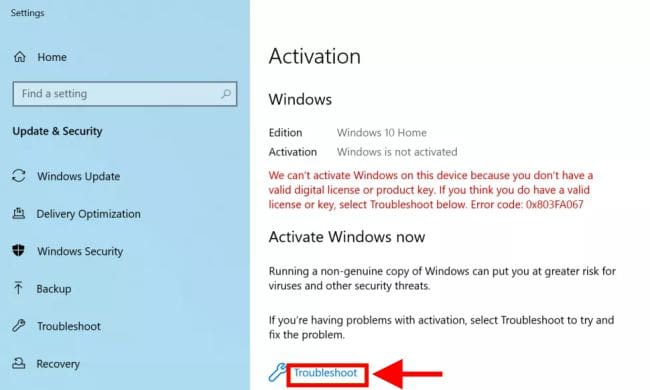
A dialog box will probably appear, telling you that Windows was unable to activate. Click “I changed hardware on this device recently.”

Choose the new PC you’re using, check the “this is the device I’m using right now” box, and click on Activate. After a few seconds, you should get a confirmation screen saying that “Windows is activated.”

Your new PC should now be activated.
How to Transfer Your Windows Product Key (Non-Digital License)
If you don’t have a “digital license,” for your Windows 10 or 11 product key, you will need to actually enter the alphanumeric key into the activation screen on the new PC.
If you haven’t already wiped the old PC, we recommend formally removing the product key, effectively “deactivating” it. This may help Microsoft get the impression that you are no longer using the key.
Here’s how to deactivate Windows 10 or 11 and activate a new PC with the same key.
Click the Windows key to open the Start menu and type cmd. Select the command prompt and run as administrator.
Type the following command to remove the current product key:
slmgr /upk
Run the command again if you don’t get the “Uninstalled product key successfully” message right away.
Type the following command to clear the license from the Registry and press:
slmgr /cpky
Enter slmbr.vbs /dli to confirm that the product key is actually removed.
slmgr.vbs /dli
You should see a message saying that there’s no product key. That means it’s gone.
Now, on the new PC, input your product key. You can input the key during Windows installation if you haven’t done so already. If Windows is already installed but not yet activated, go to the Activation settings menu, select “Change Product Key,” and then input the product key.

Install license using Command Prompt
To activate Windows with a previous product key, follow these steps:
- Click the Windows key to open the Start menu and type cmd. Select the command prompt and run as administrator.
- Type the following command to reactivate Windows 10 and press:
slmgr /ipk xxxxx-xxxxx-xxxxx-xxxxx-xxxxx
In the command, replace “xxxxx-xxxxx-xxxxx-xxxxx-xxxxx” with the product key you want to use to activate Windows 10.
- Type the following command to verify the activation and press:
slmgr /dlvOnce you complete these steps, your Windows should activate successfully on the new installation.
Conclusion on how to Transfer a Digital Windows License to a New PC
If your key doesn’t work at this point, either you need to wait and try again later or get a new key.
I hope you found this article useful on how to Transfer Windows License from one PC to the other on Windows 10 and 11. Please feel free to leave a comment below.


