Skip to content

TechDirectArchive

Hands-on IT, Cloud, Security & DevOps Insights

  • Home
  • About
  • Advertise With US
  • Reviews
  • Contact
  • Toggle search form
Home » Windows » How to clear Cache and Manually Update Microsoft Defender
  • Backup is an attacker real target
    Hacker Thinking in Ransomware Attacks: Backup Is the real Target Backup
  • WAMPServer Virtual Host
    How to create Virtual Hosts in a WAMPserver Web Server
  • powershell
    Set PowerShell Execution Policy via Windows Settings Windows
  • snapshot replication
    How to create Synology Snapshot Replication Backup
  • WonderFox Video Watermark
    Install and use WonderFox Video Watermark Windows
  • S3 Bucket Public Access 1
    How to grant public access to S3 Bucket using Policy AWS/Azure/OpenShift
  • sid5
    How to Find Security Identifier on Windows [Part 2] Windows
  • azure
    Enter connection information for your on-premise directory or forests: Azure AD connect unable to connect directory, forest not available AWS/Azure/OpenShift

How to clear Cache and Manually Update Microsoft Defender

Posted on 29/10/202231/07/2024 Matthew By Matthew No Comments on How to clear Cache and Manually Update Microsoft Defender
Featured-image_Windows-Security

In this article, I will show you how to clear Cache and Manually Update Microsoft Defender. Windows Security intelligence updates are the latest antivirus updates for Microsoft Defender’s antimalware defence. These updates improve the capacity of Microsoft Defender Antivirus and other Microsoft antimalware products to precisely identify threats by covering the most recent threats and continuously adjusting detection algorithms. Please see How to convert distribution group to security group, and How to change Active Directory Group Scope.

This security intelligence integrates seamlessly with cloud-based security to provide quick and potent next-generation protection that is AI-enhanced.

Please see how to fix Windows Defender detects Endpoint Security HipHandlers.dll, and How to Apply and Enable Automatic Windows Admin Center Update.

What is Microsoft Defender?

Microsoft Defender, formerly known as Windows Defender and a part of Windows Security, has proven to be a powerful antivirus program for Windows 10 and 11. Therefore, if Windows Defender Antivirus is the only antivirus program you use, you should keep it updated to ensure that it can identify the most recent threats.

Learn more about Microsoft Defender: How to enable or disable Windows Defender Antivirus Periodic Scanning on Windows via Windows Security, How to restore quarantined files in Microsoft Defender Antivirus, and how to find and remove Malware with Microsoft Defender Offline.

When Microsoft Defender can’t update automatically, your computer is left open to malware intrusions. You don’t need to worry if you’re having this problem; there are a couple of different options for you to manually update Microsoft Defender.

Check if Microsoft Defender is Up to date

You must first determine whether Microsoft Defender is up to date. To check this, open Microsoft Defender, verify the current version, and then compare it with the most recent security update from Microsoft.

Press the Windows key to open the Start menu, search for Windows Security, and select the result under best match.

image0-2
Launching Windows Security in Start menu

In the Windows Security window, click Settings, then About in the bottom-left corner.

image1_new
Windows Security Settings

Under System information, keep note of the Antimalware Client Version, the Engine Version, and the Antivirus Version.

image2-5
Windows Security System Information

Please see How to schedule Windows Defender Antivirus to scan on Windows, how to Manage Windows Defender Antivirus Through Microsoft Endpoint Manager Admin Dashboard and Intune, how to view Microsoft Defender Antivirus update details on Windows 10 image, and how to update Microsoft Defender Antivirus into the install image of Windows.

Downloads Latest security intelligence update

Go to the Microsoft Defender updates website and scroll down to the Latest security intelligence update section.
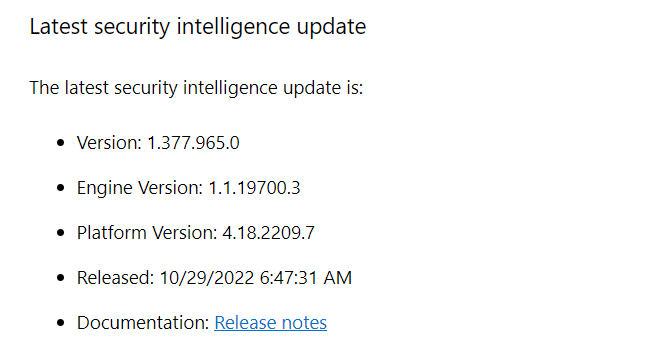
image3
Image source: https://www.microsoft.com/en-us/wdsi/defenderupdates

Check the Version (Antivirus Version), Engine Version, and Platform Version (Antimalware Client Version) against the ones specified in your Microsoft Defender System information.

If the versions shown under System information do not match, your antivirus must be updated. Please see how to remove the Microsoft Defender update on Windows 10 and Windows Server images.

How to Trigger a Microsoft Defender Update

If Microsoft Defender is not automatically updating, you can force it to do so by following these steps. Please see this article on All About Distributed File Systems (DFS).

Open Windows Security from the Start menu and navigate to Virus & threat protection. Under Virus & threat protection updates, click on Protection updates.

image4_new
Virus & threat protection updates

Click Check for updates, and Windows Security will try to find and download the most recent Microsoft updates.

image5-3
Check for Windows security update

If there is a latest update, Microsoft Defender will automatically download and install it.

Also, see how to remove Microsoft Defender update on Windows 10 and Windows Server image, and how to view Microsoft Defender Antivirus update details on Windows 10 image (install.wim).

How to clear Cache and Manually Update Microsoft Defender using Command Prompt

You can also manually initiate an update to download and apply the most recent security intelligence. To manually update Windows Defender, first clear the current cache and then initiate an update.

Press the Windows key to open the Start menu, search for cmd and run the Command Prompt as administrator.

image7
Opening Command Prompt from the Start menu

Run the following commands one after the other.

cd %ProgramFiles%\Windows Defender

MpCmdRun.exe -removedefinitions -dynamicsignatures
image8-2
Updating Microsoft Defender using Command Prompt
MpCmdRun.exe -SignatureUpdate

How to manually download updates from Microsoft

As an alternative, you can manually download Microsoft Defender’s most recent update files on your own.

Go to the Microsoft Defender updates website and scroll down to the Manually download the update section.

Image9
Image source: https://www.microsoft.com/en-us/wdsi/defenderupdates

Select the appropriate 32-bit or 64-bit version of the Microsoft Defender Antivirus for Windows 10 and Windows 8.1 update files.

After the update has been downloaded, run the.exe file to start updating Microsoft Defender. Here are some exciting articles: How to decide on the right File System to use for your USB, and how to fix Error – Command rejected: An interface whose trunk encapsulation is “Auto” can not be configured to “trunk” mode.

I hope you find this post helpful on how to clear Cache and Manually Update Microsoft Defender. If you have any questions, feel free to leave them in the comment section below.

5/5 - (1 vote)

Thank you for reading this post. Kindly share it with others.

  • Share on X (Opens in new window) X
  • Share on Reddit (Opens in new window) Reddit
  • Share on LinkedIn (Opens in new window) LinkedIn
  • Share on Facebook (Opens in new window) Facebook
  • Share on Pinterest (Opens in new window) Pinterest
  • Share on Tumblr (Opens in new window) Tumblr
  • Share on Telegram (Opens in new window) Telegram
  • Share on WhatsApp (Opens in new window) WhatsApp
  • Share on Mastodon (Opens in new window) Mastodon
  • Share on Bluesky (Opens in new window) Bluesky
  • Share on Threads (Opens in new window) Threads
  • Share on Nextdoor (Opens in new window) Nextdoor
Anti-Virus Solution, Security | Vulnerability Scans and Assessment, Windows Tags:Defender, Defender Antivirus, Microsoft Defender, Microsoft Defender Antivirus, Microsoft Windows, Windows 10, Windows 11, Windows Defender, Windows Defender Antivirus

Post navigation

Previous Post: Install and conduct performance testing using Apache JMeter on your Web App
Next Post: How to enable Adblocker on Microsoft Edge

Related Posts

  • image 16
    How to Fix Windows Error 0x80070057 Windows
  • queryremoteinstalledapps
    Get a list of installed programs locally or remotely in Windows Windows
  • Windows BootProcess
    Measured Boot, Secure Boot, Trusted Boot, and Early Launch Anti-Malware: How to secure the Windows 10 boot process Security | Vulnerability Scans and Assessment
  • RSAT 678x381 1
    DNS manager console missing from RSAT tools on Windows 10 Windows
  • Screenshot 2020 06 25 at 23.38.40
    What is Registry Editor and how to access the registry hives Windows
  • Screenshot 2020 08 13 at 03.29.53
    Windows Modules Installer: How to deactivate TrustedInstaller in Windows Windows

More Related Articles

image 16 How to Fix Windows Error 0x80070057 Windows
queryremoteinstalledapps Get a list of installed programs locally or remotely in Windows Windows
Windows BootProcess Measured Boot, Secure Boot, Trusted Boot, and Early Launch Anti-Malware: How to secure the Windows 10 boot process Security | Vulnerability Scans and Assessment
RSAT 678x381 1 DNS manager console missing from RSAT tools on Windows 10 Windows
Screenshot 2020 06 25 at 23.38.40 What is Registry Editor and how to access the registry hives Windows
Screenshot 2020 08 13 at 03.29.53 Windows Modules Installer: How to deactivate TrustedInstaller in Windows Windows

Leave a Reply Cancel reply

You must be logged in to post a comment.

Microsoft MVP

VEEAMLEGEND

vexpert-badge-stars-5

Virtual Background

GoogleNews

Categories

veeaam100

sysadmin top30a

  • Backup is an attacker real target
    Hacker Thinking in Ransomware Attacks: Backup Is the real Target Backup
  • WAMPServer Virtual Host
    How to create Virtual Hosts in a WAMPserver Web Server
  • powershell
    Set PowerShell Execution Policy via Windows Settings Windows
  • snapshot replication
    How to create Synology Snapshot Replication Backup
  • WonderFox Video Watermark
    Install and use WonderFox Video Watermark Windows
  • S3 Bucket Public Access 1
    How to grant public access to S3 Bucket using Policy AWS/Azure/OpenShift
  • sid5
    How to Find Security Identifier on Windows [Part 2] Windows
  • azure
    Enter connection information for your on-premise directory or forests: Azure AD connect unable to connect directory, forest not available AWS/Azure/OpenShift

Subscribe to Blog via Email

Enter your email address to subscribe to this blog and receive notifications of new posts by email.

Join 1,825 other subscribers
  • RSS - Posts
  • RSS - Comments
  • About
  • Authors
  • Write for us
  • Advertise with us
  • General Terms and Conditions
  • Privacy policy
  • Feedly
  • Telegram
  • Youtube
  • Facebook
  • Instagram
  • LinkedIn
  • Tumblr
  • Pinterest
  • Twitter
  • mastodon

Tags

AWS Azure Bitlocker Microsoft Windows PowerShell WDS Windows 10 Windows 11 Windows Deployment Services Windows Server 2016

Copyright © 2025 TechDirectArchive


Loading Comments...
 

You must be logged in to post a comment.