Skip to content

TechDirectArchive

Hands-on IT, Cloud, Security & DevOps Insights

  • Home
  • About
  • Advertise With US
  • Reviews
  • Contact
  • Toggle search form
Home » Windows » Find BIOS Serial Number and System Information on Windows 11
  • Install RSAT on Windows 11 today
    Install Remote Server Administration Tools on Windows 11 Windows
  • sshkey
    How to perform SSH key-based authentication in Linux Linux
  • windows update 03
    Fix Windows cannot check for updates in Windows 8, 7, and 10 Windows
  • Protech Synology NAS
    Cybersecurity Tips to Secure Synology NAS against Ransomware Reviews
  • Turn bluetooth on and off
    Unable to Turn Bluetooth On or Off on Mac Mac
  • chocolatey
    Windows Package Manager: How to install, upgrade or uninstall Chocolatey Windows
  • tmutil localsnapshot
    Fix what is taking up my Mac Storage? Delete Snapshots Network | Monitoring
  • xxxxxx 1
    Active Directory Administrative Tools shortcut Windows Server

Find BIOS Serial Number and System Information on Windows 11

Posted on 31/10/202215/02/2025 Imoh Etuk By Imoh Etuk No Comments on Find BIOS Serial Number and System Information on Windows 11
Header-picture

The serial number of your computer is not visible anywhere in the interface of Windows or widely used system information utilities. However, running the same commands in PowerShell or Windows Command Prompt console is one of the easiest ways to find your PC’s serial number. Apart from checking the computer pack or hardware component. In this article, we shall discuss how to find BIOS Serial Number and System Information on Windows 11. Please see How to Delete Diagnostic Data in Windows 10 and Windows 11, How to Upgrade Windows 11 Pro to Enterprise and vice Versa, and How to install Windows Subsystem for Android (WSA) in Windows 11.

The Windows Management Instrumentation (WMI) Command-Line Utility is one of the notable commands for finding out the serial number of your system. Although, in this post, we’re going to try out other commands. In this article, you will learn how to find BIOS Serial Number and System Information on Windows 11.

The Windows Management Instrumentation (WMI) Command-Line Utility (WMIC) is a command-line utility that allows users to perform WMI operations from a command prompt. An interface called WMI offers a number of Windows management features.

Applications and WMI scripts can be deployed to automate administrative tasks on remote computers. Or interface with other Windows tools like System Center Operations Manager (SCCM) or Windows Remote Management (WinRM).

In addition, I will also be showing you how to check your Windows 11 PC’s System Information. System Information (also known as msinfo32.exe) shows details about your PC, operating system, hardware, and software, system manufacturer & model including drivers.

Also, see how to disable Ads in Windows 11, how to create Desktop Windows stickers on Windows 11, and how to modify Windows 11 Taskbar via Intune and GPO. Here is how to install Veeam Backup Console on a Jump Server.

Find BIOS serial Number via wmic

To check your BIOS serial number, right-click on the startup menu icon and click on Windows PowerShell (Admin). This will launch PowerShell with administrative rights.

Click-on-Powershell-Admin

To view the BIOS Serial Number, run:

$ wmic bios get serialnumber
Type-wmic-bios-get-serial-serialnumber
 Note: Sometimes checking your BIOS serial number using the above command can fail. If that that happens, your PC might not have a serial number, or it might not have been saved correctly. Try checking the packaging, documentation, or the hardware components of your computer instead.

Method 2 – Using Win32 Command

Another method of finding out the serial number of your system is by running the command below:

get-wmiobject Win32_BIOS
Another-Method-of-checking-PC-SN

Viewing System Information

The next thing to cover in this post is how to view your system or device information. To do this, open PowerShell with admin privileges and run:

msinfo32
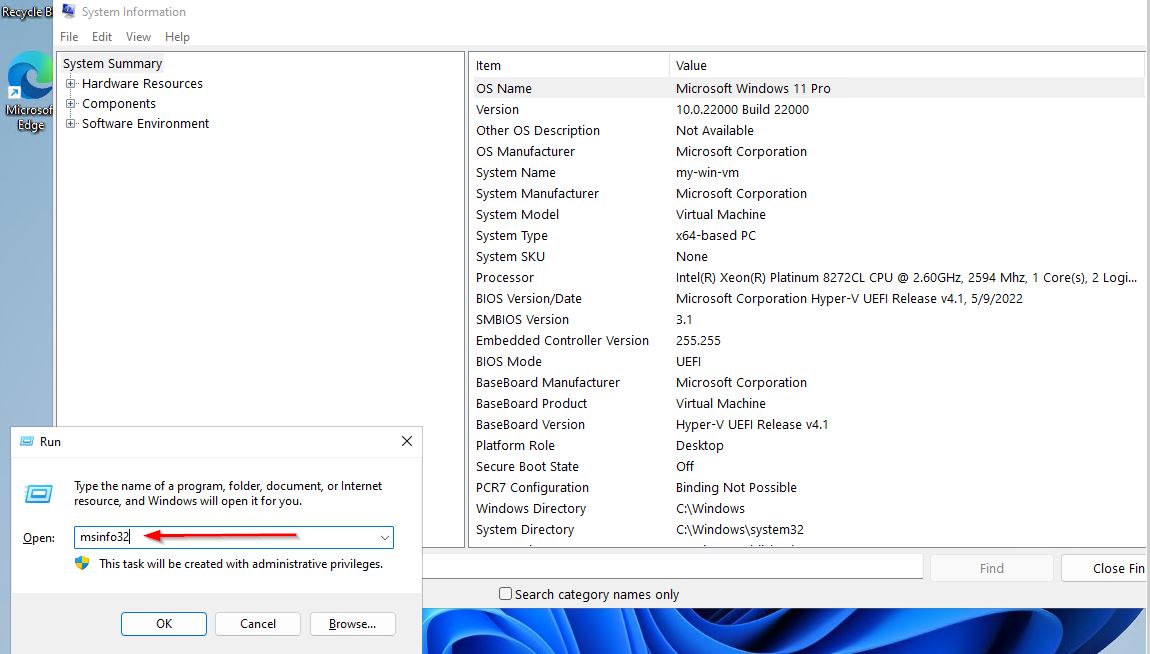
msinfo32
Checking-System-info-through-GUI

One other way to view System Information is to use the GUI. From the search bar on your Windows taskbar, search for and click on System Information and press the Enter key:

Search-for-System-Info
Checking-System-info-through-GUI

You can also view your system information by pressing Windows + R to open the Windows Run command and then typing "msinfo32" and press the Enter key:

Checking-System-info-through-GUI

I hope you found this blog post on how to find BIOS Serial Number and System Information on Windows 11 helpful. Please let me know in the comment session if you have any questions.

5/5 - (1 vote)

Thank you for reading this post. Kindly share it with others.

  • Click to share on X (Opens in new window) X
  • Click to share on Reddit (Opens in new window) Reddit
  • Click to share on LinkedIn (Opens in new window) LinkedIn
  • Click to share on Facebook (Opens in new window) Facebook
  • Click to share on Pinterest (Opens in new window) Pinterest
  • Click to share on Tumblr (Opens in new window) Tumblr
  • Click to share on Telegram (Opens in new window) Telegram
  • Click to share on WhatsApp (Opens in new window) WhatsApp
  • Click to share on Pocket (Opens in new window) Pocket
  • Click to share on Mastodon (Opens in new window) Mastodon
  • Click to share on Bluesky (Opens in new window) Bluesky
  • Click to share on Threads (Opens in new window) Threads
  • Click to share on Nextdoor (Opens in new window) Nextdoor
Windows Tags:BIOS, Windows 10, Windows 11

Post navigation

Previous Post: How to install Googler on a Linux System
Next Post: How to Switch between Users in Linux

Related Posts

  • Feature image  Error Code 0xC1900101 – 0x30018
    How to Fix Windows Update Error Code 0xC1900101 – 0x30018 Windows
  • Trellix Native Encryption
    Manage BitLocker and FileVault with Trellix Native Encryption Mac
  • win10
    How to add a device to Windows Windows
  • create a Mapped Drive via GPO
    How to create a Mapped Drive via GPO Preferences Windows
  • PXE Boot to Install OS HyperV
    Run Hype-V on Windows 11 and Install Windows OS via PXE Boot Windows
  • Uninstall MicrosoftDefenderUpdate
    Remove Microsoft Defender Update on Windows 10 & Server Windows

More Related Articles

Feature image  Error Code 0xC1900101 – 0x30018 How to Fix Windows Update Error Code 0xC1900101 – 0x30018 Windows
Trellix Native Encryption Manage BitLocker and FileVault with Trellix Native Encryption Mac
win10 How to add a device to Windows Windows
create a Mapped Drive via GPO How to create a Mapped Drive via GPO Preferences Windows
PXE Boot to Install OS HyperV Run Hype-V on Windows 11 and Install Windows OS via PXE Boot Windows
Uninstall MicrosoftDefenderUpdate Remove Microsoft Defender Update on Windows 10 & Server Windows

Leave a Reply Cancel reply

You must be logged in to post a comment.

Microsoft MVP

VEEAMLEGEND

vexpert-badge-stars-5

Virtual Background

GoogleNews

Categories

veeaam100

sysadmin top30a

  • Install RSAT on Windows 11 today
    Install Remote Server Administration Tools on Windows 11 Windows
  • sshkey
    How to perform SSH key-based authentication in Linux Linux
  • windows update 03
    Fix Windows cannot check for updates in Windows 8, 7, and 10 Windows
  • Protech Synology NAS
    Cybersecurity Tips to Secure Synology NAS against Ransomware Reviews
  • Turn bluetooth on and off
    Unable to Turn Bluetooth On or Off on Mac Mac
  • chocolatey
    Windows Package Manager: How to install, upgrade or uninstall Chocolatey Windows
  • tmutil localsnapshot
    Fix what is taking up my Mac Storage? Delete Snapshots Network | Monitoring
  • xxxxxx 1
    Active Directory Administrative Tools shortcut Windows Server

Subscribe to Blog via Email

Enter your email address to subscribe to this blog and receive notifications of new posts by email.

Join 1,836 other subscribers
  • RSS - Posts
  • RSS - Comments
  • About
  • Authors
  • Write for us
  • Advertise with us
  • General Terms and Conditions
  • Privacy policy
  • Feedly
  • Telegram
  • Youtube
  • Facebook
  • Instagram
  • LinkedIn
  • Tumblr
  • Pinterest
  • Twitter
  • mastodon

Tags

Active Directory AWS Azure Bitlocker Microsoft Windows PowerShell WDS Windows 10 Windows 11 Windows Server 2016

Copyright © 2025 TechDirectArchive


Loading Comments...
 

You must be logged in to post a comment.