How to transfer data from an old PC to a new PC

In this guide, you will learn how to transfer data from an old PC to a new PC. If you’ve recently purchased a new PC and want to transfer your data from your old PC. There are a few different methods you can try. Here are other interesting guides: How to restore quarantined files in Microsoft Defender Antivirus, How to find and remove Malware with Microsoft Defender Offline, and how to remove Microsoft Defender update on Windows 10 and Windows Server image.
Transferring data from an old computer to a new computer is a very common activity. It’s always tempting to upgrade to a quicker, slimmer, shinier gadget. But you don’t want to lose all of your data.
No worries. There are many methods for transferring data from an old PC to a new PC, which we’ve covered right here. how to view Microsoft Defender Antivirus update details on Windows 10 image (install.wim), and how new Windows 11 encryption features and security enhancements will help protect hybrid work.
The methods listed below will help you easily transfer data from one PC to another without losing any data. Here are some related guides also: How to install Fax Server on a Windows Server,. How to uninstall, reinstall, and update Zoom on Mac, and how to install and use Burp Suite for Web Application Security Testing.
Use online storage to transfer your data
If you have your data stored in the cloud, such as in OneDrive, Dropbox, or Google Drive. You can simply log in to your account on your new PC and download the files you want to transfer. Most businesses use OneDrive, which is a cloud storage service provided by Microsoft. It allows users to store, share, and access their files from anywhere with an internet connection.
OneDrive is integrated into the Windows operating system and can be accessed from File Explorer on your PC. Or through the OneDrive app on your mobile device.

OneDrive has many benefits, such as letting you store and access your files from any device. Letting you share files with other people, and letting you access your files even when you’re not online. It also offers automatic backup and synchronization of your files So you can be sure that your important documents are always up-to-date.
OneDrive offers different storage plans to suit your needs, ranging from a free plan with 5 GB of storage to a premium plan with 100 GB or more. It’s a convenient and secure way to store, access, and share your files and is a useful tool for both personal and business use.
Transferring files and folders between PCs is simple as long as you have an internet connection. And you can relax knowing that your data is safe against hard drive failure. The only drawback is that your apps and settings will not be transferred to your new PC.
If you are new to using OneDrive, here is a detailed guide to get you started: Files On-Demand with OneDrive: Microsoft OneDrive Setup On Windows 10 and 11 and Key Features Explained.
Use a removable storage device to transfer your data
Using an external hard disk to move data from an old PC to a new PC also provides a backup of your data in the event that anything goes wrong. This mainly manual procedure may take a little longer. But if you already have an external drive, you can move your information without paying any more money.

Simply insert your hard drive into your old PC, transfer your files and folders from your old PC to the drive, then plug it into your new PC and reverse the transfer procedure. It is important to note that utilizing an external hard drive does not allow you to move your Windows settings or apps. This is merely a way for transferring files and folders.
Please see How to move OneDrive Folder to a Different Location in Windows 10. Also, see how to clone a repository and install software from GitHub on Windows, and how to transfer Windows license from one PC to the other on Windows 10 and 11.
Use a PC migration tool to clone your hard drive
PC cloning is a piece of genius that generates an identical clone of your old hard drive on a new disk, either external or internal. Once a drive has been cloned, it should be able to be attached and launched on your new PC.
There are various cloning software options to pick from, but I’ve had the most luck using Macrium Reflect. There is a free version for casual users, a home edition with four licenses, a free commercial version, and premium versions with different prices.

Though a free version of Macrium is available for casual use, the Home Edition provides a full year of extended support as well as usage rights for four PCs. If you’re serious about backups and clones, this is the way to go.
Here is how to Migrate a User Profile: How to import a user profile in Windows to another Windows PC.
Use Nearby Sharing to transfer your data from PC to PC
Nearby sharing is a feature in Windows 10 and 11 that uses Bluetooth, Wi-Fi, and Ethernet to transfer files between PCs nearby. It works similar to how you might share files using Bluetooth, but with a few additional features.
To use Nearby sharing, both devices must be running Windows 10 or 11 and have Nearby sharing enabled. To enable Nearby sharing, press the Windows key to open the Start menu and search for Nearby share.

In the Nearby Sharing setting, choose “My devices only” to connect to devices you’ve paired with before and choose “Everyone Nearby” if you’re connecting to a new PC.

Once enabled, you can simply right-click on the file you want to share and select the “Share” option.
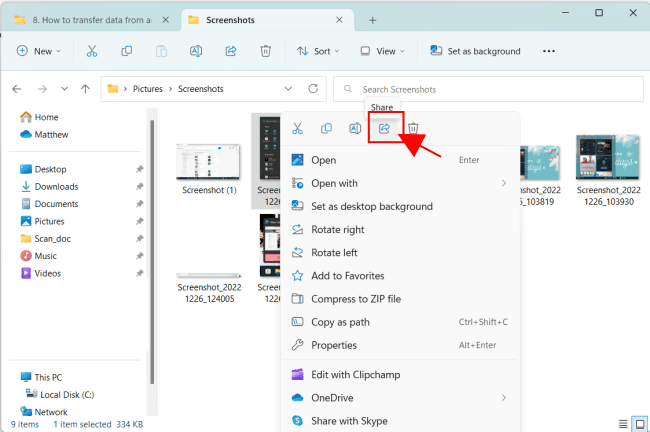
A list of nearby devices that are available to receive the file will then be displayed. You can select the device you want to send the file to, and the file will be transferred wirelessly over a direct connection between the two devices.

Nearby sharing makes it easy to share files quickly without having to use cables or the internet.
Conclusion on how to transfer data from an old PC to a new PC
No matter which method you choose, it’s important to make sure that you have a backup of your data before transferring it. This will ensure that you don’t lose any important files in the process.
With these methods in mind, you should be able to easily transfer your data from an old PC to a new PC.


