Batch rename multiple files on Windows


Batch renaming files refers to the process of renaming multiple files at once, rather than renaming each file individually. This can be useful if you have a large number of files that need to be renamed, as it can save time and effort compared to renaming each file separately. On a Windows PC, you can rename multiple files at once in a number of ways, such as with File Explorer, PowerShell, Command Prompt, or a third-party tool. In this article, I will show you how to batch rename multiple files on Windows 10 and Windows 11.
When batch renaming files, you have the option to change the entire file name or just certain parts of it, such as the extension or certain words within the name. You can also add numbers or other characters to the file name to help organize your files. Here are other related posts: How to restore quarantined files in Microsoft Defender Antivirus, and how to find and remove Malware with Microsoft Defender Offline,
Overall, batch renaming files is a useful technique for quickly and easily renaming a large number of files at once. It can be especially useful for organizing files and keeping them consistent with a specific naming convention. Please refer to these related guides: how to remove Microsoft Defender update on Windows 10 and Windows Server image, and how to view Microsoft Defender Antivirus update details on Windows 10 image (install.wim).
This guide will walk you through several different ways to batch rename files, including changing the extension.
How to rename multiple files using File Explorer
The easiest way to rename one or multiple files on Windows is by using File Explorer. Here is an excellent guide on how Windows 11 encryption features and security enhancements will help protect hybrid work.
Rename multiple files one at a time
To rename multiple files one at a time with the “Tab” key, use these steps:
Open File Explorer by pressing the File Explorer icon in the taskbar, or press the “Windows key + E” keyboard shortcut. Navigate to the folder with the files to rename.
Select the first file in the folder and right click on it and select Rename from the option menu. Or click the rename icon.

Type the new name for the file and press the Tab key to jump to the next file down the list. Continue pressing the Tab key after renaming each file until all the files are renamed.
Batch Rename multiple files at once in Windows
To rename multiple files in bulk with the same name structure on Windows 10, use these steps:
Open File Explorer by pressing the File Explorer icon in the taskbar, or press “Windows key + E” keyboard shortcut.
Navigate to the folder with the files to rename and press “Ctrl + A” keyboard shortcut to select all the files in the folder.

With all the files selected, right click on the first files in the folder and select Rename or simply click the rename icon.
Type the new name for the file and press Enter.

After you finish the steps, the selected files will be renamed using the same naming structure you chose, but with a count number in parentheses to make each name unique. See, for example, picture (1).jpg and picture (2).jpg.
You could use the “Ctrl + Z” keyboard shortcut to undo the changes if you made a mistake. Alternatively, you can select the Undo button by clicking the menu button in the title bar.
How to rename multiple files using Command Prompt
Command Prompt also offers multiple ways to change the name of multiple files in bulk on Windows 10 and 11.
How to Rename a Single File in Windows
To rename a single file with Command Prompt, use these steps. Press the Windows key to open the Start menu, search for Command Prompt, and click the top result to open the app.

Navigate to the file path to rename example:
cd c:\PATH\TO\FILESIn the command, replace “PATH\TO\FOLDER” with the actual path to the location. For example, this command navigates the “files” folder inside “Documents”:
cd C:\Users\USERNAME\Pictures\renameAlternatively, if you have to input a lengthy file path at the command prompt to get to the folder files to rename, launch File Explorer and browse to the file path to rename. Then, in the file path, type “cmd” and press Enter, as seen below.

This will open the command prompt in the exact file path you want. To view the files in the location, type dir at the command prompt and press Enter.

To rename the file, press Enter after typing this command:
ren "Picture (1).png" image.png
In the command, replace “Picture (1).png” image.png with the old and new file names. The quotation (“”) marks are only necessary if the title includes spaces.
How to Batch Rename Multiple Files
Follow these steps to rename multiple files at once with the same name structure using the Command Prompt:
Press the Windows key to open the Start menu, search for Command Prompt, and click the top result to open the app.
Navigate to the file path to rename example:
cd c:\PATH\TO\FILESIn the command, replace “PATH\TO\FOLDER” with the actual path to the location. For example, this command navigates the “files” folder inside “Documents”:
cd C:\Users\USERNAME\Pictures\renameAlternatively, if you have to input a lengthy file path at the command prompt to get to the folder files to rename, launch File Explorer and browse to the file path to rename. Then, in the file path, type “cmd” and press Enter, as seen below.

This will open the command prompt in the exact file path you want. To view the files in the location, type dir at the command prompt and press Enter.

To modify part of the name of multiple files at once, press Enter after typing this command:
ren *.png ???"_holiday trip".*
To change the entire name of multiple files at once, press Enter after typing this command:
ren london_trip_2022*.* holiday_trip_2022*.*
In the command, replace “.jpg” with the extension to change and “image” with part of the name to add to the files. The asterisk (*) is a wildcard that tells the ren command to rename everything with a specific extension. The question mark (?) is also a wildcard, but it represents a character of the original name you want to keep as part of the new name. For example, this command renames all “.jpg” files leaving the first three characters (which works as a unique identifier to avoid duplication) and appends “_music festival” to the name: ren *.jpg ???”_music festival”.*
Change file extension
To change the file extension to another, use these steps:
Press the Windows key to open the Start menu, search for Command Prompt, and click the top result to open the app.
Navigate to the file path to rename example:
cd c:\PATH\TO\FILESIn the command, replace “PATH\TO\FOLDER” with the actual path to the location. For example, this command navigates the “files” folder inside “Documents”:
cd C:\Users\USERNAME\Pictures\renameType the following command to change the file extension and press Enter:
ren *.OLD-EXTENSION *.NEW-EXTENSION
In the command, replace “OLD-EXTENSION” and “NEW-EXTENSION” with the old and new file extensions. For instance, this command changes the extension from “.txt” to “.doc” compatible with Microsoft Word, for the files in the location: ren *.txt *.doc
Rename files with specific extension
The previous steps renamed every file within the location. But if you only want to rename a group of files with a certain format, you must leave out the asterisk (*) and type in the target extension for the command.
To rename files with a specific file extension with Command Prompt, use these steps:
Press the Windows key to open the Start menu, search for Command Prompt, and click the top result to open the app.
Navigate to the file path to rename example:
cd c:\PATH\TO\FILESIn the command, replace “PATH\TO\FOLDER” with the actual path to the location. For example, this command navigates the “files” folder inside “Documents”:
cd C:\Users\USERNAME\Pictures\renameType the following command to change the file extension in the location and press Enter:
ren OLD-FILE-NAME*.EXTENSION NEW-FILE-NAME*.EXTENSION
In the command, change “OLD-FILE-NAME,” “NEW-FILE-NAME,” and “EXTENSION” with the old and new file name and extension. For instance, this command only renames images with a “.jpg” extension: ren picture-*.jpg vacation*.jpg
How to rename multiple files using PowerShell
You can also use PowerShell to rename multiple files on Windows 10. Although you have many ways to manipulate files using this tool, the instructions in this guide are only meant to get you started with the most common scenarios.
Rename single file
To rename only one file with a PowerShell command, use these steps:
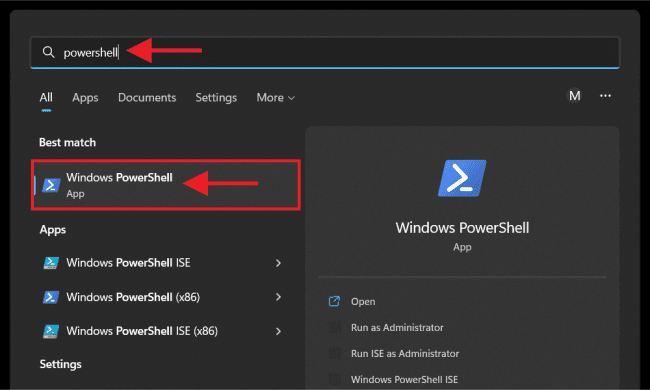
Press the Windows key to open the Start menu, search for PowerShell, and click the top result to open the app.
Navigate to the file path to rename example:
cd c:\PATH\TO\FILESIn the command, replace “PATH\TO\FOLDER” with the actual path to the location. For example, this command navigates the “files” folder inside “Documents”:
cd C:\Users\USERNAME\Pictures\renameAlternatively, if you have to input a lengthy file path at the command prompt to get to the folder files to rename, launch File Explorer and browse to the file path to rename. Then, in the file path, type “PowerShell” and press Enter, as seen below.

This will open the PowerShell in the exact file path you want. To view the files in the location, type ls at the prompt and press Enter.

Type the following command to change the name of a single file and press Enter:
Rename-Item "OLD-FILE-NAME.EXTENSION" "NEW-FILE-NAME.EXTENSION"In the command, specify the old and new file names and extensions. The quotation marks are only required if the name includes spaces. For instance, this command renames the file to “batch_file_notes.txt”:
Rename-Item "Picture (1).png" image.png
Repeat the above steps to continue renaming other files.
Once you complete the steps, the command will change the file’s name to what you specified.
Rename multiple files in bulk
To rename multiple files in bulk when the name structure is not important, use these steps:
Press the Windows key to open the Start menu, search for PowerShell, and click the top result to open the app.
Navigate to the file path to rename example:
cd c:\PATH\TO\FILESType the following command to rename multiple files in bulk and press Enter:
ls | %{Rename-Item $_ -NewName ("NEW-FILE-NAME-{0}.EXTENSION" -f $nr++)}In the command, replace “NEW-FILE-NAME” with the actual structure name you want to use. For instance, this command renames images with a “.jpg” extension using the same (“beach-trip-2022-“) naming structure and appends a different number at the end of the name: ls | %{Rename-Item $_ -NewName (“beach-trip-2022-{0}.jpg” -f $nr++)}
After you finish these steps, the files in the format you chose will be renamed using the naming structure given by the command.
Conclusion
I hope you find the post helpful. Now you have learned how to batch rename multiple files on Windows instead of renaming each file individually. If you have any questions, please leave a comment below.


