Skip to content

TechDirectArchive

Hands-on IT, Cloud, Security & DevOps Insights

  • Home
  • About
  • Advertise With US
  • Reviews
  • Contact
  • Toggle search form
Home » Windows » How to add and modify the Windows Registry from the Command Prompt
  • image 129
    Using Awx to deploy, schedule and run playbooks Linux
  • Proxmox Installation
    Install Proxmox VE on a Beelink EQ12 Mini PC Virtualization
  • 980239e9 cisco logo 2
    LACP Configuration on Cisco 3650 Switch Network | Monitoring
  • Featured Image
    Restore Point Creation in Windows 10 and Windows 11 Windows
  • Wiki in Linux
    How to Use Wiki from Linux Terminal Linux
  • microsoft confirms some pcs freeze after windows 10 2
    Information on BOOTP Vendor Extensions and DHCP Options Windows Server
  • maxresdefault 1
    How to locate and edit the host file on macOS Mac
  • Razer
    Administrative rights gained through Razer devices on Windows 10 Security | Vulnerability Scans and Assessment

How to add and modify the Windows Registry from the Command Prompt

Posted on 01/04/202304/06/2023 Matthew By Matthew No Comments on How to add and modify the Windows Registry from the Command Prompt
Using-the-Command-Prompt-to-add-and-modify-the-Windows-registry
Using the Command Prompt to add and modify the Windows registry

The Windows Registry is a critical component of the Windows operating system that contains several configuration settings. It’s a tree-structured database that stores all the configuration data for your system, including hardware specs, software versions, user preferences, and more. Both the Windows Registry Editor and the Command Prompt can be used to access and edit the Registry. If you’re a system administrator and you want to automate processes, make changes in bulk, or just prefer the command line over a graphical user interface, this might be helpful for you. The Command Prompt’s ability to create and edit entries in the Windows Registry is useful in this setting. Registry keys and values can be added, modified, deleted, exported, and imported using the Command Prompt.

Modifying the registry, however, is a delicate procedure that might cause damage to your system if you aren’t careful. To effectively manage the registry, it is crucial to be familiar with its structure and the command-line tools at your disposal. It’s also a good idea to make a copy of the registry before making any changes, just in case. Learn more about this fix: Can’t connect via RDP upon installing Norton 360, and How to Fix “Getting Windows Ready” don’t turn off your computer stuck on Windows.

To see a list of operations and what each does, visit the Microsoft website. Kindly refer to these related guides: How To Scan WordPress websites With WPScan For Security Vulnerabilities, and How to Fix OneDrive Error 0x80071129: The tag present in the reparse point buffer is invalid.

Adding a new key to the Windows Registry from the Command Prompt

Here’s how to use the Command Prompt to add a new key to the Windows Registry. Press the Windows key to open Start, search for CMD and run as administrator.

Add and modify the Windows Registry from the Command Prompt: 1_Run-Command-Prompt
Open Command Prompt as Administrator

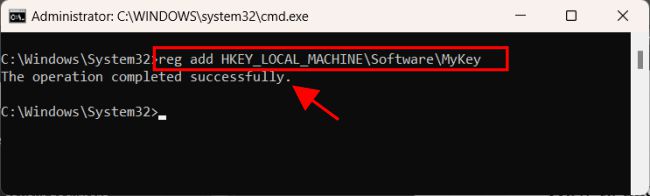
Type “reg add” and the key path you want to create, in the format “HKEY_LOCAL_MACHINE\Key\SubKey” For example, if you want to create a new key called “MyKey” under “HKEY_LOCAL_MACHINE\Software” type:

reg add HKEY_LOCAL_MACHINE\Software\MyKey
Add and modify the Windows Registry from the Command Prompt: 1_Adding-registry-key
Adding registry key

Press Enter to add the new key to the Windows Registry. Here are some exciting guides. Error 1064: An exception occurred in the service when handling the control request. How to export MySQL database via command line in Linux, and Restoring a Backup: How to import a MySQL Database through the command line interface.

Adding a new value to a Windows Registry key from the Command Prompt

Follow these instructions to assign a new value to a Windows Registry key through the command prompt. Press the Windows key to open Start, search for CMD and run as administrator.

Add and modify the Windows Registry from the Command Prompt: 1_Run-Command-Prompt
Open Command Prompt as Administrator

Type “reg add” followed by the key path in the format “HKEY_LOCAL_MACHINE\Key\SubKey” where you wish to add the value. To add a new value named “MyValue” to the key named “MyKey” that you just created, the command would look like this:

reg add HKEY_LOCAL_MACHINE\Software\MyKey /v MyValue /t REG_SZ /d "TechDirectArchive"
2_Adding-new-value-to-registry
Adding new value to registry

The “/v” specifies the name of the value, “/t” the type of the value, and “/d” the data associated with the value in this command. The text “TechDirectArchive” will be stored in a new string value with the name “MyValue” in this example.

Press Enter to add the new value to the Windows Registry key.

Using the command prompt to modify an existing Windows Registry value

Using the Command Prompt, you can make the following changes to an existing value in the Windows Registry:

Press the Windows key to open Start, search for CMD and run as administrator.

1_Run-Command-Prompt
Open Command Prompt as Administrator

Type “reg add” followed by the key path in the format “HKEY_LOCAL_MACHINE\Key\SubKey” to specify the location of the value. To edit the value labeled “MyValue” under the key “MyKey” that you just generated, the corresponding command would be:

reg add HKEY_LOCAL_MACHINE\Software\MyKey /v MyValue /t REG_SZ /d "Welcome to TechDirectArchive"

You will be prompted to overwrite the existing value in the registry location, press Y and hit Enter to confirm.

3_Modifying-existing-Windows-registry
Modifying an existing Windows registry

By entering this command, we are instructing the computer to replace the text “TechDirectArchive” with “Welcome to TechDirectArchive” in the “MyValue” variable.

4_windows-registry
Windows Registry Editor

You can see the changes we have made in the registry editor.

Deleting a Windows Registry key or value from the Command Prompt

Using the Command Prompt, you can remove a key or value from the Windows Registry by doing the following:

1_Run-Command-Prompt
Open Command Prompt as Administrator

Press the Windows key to open Start, search for CMD and run as administrator.

The second step is to remove the key or value by entering “reg delete” and then the key path in the format “HKEY_LOCAL_MACHINE\Key\SubKey” for keys or “HKEY_LOCAL_MACHINE\Key\SubKey /v ValueName” for values. To remove the key named “MyKey” that you generated, you would use the following command:

reg delete HKEY_LOCAL_MACHINE\Software\MyKey /f
5_Delete-registry-key
Delete registry key

Here, /f forces the deletion of the key and all its subkeys without prompting for confirmation. Please see How to run the Cisco ASDM launcher, and informative guide on Linux basic commands.

I hope you find this helpful in adding and modifying registry keys through the Command Prompt. If you have any questions, please leave a comment in the comment section below.

Rate this post

Thank you for reading this post. Kindly share it with others.

  • Click to share on X (Opens in new window) X
  • Click to share on Reddit (Opens in new window) Reddit
  • Click to share on LinkedIn (Opens in new window) LinkedIn
  • Click to share on Facebook (Opens in new window) Facebook
  • Click to share on Pinterest (Opens in new window) Pinterest
  • Click to share on Tumblr (Opens in new window) Tumblr
  • Click to share on Telegram (Opens in new window) Telegram
  • Click to share on WhatsApp (Opens in new window) WhatsApp
  • Click to share on Pocket (Opens in new window) Pocket
  • Click to share on Mastodon (Opens in new window) Mastodon
  • Click to share on Bluesky (Opens in new window) Bluesky
  • Click to share on Threads (Opens in new window) Threads
  • Click to share on Nextdoor (Opens in new window) Nextdoor
Windows Tags:Microsoft Windows, Registry, Registry Keys, Windows 10, Windows 11, Windows Registry

Post navigation

Previous Post: How to Fix OneDrive Error 0x80071129: The tag present in the reparse point buffer is invalid
Next Post: How to uninstall WAMPServer from Windows

Related Posts

  • reliablee
    How to use the Reliability Monitor in Windows Windows
  • Comprehensive Guide to Passkeys on Windows Devices
    Comprehensive Guide to Passkeys on Windows Devices Windows
  • what is winrm
    WinRM cannot complete the operation, verify that the specified computer name is valid Windows
  • PrintButton
    How to add Print Drivers with PowerShell, RUNDLL32, and VBScript in Windows 10 Windows
  • Featured image   change default mail app
    How to change Windows 11 and 10 default mail app to Outlook Windows
  • Feature image .msixbundle
     How to Bundle MSIX Packages Windows

More Related Articles

reliablee How to use the Reliability Monitor in Windows Windows
Comprehensive Guide to Passkeys on Windows Devices Comprehensive Guide to Passkeys on Windows Devices Windows
what is winrm WinRM cannot complete the operation, verify that the specified computer name is valid Windows
PrintButton How to add Print Drivers with PowerShell, RUNDLL32, and VBScript in Windows 10 Windows
Featured image   change default mail app How to change Windows 11 and 10 default mail app to Outlook Windows
Feature image .msixbundle  How to Bundle MSIX Packages Windows

Leave a Reply Cancel reply

You must be logged in to post a comment.

Microsoft MVP

VEEAMLEGEND

vexpert-badge-stars-5

Virtual Background

GoogleNews

Categories

veeaam100

sysadmin top30a

  • image 129
    Using Awx to deploy, schedule and run playbooks Linux
  • Proxmox Installation
    Install Proxmox VE on a Beelink EQ12 Mini PC Virtualization
  • 980239e9 cisco logo 2
    LACP Configuration on Cisco 3650 Switch Network | Monitoring
  • Featured Image
    Restore Point Creation in Windows 10 and Windows 11 Windows
  • Wiki in Linux
    How to Use Wiki from Linux Terminal Linux
  • microsoft confirms some pcs freeze after windows 10 2
    Information on BOOTP Vendor Extensions and DHCP Options Windows Server
  • maxresdefault 1
    How to locate and edit the host file on macOS Mac
  • Razer
    Administrative rights gained through Razer devices on Windows 10 Security | Vulnerability Scans and Assessment

Subscribe to Blog via Email

Enter your email address to subscribe to this blog and receive notifications of new posts by email.

Join 1,836 other subscribers
  • RSS - Posts
  • RSS - Comments
  • About
  • Authors
  • Write for us
  • Advertise with us
  • General Terms and Conditions
  • Privacy policy
  • Feedly
  • Telegram
  • Youtube
  • Facebook
  • Instagram
  • LinkedIn
  • Tumblr
  • Pinterest
  • Twitter
  • mastodon

Tags

Active Directory AWS Azure Bitlocker Microsoft Windows PowerShell WDS Windows 10 Windows 11 Windows Server 2016

Copyright © 2025 TechDirectArchive


Loading Comments...
 

You must be logged in to post a comment.