Skip to content

TechDirectArchive

Hands-on IT, Cloud, Security & DevOps Insights

  • Home
  • About
  • Advertise With US
  • Reviews
  • Contact
  • Toggle search form
Home » AWS/Azure/OpenShift » Create App Service Resource with Azure CLI
  • Windows Server 2019
    The virtual machine has terminated unexpectedly during startup with exit code 1 (1×0): Failed to open a session for the virtual machine Windows Server 2019 Virtualization
  • Webp.net resizeimage 2
    Add or Remove Network Interface from a VM in Azure AWS/Azure/OpenShift
  • enable WinRM
    WSManFault Message 2144108526 0x80338012: Fix the client cannot connect to the destination specified in the request Windows Server
  • sdfg
    How to Upgrade Windows Admin Center Manually Windows Server
  • why use bitlocker drive encryption.width 800
    This device cannot use a Trusted Platform Module, allow BitLocker without a compatible TPM when turning on Bitlocker Windows
  • View installed Updates on Windows
    Get lists of installed Microsoft Windows Updates Windows
  • Burn ISO on MAC   Proxmox installation
    Create a bootable USB on Mac: Proxmox VE Setup Virtualization
  • LINUX CONTAINERS
    How to install LXC/LXD for container management Linux

Create App Service Resource with Azure CLI

Posted on 24/06/202320/12/2023 Raphael Gab-Momoh By Raphael Gab-Momoh No Comments on Create App Service Resource with Azure CLI
featuredimage

Azure App Services is a platform-as-a-service (PaaS) offering by Azure designed for web applications. It empowers developers to concentrate on their core expertise while Azure manages the underlying infrastructure required to run the code. Now, if Azure handles the infrastructure, the question arises: how do we deploy our code to Azure? This article will primarily focus on how to create App Service Resource with Azure CLI. Please see how to Fix 0x800f0831 Error when installing Windows update, and Relating Due Diligence and Due Care to Veeam Backup and Replication.

What is required for App Services resource

We must create a resource group for housing the App services project. There is a need to create an App Services Plan. We need to create a web application. Lastly, we also need to push code to the web application from a version control system like GitHub to the web app in the previous step.

Please see Azure CLI commands: How to use Azure Command-line Interface, How to uninstall AWS CLI in Windows, Create an App Service Plan with Continuous Deployment to deploy a .NET Application from GitHub, and How to use the Azure Cloud Shell or Azure CLI and Azure PowerShell.

Create a resource group with Azure CLI for Azure App Service

To initiate any project, the initial step is to create a resource group. A resource group serves as a logical container that encompasses all the resources associated with our application. We can create this resource group using the following command:

az group create --name techdirectg --location eastus
resource-group-use-azure-cli-to-create-app-service-resources
Resource group created

Please see How to delete a Virtual Machine via the Azure Portal, AWS CLI Error: All commands return Unknown output type [None], and how to Move Azure Resources between Subscriptions.

Create an app service plan with Azure CLI for Azure App Service.

Creating an app service plan is essential when establishing a scalable and efficient environment for hosting web applications in Azure. An app service plan serves as the foundation, dictating the available resources, capabilities, and scaling options for your applications.

Through the meticulous configuration of the app service plan, you can ensure optimal performance, cost management, and flexibility that align with your application’s specific requirements.

In this guide, we will delve into the process of creating an app service plan in Azure.. To create the plan, you can utilize the following command:

az appservice plan create --name techdAppServicePlan --resource-group techdirectg

The az appservice plan create It is the main command that initiates the plan creation

--name This is the name we wish to call the plan, and we have decided to use the name techdAppServicePlan

--resource-group this is where the project resides, and we have chosen to use the resource group we created earlier called techdirectg

App-service-Plan-created
App service plan created

Create a web application with Azure CLI for Azure App Service

You can leverage the Azure CLI to create a web application by executing the command “az webapp create”. This command serves as the starting point for initiating the creation process of a new web app.

By supplying the required parameters, including the name, resource group, and app service plan, you can commence building your application. To begin, follow the provided order of steps below:

# create a webapp
az webapp create --name techdirectappserviceapplication  --resource-group techdirectg --plan techdAppServicePlan
web-app-created
Web app created
Web-application-is-running
Web application confirmed running in Azure portal

Deploy an Application with Azure CLI for Azure App Service

To deploy a sample app, use the Azure CLI command az webapp deployment source config once your credentials have been configured. Using this command, you will be able to configure the deployment source for your web application.

To deploy to a repository, you must specify the URL, local directory paths, and the type of deployment source, such as a local Git repository or a GitHub repository; find the command to use below:

az webapp deployment source config –name techdirectappserviceapplication –resource-group techdirectg –repo-url https://github.com/raphgm/sample_appservice-app.git –branch master –manual-integration

Important points to consider:

  • --resource-group: Replace this parameter with the name of the resource group that you previously created.
  • --name: Specify the name of the web app you want to make.
  • --repo-URL: This refers to the repository URL where your application code is stored. In this case, it assumes the code is hosted on GitHub. You can use the provided URL in the code snippet above or create your repository.
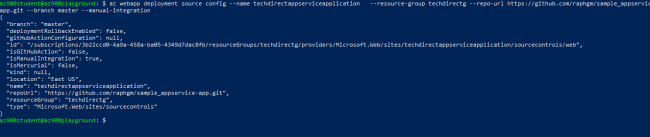
sample-code-from-github
Sample App incorporated with code

After the deployment is completed, verify the success of the deployment by accessing the URL of your Azure App Service in a web browser. This will allow you to confirm that your test application is running smoothly.

I hope you found this blog post helpful on how to Create App Service Resource with Azure CLI. Please let me know in the comment section if you have any questions.

Rate this post

Thank you for reading this post. Kindly share it with others.

  • Click to share on X (Opens in new window) X
  • Click to share on Reddit (Opens in new window) Reddit
  • Click to share on LinkedIn (Opens in new window) LinkedIn
  • Click to share on Facebook (Opens in new window) Facebook
  • Click to share on Pinterest (Opens in new window) Pinterest
  • Click to share on Tumblr (Opens in new window) Tumblr
  • Click to share on Telegram (Opens in new window) Telegram
  • Click to share on WhatsApp (Opens in new window) WhatsApp
  • Click to share on Pocket (Opens in new window) Pocket
  • Click to share on Mastodon (Opens in new window) Mastodon
  • Click to share on Bluesky (Opens in new window) Bluesky
  • Click to share on Threads (Opens in new window) Threads
  • Click to share on Nextdoor (Opens in new window) Nextdoor
AWS/Azure/OpenShift Tags:Azure, Azure CLI

Post navigation

Previous Post: Disable credential Prompts for Remote Desktop Connections
Next Post: How To Use Logrotate For Managing Log Files In Ubuntu Linux

Related Posts

  • AzureMonitor
    Configure Azure Monitor for VMs on Azure Stack Hub AWS/Azure/OpenShift
  • react 1
    How to deploy a React Application to AWS S3 AWS/Azure/OpenShift
  • images
    Lifecycle rules: Transition to Glacier still appears in s3 AWS/Azure/OpenShift
  • oauth2final
    How to implement Interactive Authentication using MSAL dotNET AWS/Azure/OpenShift
  • MSSQL Always On Cluster on Azure
    [AZURE] Procedure for creating an MSSQL Always On Cluster on Azure AWS/Azure/OpenShift
  • azure 1
    Fix SSO sign-in and non-routable domain issues AWS/Azure/OpenShift

More Related Articles

AzureMonitor Configure Azure Monitor for VMs on Azure Stack Hub AWS/Azure/OpenShift
react 1 How to deploy a React Application to AWS S3 AWS/Azure/OpenShift
images Lifecycle rules: Transition to Glacier still appears in s3 AWS/Azure/OpenShift
oauth2final How to implement Interactive Authentication using MSAL dotNET AWS/Azure/OpenShift
MSSQL Always On Cluster on Azure [AZURE] Procedure for creating an MSSQL Always On Cluster on Azure AWS/Azure/OpenShift
azure 1 Fix SSO sign-in and non-routable domain issues AWS/Azure/OpenShift

Leave a Reply Cancel reply

You must be logged in to post a comment.

Microsoft MVP

VEEAMLEGEND

vexpert-badge-stars-5

Virtual Background

GoogleNews

Categories

veeaam100

sysadmin top30a

  • Windows Server 2019
    The virtual machine has terminated unexpectedly during startup with exit code 1 (1×0): Failed to open a session for the virtual machine Windows Server 2019 Virtualization
  • Webp.net resizeimage 2
    Add or Remove Network Interface from a VM in Azure AWS/Azure/OpenShift
  • enable WinRM
    WSManFault Message 2144108526 0x80338012: Fix the client cannot connect to the destination specified in the request Windows Server
  • sdfg
    How to Upgrade Windows Admin Center Manually Windows Server
  • why use bitlocker drive encryption.width 800
    This device cannot use a Trusted Platform Module, allow BitLocker without a compatible TPM when turning on Bitlocker Windows
  • View installed Updates on Windows
    Get lists of installed Microsoft Windows Updates Windows
  • Burn ISO on MAC   Proxmox installation
    Create a bootable USB on Mac: Proxmox VE Setup Virtualization
  • LINUX CONTAINERS
    How to install LXC/LXD for container management Linux

Subscribe to Blog via Email

Enter your email address to subscribe to this blog and receive notifications of new posts by email.

Join 1,836 other subscribers
  • RSS - Posts
  • RSS - Comments
  • About
  • Authors
  • Write for us
  • Advertise with us
  • General Terms and Conditions
  • Privacy policy
  • Feedly
  • Telegram
  • Youtube
  • Facebook
  • Instagram
  • LinkedIn
  • Tumblr
  • Pinterest
  • Twitter
  • mastodon

Tags

Active Directory AWS Azure Bitlocker Microsoft Windows PowerShell WDS Windows 10 Windows 11 Windows Server 2016

Copyright © 2025 TechDirectArchive


Loading Comments...
 

You must be logged in to post a comment.