Skip to content

TechDirectArchive

Hands-on IT, Cloud, Security & DevOps Insights

  • Home
  • About
  • Advertise With US
  • Contact
  • Reviews
  • Toggle search form
Home » Windows » How to Disable and Enable Startup Sound in Windows 11

How to Disable and Enable Startup Sound in Windows 11

Posted on 24/09/202316/12/2025 Temitope Odemo By Temitope Odemo No Comments on How to Disable and Enable Startup Sound in Windows 11
How-to-Disable-Windows-Startup-Sound-in-Windows-11-banner

Microsoft introduced the startup sound in Windows 11 just as we have it in Windows 10 but disabled by default. So if you are in a silent environment and do not want to create any sort of distractions to people around when starting up your system then you will need to disable Windows Startup Sound because not everybody likes how it sounds. In this guide, I will be showing you how to Disable and Enable Startup Sound in Windows 11. Please see how to disable file download in Microsoft Edge, and how to Install Windows 10 on VMware Workstation Player using Windows iso file.

The Windows Startup sound has been introduced but now in an improved way to control and disable options for the user’s convenience. This has continued to make the Windows operating system a friendly OS for people working at night or in libraries.

You can read How to fix sound not working on Google Chrome and How to Fix Audio Services Not Responding on Windows 10 and 11 and you may want to know how to Grant or Deny Microphone Access on Mac

Disable and Enable Windows Startup via Windows System Settings

Open the system settings and select Personalization.

How-to-Disable-Windows-Startup-Sound-in-Windows-11-Personalization

Click on the Themes tab.

How-to-Disable-Windows-Startup-Sound-in-Windows-11-Themes

Click on the sound icon at the top to open the sound settings.

How-to-Disable-Windows-Startup-Sound-in-Windows-11-Sound

In the sound settings uncheck the box Play Windows Startup sound. Click OK to apply the new setting. This will disable the startup sound.
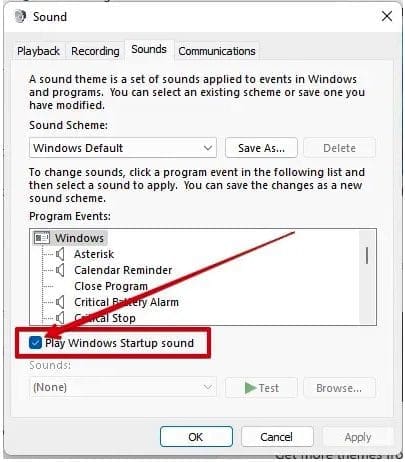
Play Windows Startup sound

If you want to enable it back just check the same box and click ok. See Program startup: How to launch an application automatically during startup on Windows.

Disable or Enable Startup Sound on Windows 11 via Windows Registry

1: Open the regedit

How-to-Disable-Windows-Startup-Sound-in-Windows-11-regedit

2. Once the Registry Editor opens navigate here:

HKEY_LOCAL_MACHINE\SOFTWARE\Microsoft\Windows\CurrentVersion\Authentication\LogonUI\BootAnimation
Locate Windows Registry Key

3. Double-click on DisableStartupSound and set the Base to Hexadecimal and set the Value data to 1 to disable the startup sound or set it to 0 to enable it.

DisableStartupSound via reg key

Please, see “how to Apply and Enable Automatic Windows Admin Center Update“, and “how to schedule and run update via Windows Admin Center“.

Disable or Enable Startup Sound via the Local Group Policy Editor

Run the ‘gpedit.msc’. Please see Master Your Sound Experience: How to Manage Audio Settings on Windows 11, and How to start an application automatically on Mac.

Launch Group Policy Editor

2. Inside the Local Group Policy Editor, navigate to the following location:

Computer Configuration\Administrative Templates\System\Logon
Locate GPo logon settings

3. On the Settings section by the right Double-click on Turn off Windows Startup sound and set the status of the Turn Off Windows Startup sound policy to Enabled and click on Apply and OK.

Turn Off Windows Startup sound policy to Enabled

Restart your computer to confirm if any of the steps worked. When next your computer restarts the startup sound should no longer be heard.

Please, see Why Software KVMs such as Synergy is replacing Hardware KVMs, and Migrate Veeam One Database from SQL Server 2017 to 2025.

FAQs on disabling Windows Startup Sound in Windows 11

Does Windows 11 have a startup sound?

The startup sound was disabled by default in Windows 10 but in Windows 11 the startup sound exists too, but you might need to do a little setup to disable or enable it.

Where is Windows 11 startup sound?

Open Settings, and then click Personalization > Themes > Sounds. 

I hope you found this blog post on how to Disable and Enable Startup Sound in Windows 11 Interesting and helpful. In case you have any questions do not hesitate to ask in the comment section.

Rate this post

Thank you for reading this post. Kindly share it with others.

  • Share on X (Opens in new window) X
  • Share on Reddit (Opens in new window) Reddit
  • Share on LinkedIn (Opens in new window) LinkedIn
  • Share on Facebook (Opens in new window) Facebook
  • Share on Pinterest (Opens in new window) Pinterest
  • Share on Tumblr (Opens in new window) Tumblr
  • Share on Telegram (Opens in new window) Telegram
  • Share on WhatsApp (Opens in new window) WhatsApp
  • Share on Mastodon (Opens in new window) Mastodon
  • Share on Bluesky (Opens in new window) Bluesky
  • Share on Threads (Opens in new window) Threads
  • Share on Nextdoor (Opens in new window) Nextdoor
Windows Tags:automaticstartup, Microsoft Windows, startup, Windows 10, Windows Server 2016

Post navigation

Previous Post: How to Change the Default Web Browser on Windows 11
Next Post: Prevent Microsoft Edge from sending your Search data to Microsoft

Related Posts

  • Screenshot 2020 08 13 at 03.29.53
    Windows Modules Installer: How to deactivate TrustedInstaller in Windows Windows
  • Featured image   This network connection does not exist
    How to fix this network connection does not exist Windows
  • schedulepythontasksinWindows
    Run Python Script via Windows Task Scheduler Windows
  • Directmemoryattack
    How to Protect Thunderbolt Ports in Windows Windows
  • update set expire
    Windows 10 and Windows 11 updates will now expire for better performance Windows
  • Create Multiboot OS ISO files on a single bootable USB Disk
    Create Multiboot OS ISO files on a single bootable USB Disk Windows

More Related Articles

Screenshot 2020 08 13 at 03.29.53 Windows Modules Installer: How to deactivate TrustedInstaller in Windows Windows
Featured image   This network connection does not exist How to fix this network connection does not exist Windows
schedulepythontasksinWindows Run Python Script via Windows Task Scheduler Windows
Directmemoryattack How to Protect Thunderbolt Ports in Windows Windows
update set expire Windows 10 and Windows 11 updates will now expire for better performance Windows
Create Multiboot OS ISO files on a single bootable USB Disk Create Multiboot OS ISO files on a single bootable USB Disk Windows

Leave a Reply Cancel reply

You must be logged in to post a comment.

Microsoft MVP

VEEAMLEGEND

vexpert-badge-stars-5

Virtual Background

GoogleNews

Categories

veeaam100

Veeam Vanguard

  • microsoft edge
    How to forcefully remove Microsoft Edge Browser the hard way from your Windows device Windows
  • centos feature
    How to change the system time zone under RedHat and CentOS Linux
  • ad lds 832x400 1
    Active Directory Lightweight Directory Services [AD LDS] Windows Server
  • Stop teams from auto start
    Prevent Microsoft Teams from starting automatically on Windows Windows
  • PlayF
    How to Install PlayonLinux on a Linux System Linux
  • Windows 11
    How to Change the Lock Screen Wallpaper in Windows 11 Network | Monitoring
  • MSSQLlicensing
    Microsoft SQL Evaluation period has expired: How to upgrade SQL Server instance Oracle/MSSQL/MySQL
  • Screenshot 2020 06 22 at 22.46.00
    How to use a dedicated MsSQL Db for Pleasant Password Oracle/MSSQL/MySQL

Subscribe to Blog via Email

Enter your email address to subscribe to this blog and receive notifications of new posts by email.

Join 1,814 other subscribers
  • RSS - Posts
  • RSS - Comments
  • About
  • Authors
  • Write for us
  • Advertise with us
  • General Terms and Conditions
  • Privacy policy
  • Feedly
  • Telegram
  • Youtube
  • Facebook
  • Instagram
  • LinkedIn
  • Tumblr
  • Pinterest
  • Twitter
  • mastodon

Tags

Active Directory Azure Bitlocker Microsoft Windows PowerShell WDS Windows 10 Windows 11 Windows Deployment Services Windows Server 2016

Copyright © 2025 TechDirectArchive