How to fix “Action required” in Microsoft Authenticator App


In this guide, we will show you how to fix “Action required” in Microsoft Authenticator App. Microsoft Authenticator is a versatile mobile app that not only enables you to sign in to your accounts securely without using a password. Or by manually entering a passcode but also serves as a password manager. Please, see How to setup Microsoft Authenticator, how to Change Two-Factor Authentication in Microsoft 365/Office 365, and how to Hide the Action Center Taskbar Icon In Windows 10.
Note: Microsoft has announced that it will discontinue the password storage and autofill feature in the Authenticator app starting in July and will complete the deprecation in August 2025.
While Microsoft Edge now often handles autofill of passwords and credentials. Microsoft Authenticator still provides essential features such as generating time-based one-time passcodes (TOTPs) for two-factor authentication (2FA) etc. In some cases, especially when autofill isn’t available or for added security. You may still need to enter a passcode generated by the app to access your accounts..
Also, see “Rolling out Multi-factor Authentication – Recommendations, and “Windows Cached Credentials: How does cached domain logon work. Here is how to Fix AADSTS900144: The request body must contain the parameter.
Why was the error “Action Required” Prompted when using Microsoft Authenticator
If you see a “Action Required” message in the Microsoft Authenticator app, you’re not alone. This is a normal security measure to help protect your account, as the app is linked to your multi-factor authentication (MFA) setup.
If you see the message Action required next to an account. This requires further verification before it can be used.

The error message is prompted “Action required” after restoring Authenticator accounts. This could be due to stolen phone etc. In my case, I switched Phones and needed to restore Microsoft Authenticator for Microsoft 365 Access.
Having switched from iPhone 8 Plus to 16 Pro. I had issues with my Microsoft Authenticator. I was not able to authenticate and use some application. If the old phone was available, this process would be way easier.
Fix Action required for Microsoft Authenticator
For non Microsoft accounts, this issue was not present. It was only available for Microsoft 365 services such as OneDrive, Outlook, SharePoint, Teams, etc.
Note: Some of these issues, you could solve yourself. But some will require you to contact the Administrators of the above mentioned services.
Please, see Microsoft Phone Link: Connect Android to Windows 11, how to to link your Android or iPhone to your Windows 10 PC, and how to Integrate your phone and other devices with Microsoft Edge.
Use Backup Sign-In Methods or (Add sign-in method)
As mentioned above, some of these issues can be resolved by the user. For example, if you have a second factor of authentication (such as a registered mobile phone). You can update your details directly.
To do this, sign in to your account, navigate to Account Properties. Search for Phone Number, and select Manage Contact Information to update or verify your registered number. You could also do this via the Security info menu and then select “Add sign-in method“

Enter your phone number and click on save.

Now, you should be able to gain access to your account using the phone number.
Contact your IT Administrator
If the above step does not work and you are a Microsoft 365 Admin. You could follow the step below to fix the issue. If you are not an admin and cannot fix the issue with the above step. You must contact your Admin for further assistance.
They will reset your Multi-Factor Authentication (MFA) and allow you to re-enroll on the new device. Please, see the steps below for similar information.
Please, see Sign-In Method Not Allowed: Contact Network Administrator, and how to install Trellix MVISON Endpoint. Also, see how to fix “Unable to Sign In: Domain Not Available”.
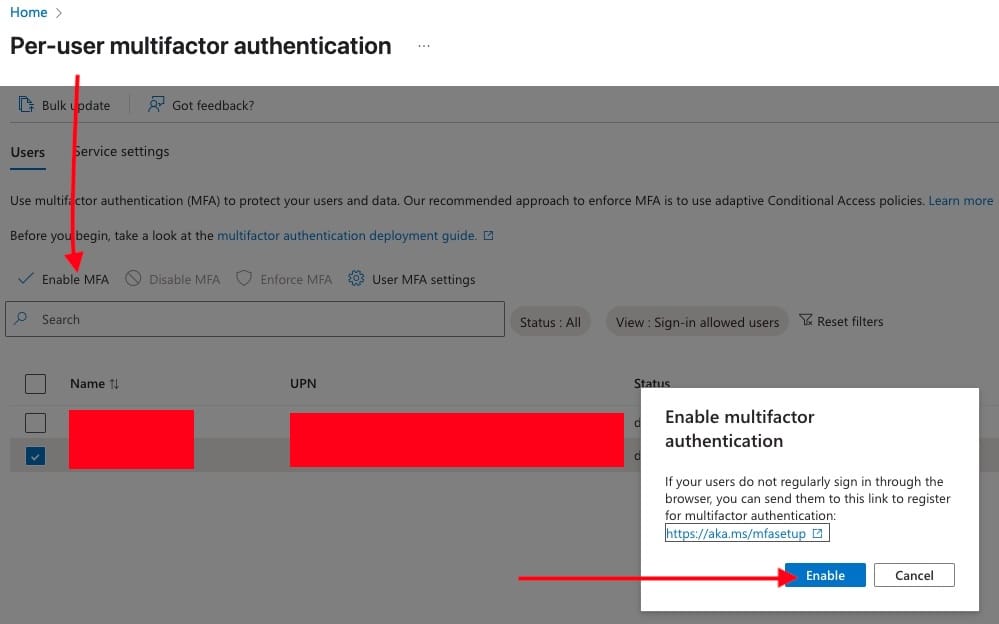
2: Temporarily disable MFA
From your Microsoft 365 Admin Center. Navigate to the Active User session and select the user you wish to temporarily disable.

As you can see below, the user account has been disabled.

Now you should be able to access your account and re-enable MFA for the account once again as shown below.
Select or add a new sign-in method as shown below

As you can see below, we have successfully added a new sign-in method.

If you wish, if not already assigned. You can re-assign product license to this user as shown below.

Please, see this guide on further ideas to troubleshoot Microsoft Authenticator issues.
Please, see BitLocker behavior when MBAM agent is removed: No Uninstall Option in Control Panel, and how to Fix MSIEXEC returned 1602: Trellix Setup cannot use this account.
Self-Service Password Reset (SSPR)
This method, I did not try personally. I employed all steps discussed above and was able to fix all my Microsoft 365 account issues. To use SSPR, navigate to the SSPR URL.
Then verify identity via backup method (SMS/email). Once in, go to Security info and re-register Authenticator. Try this method and share some screenshots in the comment session.
I hope you found this article on how to fix “Action required” in Microsoft Authenticator App very useful. Please, feel free to leave a comment below.


